Open a board
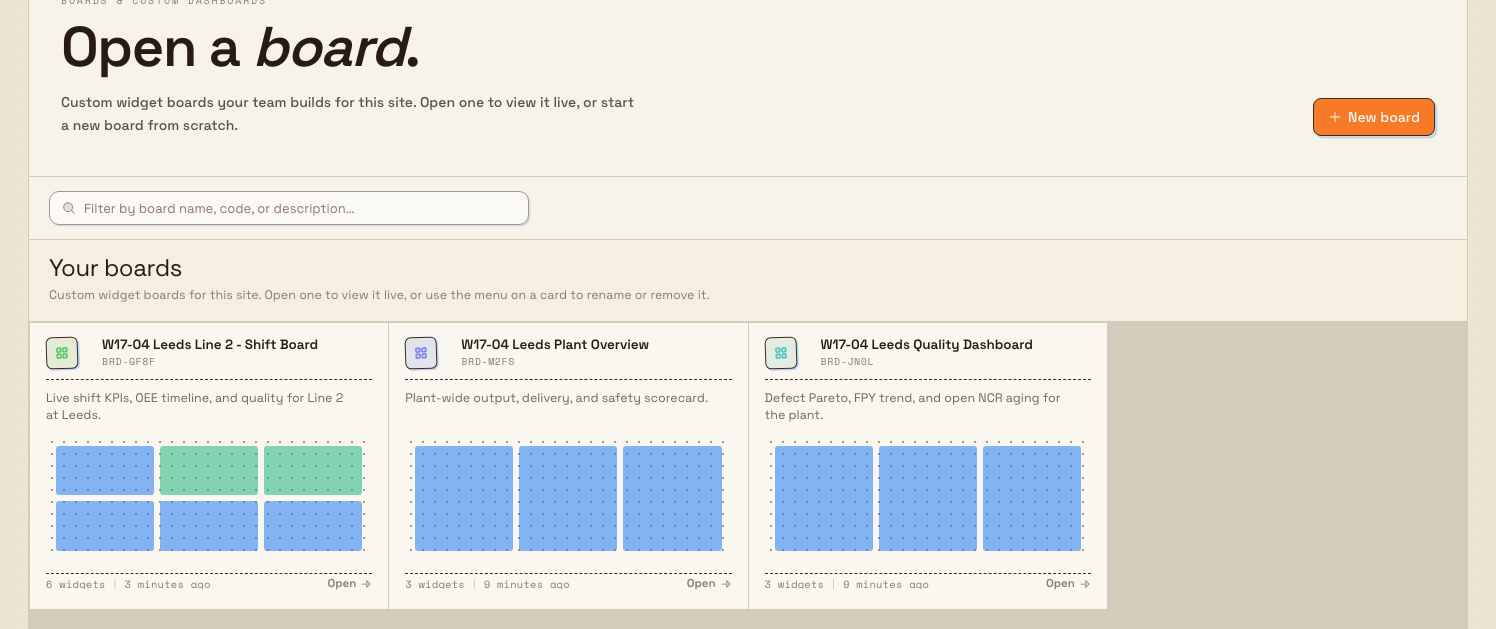
Find a board in the boards picker and open it to view its live widgets, in the current window or a new one.
Last updated
A board is a custom grid of widgets, such as KPI cards, OEE (Overall Equipment Effectiveness) scorecards and trends, quality charts, tables, and notes, that your team builds for one site. Opening a board shows those widgets live, refreshed from current data. You open a board when you want to read the numbers for a shift, line, or role without building or changing anything.
This page covers finding a board in the picker and opening it. Building a board and arranging its widgets are separate tasks — see the Boards overview linked at the end.
Before you start
To open a board you need:
- The "View boards" permission (
boards.view). This permission is granted to the Super user, Entity admin, Manager, Operator, and Dashboards roles by default. Without it, the boards page cannot load your board list. - A selected site. Boards belong to one site (called an entity in Bulk). Pick your site in the header site switcher before opening the Boards area. If no site is selected, the boards list will not load.
- Access to the board itself. A board with no viewer list is visible to everyone at the site. A private board — one with a named viewer list — is visible only to the person who created it and the people on that list.
Opening is view-only
The "View boards" permission lets you open and read any board you can see. Renaming, editing the layout, changing viewers, or deleting a board needs the extra board-management permissions, which come with the Entity admin and Manager roles.
Open a board
- From the Bulk home page, select the Boards tile (labelled "Dashboards & widgets"). This opens the Boards area at the
/boardsaddress. You can also go there directly if you have the page bookmarked. - The boards picker opens under the heading Open a board. Each card shows the board name, its description or reference code, and a small preview of its layout. The preview illustrates the widget types; open the board to read its live values.
- Find the board you want. To narrow a long list, type in the field labelled Filter boards by name, code, or description. The list filters as you type; select Clear search if nothing matches and you want the full list back.
- Open the board in whichever way suits you:
- Double-click a card to open it straight away.
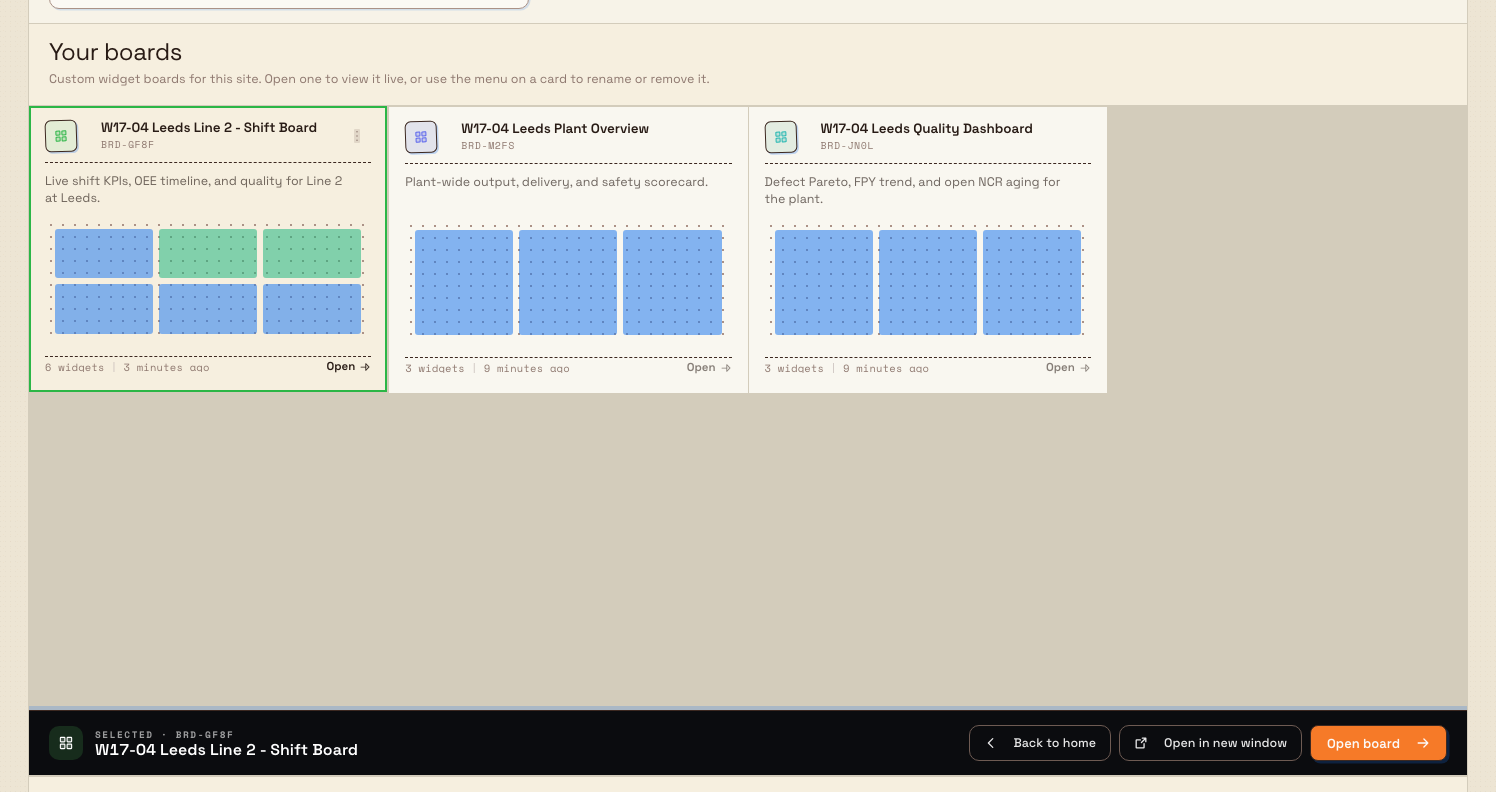
- Single-click a card to select it. A bar appears at the bottom of the page showing the selected board and three actions.
- In that bar, choose Open board to open it in the current window, or Open in new window to open it in a separate browser tab — handy for a wall display or a second monitor. Back to home returns you to the home page without opening anything.
- Using the keyboard, move focus to a card and press Enter to open it, or Space to select it.
Example: opening a Gotham production board
Bruce, a shift lead at Wayne Enterprises' Gotham Applied Sciences site, opens the Bulk home page and selects the Boards tile. He types 'production' into the filter field to find Gotham Production Review.
He single-clicks the card to check the layout preview, then selects Open in new window. The board opens in another browser tab with live OEE and quality widgets. Bruce can continue working in his original tab while the board refreshes.
What you should see
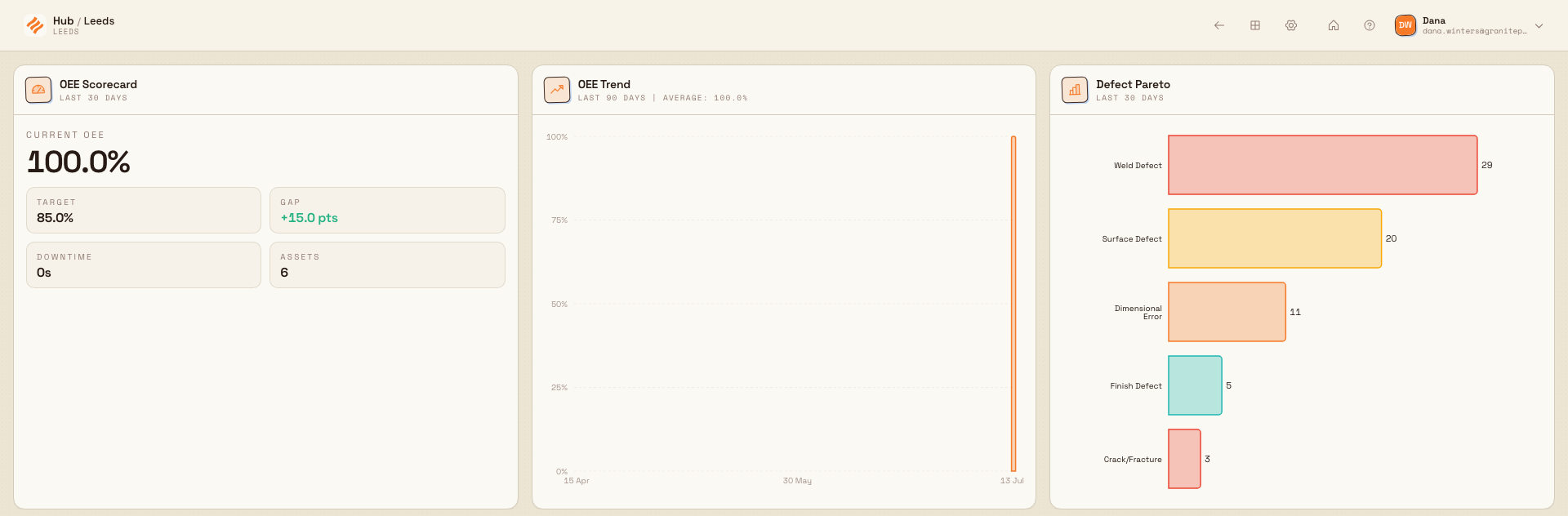
When a board opens, it fills the screen with its widgets, each loading live data for the selected site. The browser tab title changes to the board's name. A slim header sits across the top with a back arrow labelled Back to boards, plus controls to edit the layout and open board settings (these editing controls act only if you have the board-management permissions).
Feature state and limits
Boards is an available, generally released feature. A few things to keep in mind when opening one:
- Private boards stay hidden. If you are not the creator or a named viewer of a private board, it does not appear in your picker, and opening a direct link to it shows Board not found.
- Only active boards appear. Boards that have been removed or deactivated are not listed in the picker.
- New window depends on the browser. Open in new window asks your browser to open a new tab. If a pop-up blocker stops it, allow pop-ups for Bulk and try again.
Troubleshooting
- "Board not found" after opening a link. The board may have been deleted, or you may not have access to it. Select Back to boards to return to the picker and open a board you can see.
- A board you expected is missing from the list. Check that the filter field is empty (select Clear search), confirm you have the right site selected in the header, and remember that private boards only show for their creator and named viewers.
- The list will not load at all. Confirm a site is selected and that your role includes the "View boards" permission. If neither is the problem, reload the page.
- No boards exist yet. The picker shows a Build your first board prompt with a Create board button. Creating a board needs a board-management role; if you only have view access, ask an Entity admin or Manager to build one.
Related
- Boards overview — what boards are and how to build and manage them.
- Dashboards overview — Bulk's built-in analytics dashboards, a related way to view live data.
- Teamboards overview — plant-level visual management boards for shift and team communication.