Edit a whiteboard
Draw, add shapes and text, and rework a shared whiteboard canvas — every change saves automatically as you work.
A whiteboard in Bulk is a shared canvas for free-form visual work: sketching a layout, mapping a process, running a shift huddle, or annotating a photo of the shop floor. Editing a whiteboard means changing what is on that canvas — drawing shapes, adding text and arrows, moving things around, or clearing the board. This page explains how editing works, how your changes are saved, and what you can and cannot do depending on your access.
Because a whiteboard is shared, editing is collaborative and continuous: there is no separate "edit mode" to switch on and no Save button to press. If you can edit the board, you simply start working on the canvas, and Bulk saves as you go.
Before you start
You can edit a whiteboard's canvas when either of these is true:
- You are the owner of the whiteboard (the person who created it). Owners always have full access.
- The owner has shared the whiteboard with you as an Editor.
If a whiteboard has only been shared with you as a Viewer, it opens read-only: you can look at and follow the board, but the drawing tools are disabled. Editing is also enforced on the server for every change, so a board can never be altered by someone without edit access, even if they reach the editor.
Access to a specific whiteboard is managed per board, not by your job role. To change who can edit, see Collaborate on a whiteboard.
Open a whiteboard for editing
Open the Whiteboard home, then open the board you want to work on. The board opens full-screen in the editor at a URL of the form /whiteboard/:id. Boards you do not have access to appear on the home grid with a "No access" overlay and cannot be opened.
For creating a new board or finding an existing one, see Create or open a whiteboard.
whiteboard.edit-01
Work on the canvas
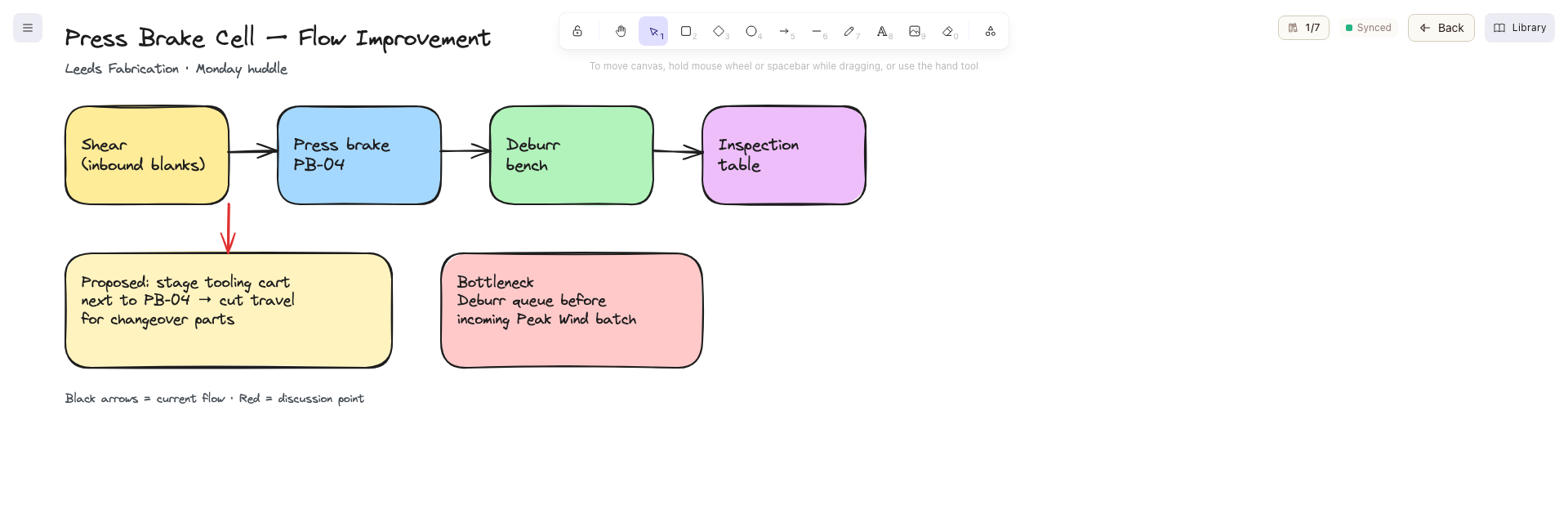
The toolbar at the top of the canvas holds the drawing tools. From it you can:
- Select, move, and resize elements already on the board.
- Draw shapes such as rectangles, diamonds, and ellipses.
- Add arrows and lines to connect ideas or show flow.
- Draw freehand.
- Add text labels.
- Add images — the image tool is available only when you can edit the board.
You can pan around the canvas and zoom in and out to work on a detail or see the whole board. The canvas is effectively unbounded, so you are not limited to a single "page."
Reusable shape collections are available from the library picker in the top-right of the editor, and images can be dropped or pasted onto the canvas. For more on those, see Use files and media on a whiteboard.
Your changes save automatically
There is no Save button. Bulk saves your edits automatically a moment after you stop making them. A small status pill in the top-right of the editor tells you where your changes stand:
- Synced — everything you have done is saved.
- Saving... — your latest changes are being written.
- Merging... — your changes are being combined with edits made by someone else at the same time.
- Conflict — two people changed the same element at once (your other changes keep syncing).
- Offline — changes are not reaching the server right now.
When you leave the board with the Back button, Bulk finishes saving any pending changes before returning you to the Whiteboard home, so you do not need to wait for "Synced" before you go.
Working with other people at the same time
Whiteboards update live. When someone else opens the same board, their avatar appears in the top-right, and their edits stream onto your canvas as they make them. See Collaborate on a whiteboard for how live editing and presence work.
The whiteboard menu
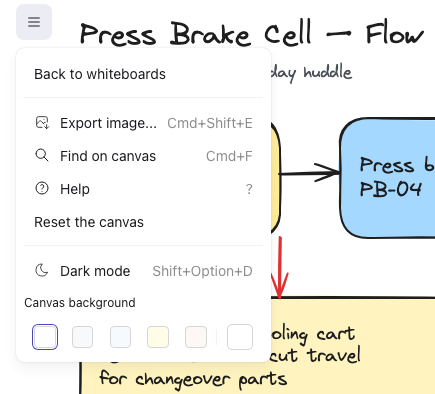
The menu button in the top-left of the canvas opens the whiteboard menu. Depending on your access, it offers:
- Back to whiteboards — return to the Whiteboard home (this saves pending changes first, the same as the Back button).
- Save as image — download a copy of the current board as an image to your device. This does not change the board.
- Search and Help — find elements on the canvas and open drawing help.
- Reset the canvas — remove everything on the board. This appears only when you can edit.
- Toggle theme — switch the editor between light and dark.
- Change canvas background — set the background color of the board.
whiteboard.edit-02
Reset the canvas erases everything
Reset the canvas clears the entire board immediately, with no confirmation prompt, and the empty board is saved right away. Because the board is shared, this removes the content for everyone, not just you, and there is no undo once it saves. Use it only when you genuinely want to start the board over.
When a whiteboard is read-only
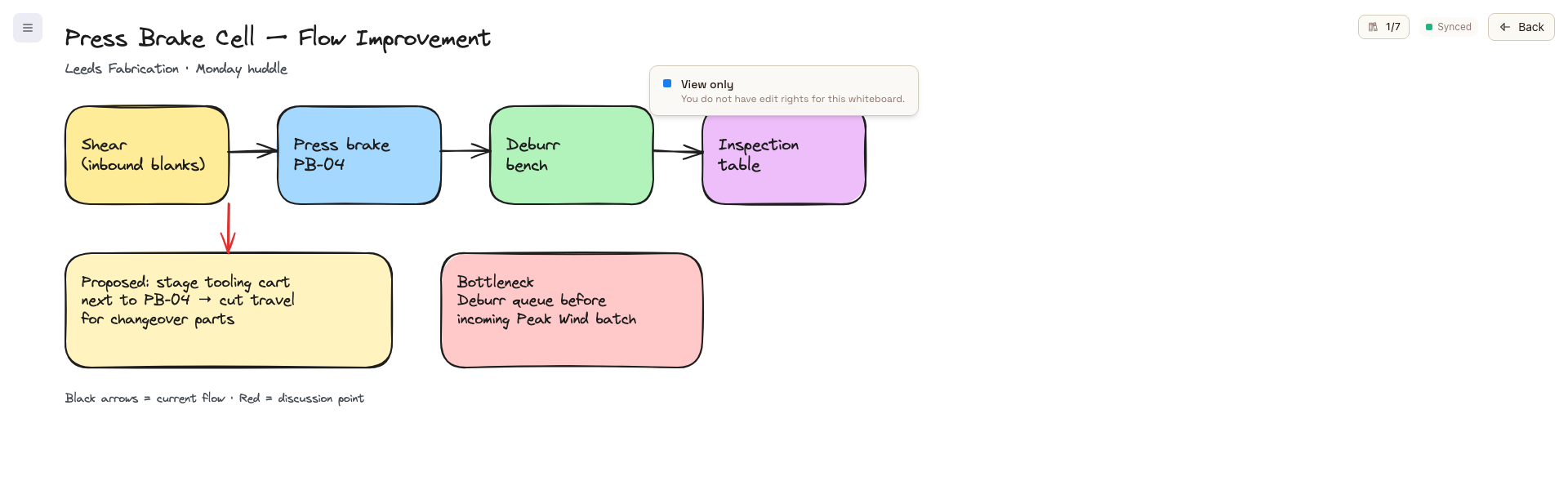
If you open a board you can only view, it opens in read-only mode. A View only banner appears near the top of the editor with the note that you do not have edit rights, the image tool is hidden, and the drawing tools do nothing. You can still pan, zoom, follow live changes, and use Save as image to take a copy away with you.
If your edit access is removed while you have the board open, your next change cannot save. Bulk shows a No edit rights message explaining that you can view the board but editing is disabled, and the board switches to read-only. Anything already saved before that point is kept.
whiteboard.edit-03
Example: reworking a cell layout at Granite Peak Manufacturing
Dana Winters, the process lead at Granite Peak Manufacturing's Leeds Fabrication Plant, is preparing for a Monday improvement huddle for the press-brake cell. She owns a whiteboard named "Press Brake Cell — Flow Improvement."
Dana opens the board, drops in a photo of the current cell floor plan, and draws labeled rectangles over it for each workstation — the shear, the brake, the deburr bench, and the inspection table. She adds arrows to show how a part moves through the cell today, then a second set of arrows in a different color for the proposed flow, and a few text notes for the bottlenecks she wants to discuss. She does not press save at any point; the status pill ticks from "Saving..." back to "Synced" as she works.
When a colleague joins to review the sketch, their avatar appears in the top-right and Dana watches them add a note to the deburr step in real time. By the time the huddle starts, the board is up to date for everyone who opens it.
Expected result
Your edits are saved to the whiteboard and become part of the shared board. The status pill returns to Synced once saving finishes, anyone with access sees your latest version, and the board's thumbnail on the Whiteboard home refreshes to reflect the visible changes. Leaving through Back or Back to whiteboards returns you to the home grid with your work saved.
Feature state and limitations
Editing whiteboards is generally available.
- Editing needs edit access. Only the owner and users shared as Editor can change a board; everyone else gets read-only. This is enforced on the server for every save.
- Autosave only. There is no manual save and no per-change undo of a save — the board reflects the latest state as you and your collaborators edit.
- Reset the canvas is immediate and shared. It clears the whole board for everyone with no confirmation, as described above.
- Board size has a limit. The board's shapes, text, and layout are stored together with an upper size limit of roughly 900 KB (images are stored separately and do not count against it). A single board with an extremely large number of elements can reach this limit and show "Whiteboard document is too large to save"; split very large boards into more than one whiteboard if you hit it.
- Best on a larger screen. The top-right cluster of collaborator avatars, library picker, save status, and Back button is hidden on small phone-width screens; use the whiteboard menu instead when you are on a narrow display.
Troubleshooting
The drawing tools are greyed out and a "View only" banner is showing. You have Viewer access to this board, not Editor. Ask the whiteboard's owner to change your access to Editor from the board's access settings — see Collaborate on a whiteboard.
The status pill says "Offline," or a "Reconnecting" banner appears. Your changes are not reaching the server, usually because of a network drop. Bulk keeps retrying on its own and shows "Autosave restored" once it reconnects. Stay on the board rather than closing the tab until the pill returns to Synced, so your latest edits are not lost.
"Editor failed to load." The whiteboard editor could not finish loading, typically after an app update. Use the Reload button on that screen to fetch a clean copy, or Go home and reopen the board.
A save is blocked with a message about images finishing uploading. An image you added is still uploading, and the board waits for it to finish before saving. Let the upload complete, or retry it from the on-screen prompt. See Use files and media on a whiteboard.
Related
Create or open a whiteboard
Start a new whiteboard or open an existing one from the Bulk whiteboard picker, and understand who can create boards and how access to them works.
Collaborate on a whiteboard
Work on the same whiteboard with your team in real time — see who is on the board, share it as a Viewer or Editor, transfer ownership, and rely on autosave to keep everyone in sync.