Use files and media on a whiteboard
Add photos and images to a whiteboard canvas, understand how Bulk uploads and stores them, and export a finished board as an image file.
A whiteboard in Bulk is a shared, free-form canvas for visual work: sketching a layout, mapping a process, or talking through a problem with your team. Bulk is a Manufacturing Execution System (MES) — the software that runs and records shop-floor work — and a whiteboard is the freeform space for the thinking that structured screens do not cover. This article covers the media side of that canvas: adding images (photos and pictures) to a board, how Bulk saves them, and how to export a whole board as an image to share outside Bulk.
Media on a whiteboard means images placed onto the canvas — a photo of a part, a picture of a fixture or defect, a scanned floor plan, or a screenshot you want to annotate. You draw shapes, arrows, and text around those images the same way you would on any whiteboard. Images are the media type a whiteboard handles; a whiteboard is not a document store, so it does not attach spreadsheets, PDFs, or other files the way the Files area does.
Before you start
Adding images to a board depends on your access to that specific board, not on your job role:
- You need edit access to the board. You can add images if you are the board's owner (you created it) or the owner has shared it with you as an Editor. Bulk checks this on the server every time you add an image, so a board can never gain an image from someone without edit access.
- Viewers cannot add images. If a board is shared with you as a Viewer only, it opens read-only: the image tool is hidden and the drawing tools are disabled. Ask the owner to make you an Editor. See Collaborate on a whiteboard.
- The board must already be open. Open a board from the Whiteboards home first. See Create or open a whiteboard.
You do not need the create-whiteboards or delete-whiteboards role permission to add images to a board you can already edit. Those permissions only control making and removing boards, not working on their canvases.
Add an image to the canvas
When you can edit a board, the drawing toolbar at the top of the canvas includes an image tool. There are three ways to bring an image in:
- Use the image tool. Select the image tool in the toolbar, then choose an image file from your device. Bulk places it on the canvas where you click, and you can move, resize, and layer it like any other element.
- Drag and drop. Drag an image file from your computer straight onto the canvas.
- Paste. Copy an image (for example from a photo viewer or a screenshot) and paste it onto the canvas.
Bulk handles common raster image formats such as PNG and JPEG. Once an image is on the board, you annotate around it with the shapes, arrows, and text described in Edit a whiteboard.
whiteboard.files-media-01
How Bulk saves your images
You never save an image by hand. As soon as an image lands on the canvas, Bulk uploads it to secure storage in the background and links it to the board. This keeps large photos out of the board's main document, which has an upper size limit of roughly 900 KB — images are stored separately and do not count against it, so a board full of photos still saves.
While an image uploads, Bulk shows a short overlay over the editor titled Uploading image, with the note "Saving the image to the board. Editing will resume when it finishes." The overlay pauses editing for the moment the upload takes, then clears on its own. If more than one image is uploading at once, the overlay adds a count, such as 2 images uploading.
Your board does not finish saving until its images have uploaded. If you add an image and then leave straight away with Back, Bulk waits for the upload to complete before it saves and returns you to the Whiteboards home, so the image is part of the saved board.
Autosave and image uploads work together
Whiteboards save automatically as you work — there is no Save button. Image uploads are one step inside that autosave: the save status pill can show Saving... while an image finishes uploading, then returns to Synced. For how autosave and live collaboration behave, see Edit a whiteboard and Collaborate on a whiteboard.
When an image upload fails
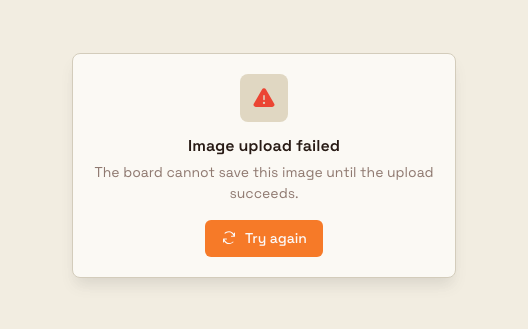
If an upload cannot complete — usually a network drop — Bulk retries a couple of times on its own. If it still fails, the overlay changes to Image upload failed with the note "The board cannot save this image until the upload succeeds." and a Try again button. Select Try again once your connection is back to re-run the upload.
whiteboard.files-media-02
An image that never uploads is not saved
The board only saves an image after its upload succeeds. If an upload keeps failing and you close the board or delete the image before it finishes, that image is not stored and will not be on the board when you or a colleague reopen it. Retry the upload until the overlay clears, or check your connection, before leaving the board.
Export a board as an image
The other side of media is taking a board out of Bulk as a picture. From the whiteboard menu (the menu button in the top-left of the canvas), Save as image downloads a copy of the current board as an image file to your device. This is an export: it does not change the board or remove anything from it, and it is available whether you can edit the board or only view it. Use it to drop a board into a report, a slide, or an email.
For the full whiteboard menu, see Edit a whiteboard.
Example: annotating a defect photo at Granite Peak Manufacturing
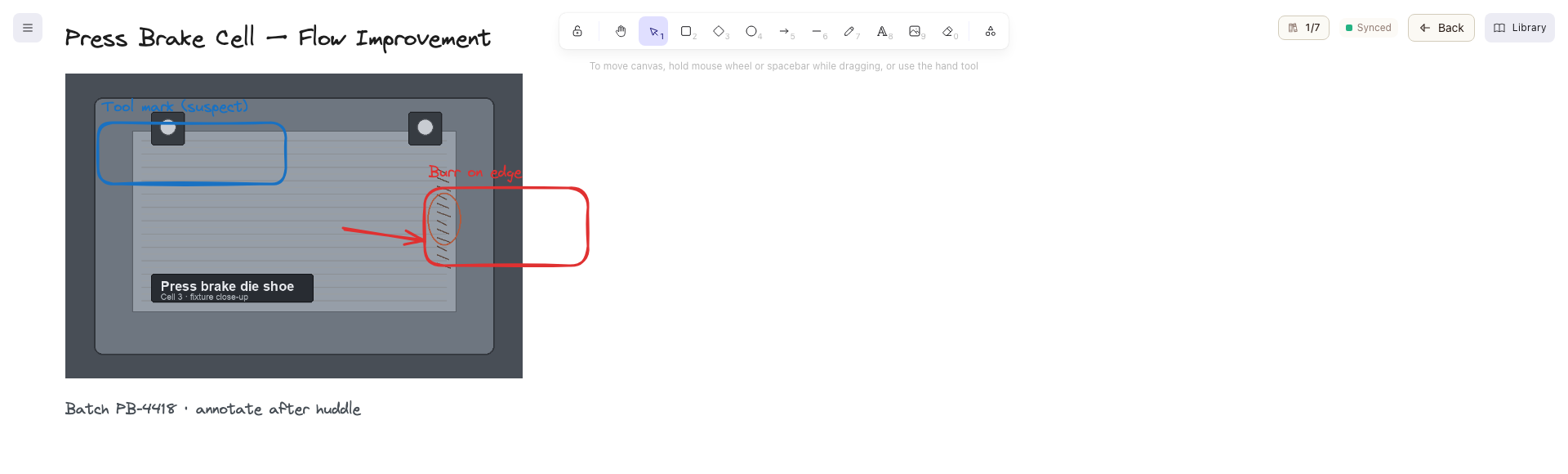
Dana Winters, a process lead at Granite Peak Manufacturing's Leeds Fabrication Plant, is chasing a recurring burr on parts coming off the press-brake cell. She opens the shared whiteboard "Press Brake Cell — Flow Improvement", where she has Editor access, and drags a close-up photo of the burred edge onto the canvas. The Uploading image overlay flashes for a moment and clears once the photo is stored.
Dana draws a labelled rectangle around the burr, adds an arrow to the tool mark that seems to cause it, and types a note with the batch number. A quality engineer joins the board and adds a second photo of the tool, and both images stay on the canvas for the team. Because the photos are stored separately from the board's drawing, the board still saves cleanly even though it now carries two full-resolution images. After the huddle, Dana uses Save as image to export the annotated board and pastes it into the corrective-action record.
Expected result
The images you add become part of the shared board: anyone with access sees them, they persist when the board is reopened, and the board's thumbnail on the Whiteboards home refreshes to reflect the new content. The Uploading image overlay confirms each upload, and the save status settles on Synced once uploads finish. Save as image gives you a standalone picture of the whole board to use elsewhere.
Feature state and limitations
Using images on whiteboards is a generally available part of Bulk. A few boundaries are worth knowing:
- Images only. A whiteboard's media is images placed on the canvas. It is not a document library — you cannot attach spreadsheets, PDFs, or arbitrary files to a board, and images are not linked back to jobs, assets, or reporting.
- Edit access required to add images. Only the owner and users shared as Editor can add images. Viewers see no image tool, and the server rejects any image change from a user without edit access.
- Uploads must finish before a board saves. A board with a pending image upload does not save until the upload completes; an image that never uploads is not stored (see the warning above).
- Format support follows the embedded-image editor. Bulk handles standard raster image formats — PNG, JPEG, GIF, and WebP render in board previews. Other formats, such as SVG, may not preview reliably.
- Best on a larger screen. The image tool and the top-right status cluster are part of the full editor; on a narrow phone-width screen the top-right controls are hidden. Add images from a tablet or desktop for the most room to work.
Troubleshooting
- There is no image tool in the toolbar. You have Viewer access to this board, not Editor, so the drawing tools — including the image tool — are disabled and a View only banner is shown. Ask the board's owner to change your access to Editor in Manage access. See Collaborate on a whiteboard.
- The "Uploading image" overlay is stuck, or you see "Image upload failed." The image could not reach Bulk's storage, usually because of a network drop. Check your connection and select Try again on the overlay. Stay on the board until the overlay clears so the image is saved.
- A save seems blocked after you add an image. The board waits for embedded images to finish uploading before it saves. Let the upload complete — the Uploading image overlay tells you it is in progress — or retry a failed upload. See Edit a whiteboard.
Related guidance
- Whiteboard — overview of the whiteboard module.
- Edit a whiteboard — draw, annotate, and rework the canvas, plus the whiteboard menu and autosave.
- Create or open a whiteboard — start a new board or open an existing one.
- Collaborate on a whiteboard — share a board and set who can view or edit it.
Collaborate on a whiteboard
Work on the same whiteboard with your team in real time — see who is on the board, share it as a Viewer or Editor, transfer ownership, and rely on autosave to keep everyone in sync.
Administration
Where administrators configure Bulk — organization-wide settings, per-site entity settings, master data, and the operational setup every module draws on — all reached under Settings in the left navigation.