Follow a task
Add followers so people can track a task's activity and receive its notifications without being assigned the work.
Last updated
A task in Bulk is a unit of work that lives inside a project — for example a repair, an inspection, or a corrective action. A follower is someone who tracks a task without being responsible for doing the work. Followers receive notifications about the task's activity — such as when its status changes, when someone comments, or when it is completed or becomes overdue — so they can stay informed without being assigned to it.
Follow a task when a person needs visibility but is not the one carrying it out: a supervisor keeping an eye on a critical repair, a quality engineer watching a corrective action, or a colleague whose own work depends on the outcome.
Followers are not assignees
An assignee is responsible for completing a task; a follower only watches it. Adding a follower does not assign the task to that person or change who is accountable for the work. To give someone ownership instead, see Assign a task.
Before you start
- You need the View tasks permission (
tasks.view) to open a task and see its Followers card. - You need the Update tasks permission (
tasks.update) to add or remove followers. The built-in Super user, Entity admin, Manager, and Operator roles include this permission. A view-only role such as Dashboards can see followers but cannot change them. - Anyone you add must be an active user with access to the entity — the site or plant — that the task belongs to. Bulk rejects a follower who does not have access to that entity.
Where followers appear
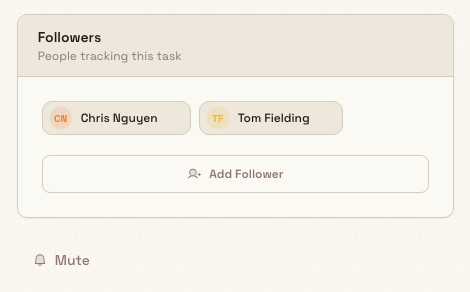
Open a task from the Tasks list to reach its detail page (at the address /tasks/ followed by the task's ID). The Followers card, labelled People tracking this task, sits in the right-hand sidebar below the task overview. The same card appears in the quick task preview dialog when you open a task without leaving the list.
Each follower shows as a tag with their initials and name. When there are no followers yet, the card reads No followers.
Add a follower
- Open the task and find the Followers card in the sidebar.
- Select Add Follower.
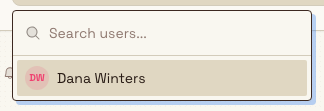
- In the Search users... field, type a name to narrow the list, then select the person you want.
Bulk adds them immediately and confirms with a Follower added message. The picker lists only active users who are not already following the task, so you cannot add the same person twice. If no matching candidates remain, the picker shows No users found.
Remove a follower
Hover over a follower's tag and select the X that appears on it. Bulk removes them right away and confirms with a Follower removed message. Removing a follower stops their notifications for that task but leaves the task and its history intact.
What followers receive
Once someone follows a task, Bulk includes them — alongside the task's assignees — when it sends notifications about that task's activity. Followers can receive updates such as Task status changed, New task comment, Task completed, Task due soon, and Task overdue. Notifications appear in your in-app notifications and, depending on each person's own settings, by email. The person who performed an action is not notified about their own change.
Each recipient's personal notification settings still apply, so an individual can turn off task emails or specific event types for themselves.
Mute notifications for a task
Below the Followers card, the Mute button (a bell icon) stops Bulk from sending notifications for the task. Select it to mute; the button then reads Unmute (a bell-with-slash icon), and selecting it again resumes notifications. Bulk confirms each change with Notifications muted or Notifications unmuted.
Muting applies to the whole task
Muting is stored on the task itself, not on your own account. When a task is muted, Bulk holds back its notifications for everyone who would otherwise receive them — every follower and assignee — until it is unmuted. Use it to quieten a noisy task for the whole team, not as a personal-only setting.
Example: following a laser-cell maintenance task
At Gotham Applied Sciences, Bruce Wayne wants to track Replace cutting blades on the Gotham laser cell. He opens the task, selects Add Follower, searches for Bruce and chooses his name.
Bruce now appears on the Followers card. Following the task lets him receive updates from other people without making him an assignee. His notification settings and the task's Mute control still apply.
Expected result
The people you add appear as tags on the Followers card and begin receiving notifications about the task's activity. Follower changes are recorded in the task's Activity history, so you can see who was added or removed and when.
Limitations and availability
Following tasks is generally available in Bulk.
- Muting affects the whole task. The Mute control is task-wide, not per-person; muting suppresses the task's notifications for every follower and assignee.
- Followers must have entity access. You can only add active users who have access to the site or plant the task belongs to.
- No dedicated self-follow button. There is no one-click Follow control for the current user. You add yourself the same way you add anyone else, through Add Follower.
Troubleshooting
- The person I want isn't in the list. The picker shows active users who are not already following the task. Check that the person's account is active, and use the search field to find a specific name.
- Adding a follower fails with a permission or access error. Adding or removing followers needs the Update tasks permission — if you only have view access, ask an administrator. If the message says the person lacks access to the entity, they first need access to the site or plant the task belongs to.
- A follower says they aren't getting notifications. Check whether the task is muted (the button reads Unmute), then confirm the follower hasn't turned off task notifications in their own settings.
Related guidance
- Assign a task — give someone ownership instead of only visibility.
- Comment on a task — followers are notified about new comments.
- Complete a task — completion notifies followers.
- Tasks — overview of working with tasks.
Attach a file to a task
Add photos, documents, and other files to a task from its Details tab so evidence and reference material stay with the work.
Link a task to another record
Connect a task to a related risk assessment, production order, or production job from the task description so your team can open the source record in one click.