Work management
How Bulk connects projects, tasks, and files so teams can plan improvement work, assign it, track it to done, and keep supporting documents together.
Last updated
Work management is where your teams plan and track everyday improvement work in Bulk. It brings three connected areas together: Projects group related work, Tasks are the individual pieces of work that people own and complete, and Files holds the documents and images that support that work. Use it when you need to turn an idea, an audit finding, or a safety action into assigned, trackable work that does not get lost in email or chat.
Projects and tasks belong to the site you have selected in the header (for example, Gotham Applied Sciences). Switch sites to see a different plant's work. Files can be organised into folders and shared or restricted per folder, as described below.
The three building blocks
Projects
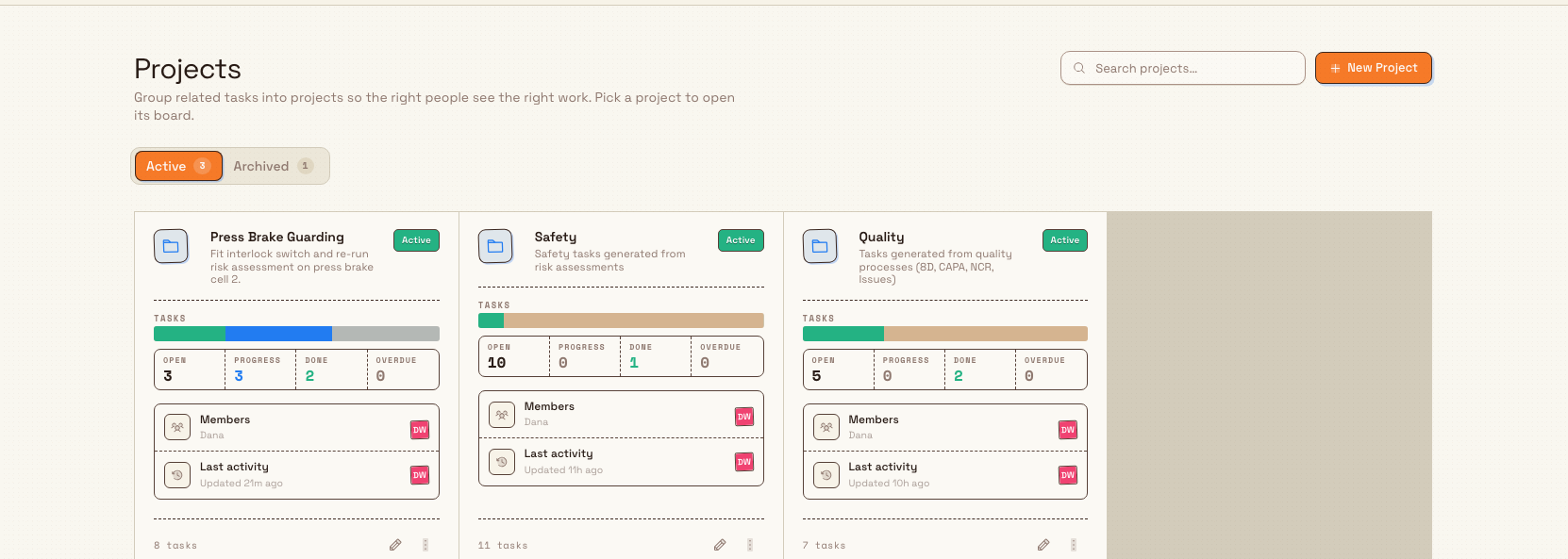
A project is a container that groups related tasks so the right people see the right work. Each project has a name, an optional description and colour, an owner, and a set of members. Bulk assigns every project a short code automatically, such as PRJ-001. Open a project to see its tasks and a summary of how many sit in each status.
You reach projects from Tasks → Projects in the sidebar, or at the /projects page. The list separates Active and Archived projects using segmented tabs, each with a live count, and you can search projects by name.
Read more in Projects, including how to create a project, organize projects in folders, work with a project (Overview, Tasks, Gantt, Activity), use the Gantt timeline, adjust project settings, and archive a project.
Tasks
A task is a single piece of work, and every task belongs to a project. Each task carries a status, a priority, an optional Due Date, and one or more Assignees. Statuses are To Do, In Progress, Review, Done, and Cancelled. Priorities are Urgent, High, Medium, Normal (the default), and Low.
Beyond those basics, a task can hold a checklist, a comment thread (where you mention a colleague by typing @ and their name), file attachments, and followers who want to keep an eye on progress without owning the work. A task can also link directly to other records so the context is one click away: in the description you type @RA to link a risk assessment, @ORDER for a production order, or @JOB for a production job, and tasks can also reference quality records such as 8D reports, CAPAs, NCRs, and quality issues.
You reach tasks from Tasks → Tasks in the sidebar, or at the /tasks page, where you can filter by status, priority, and assignee. To add one, use New Task in the sidebar or Create Task inside a project.
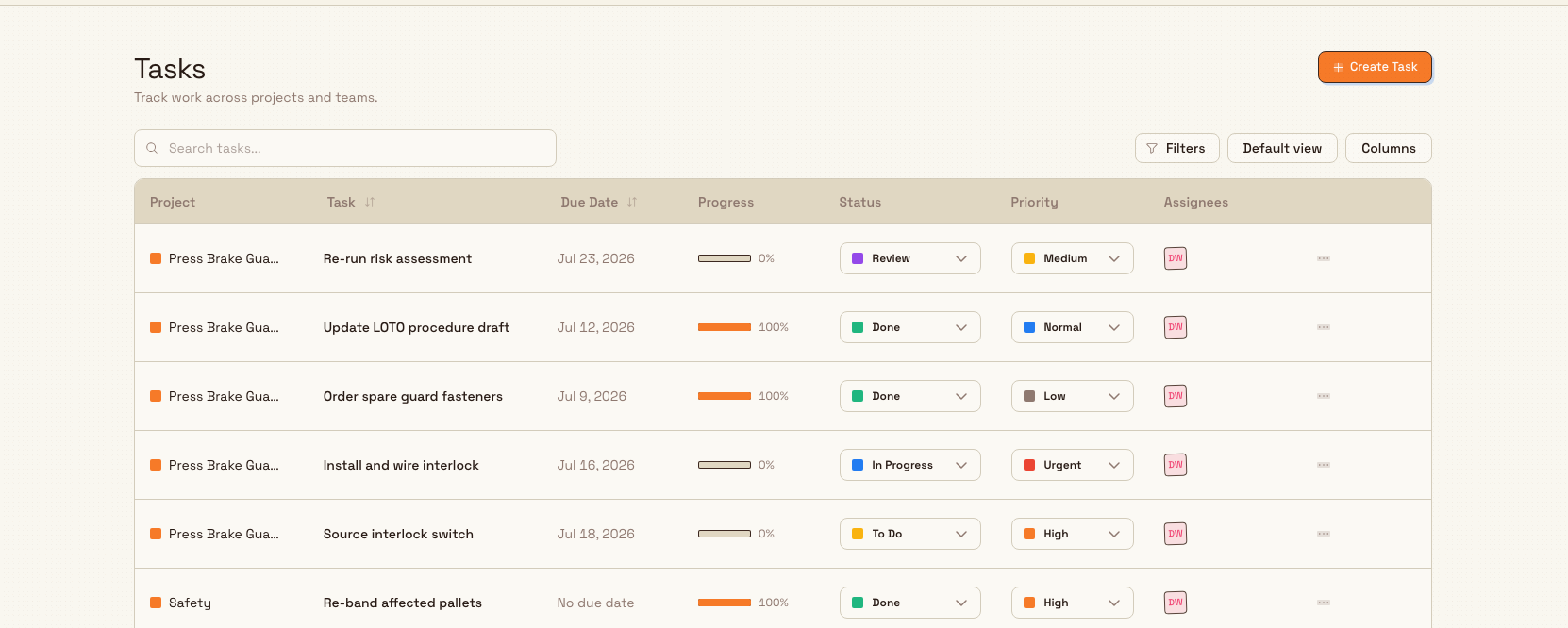
Read more in Tasks, including how to create a task, assign a task, add a checklist, break work into subtasks, comment and mention people, attach files, follow a task, link related records, and complete a task.
Files
Files is your document library for images, PDFs, and other attachments. You organise them into folders, upload from your computer (or drag files onto the page), search within a folder, and switch between a grid and a list view. Each folder has an Access mode: Public, where anyone with Files access can open it, or Managed, where only the users you list can open it. That lets you keep sensitive documents to a named group while everything else stays open to the team.
You reach files from Files in the sidebar, or at the /files page. Files you upload here can be attached to tasks and used elsewhere in Bulk.
Read more in Files, including how to browse files, upload a file, organize files into folders, preview a file, and use files in other modules.
How the pieces fit together
The three areas are designed to work as one flow. You group work into a project, break it into tasks, and give each task an owner, a due date, and the context it needs: a checklist of steps, a file attachment such as a supplier datasheet, and a link to the record that prompted the work.
As people do the work, the task keeps itself current. Ticking off checklist items raises the task's progress, and when progress reaches 100% Bulk asks whether you want to move the task to Done. Assignees and followers are kept informed automatically: Bulk notifies people when a task is assigned to them, when they are mentioned in a comment, when a task is due soon, when its status changes, and when it is completed. Anyone who finds the updates too noisy can mute notifications on an individual task.
A task always lives in a project
When you open Create Task, the Project field is required. If you just want a quick to-do, create (or reuse) a lightweight project such as General first, then add tasks to it. Grouping work this way keeps the task list filterable and gives every task an owner and a home.
Before you start
Access to work management is controlled by permissions, which come from the role each person holds. The seeded roles map to work management like this:
- Super user and Entity admin can do everything across projects, tasks, and files.
- Manager can also create, edit, archive, and delete projects; manage tasks; and upload, view, and delete files.
- Operator can view projects, and create, edit, assign, and comment on tasks, and upload and view files, but cannot delete tasks, create or archive projects, or delete files.
- View-only roles (for example the Dashboards role) can see projects and tasks without changing them.
In short: viewing needs the relevant view permission, day-to-day work needs create and update, and destructive actions such as deleting or archiving are reserved for administrators and managers. If a button is missing or greyed out, your role most likely does not grant that permission; ask an administrator to adjust your role.
A Wayne Corp example
At Wayne Corp's Gotham Applied Sciences, a risk assessment on the press brake flags a missing guard interlock. The maintenance lead turns that finding into tracked work:
- They create a project, Press Brake Guarding, and Bulk assigns it the code
PRJ-014. - Inside the project they add three tasks: Source interlock switch (High), Install and wire interlock (Urgent), and Re-run risk assessment (Medium), each assigned to an owner with a due date.
- On the install task they add a checklist for the wiring steps, attach the supplier's datasheet from Files, and link the original risk assessment by typing
@RAin the description. - As the electrician ticks off checklist items, the install task's progress climbs. At 100%, Bulk offers to move it to Done.
- When the risk assessment is re-run and passes, the final task moves to Done and the maintenance lead archives the project so it drops off the Active list but stays available for reference.
Every step uses only standard work management features, and everyone assigned or following is notified as the work moves along.
What to expect
Used together, projects, tasks, and files give you a single, filterable picture of who owns what and where it stands. Source documents and related records travel with the task, so nobody has to hunt for the risk assessment, order, or datasheet behind a piece of work. Progress and status stay current as people complete their steps, and the people who need to know are notified without anyone chasing updates.
Availability and limits
Work management is generally available; it is not a beta feature. A few limits are worth knowing:
- There is no limit on the number of tasks or projects your organization can have.
- Individual task attachments are limited to 10 MB each.
- Archiving a project is reversible: an archived project moves to the Archived tab and can be restored. Deleting a project is not.
Deleting a project also deletes its tasks
When you delete a project, Bulk warns that this "will remove the project and all its tasks" and that "this action cannot be undone." If you only want it out of the way, use Archive instead, which you can reverse. Delete only when you are certain the project and every task inside it should be gone for good.
Troubleshooting
- "Cannot delete this project." A project that is shown on a teamboard cannot be deleted. Bulk lists the teamboard and widget using it. Remove the project from that teamboard widget first, then delete it, or archive the project instead.
- A control is missing or greyed out. Work management actions are permission-gated. If you cannot create, edit, assign, archive, or delete something, your role does not grant that permission; an administrator can adjust it.
Where to go next
- Tasks: Tasks overview · Create a task · Link related records · Get AI help with tasks
- Projects: Projects overview · Create a project · Archive a project
- Files: Files overview · Upload a file · Use files in other modules