Install workspace apps
Install an app to show an area of Bulk that already ships with the product on the workspace launcher, without downloading software or changing roles.
Apps is where an admin turns on areas of Bulk that already ship with the product. Open the catalogue at /apps. Open one app at /apps/ followed by its id, such as /apps/scheduling.
Installing an app turns that area on for the workspace. Bulk already contains the code. Installing does not download software, grant roles, or prove a subscription.
Open the catalogue
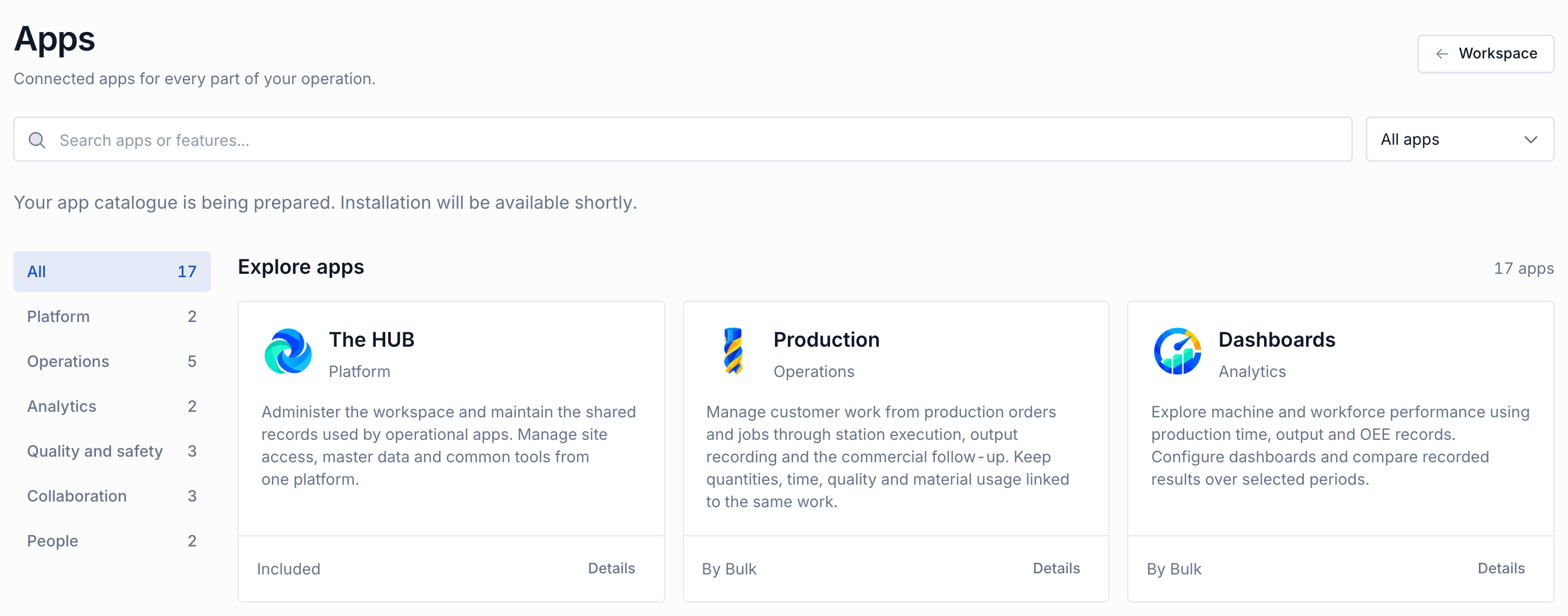
On Home, open the Your apps section and select Browse apps. The page title is Apps. The line under the title reads "Connected apps for every part of your operation." Select Workspace to return to Home.
This catalogue belongs to the workspace, not to one plant. Changing plant does not change which apps are installed.
Anyone signed in to the workspace can open the page. If you cannot install, Bulk adds this line: "Your workspace administrator can install apps for your team."
If Bulk is still preparing the catalogue, it says: "Your app catalogue is being prepared. Installation will be available shortly." Wait, then open Apps again. You cannot install while that message is showing.
While the list is loading, Bulk says "Loading apps..."
administration.apps-01
Filter the catalogue
The search box is named Search apps. Its placeholder is "Search apps or features...". Bulk matches the app name, the longer description, and the feature list.
The status menu is named Installation status. The choices are:
- All apps
- Installed
- Not installed
Installed includes apps marked Included. Those apps are already on for the workspace.
App categories starts with All. The other categories, in catalogue order, are Platform, Operations, Analytics, Quality and safety, Collaboration, and People. Each category shows how many apps it contains. That count ignores the search box and the status menu.
When All is selected, the catalogue heading is Explore apps. When you pick a category, the heading is that category name. Beside the heading, Bulk shows how many apps match the search, the category, and the status together.
If none match, the heading is No apps found. The next line is "Try a different search or clear your filters." Clear filters resets the search, the category, and the status.
Read an app
Select the app name or Details. All apps takes you back to the catalogue. An unknown address shows the heading App not found, and Browse all apps returns you to /apps.
You see the longer description. The page can also include What you can do, Connected apps, Shared resources, Permissions, and Works with.
On a catalogue card, the status line is one of three labels:
- Included means the app ships with the workspace. The HUB and Files are included. They have no Install button. On the app page, an included app says "Included with your workspace."
- Installed means the app has been turned on. On the app page it says "Installed for your workspace."
- Otherwise the card shows the publisher. Every app in the catalogue is from Bulk, so that line reads "By Bulk".
On the app page, the line under the name reads "By Bulk /" and then the category. For Scheduling, that line is "By Bulk / Operations".
Permissions states: "Installing this app does not grant permissions. Your administrator controls access through roles." To open lists what you need as "all of these" or "any of these". If the app is installed and you still cannot open it, Bulk says: "Ask your administrator for permission to use this app."
Works with lists apps this one requires. Each is marked Installed or Will be installed. The note says: "These apps are required. Any missing apps will be installed together."
When you are allowed to open the app, the card shows Open. The app page shows Open followed by the app name.
Install an app
You can install only when your role includes Edit account settings (advanced) (tenant.update). That permission is for the organization, not for one plant. The built-in Super user role includes every permission, so that role can install. The built-in Entity admin and Manager roles do not include tenant.update. You can add that permission to a custom role. See Manage roles and permissions.
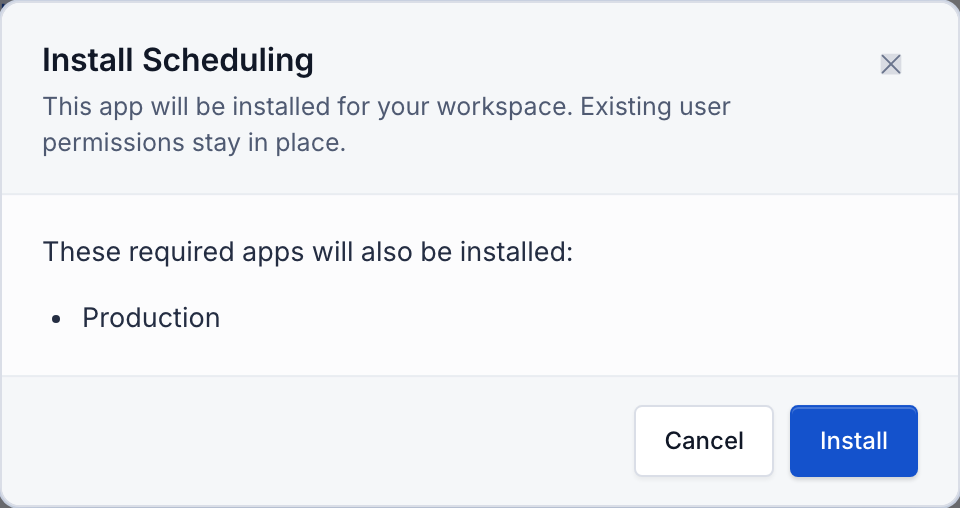
Install is shown only when the catalogue is ready, you have that permission, and the app is not included and not already installed. Choose Install on the card, or Install followed by the app name on the app page. The dialog title is Install followed by the app name. The description says: "This app will be installed for your workspace. Existing user permissions stay in place."
If a required app is not on yet, the dialog says "These required apps will also be installed:" and lists those apps. Bulk turns them on in the same step. If every required app is already on, the dialog says "All required apps are already available."
Cancel closes the dialog and changes nothing. Install confirms. The button then reads Installing.... On success, the dialog closes and Bulk reports that the app "is installed." Scheduling, for example, reports "Scheduling is installed." On failure, the dialog stays open and says "Installation failed. Please try again." You can choose Install again.
A successful install shows that app under Your apps on Home. It also shows the left navigation entries tied to that app. It does not grant the permissions those entries still check. Some entries share an app: Workstations and Finance follow Production, and Dashboard, Tasks, and Settings follow The HUB. The Dashboards app is the Analytics item in the left navigation. Inbound is not an app, so this catalogue does not show or hide it. Whiteboard and Boards show on Home when they are installed. The left navigation has no Whiteboard or Boards item.
At Granite Peak Manufacturing, Dana Winters uses a role that includes Edit account settings (advanced). She opens Apps, selects Operations, and installs Scheduling. If Production is not on yet, the dialog lists Production and installs both. Leeds Fabrication Plant and every other plant in that workspace then share the same installed set.
You cannot uninstall an app.
administration.apps-02