Administration
Where administrators configure Bulk: organization-wide settings, per-site entity settings, master data, and the operational setup every module draws on.
Last updated
Administration is where you configure Bulk for your business. It covers the settings that decide how your whole organization works, how each individual site runs, and the shared definitions: customers, assets, routings, pricing, and more: that every module reuses. You come here to set Bulk up before people start working in it, and to adjust it as your operation changes.
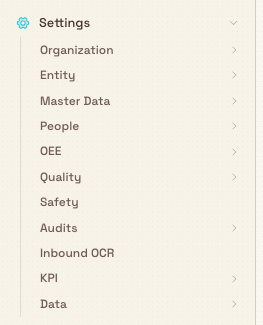
In the app, you reach all of this under Settings in the left navigation. The Settings section groups the administrative pages into areas such as Organization, Entity, Master Data, People, OEE, Quality, Safety, Audits, Inbound OCR, KPI, and Data. Multi-section settings pages use a shared page header and underline page tabs so related screens (for example Organization settings or Workflows) stay consistent. This page explains how those areas are organized, who can open them, and links you to the step-by-step guide for each one.
For guidance while configuring Bulk, open Help → Search docs. The documentation opens in a new tab, so your current Settings page stays in place.
Administration settings vs. your personal Settings page
There are two things called Settings. The administrative areas described here are the sub-pages under the Settings section in the left navigation (Organization, Entity, Master Data, and so on). Separately, the plain Settings page: with Notifications, Display, and Connection tabs: is your own account preferences, not organization configuration. Changes you make on the personal page affect only you.
Before you start
The administrative pages are gated by permissions, so what you can open and change depends on your role. Bulk ships a set of default roles, and a few carry broad administrative access:
- Super user has every permission, including managing user roles and integrations.
- Entity admin has administrative access across the organization, but does not include managing user roles or integrations.
- Manager has full operational management access across the modules, and: like Entity admin: does not include managing user roles or integrations.
- Master data is scoped to core operational setup such as assets, parts, processes, routings, and production configuration.
Each administrative area checks its own permission. If a page opens but its controls are read-only and no lock notice is shown, your role has view access but not the matching edit permission: ask an administrator to grant it. Because managing user roles and integrations is excluded from the default Entity admin and Manager roles, those two areas typically need a Super user (or a custom role granted those permissions). See Roles and permissions for how roles map to permissions.
How Administration is organized
Two things decide how far a setting reaches:
- Organization-wide settings apply to your entire company: every site, every user. Working hours, units, currencies, user accounts, and roles live at this level.
- Entity settings apply to one site only: a single facility such as a plant or a lab. Bulk calls a site an entity, and your organization can run several. Entity settings apply to the site shown in the site switcher at the top of the app, so confirm the correct site is selected before you edit if you manage more than one.
Each entity also has a timezone. Bulk uses it to keep calendar-only dates on the selected day across Inbound and Production, while date-and-time events keep their exact recorded moment. Set every site to its real local timezone before importing or scheduling work.
Alongside those two scopes sits master data: the reusable definitions (customers, assets, parts, routings, pricing, and so on) that production, inbound, and invoicing all draw from: plus the operational configuration areas that tune specific modules such as OEE, Quality, Safety, Audits, and KPIs. Shared helpers behind features such as Print label selection keep those day-to-day flows consistent across inbound and production without each module inventing its own rules.
What you can configure
Organization-wide settings and access
The Organization area holds settings that apply to your whole company: general Settings, Working hours, Units, Currencies, Displays, Integrations, Workflows, and Activity Logs. It is also where you manage who can use Bulk: Users, Access requests, and User roles. See Organization settings for the organization-wide configuration, and the dedicated guides for Users, Access requests, and Roles and permissions.
Workflows is the organization-level place to build, publish, preview, and monitor automation for the currently selected site. Workflow definitions hold their own trigger, mappings, conditions, and Actions; connected systems such as Dynamics 365 only deliver or receive configured messages. Creating or editing a workflow requires the matching Workflow permission, and every Action still checks the permission of the user recorded for the run. For an outbound Dynamics 365 message, the Workflow chooses a configured Send payload and a compatible Bulk record; the payload owns the exact field-to-column mapping.
Per-site entity settings
The Entity area configures how one site handles its day-to-day work: the operating rules and customer statuses on the Settings page, the Invoicing profile used on every invoice and credit note the site issues, and the extra Invoice Fields captured on those documents. These apply per site, so you repeat them for each entity you run. See Entity settings.
Master data
The Master Data area is where you define the reusable building blocks the rest of Bulk relies on: Naming Conventions, Production Modes, Production Items, Resources, Customers, Pricing, Assets, Parts, Routings, Processes, Custom Fields, Forms, Datasheets, and PDF Templates. Get these right early, because production jobs, inbound documents, and invoices all reference them. See Master data.
For shared shop-floor devices, edit an asset type under Master Data › Assets to configure workstation inactivity logout, its default timer and downtime cleanup behavior, and any protected downtime reasons. That inactivity policy is also the safety net for abandoned timers on shared tablets: Bulk does not impose a separate global maximum timer duration. Operators are returned to sign-in immediately while eligible cleanup continues in the background. See Configure workstation logout.
After an update, an older live routing may be marked as needing a production-safe review path. Open that routing, connect the highlighted Error / Review or Exception / Review outlet, then save, compile, and activate the corrected version. Jobs already in progress keep their original saved routing; the corrected routing applies to new jobs.
Operational configuration
Several areas tune how specific modules behave:
- People: set up Departments, Job Titles, Absence Types, and Shifts. See People configuration.
- OEE: configure the asset board, dashboards, and the downtime reasons operators pick when equipment stops.
- Quality: define the categories and root causes used to classify quality issues.
- Safety: set the safety types and settings for your site.
- Audits: build the audit templates, areas, and schedules that drive recurring checks.
- Inbound OCR: tune how Bulk reads and extracts data from the customer paperwork you scan or upload, and the forms it maps that data into.
- KPI: organize the KPI categories used to group your performance measures.
Data
The Data area is where you move information in and out of Bulk: Exports for pulling data out, Reports for saved report definitions, and Imports for loading data in bulk.
Apps
Apps is not one of the Settings groups. On Home, open Your apps and select Browse apps.
Installing an app turns a launcher entry on for your workspace. It does not download software, grant roles, or prove a subscription. See Install workspace apps.
Example: Wayne Corp
Wayne Corp is bringing its Gotham Applied Sciences site online in Bulk. Bruce Wayne, an administrator, works through Administration in a sensible order before anyone starts booking work:
- In Settings › Organization, Bruce sets the company-wide basics: working hours, units, and currencies, so every site shares the same foundations. Then, under Users and User roles, he invites the Gotham team and assigns each person a role: an Entity admin for the plant manager, Operator for the shop floor, and Master data for the engineer who maintains routings.
- In Settings › Master Data, he sets Naming Conventions for job and document numbers, adds the plant's Customers, and defines the Assets, Parts, and Routings the Gotham jobs will use.
- In Settings › Entity, with Gotham Applied Sciences selected in the site switcher, he configures the site's operating rules and customer statuses, fills in the Invoicing profile, and adds the Invoice Fields his customers need to see.
- Finally, in Settings › OEE and Settings › Quality, he sets the downtime reasons and quality categories the Gotham team will use, so their day-one data is already organized.
Because Bruce set the organization-wide foundations first and the site-specific settings second, each area references the values it needs and Gotham starts clean.
Expected result
With Administration configured, Bulk behaves the way you set it up: users sign in with the right access, each site runs under its own entity settings, and every module draws on consistent master data. From then on you return to these pages only to adjust settings as your operation changes: adding a customer, a new site, or a role.
Background work that still belongs to Administration
Some day-to-day actions: notably bulk PDF print of many orders, jobs, or inbound items: run as short-lived background jobs so large downloads stay reliable. People start those exports from inbound or production screens; the printable layouts and permissions are still configured under Settings › Master Data › PDF Templates. See Manage PDF templates for publish rules and the 1,000-record bulk export limits.
Limitations and feature state
- Several areas are marked Beta. In the product, Organization › Workflows, Organization › Currencies, Organization › Displays, Master Data › Forms, and Master Data › Datasheets carry a Beta badge, meaning their behaviour may still change. The remaining administrative areas are generally available.
- Scope matters. Organization settings apply to your whole company; entity settings apply only to the site selected in the site switcher. A setting you change in one scope does not reach the other.
- Managing roles and integrations needs the broadest access. The default Entity admin and Manager roles exclude managing user roles and integrations, so those areas usually require a Super user or a custom role granted those permissions.
- Access depends on your role. You will not see, or will not be able to edit, areas your role does not cover. This is expected; permissions are how Bulk keeps configuration in the right hands.
Troubleshooting
- A page opens but everything is read-only. Your role has view access but not the edit permission for that area. Ask an administrator to grant the matching permission. See Roles and permissions.
- You cannot find or open an area at all. Your role likely lacks view access to it: user roles and integrations, in particular, are excluded from the default Entity admin and Manager roles. A Super user can open them or grant you a role that can.
- Your changes affected the wrong site. Entity settings and other per-site areas follow the site switcher at the top of the app. Confirm the correct site is selected before you edit.
- The Settings page shows Notifications and Display, not the admin areas. That is your personal Settings page (your own preferences). The administrative areas are the sub-pages under the Settings section in the left navigation: expand it to reach Organization, Entity, Master Data, and the rest.
Related guidance
- Organization settings: company-wide configuration: general settings, working hours, units, currencies, integrations, and more.
- Entity settings: the per-site operating rules, invoicing profile, and invoice fields.
- Master data: the reusable customers, assets, parts, routings, and pricing every module uses.
- People configuration: departments, job titles, absence types, and shifts.
- Roles and permissions: how roles map to the permissions these pages require.
- Users: invite people and manage their accounts.
- Audit configuration: templates, areas, and schedules for recurring checks.
- Install workspace apps: turn a launcher entry on for your workspace. Installing does not download software, grant roles, or prove a subscription.
Configure shifts
Define named work shifts with multi-week rotations, daily start and end times, and breaks, so employee records and scheduling share one site catalogue.
Organization settings
The organization-wide settings for every site in your Bulk tenant: name and localization, sites and legal entities, units, currencies, hours, and access.