Set up the time clock
Pair a shared tablet and set the Time clock PIN, break, rounding, and auto clock-out rules, including whether paid breaks count as worked time.
Time clock is the settings screen where you pair a shared tablet and choose how this site records clock-ins, breaks, and clock-outs. Open Settings, choose People, then select Time clock. The page address is /settings/people/time-clock. Use it when you put a tablet on the floor, change the PIN or break rules, or close shifts that nobody clocked out. The person at the tablet only enters a PIN. You set the rules here.
The header is Time clock, with the description Pair tablets and set the rules for clocking in and out, and a Pair tablet button.
Who can change the time clock
Opening this page requires Configure the time clock and pair tablets (time_clock.manage). That permission is for the selected site. By default it is on the Entity admin, People, and Super user roles. The Manager role does not include it.
Without time_clock.manage, the address does not open the settings. Bulk shows an access page and names time_clock.manage. Ask an administrator to grant the permission under Settings, Organization, User roles. See Manage roles and permissions.
Two other permissions sit next to this page, and they are not the same grant:
- Clock in and out on a shared time clock (
attendance.punch) is what the tablet itself holds. You must hold it too, or Pair tablet is refused. The message is: Cannot assign "Time clock device": it grants access you do not have yourself. Entity admin and Super user holdattendance.punchby default. The People role hastime_clock.managebut notattendance.punch, so that role can save rules and still fail to pair a tablet. - Edit and approve time entries and manage clock-in PINs (
attendance.manage) is what lets you create, show, reset, or clear a person's PIN.time_clock.managedoes not do that.
The rules on this page belong to the site you have selected. Another plant keeps its own tablets and its own rules.
Pair a tablet
A paired tablet stays on a clock page. It does not show the rest of Bulk. Nobody signs in on it.
- On the tablet, open your workspace address with
/clockon the end, for example the link this page copies. The tablet shows Pair this tablet and a 6-character code in two groups of three. - The tablet also says On a phone or computer, open, then your workspace address, then Then Settings > People > Time clock, and enter the code above. A square beside that line is captioned Or scan this with your phone. On a short landscape panel the caption is Scan with your phone.
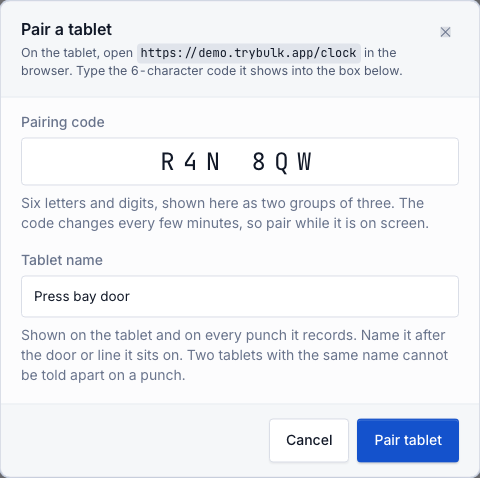
- Back on this page, select Pair tablet. The Pair a tablet dialog opens. Scanning the square opens the same dialog with the code already filled in. You still name the tablet and confirm.
- In Pairing code, type the code. The box shows it as two groups of three (placeholder ABC 123). The code changes every few minutes. The tablet says This code works for another and counts the time down. If you need a fresh code, select Show a new code on the tablet. The previous code keeps working for one minute after it is replaced.
- In Tablet name, name it after the door or line it sits on (placeholder Front door, 32 characters at most). That name is printed on the tablet and on every punch it records. Two tablets with the same name cannot be told apart on a punch.
- Select Pair tablet.
When the code is accepted, the dialog title changes to Tablet paired. It says the tablet switches to the PIN pad by itself, and that employees need a PIN set from their employee page. Select Done. The tablet itself changes its heading to Tablet paired and shows Starting the time clock...
A bad code is reported under Pairing code, not as a toast:
- That code has expired. Read the new one off the tablet and try again.
- That code is not valid. Check the tablet and try again.
If this site has no tablet yet, the Tablets card says No tablets paired yet and repeats the same three steps: open the clock address, choose Pair tablet, and wait for the PIN pad. Copy the tablet link copies that address. The toast is Tablet link copied.
administration.people.time-clock-01
After pairing, the tablet row shows a state word: Live, Not responding, Offline, Waiting to pair, or Retired. Live means the tablet was seen in the last 5 minutes. Not responding means it has been quiet for more than 5 minutes and up to 30 minutes. Offline means it has been quiet for more than 30 minutes. The row also says when it was last seen and when it was paired. A tablet that is still pairing says Waiting to pair, not seen yet.
From the row menu you can Rename or Retire tablet. Retire tablet signs the tablet out straight away and sends it back to the pairing screen. Punches it already recorded are kept. You can pair it again later. A retired row can be cleared with Remove from list. Removing the row does not delete the punches.
Set PIN rules
The card is PIN and sign-in. Its description is How people identify themselves on the tablet.
PIN length is 4 digits, 5 digits, or 6 digits. Every employee at this site uses the same length. Before this site saves its own rules, the length is 4 digits.
Changing the length replaces every existing PIN with a new random PIN. When you save, Bulk asks Replace every PIN? The dialog says how many people have a PIN, that the old PINs stop working immediately, and that you should share the new ones from each employee page before the next shift. Select Replace PINs and save, or Keep current PINs to leave the length alone. After a replacement, the toast Time clock settings saved adds how many PINs were replaced.
Lock the PIN pad after is a number of failed tries (1 to 20). Before this site saves its own rules, that number is 5. Keep it locked for is a number of seconds (10 to 3600). The matching default is 60. The lock is counted per tablet. A correct PIN never counts as a failed try, and a wrong PIN never reveals whether that PIN exists.
PINs are not created on this page. Open the person's employee record, select the Attendance tab, and use the Time clock card:
- If they have no PIN, the card says No tablet PIN and offers Create PIN.
- If they have one, Tablet PIN is masked. Manage PIN offers Show PIN, Reset PIN, and Clear PIN.
Those actions need attendance.manage. The Attendance tab itself needs View attendance and timesheets (attendance.view).
Set break rules
The Breaks card description is Whether people record breaks on the tablet and how break time counts.
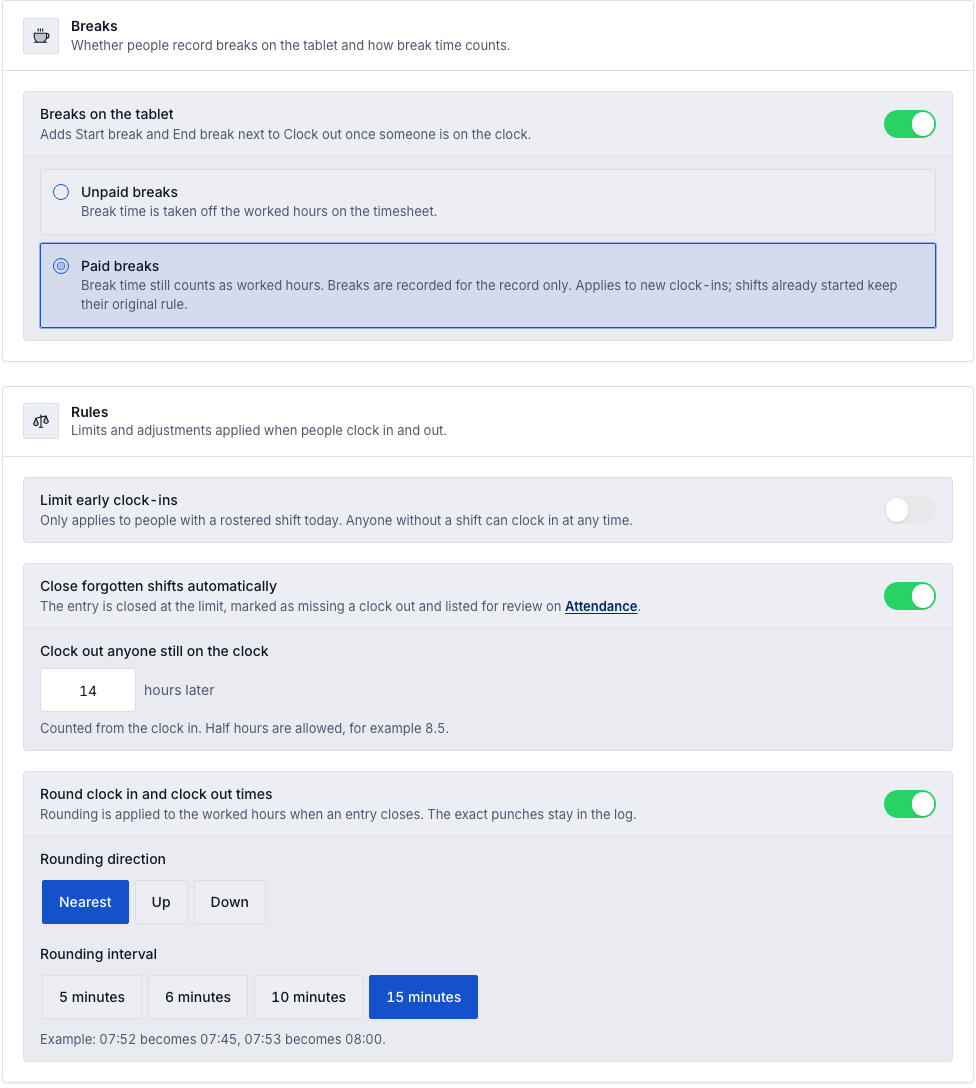
Breaks on the tablet adds Start break and End break next to Clock out once someone is on the clock. It is on unless you turn it off.
While breaks are on, choose one pay rule:
- Unpaid breaks. Break time is taken off the worked hours on the timesheet. This is the default.
- Paid breaks. Break time still counts as worked hours. Breaks are recorded for the record only.
Paid breaks count toward worked time
Paid breaks keep the break on the record, and the break minutes stay in the break total. They are not taken off worked hours. A person who clocks in, takes a 30 minute break, and clocks out has those 30 minutes inside the worked hours, not subtracted from them.
The choice is stored on the clock-in. The card says it applies to new clock-ins, and shifts already started keep their original rule. Changing Paid breaks later does not rewrite a shift that is already open.
administration.people.time-clock-02
Set rounding and auto clock-out
The Rules card description is Limits and adjustments applied when people clock in and out. Three switches live here. None of them change the tablet until you select Save changes.
Limit early clock-ins applies only to people with a rostered shift today. Anyone without a shift can clock in at any time. When the switch is on, Allow clocking in up to takes a number of minutes early (1 to 720), counted back from the start of the rostered shift. The default is off. While the saved rule is off, turning the switch on offers 10 minutes until you change it. Outside the window, the tablet refuses clock-in. The reason starts with Your shift starts at and the shift's start time, then You can clock in from and the earliest allowed time. Shift patterns are set under Configure shifts.
Close forgotten shifts automatically closes an entry that is still open, including someone who is on a break. The description says the entry is closed at the limit, marked as missing a clock out, and listed for review on Attendance. Clock out anyone still on the clock is a number of hours later (1 to 24, including half hours such as 8.5), counted from the clock-in. Before this site saves its own rules, the limit is 14 hours and the switch is on. Bulk checks about every 15 minutes. The recorded clock-out time is the clock-in plus your limit, not the time the check happens to run. On Recent activity, that punch reads Clocked out automatically.
Round clock in and clock out times rounds the worked hours when an entry closes. The exact punches stay in the log. The default is off. When you turn it on, set:
- Rounding direction: Nearest, Up, or Down.
- Rounding interval: 5 minutes, 6 minutes, 10 minutes, or 15 minutes.
With 15 minutes selected, the card shows a worked example. Nearest turns 07:52 into 07:45 and 07:53 into 08:00. Up turns 07:52 into 08:00. Down turns 07:52 into 07:45. The first time you turn rounding on, the card offers Nearest and 15 minutes.
Save the rules
The On / Off switch at the top saves on its own. Turning the clock On is immediate. The toast is Time clock turned on, and tablets accept PINs again. Turning it Off asks first: Turn the time clock off? Select Turn it off or Keep it on. The dialog says how many people are on the clock, and that they will not be able to clock out from a tablet until you turn it back on. Tablets then show that the time clock is turned off and record nothing.
Every other rule waits for the bar at the bottom of the page. While you have edits, the bar counts them by name (for example PIN length, PIN lockout, breaks, early clock-in, auto clock-out, rounding, or tablet screen) and offers Discard and Save changes. The toast is Time clock settings saved.
The strip under the status banner repeats the saved rules as PIN, Breaks (Paid, Unpaid, or Off), Rounding, Clock-out, and Lockout. While a save is waiting, a changed cell is marked Pending and still shows the Saved value. If you leave the page with edits, Bulk asks Save your time clock changes? You can Stay on this page, Discard changes, or Save changes.
Until someone saves rules for this site, the banner says Using the default rules, nothing has been saved for this site yet. Those defaults are: clock on, 4-digit PINs, breaks on and unpaid, auto clock-out at 14 hours, rounding off, early clock-in off, lockout after 5 failed tries for 60 seconds.
Open attendance leaves this page for the attendance board. Recent activity lists the last punches at this site. See all on attendance opens the rest of the log.
Set the tablet screen
The Tablet screen card description is How the tablet behaves between punches.
Return to the PIN pad after is a number of seconds (5 to 300). Before this site saves its own rules, that number is 20. It is counted from the last tap, and only after a PIN has been entered. The PIN pad itself never times out.
Play a tone after each punch is A short confirmation sound so people know the tap registered on a noisy floor. It is on unless you turn it off.
What you can expect
A paired tablet accepts a PIN and records clock in, break, and clock out for this site. Worked hours follow the break rule that was in force at clock-in. If rounding is on, the worked total is rounded when the entry closes, and the punches stay exact. If auto clock-out is on, a forgotten shift is closed at the limit and flagged as missing a clock out for review on Attendance.
Limitations
Time clock setup is generally available. Keep these points in mind:
- Rules are per site. Pair the tablet while you have the right site selected.
- Pair tablet needs both
time_clock.manageandattendance.punch. Saving rules only needstime_clock.manage. Creating PINs needsattendance.manage. - Paid breaks and Unpaid breaks apply to new clock-ins. An open shift keeps the rule it started with.
- Turning Breaks on the tablet off hides Start break for someone who is clocked in. Someone already on a break can still end that break.
- Auto clock-out is a separate switch from the master On / Off control. Turning the time clock off stops tablets taking PINs. It does not by itself turn off Close forgotten shifts automatically.
- The recorded auto clock-out time is the limit, but the entry is closed on a check that runs about every 15 minutes, so the row can appear a few minutes after the limit.
- Rounding changes worked hours when the entry closes. It does not rewrite the punch times in the log.
- A code on the tablet lasts about five minutes. After Show a new code, the old code works for one more minute.
Troubleshooting
- Time clock will not open. You need
time_clock.manage. The access page names that permission. - Pair tablet says you cannot assign "Time clock device". Your role can open the page but does not hold
attendance.punch. Ask an administrator to grant Clock in and out on a shared time clock, or pair the tablet as an Entity admin or Super user. - That code has expired. Read the code on the tablet again. Use Show a new code if the countdown has finished.
- The tablet stays on the pairing screen. Confirm Pair tablet succeeded and you selected Done only after the dialog said Tablet paired. If the tablet is offline, it says Check the tablet is on the plant Wi-Fi. Leave the browser open on
/clock. - Someone cannot clock in. Check that they have a Tablet PIN, that the clock switch is On, and that a tablet row is Live. If Limit early clock-ins is on, they may be earlier than the window for today's shift.
- A break was not deducted. The shift was clocked in under Paid breaks, or Breaks on the tablet was off so no break was recorded. Paid time is not subtracted. An older open shift does not pick up a rule you change afterwards.
- A long shift closed itself. Close forgotten shifts automatically is on. Review the entry on Attendance. It is marked as missing a clock out.
Related
- Configure shifts covers the rostered shift that Limit early clock-ins uses.
- Manage roles and permissions covers granting
time_clock.manage,attendance.punch, andattendance.manage.
Install workspace apps
Install an app to show an area of Bulk that already ships with the product on the workspace launcher, without downloading software or changing roles.
People configuration
Set up departments, job titles, absence types, shifts, and Time clock under Settings, People. These settings belong to the site you have selected.