Update organization settings
Set your organization's name and timezone, review your sites, manage the legal entities on invoices, and control which imports your team uses.
Last updated
In Bulk, your organization is your whole company workspace, covering every site, every user, and the shared settings that apply across all of them. An entity (also called a site or plant) is a single manufacturing location inside that organization. The Settings page is where you set the details that belong to the organization as a whole rather than to any one site: its name, its timezone and fixed language, the list of sites it contains, the legal entities used on invoices, and which import types your team can use.
Use this page when you are setting up a new workspace, when your company rebrands or changes its trading name, when you move to a new default timezone, or when you need to add the legal and tax identity that appears on customer invoices.
The page groups everything into five tabs: General, Localization, Entities, Legal entities, and Imports. This guide walks through each one.
Before you begin
Different tabs on this page are protected by different permissions. A permission is a named right that a role grants; roles are assigned to users. See Manage roles and permissions for how these grants work.
- Editing the organization name, localization, and legal entities requires the Edit organization settings permission (
organization.update). By default this permission is held only by the built-in Super user role. Other administrative roles such as Entity admin and Manager can open the page but do not carry this permission, so their attempts to save a name, timezone, or legal-entity change are refused. - Managing import availability requires the separate Manage imports permission (
imports.manage). This is held by the Super user, Entity admin, and Master data roles. - Localization applies to your whole organization. The timezone and fixed language shown here are organization-wide defaults, not per-site values. Each site also has its own timezone, shown on the Entities tab.
Editable fields still require permission to save
On the General and Localization tabs the name field and timezone selector can appear editable even for a user without the Edit organization settings permission; they are temporarily disabled during a save. If you lack that permission the fields still accept typing, but a name change attempts to save when you leave the field or press Enter, and a timezone change attempts to save as soon as you select it. A failed save restores the previous value and shows an error. Ask a Super user to make the change if permission is refused.
Open organization settings
Go to Settings → Organization → Settings. The page header reads Settings with the subtitle "Appearance, localization, and preferences." Unlike some neighbouring pages, this one carries no Beta label. It is a generally available part of Bulk.
Across the top of the page is a tab bar with five tabs: General, Localization, Entities, Legal entities, and Imports. Select a tab to switch between them; the page opens on General.
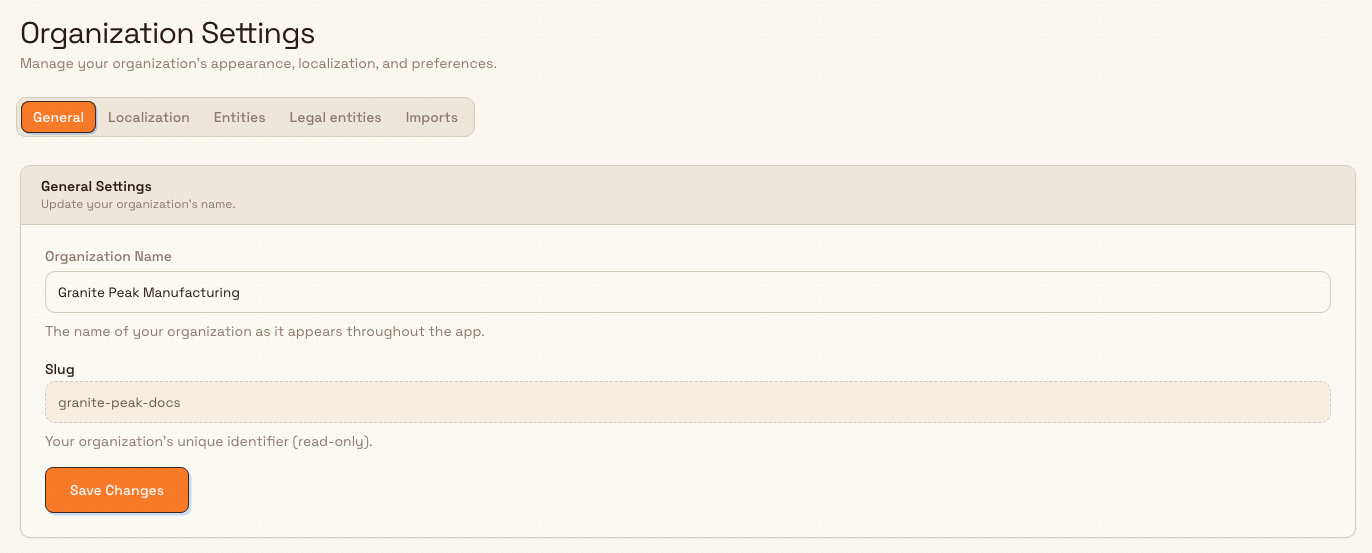
General: name and slug
The General tab holds the Organization section. It has two fields.
- Name, the name of your organization as it appears throughout the app. Enter a name between 3 and 100 characters. On a brand-new workspace the field starts with a placeholder of
My Organization. - Slug, your organization's unique identifier, shown read-only. The slug is fixed and cannot be edited here; it is the short identifier that appears in your workspace web address.
Change the name, then leave the field or press Enter. A valid changed name saves automatically; the field is disabled while the save runs. If saving fails, Bulk restores the previous name and shows an error. Each change is recorded for audit and appears in your activity logs.
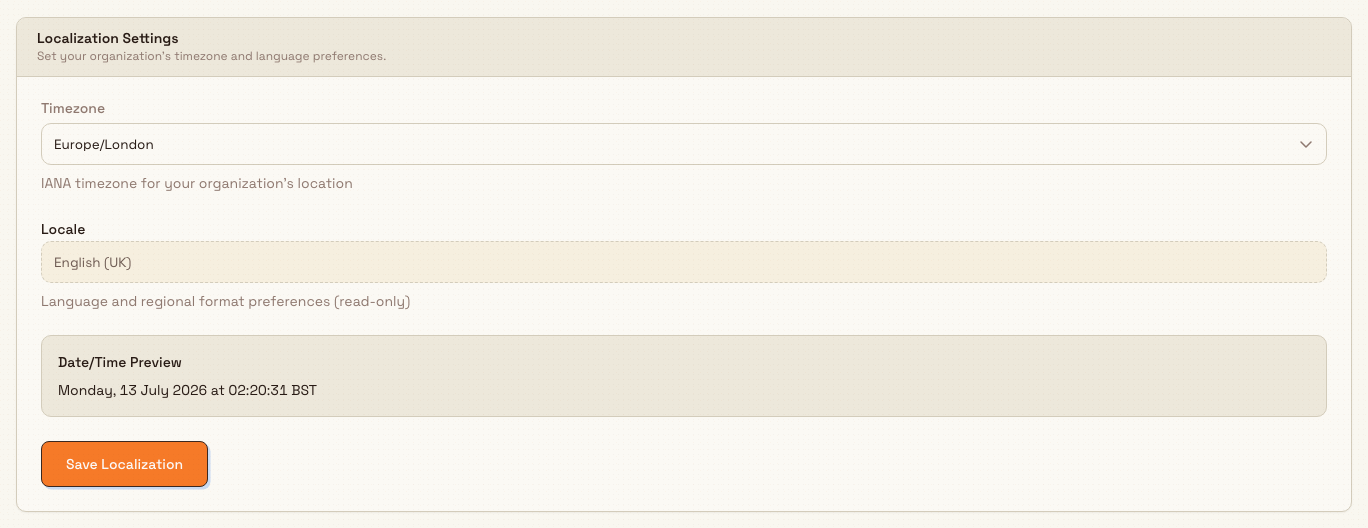
Localization: timezone and language
The Localization tab holds the Localization section. It controls how dates and times are shown across your organization.
- Timezone, choose from a list of common IANA timezones (for example
UTC,Europe/London,America/New_York,Asia/Tokyo,Australia/Sydney). IANA is the standard naming system for timezones. The helper text reads "Used for dates and times across the organization." This list is a curated set of common zones rather than the full worldwide list. - Locale, shown read-only as English (UK). Language and regional formatting are currently fixed to English (UK) and cannot be changed here.
- Date/Time Preview, a live sample below the fields showing the current date and time formatted for the timezone you have selected. It updates when you select a zone.
Choosing a different timezone saves it immediately. The selector is disabled while the save runs. If saving fails, Bulk restores the previous timezone and shows an error. Successful changes are recorded in your activity logs.
Entities: review your sites
The Entities tab lists every site (entity) in your organization in a read-only table. You create and rename sites elsewhere. This tab is for reviewing them and linking each one to a legal entity. Each row shows:
- Name and Code, the site's display name and short code.
- Legal entity, which legal entity the site belongs to (see the next section). If the site is not yet linked, this cell shows an Unassigned selector you can use to assign one.
- Entity ID, the site's internal identifier, with a copy button so you can paste it into a support request or an integration.
- Timezone, the site's own timezone.
- Status, active or inactive.
If no sites exist yet, the tab shows "No entities found." with a note to add entities from the entity management page.
Assign a site to a legal entity
To link a site to a legal entity, open the Legal entity selector on that site's row and choose one. Bulk shows a confirmation with a preview of what will change, then merges the site into that legal entity. While the merge runs the row shows a Merging… badge; if it fails it shows a Failed badge with a Retry action.
Assigning a legal entity is a one-way change on this page
Once the assignment finishes, the site's legal entity is locked here: the row becomes a read-only label and the selector no longer appears, so you cannot reassign it from this page. Assign carefully. If a target legal entity is still merging another site, Bulk shows "Legal entity is busy", wait for that merge to finish, then try again.
Legal entities: invoicing identities
A legal entity is the registered company that trades with your customers. Its identity and tax defaults feed customer invoices. One legal entity can own several sites. The Legal entities tab lists them in a table with Name, Tax, Code, Country, and a Plants count (how many sites belong to it). The Tax column shows the tax number and currency when configured. Use the search field to find a legal entity and right-click its row for Edit and Archive. A legal entity with one or more plants cannot be archived, so its Archive action is disabled. If none exist yet, the tab shows "No legal entities yet."
Create or edit a legal entity
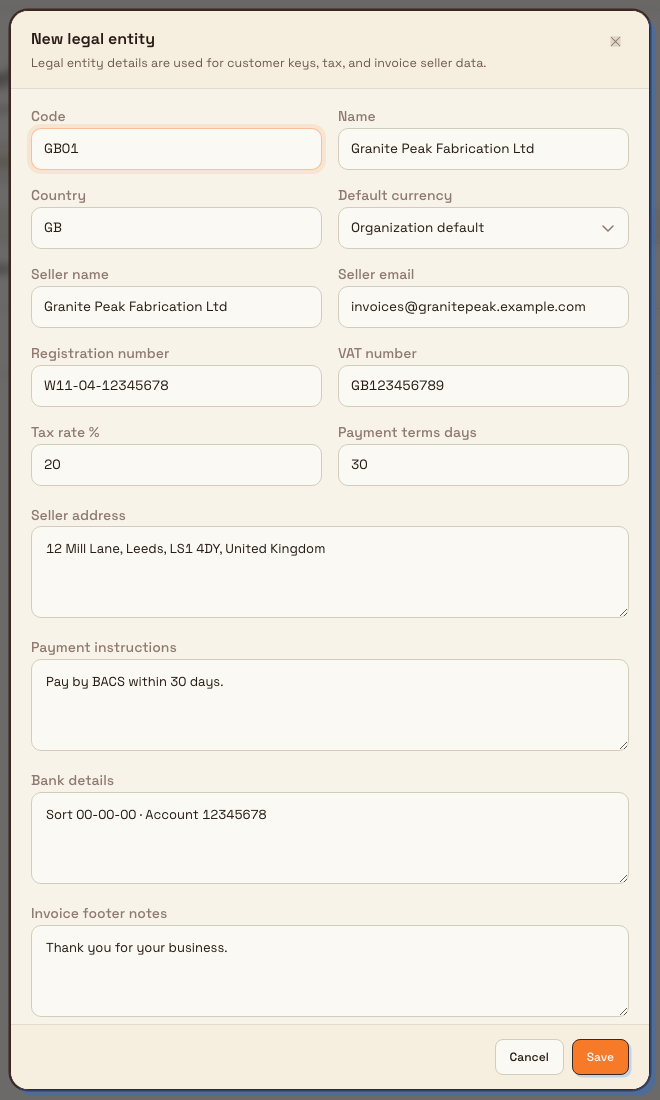
Select New legal entity (the button in the page header while the Legal entities tab is active) to open the create dialog, or right-click a row and select Edit to change an existing one. The dialog explains that "Legal entity details are used for customer keys, tax, and invoice seller data" and offers these fields:
- Code and Name, both required; the code is stored in upper case (for example
GB04). - Country, choose a country by name from the searchable list.
- Default currency, choose an available currency or Organization default.
- Tax number, the company's tax registration number.
- Tax rate %, the default percentage applied to invoices.
These are the six fields on this dialog. Configure the seller name, address, and email through the site's invoicing profile.
Select Save to create or update the legal entity; a confirmation such as "Legal entity created." appears. These details feed the invoicing profile used when Bulk generates invoices, see Configure an invoicing profile for how a site uses them.
Imports: control available import types
The Imports tab shows the Imports section. Each import type (for example a spreadsheet importer for a particular kind of record) has a row with its name, a short description, and an on/off switch. When a type is on, the row notes who enabled it and when, for example "Enabled by Bruce Wayne on Jul 8, 2026". The section header summarises the total, such as "3 of 8 import types enabled".
- Turn a type on or off with its switch. The change saves immediately; a failed change shows an error with a Retry action.
- Select Enable All (shown while some types are still off) to switch on every import type at once.
- If you do not have the Manage imports permission, the tab shows a Read-Only Access notice and the switches are disabled, you can see which types are available but not change them.
This tab controls availability only. For the full guide to configuring import types, see Configure import availability; to actually upload files and run an import, see Run data imports.
Example: Wayne Corp
Here is an illustrative setup for Wayne Corp, using Bruce Wayne's Super user access:
- On General, Bruce enters the organization name. It saves when he leaves the field or presses Enter.
- On Localization, he selects
Europe/London. The choice saves immediately and the date/time preview shows the UK clock. - On Legal entities, he could create
Wayne Precision Ltd(codeGB04, country United Kingdom) with British pounds, its tax number, and a 20% tax rate. - On Entities, an unassigned site can be linked to that legal entity by selecting it and confirming the merge preview. The link becomes read-only after completion.
- On Imports, he enables the types his team needs for customers, parts, and assets.
The legal-entity picture above shows an unsaved fictional example. The existing Wayne Enterprises Ltd legal entity and Gotham site assignments were preserved for this capture.
Expected result
Automatic saving on General or Localization updates your organization immediately: the new name appears across the app, and dates and times follow the timezone you chose. A legal entity you create appears in the Legal entities table and is available to assign to sites and to invoicing. Assigning a site to a legal entity links the two once the merge completes. Enabling an import type makes it available to your team on the imports screens. Every change on this page is recorded in your activity logs.
Feature state and limits
The Settings page is generally available; keep these verified points in mind.
- Only the Super user role can edit name, localization, and legal entities by default. The
organization.updatepermission behind these tabs is not granted to Entity admin or Manager out of the box. Grant it to a custom role if you need others to make these changes. - The timezone list is a curated set of common zones, not the full worldwide IANA list. The currently stored zone remains listed even if it is outside the common choices. Choose an appropriate named timezone so daylight-saving changes follow its rules.
- The language and locale are fixed to English (UK) and shown read-only; you cannot change them from this page.
- The organization slug is read-only here and cannot be edited on this tab.
- Assigning a site to a legal entity locks that link on this page. After the merge completes there is no control to reassign the site from here.
- Import availability is controlled here, but running imports happens elsewhere, see the linked import guides.
Troubleshooting
- Save is refused with a permission error on General or Localization. Your role can open the page but lacks the Edit organization settings permission (
organization.update). Ask a Super user to make the change, or have that permission added to your role. - The Legal entity selector is missing on a site's row. The site is already assigned and locked, or an assignment is in progress. A locked site shows a read-only legal-entity label instead of a selector.
- "Legal entity is busy" appears when assigning a site. Another site is still being merged into that legal entity. Wait for it to finish, then try the assignment again.
- The Archive action on a legal entity is greyed out. That legal entity still owns one or more sites (its Plants count is above zero). Review the linked sites before attempting to archive; this page does not allow reassigning an already locked site.
- The Imports tab shows "Read-Only Access". You do not have the Manage imports permission (
imports.manage). Ask an administrator with a Super user, Entity admin, or Master data role to change import availability. - The timezone you saved does not match a site's clock. This page sets the organization-wide default; each site has its own timezone on the Entities tab, which can differ.
Related
- Organization settings overview, the full set of organization-wide settings.
- Manage roles and permissions, grant the Edit organization settings or Manage imports permissions.
- Configure an invoicing profile, how a site uses legal-entity details on invoices.
- Configure import availability and Run data imports, the full import guides.
- Update entity settings, the per-site settings that complement these organization-wide ones.
- Configure working hours, Manage units, and Manage currencies, other organization-wide settings.
Organization settings
The organization-wide settings for every site in your Bulk tenant: name and localization, sites and legal entities, units, currencies, hours, and access.
Configure localization
Set your organization's default timezone and review the fixed English (UK) display language and regional format on the Localization tab in Bulk.