Integrations
See which ERP, identity, messaging, data, and AI connectors Bulk offers in the Integrations catalog under Settings, and which are ready, beta, or planned.
Last updated
Integrations is the catalog of systems Bulk can connect to outside day-to-day manufacturing work: ERP and finance, identity and single sign-on, messaging and alerts, data and BI, and AI agents. You open it when you need to wire an external system into Bulk, issue client access for the REST API, or check whether a connector is already available, still in beta, or only on the roadmap.
You do not use Integrations to run production, quality, or inbound work. You come here when Wayne Corp’s IT or operations lead, for example Bruce Wayne at Gotham Applied Sciences, needs to connect Dynamics 365, mint an API key for a sensor gateway, enable AI agents over MCP, or simply see which other connectors are planned.
Find Integrations in Settings
Integrations lives under Settings → Organization → Integrations. In the left-hand Settings navigation, expand the Organization group and select Integrations. The route is /settings/organization/integrations.
There is one catalog page for the whole organization. It is not repeated per site under Entity settings. Opening a wired connector (REST API, Dynamics 365, or Model Context Protocol) takes you into that connector’s own console or keys page; the catalog itself stays the starting point.
The page header title is Integrations. The description reads: Connect ERP, identity, messaging, data, and AI tools to Bulk.
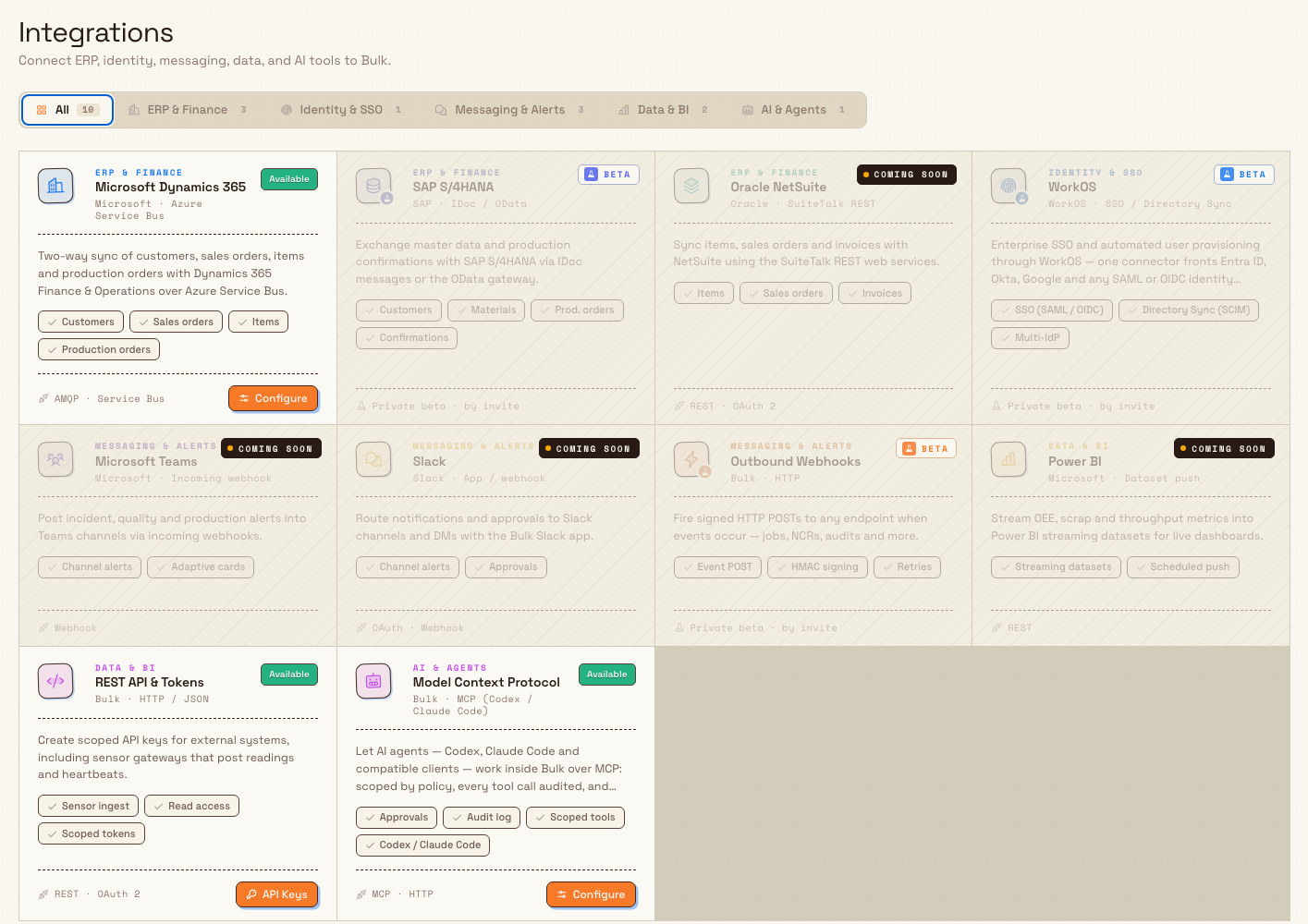
Categories and how the catalog works
Above the cards, a category filter lets you narrow the list. The filter is labeled for accessibility as Filter integrations by category. Options are:
| Tab | What it groups |
|---|---|
| All | Every connector in the catalog |
| ERP & Finance | ERP and finance systems |
| Identity & SSO | Single sign-on and directory sync |
| Messaging & Alerts | Teams, Slack, and outbound webhooks |
| Data & BI | Analytics push and the REST API |
| AI & Agents | Model Context Protocol for AI clients |
Each tab shows a count of connectors in that group. Selecting a tab filters the grid; All shows everything.
Each card shows:
- A group eyebrow (for example ERP & Finance)
- The connector name and vendor / protocol line
- A short description of what the connector does
- Capability chips (the main data or features it covers)
- Footer protocol meta (for example
AMQP · Service BusorREST · OAuth 2) - A status marker: Available, Beta, or Coming soon
Only connectors with status Available and a wired destination show a primary action button on the card. Beta and Coming soon cards are informational: they have no Configure or open action until Bulk wires them.
Connectors you can open today
Three catalog entries are Available and open a real surface in Bulk:
Microsoft Dynamics 365
- Group: ERP & Finance
- Status: Available
- Card action: Configure →
/settings/organization/integrations/d365 - What the card says: two-way sync of customers, sales orders, items, and production orders with Dynamics 365 Finance & Operations over Azure Service Bus (capabilities: Customers, Sales orders, Items, Production orders; meta: AMQP · Service Bus).
The Dynamics 365 console is a full connector workspace (Overview, Payloads, Event channels, Logs, Settings) with a back control labeled Integrations. Detailed setup belongs in Configure Microsoft Dynamics 365. That setup guide is marked verification-required in the documentation inventory, treat live environment configuration carefully until that guide is fully verified.
REST API & Tokens

- Group: Data & BI
- Status: Available
- Card action: API Keys →
/settings/organization/integrations/api-keys - What the card says: create scoped API keys for external systems, including sensor gateways that post readings and heartbeats (capabilities: Sensor ingest, Read access, Scoped tokens; meta: REST · OAuth 2).
The API keys page title is API keys, with description Create entity-scoped client keys for REST integrations, including sensor gateway ingest. It includes a smart back path to the Integrations catalog. Use the REST API guides to create, rotate, and revoke keys: REST API access, Create and scope an API key, Rotate an API key, and Revoke an API key.
Model Context Protocol
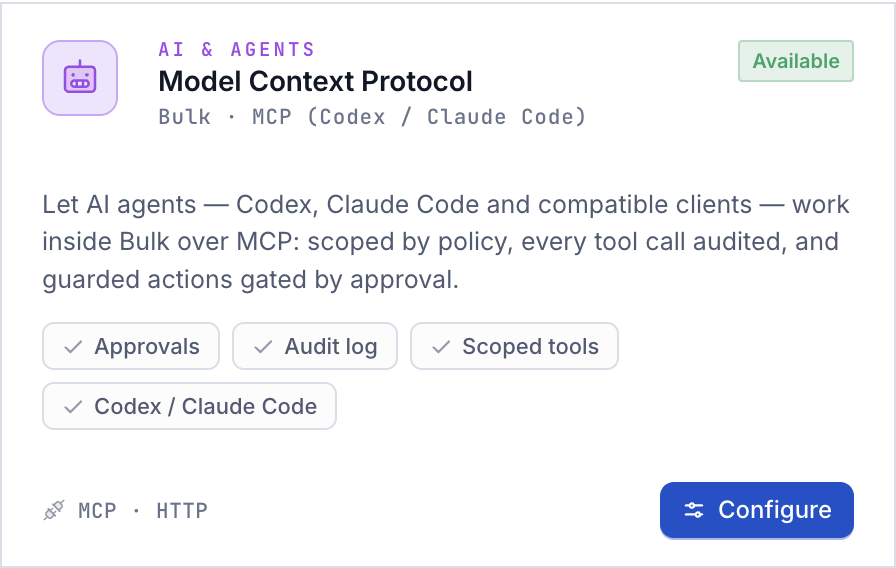
- Group: AI & Agents
- Status: Available
- Card action: Configure →
/settings/organization/integrations/mcp - What the card says: let AI agents (Codex, Claude Code, and compatible clients) work inside Bulk over MCP, scoped by policy, every tool call audited, and guarded actions gated by approval (capabilities: Approvals, Audit log, Scoped tools, Codex / Claude Code; meta: MCP · HTTP).
The MCP console opens with sections Overview, Approvals, Logs, Permissions, and Connections, and a back control labeled Integrations. Route access requires the View MCP settings permission (mcp.view). See Model Context Protocol connections and Manage MCP policy and connections.
Roadmap cards (Beta and Coming soon)
The catalog also lists connectors that are not fully wired for general use. Status labels and card treatment:
| Status label | Card behavior |
|---|---|
| Beta | Soft overlay and beta pin; footer meta shows Private beta · by invite; no primary action |
| Coming soon | Soft overlay and soon pin; protocol meta shown; no primary action |
Beta entries currently in the catalog:
- SAP S/4HANA (ERP & Finance), master data and production confirmations via IDoc or OData
- WorkOS (Identity & SSO), enterprise SSO and directory sync fronting Entra ID, Okta, Google, and other SAML/OIDC providers
- Outbound Webhooks (Messaging & Alerts), signed HTTP POSTs when events occur
Coming soon entries currently in the catalog:
- Oracle NetSuite (ERP & Finance)
- Microsoft Teams (Messaging & Alerts)
- Slack (Messaging & Alerts)
- Power BI (Data & BI)
Do not assume you can complete setup for these from the catalog until their status becomes Available and a primary action appears. For how status labels work in more detail, see Understand integration availability.
What each area of this section covers
| Guide | Use it when |
|---|---|
| Understand integration availability | You need the meaning of Available, Beta, and Coming soon |
| REST API access | You need client API keys and REST access overview |
| Create and scope an API key | You are minting a new key with permissions and entity scope |
| Rotate an API key | You need to replace a secret without losing the key’s identity story |
| Revoke an API key | You need to stop a key immediately |
| Model Context Protocol connections | You are connecting AI agents over MCP |
| Manage MCP policy and connections | You are changing policy, approvals, or revoking connections |
| Configure Microsoft Dynamics 365 | You are setting up the Dynamics 365 Service Bus connector |
Who can open Integrations and the wired connectors
The Integrations catalog page itself is registered under Settings without an extra permission gate on the route: anyone who can reach Organization settings can open the catalog and read the roadmap.
Opening and managing the wired connectors requires specific permissions:
| Surface | View | Manage / create |
|---|---|---|
| API keys | View API keys (api_keys.view) | Create API keys (api_keys.create), Delete API keys (api_keys.delete) to revoke; rotate needs both create and delete |
| Dynamics 365 | View D365 connector (d365.view) | Manage D365 connector (d365.manage) |
| MCP | View MCP settings (mcp.view), required to open the MCP route | Manage MCP settings (mcp.manage), Use MCP clients (mcp.use), Approve MCP actions (mcp.approve_actions) for policy, personal connections, and guarded actions |
Permission labels in Bulk describe API keys and MCP as for the organization, and Dynamics 365 view/manage as for the selected site.
Built-in roles (from the system role catalog):
- Super user, full access to everything, including all integration permissions.
- Entity admin, includes
api_keys.view/create/delete, full MCP permissions (mcp.view,mcp.manage,mcp.use,mcp.approve_actions), andd365.view/d365.manage. - Manager, includes
mcp.view,mcp.use, andmcp.approve_actions(notmcp.manage), and does not includeapi_keys.*ord365.*in the seeded catalog.
An administrator assigns roles under Manage roles and permissions. If the API keys page shows You don’t have permission to view API keys., or the MCP route is blocked, ask for the matching permissions or Super user / Entity admin as appropriate.
Example: Bruce checks what Gotham can connect
At Wayne Corp, Bruce Wayne prepares external systems for Gotham Applied Sciences from Settings → Organization → Integrations:
- He opens Integrations and leaves the filter on All so he can see every connector and its status.
- For the existing Dynamics 365 Finance & Operations landscape, he opens Microsoft Dynamics 365 with Configure and continues setup in that console (Service Bus, payloads, and channels).
- For a shop-floor sensor gateway that only needs to post readings, he opens REST API & Tokens with API Keys, creates an entity-scoped key for Gotham, and stores the secret securely (shown once).
- When the team wants Claude Code or Codex to inspect Bulk data under policy, he opens Model Context Protocol with Configure, reviews permissions and connections, and issues keys only for approved clients.
- He notes that SAP S/4HANA, WorkOS, and Outbound Webhooks still show Beta, and that Teams, Slack, NetSuite, and Power BI show Coming soon, none of those cards offer a Configure action yet.
That walkthrough is the point of the catalog: one place to see what is ready, what is invite-only beta, and what is still on the roadmap, then open only the connectors that are actually wired.
Feature state and limitations
The Integrations catalog is generally available as a discovery and launch surface. Keep these points in mind:
- Only three connectors are wired. Microsoft Dynamics 365, REST API & Tokens, and Model Context Protocol open real pages. Every other card is presentational roadmap metadata in the product UI.
- Beta means not generally open from the catalog. Beta cards show Private beta · by invite and have no primary action. Do not treat them as GA setup paths.
- Coming soon has no configuration path. Soon cards cannot be opened from the catalog.
- The catalog is organization-level. You find it under Settings → Organization, not under Entity. Individual connectors may still be entity-scoped for data (for example API keys are entity-scoped; D365 permissions are described for the selected site).
- Dynamics 365 setup documentation is verification-required. Follow Configure Microsoft Dynamics 365 carefully; verify connection behavior in your environment before relying on it in production.
- Child how-to guides. Step-by-step create/rotate/revoke for API keys, MCP policy, and Dynamics mapping belong in the linked articles, not in this overview.
Troubleshooting
- You cannot find Integrations. Open Settings, expand Organization, and select Integrations. The URL should end
/settings/organization/integrations. It is not under Master Data or Entity. - A card has no Configure or API Keys button. That connector is Beta or Coming soon. Only Available cards with a destination show a primary action.
- API keys page says you don’t have permission. You lack
api_keys.view. Ask an administrator for API key permissions (typically Super user or Entity admin). - MCP console will not open. The MCP route is guarded by
mcp.view. Request View MCP settings (and manage/use/approve permissions as needed). - You expected a connector that is not listed. The catalog is a fixed product list of known integrations. If your system is not listed, use REST API & Tokens or Outbound Webhooks (when it becomes available) rather than expecting a branded card.
- You opened Integrations but setup fields for SAP, Teams, or Power BI are missing. Those entries are roadmap-only on this page; there is no separate hidden setup screen for them from the catalog.
Related guidance
- Understand integration availability, Available, Beta, and Coming soon.
- REST API access, client keys and REST usage overview.
- Model Context Protocol connections, AI agent access over MCP.
- Configure Microsoft Dynamics 365, Service Bus connector setup.
- Manage roles and permissions, grant
api_keys.*,mcp.*, andd365.*. - Organization settings, other organization-level Settings items next to Integrations.
Close the commercial loop
Turn finished production work into approved, issued, and confirmed invoices in Bulk, and handle voids and credit notes so nothing you make goes unbilled.
Understand integration availability
Read the Available, Beta, and roadmap status labels on the Integrations catalog so you know which connectors you can open today and which are still planned.