Model Context Protocol connections
Connect AI agents such as ChatGPT, Codex, and Claude Code to Bulk over MCP, scoped by organization policy, audited per tool call, with approval gates.
Last updated
The Model Context Protocol (MCP) lets approved AI agents work inside your Bulk organization over a hosted HTTP endpoint. Agents call Bulk tools under your own user permissions, inside the organization MCP policy (which clients and domains are allowed), with every tool call written to an audit log, and with guarded actions held for human approval when production or destructive work is proposed.
Use this area when Wayne Enterprises' IT or operations lead, for example Bruce Wayne at Gotham Applied Sciences, wants ChatGPT, Codex, Claude Code, or another compatible client to inspect data, draft changes, or run allowed tools without giving the agent a separate “god mode” login. Day-to-day shop-floor operators do not need MCP; people who already hold the right Bulk permissions connect a personal client under policy.
MCP is not the same as REST API access. REST API keys are entity-scoped client credentials for external systems and sensor gateways. MCP connections are personal agent credentials (or OAuth for ChatGPT) managed on the MCP console.
Find Model Context Protocol in Settings
- Open Settings from the left-hand navigation.
- Expand the Organization group and select Integrations (
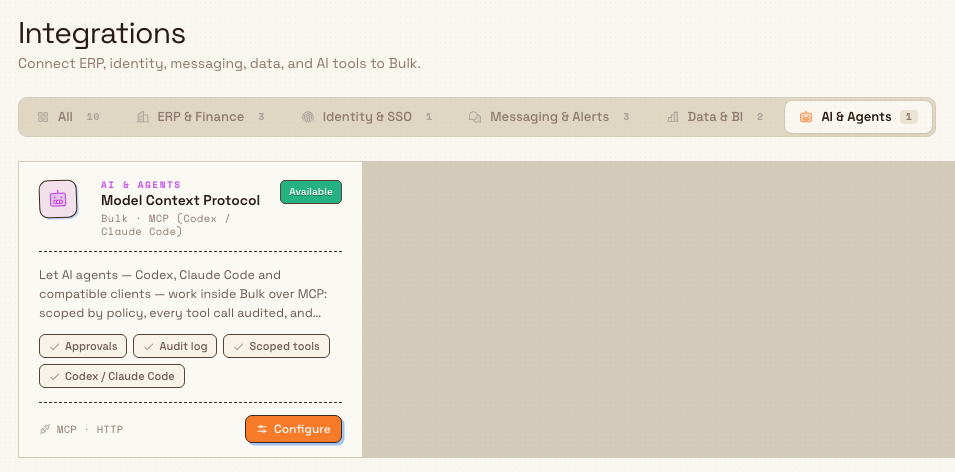
/settings/organization/integrations). - On the Integrations catalog, open the AI & Agents category page tab (or leave All selected) and find the Model Context Protocol card.
- Select Configure on that card to open the MCP console (
/settings/organization/integrations/mcp).
The card status is Available. Capability chips include Approvals, Audit log, Scoped tools, and Codex / Claude Code. Protocol meta reads MCP / HTTP. Vendor line: Bulk / MCP (Codex / Claude Code).
You can also open the console from the user menu MCP Setup item (when you hold Use MCP clients), which jumps straight to the Connections tab (?tab=connections). Older URLs such as /settings/mcp redirect into this console.
The console is organization-level. Opening it requires View MCP settings (mcp.view). The back control is labeled Integrations and returns you to the catalog.
What the MCP console shows
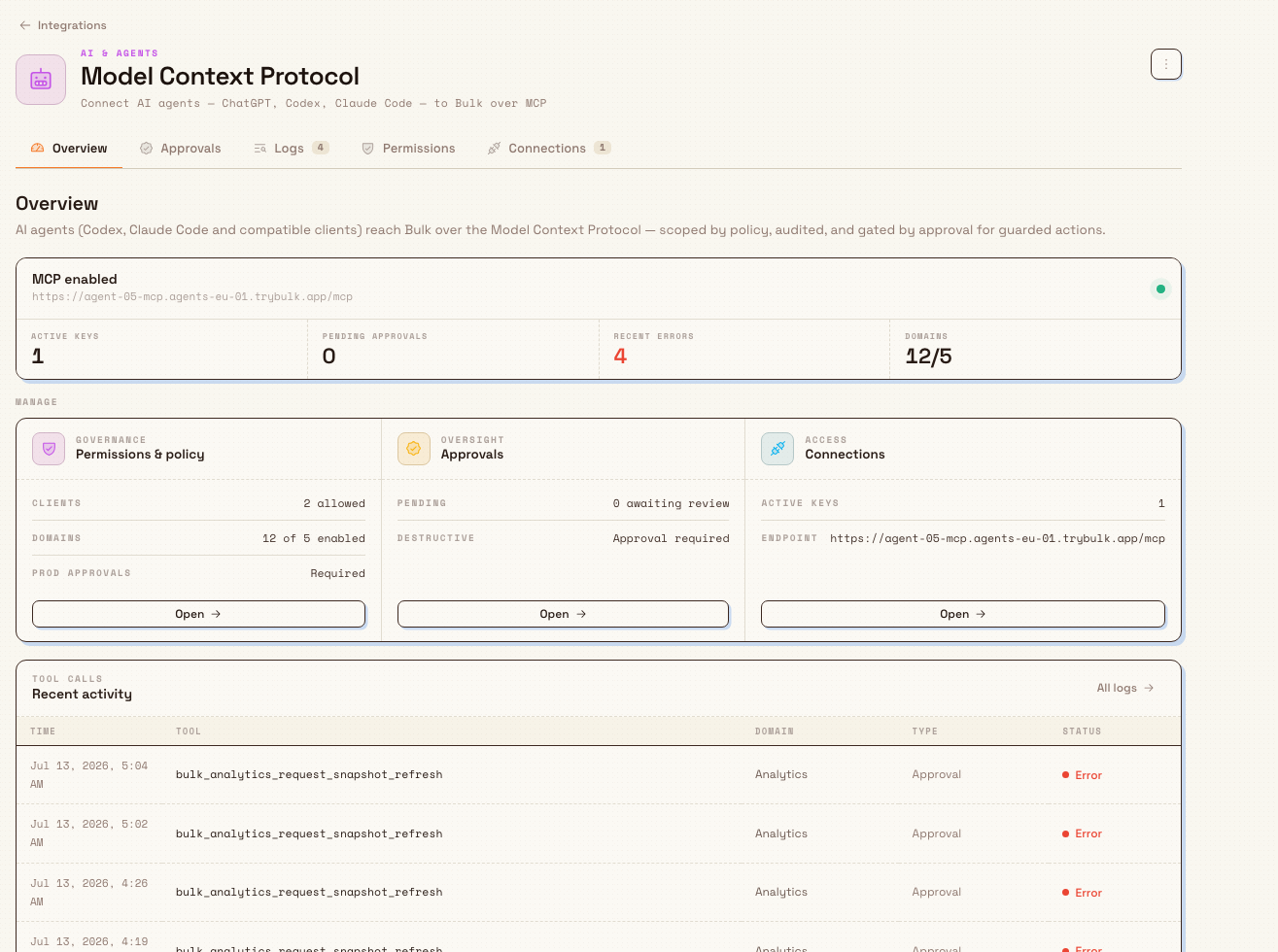
The page header kicker is AI & Agents. The title is Model Context Protocol. The subtitle reads: Connect AI agents , ChatGPT, Codex, Claude Code , to Bulk over MCP.
A more-actions menu offers Copy hosted endpoint and a shortcut to Permissions & policy.
Five section tabs (also reachable with ?tab=):
| Tab | Purpose |
|---|---|
| Overview | Whether MCP is enabled or disabled, the hosted endpoint, headline counts (active keys, pending approvals, recent errors, allowed domains), quick links into policy / approvals / connections, and a recent tool-call feed |
| Approvals | Guarded action requests waiting for review, plus a History of decided requests |
| Logs | Audit trail of MCP tool calls (tool, domain, type, status); open a row for detail |
| Permissions | Organization policy (enable MCP, allowed clients and domains, production and destructive approval switches) and the tool catalog for the current user |
| Connections | Hosted endpoint, ChatGPT OAuth server URL, create personal keys for Codex / Claude Code / compatible clients, list and Revoke active connections |
Overview describes the console as: agents reach Bulk over MCP scoped by policy, audited, and gated by approval for guarded actions. When policy is on, the status banner reads MCP enabled; when off, MCP disabled. With no activity yet, recent activity shows No MCP tool calls yet.
How agents connect
Bulk exposes a hosted MCP endpoint for the organization (from setup, often an absolute regional URL such as a …/mcp ingress in production, or a path based on /mcp when no public URL is configured). Clients append a ?client= query value so Bulk knows which agent family is connecting.
ChatGPT (OAuth)
ChatGPT does not use an MCP API key. On Connections, the ChatGPT OAuth block shows a server URL of the form {endpoint}?client=chatgpt. You paste that URL in ChatGPT; Bulk opens its login flow so the user signs in with their Bulk account and tools run under that user’s permissions. Creating a “ChatGPT key” from the console is blocked with ChatGPT connects with OAuth, not an MCP API key. Policy must Allow ChatGPT under Permissions before the connector is useful.
Codex, Claude Code, and compatible clients (bearer key)
For Codex, Claude Code, and Compatible client, a person with Use MCP clients creates a personal connection on Connections. Each key is shown once (with Reveal / Copy key and a ready-to-paste client command). Keys use an mcp prefix family (distinct from REST hk_ client keys). Toast on success: MCP key created. Store the secret outside Bulk; the list later shows only a key prefix (or OAuth for ChatGPT).
Reference-style commands on the Connections tab follow this pattern (endpoint and key filled in when you mint a key):
- Codex , set
BULK_MCP_API_KEY, thencodex mcp add bulk --url "{endpoint}?client=codex" --bearer-token-env-var BULK_MCP_API_KEY - Claude Code ,
claude mcp add --transport http bulk "{endpoint}?client=claude_code" --header "Authorization: Bearer {key}" - Compatible , endpoint with
?client=compatibleandAuthorization: Bearer {key}
MCP must be enabled under Permissions before keys can be created. If it is off, Connections shows: MCP is disabled , enable it under Permissions before creating keys. Create buttons also respect which clients the policy allows; if none of the key-based clients are allowed, you see No clients are allowed by the current policy.
Active connections appear in a table: Name, Client, Auth (prefix or OAuth), Last used, and Revoke. Empty state: No active connections.
Step-by-step policy enablement, client allow lists, approvals, and revoke procedures belong in Manage MCP policy and connections.
Policy, tools, approvals, and logs (at a glance)
Permissions is titled Permissions & policy. Description: control which agent clients can connect, which Bulk domains they can reach, and which guarded actions need approval; tools always run inside the calling user’s own permissions.
Policy controls include:
- MCP is enabled / MCP is disabled , when off, no agent can connect and no keys can be created (default for a tenant with no saved policy is disabled)
- Allowed clients , Codex, Claude Code, Compatible clients, ChatGPT
- Allowed domains , Settings, Tasks, Production, Safety, Quality, Analytics, PDF templates, Training, Projects, People, Audits, Inventory
- Production approvals , production changes wait for review
- Destructive approvals , destructive actions wait for review
Saving requires Manage MCP settings (mcp.manage) and shows MCP policy saved. Without manage rights, controls are read-only with a banner that you need mcp.manage.
Below the policy form, a Tools table lists registered tools (title, description, domain, type Read/Write/Proposal/Approval, required permission, whether approval is required, and Available vs a reason such as MCP is disabled, domain disabled, or missing permission).
When an agent reads or updates production jobs and other dated records, Bulk returns calendar dates and overdue status using the selected entity's calendar timezone. A record stays due today for that whole local calendar day, while received and other event timestamps keep their exact recorded time. Agents receive calendar-only values as YYYY-MM-DD, and weekly ranges use the organization's shared week-start rule.
Agents can set a consumable's log settings too: bulk_settings_consumables_upsert accepts log_amounts and log_allow_any_amount, and bulk_settings_consumable_variants_upsert accepts a log_amounts override for one variant. Material lines on production batches recorded through the MCP follow the same amount rules as the station. Stock movement results can include the cut_remainder type, a leftover of 0.01 or less that Bulk writes off when part amounts add up to about a whole unit.
Approvals holds guarded proposals (production, safety, and quality changes) until someone with Approve MCP actions selects Approve or Reject (optional note). Toasts: Request approved / Request rejected. Without that permission you can still see requests but cannot decide them.
Logs records every tool call for audit; filter by domain and success/errors, search tool or target, and open a row for input/result summaries.
Large inbound documents continue in the background
Inbound MCP tools do not keep the agent connection open while Bulk processes every item. bulk_inbound_documents_submit queues durable validation and returns the document with status in_progress. Poll bulk_inbound_documents_get until submission_run completes and the document becomes either pending_approval or approved.
- If the settled status is
pending_approval, callbulk_inbound_documents_approve. If it is alreadyapproved, do not call approve again. - Approval schedules job creation in small background batches. Poll the document again for
job_creation_runprogress and each item'sjob_number. - When a run reports failed or skipped items, use its recorded reason to correct the data and retry. A shortfall is reported rather than silently ignored.
This polling flow keeps large documents running even if the MCP client disconnects. The same background processing is used by Bulk's browser interface.
Who can open and use MCP
| Permission label | Key | What it allows |
|---|---|---|
| View MCP settings | mcp.view | Open the MCP console route; see policy, connections, audits, and pending requests |
| Manage MCP settings | mcp.manage | Enable or disable MCP; set allowed clients and domains and approval switches; revoke another user’s connection |
| Use MCP clients | mcp.use | Create and revoke your personal connections; required for setup endpoint and OAuth use |
| Approve MCP actions | mcp.approve_actions | Approve or reject guarded action requests |
Built-in roles (seeded catalog):
- Super user , full access (
*) - Entity admin , includes
mcp.view,mcp.manage,mcp.use, andmcp.approve_actions - Manager , includes
mcp.view,mcp.use, andmcp.approve_actions(notmcp.manage)
Other default roles do not include MCP permissions unless an administrator adds them under Manage roles and permissions.
Example: planning agent access at Wayne Enterprises
Wayne Enterprises wants planners at Gotham Applied Sciences to use Claude Code and Codex against live Bulk data, with production writes held for review. This is an illustrative enablement sequence. The screenshots leave the existing policy disabled and create no connection.
- Bruce Wayne (Entity admin) opens Settings → Organization → Integrations and selects Configure on Model Context Protocol.
- On Permissions, he turns MCP is enabled on, keeps Codex and Claude Code allowed (adds ChatGPT only if product wants OAuth clients), leaves Production approvals and Destructive approvals on, and saves (MCP policy saved).
- Each planner with Use MCP clients opens Connections (or MCP Setup in the user menu), creates a Claude Code key or Codex key, copies the one-time secret and command, and configures their local client against the hosted endpoint.
- When an agent proposes a guarded production change, a Manager or Entity admin opens Approvals, reviews the summary, and Approves or Rejects it.
- Bruce spot-checks Logs and Overview Recent activity if something fails or an unexpected tool appears.
If a laptop is retired, the planner (or an admin with manage rights) Revokes that connection so the key and access stop immediately.
PDF tools agents can call
When the organization allows the matching MCP tool domains and the signed-in user has pdf_templates.view, agents can invoke the same bulk PDF export tools the app uses , including order, inbound-item, and production-job bulk exports (merged PDF or ZIP, up to 1,000 records). Large exports still run as background jobs; the agent receives the job id and status the same way the UI progress dialog does. Layouts must already be published under Manage PDF templates.
Feature state and limitations
MCP connections are generally available as a wired Integrations connector. Keep these points in mind:
- Policy starts disabled. Until someone with manage rights enables MCP and saves policy, agents cannot connect and personal keys cannot be created.
- User permission ceiling. An agent never gains rights the signed-in user (and the minted key’s copied permissions) does not have. Domain allow lists further restrict which tool groups appear available.
- ChatGPT is OAuth-only. Do not expect an API key flow for ChatGPT; use the server URL and Bulk login.
- Secrets are shown once. After minting a Codex / Claude Code / compatible key, copy it before leaving the success panel.
- Personal connections vs org list. Connections are listed for the tenant; create/revoke of your own keys needs
mcp.use. Revoking someone else’s connection needsmcp.manage. - Not a full public tool catalog in docs. This guide does not enumerate every MCP tool name; use the in-app Tools table on Permissions for the live catalog.
- Separate from REST API keys. Do not manage MCP access on the API keys page; do not use REST
hk_keys for MCP clients. - Overview domain fraction. Overview may show a compact “domains” count relative to a fixed denominator in the UI; the authoritative allow list is the full domain checklist on Permissions.
Troubleshooting
- The MCP route will not open or is blocked. You lack
mcp.view. Ask an administrator for Super user, Entity admin, Manager, or a custom role with View MCP settings. - MCP enabled is off / keys will not create. An administrator must enable MCP under Permissions and save. Backend errors for create include MCP is disabled for this organization and This MCP client is not allowed.
- Create key buttons are disabled. You need
mcp.use, MCP must be enabled, and the client must be in the policy allow list. ChatGPT has no key button by design. - ChatGPT will not connect. Allow ChatGPT under policy, use the OAuth server URL (
?client=chatgpt), and complete Bulk sign-in. The connecting user still needsmcp.useand the underlying domain/tool permissions. - Save policy is disabled or read-only. You need
mcp.manage. - Approve / Reject are disabled. You need
mcp.approve_actions. - Cannot revoke another user’s connection. Only the owner (with
mcp.use) or someone withmcp.managecan revoke; otherwise: Cannot revoke another user's MCP connection. - Tools show Unavailable. Reasons include MCP is disabled,
{domain} domain is disabled, or Missing … for a required Bulk permission on the user’s role. - You expected REST-style entity keys. Use REST API access for entity-scoped
hk_keys; MCP is the AI agent path.
Analytics MCP tools that return sales values use payable job totals that include assigned order services.
Related guidance
- Manage MCP policy and connections , enable policy, allow clients and domains, approvals, create and revoke connections.
- Integrations , catalog of connectors including MCP, REST API, and Dynamics 365.
- Understand integration availability , Available, Beta, and Coming soon on catalog cards.
- REST API access , entity-scoped client API keys (separate from MCP).
- Manage roles and permissions , grant
mcp.view,mcp.manage,mcp.use, andmcp.approve_actions.
Revoke an API key
Immediately stop an API key from authenticating so a retired or compromised integration can no longer call Bulk’s client REST API.
Manage MCP policy and connections
Enable MCP for your organization, choose the allowed agent clients and Bulk domains, require approval for guarded actions, and manage client connections.