Close the commercial loop
Turn finished production work into approved, issued, and confirmed invoices in Bulk, and handle voids and credit notes so nothing you make goes unbilled.
Last updated
Closing the commercial loop means making sure each billable piece of work reaches the correct invoice lifecycle state. In Bulk: a Manufacturing Execution System, the shared workspace where your team runs production, quality, and finance: production and invoicing are joined up: the jobs you complete surface as work waiting to be billed, and the Finance area turns them into invoices without re-keying anything.
This page is a map of that end-to-end loop. It explains where each stage lives and what "done" looks like, then links you to the step-by-step guide for each part. Use it when you are learning how billing fits together, or when you want to check that no finished work is sitting un-invoiced.
A few terms used throughout:
- An order is a customer's request for production work; its jobs are the individual pieces of work that fulfil it.
- An invoice is the priced bill you send a customer for that work.
- A credit note is a document that reduces what a customer owes: for a return, a dispute, or a price correction: without deleting the original invoice.
How the loop fits together
The commercial loop runs in one direction, from finished work to confirmed revenue:
- Production finishes the work. Jobs on an order reach a billable state and become invoiceable.
- You start an invoice from those jobs (a standard invoice) or by hand (a misc invoice).
- You review the draft: the lines, pricing, and customer details.
- You submit it for approval, and the approver approves it (when your site requires approval).
- You issue it, which keeps its create-time invoice number and records its issue.
- You confirm it through to its final state, either by hand or automatically.
- You handle exceptions: void a mistake, or raise a credit note against a customer.
- You review the revenue the loop has produced.
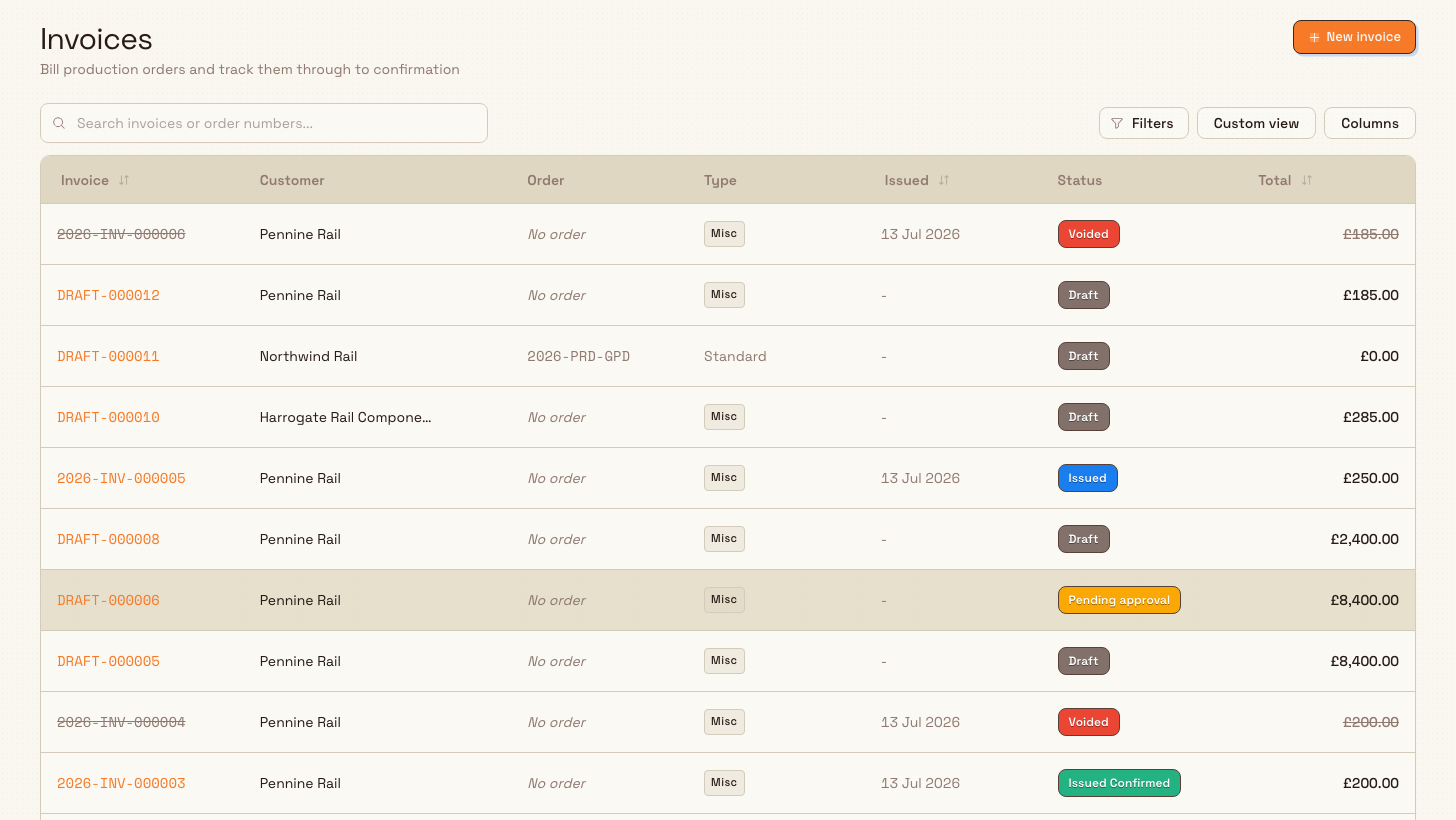
Each invoice moves through a fixed set of statuses as you do this: draft, pending approval, approved, issued, sent, confirmed, and finally issued-confirmed, with voided as a separate end state for cancelled invoices. Bulk groups these into badge families: Draft, Issued, Issued Confirmed, and Voided: so you can see at a glance where an invoice sits.
Before you start
You need a few things in place before the loop will run end to end.
- The Finance area must be available to you. When your site runs production billing, Finance appears in the left navigation with New invoice, Invoices, and Credit notes beneath it. If you do not see it, ask an administrator whether invoicing is switched on for your site.
- Your role must allow the steps you need. Bulk gates each stage with its own permission, so what you can do depends on your role:
- A Super user: the role held by the account owner: can do everything in the loop.
- An Entity admin, Manager, or someone with the Invoicing role can create, submit, approve, issue, void, and confirm invoices, and manage credit notes.
- An Operator baseline role can submit and confirm but cannot approve or issue. This is distinct from the Tablet user floor role, which has no default invoice lifecycle grants.
- Your commercial setup should be ready. An administrator configures the invoicing profile (who approves invoices, when approval is required, and how invoices confirm after issue), the invoice fields, and your pricing. See Configure an invoicing profile, Configure invoice fields, and Manage pricing.
Walk the loop
Each stage below is owned by its own step-by-step article. This page tells you what the stage does and where it lives; follow the link for the exact steps.
1. Finish the production work
The loop starts on the floor. When an order's jobs reach a billable state: open, in progress, or completed, and not cancelled: they become invoiceable and are ready to bill. Sites that bill at a specific point in the route only surface a job once it reaches the invoicing step. Completed work that is waiting to be billed shows up as jobs awaiting invoicing, so nothing finished slips through unbilled. See Review production orders and jobs.
When inbound work creates the jobs, Bulk copies that document's services and their prices onto the order. Total Value includes those service prices once creation finishes. You do not have to open the services and save them again for the prices to count. On a large document, Bulk writes that total when the creating run finishes, not after each job. If the run stops after some jobs were saved, Bulk still prices the order from those jobs and services when a billing currency can be resolved. Without a billing currency, Total Value stays unset.
Add service and Add line item start a blank line on the Manual quantity billing rule, with quantity 1. Bulk bills the quantity you enter times the line price. You can save a manual quantity of zero, but submitting or issuing still needs every line to have a quantity greater than zero. Change Billing rule to Per attached job or Tracked hours when the charge should follow job assignments or recorded time. A blank line you add on an invoice draft starts as Manual quantity in the same way. See Manage pricing.
2. Start an invoice
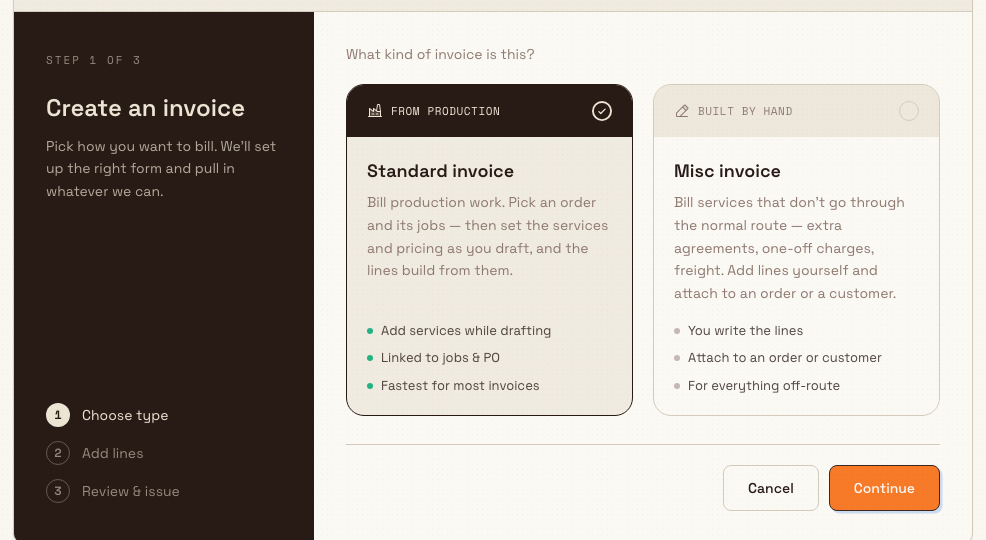
Go to Finance and select New invoice. Bulk asks you to choose a type:
- Standard invoice bills production work. You pick an order and its invoiceable jobs. Bulk builds the draft lines from the service billing lines already on that order, including Manual quantity lines. You can still add services and pricing while you draft, and a job with no services yet adds no line until you do. This is the fastest path for most bills.
- Misc invoice is for charges that do not come through the normal route: extra agreements, one-off charges, or freight. You write the lines yourself and attach the invoice to an order or a customer.
The chooser footer shows Step 1 of 3: choose type. Select Continue to open the matching drafting flow. The current design does not show the older three-step rail across the top.
For the detailed choice, see Select an invoice type, then Create a standard invoice or Create a miscellaneous invoice.
3. Review the draft
A new invoice opens as a draft: an editable bill with its invoice number already assigned. Check the Bill from and Bill to details, the lines, and the pricing before you send it for approval. See Review an invoice.
4. Submit and approve
When your invoicing profile requires approval, the draft's next step is Submit for approval. Submitting locks the draft and hands it to the configured primary or backup approver, who opens the review screen and selects Approve, Request changes, or Reject. You cannot approve your own submitted invoice: that separation is deliberate, so a second person always checks the bill. See Submit and approve an invoice.
If your profile does not require approval, the draft's next step is Issue directly, and you can skip this stage.
5. Issue the invoice
Selecting Issue locks the draft and moves it into the Issued family. Bulk keeps the invoice number assigned at creation. An older draft with a DRAFT- placeholder receives its permanent number at issue. From here the bill is a permanent record. See Issue or confirm an invoice.
6. Confirm through to done
After issuing, an invoice still needs to reach its final issued-confirmed state. How that happens depends on the confirmation mode set in your invoicing profile:
- Manual: you advance the invoice yourself with Mark sent, Confirm, and Mark issued-confirmed.
- Immediate: issuing takes the invoice all the way to issued-confirmed in one step.
- Workflow: a connected workflow advances issued invoices to confirmed automatically.
Confirming an invoice is the point at which the loop closes for that piece of work. See Issue or confirm an invoice.
7. Handle voids and credit notes
Not every invoice ends cleanly. Bulk gives you two safe ways to correct one:
- Void cancels an invoice you should not have issued. A voided invoice moves to the Voided end state and stays on record for the audit trail. See Void an invoice.
- Create credit note reduces what a customer owes without touching the original invoice: for a return, discount, dispute, goodwill, price correction, or other reason. A credit note is created as a draft, issued, and then allocated against one or more invoices to net down the balance. See Create a credit note, Issue or void a credit note, and Allocate a credit note.
Voiding and discarding cannot be undone
Voiding an invoice is a permanent end state: you cannot bring a voided invoice back, so raise a credit note instead when you only need to adjust an amount. Discarding a draft deletes it outright. Make sure you have the right invoice before you void or discard.
8. Review the revenue
Once invoices are issued and confirmed, the value they represent flows into your reporting. Use Review asset revenue to see the revenue your production has generated, which closes the loop back to the operations that produced it.
Example: closing the loop at Wayne Enterprises
Bruce Wayne manages Gotham Applied Sciences at Wayne Enterprises. This example illustrates the workflow; the screenshot walkthrough uses synthetic records and asserts no customer transmission, payment or physical production. A batch of laser-cut brackets for a long-standing customer finishes on the floor, and the jobs on the order move to completed: so they show up as awaiting invoicing.
Bruce opens Finance, selects New invoice, and chooses Standard invoice. He picks the bracket order, and its completed jobs pre-select as invoice lines. In the draft he checks the customer details and the pricing, then: because Gotham Applied Sciences requires approval on invoices above a threshold: he selects Submit for approval. He cannot approve his own invoice, so it goes to the plant's backup approver, who opens the review screen and selects Approve.
Bruce then selects Issue. Bulk keeps the existing invoice number and moves it into the Issued family. Gotham Applied Sciences uses the Manual confirmation mode, so he selects Mark sent once the invoice reaches the customer, and later Confirm and Mark issued-confirmed as it is acknowledged. A week later the customer disputes one line; rather than void the whole bill, Bruce selects Create credit note, chooses the dispute reason, issues it, and allocates it against the invoice. The loop is closed, and the corrected revenue shows up in his asset revenue view.
What to expect
When the loop runs cleanly, every finished job ends up on an invoice, every invoice reaches issued-confirmed (or voided if it was cancelled), and any adjustments are captured as credit notes rather than deletions. The result is that the work your plant produces and the revenue you can report on stay in step: no completed jobs left unbilled, and a full audit trail behind every bill.
Availability and limits
Production invoicing is generally available. A few limits are worth knowing as you plan the loop:
- Roles change what you can do. Operators can submit and confirm but not approve or issue; the full loop needs a Super user, Entity admin, Manager, or the Invoicing role. Confirm your role with an administrator if a step is missing for you.
- Approval depends on your profile. Whether an invoice needs approval: and who approves it: comes from your site's invoicing profile, so the loop may skip the approval stage entirely on sites that do not require it.
- Only standard invoices and misc invoices are available today. Other document kinds such as debit notes, proforma invoices, and deposit invoices are not yet available for day-to-day use.
If something is blocking you
- A note under the invoice header names a line whose quantity is not greater than zero. A draft cannot be submitted or issued until every line has a quantity greater than zero. The total may be zero. Enter a quantity on each named line, or remove it. Adding another line does not clear the block. Once every line is valid, Submit for approval or Issue becomes available. If the note says the invoice is empty, add a line from the order's jobs, your catalogue, a rate template, or by hand.
- You cannot approve an invoice you submitted. By design, the submitter and the approver must be different people. Ask the configured primary or backup approver to review it, or have an administrator set the approver in the invoicing profile.
- You issued an invoice by mistake. You cannot edit an issued invoice, but you can Void it (it stays on record) and start again, or raise a credit note if you only need to adjust the amount.
- Finance is not in your navigation. Invoicing may not be switched on for your site, or your role may not include the invoicing permissions. Check with an administrator.
Related guidance
Turn operations into management visibility
How the jobs, downtime, output, and quality recorded on the floor become live dashboards, analytics, KPIs, and a cross-plant Atlas view for managers.
Integrations
See which ERP, identity, messaging, data, and AI connectors Bulk offers in the Integrations catalog under Settings, and which are ready, beta, or planned.