Create and manage a KPI
Define, edit, delete, and restore a Key Performance Indicator from KPI Management, choosing how each metric is measured and where its data comes from.
Last updated
A KPI (Key Performance Indicator) is a metric your team tracks over time against a target: for example right-first-time percentage, on-time delivery, or scrap weight. In Bulk, a KPI is a reusable definition: it says what the metric is called, how it is measured, where its numbers come from, and which sites report it. Once a KPI exists, you can set targets for it, enter or calculate values for it, and show it on teamboards and dashboards.
This article covers the full lifecycle of a KPI definition: creating one with the full-page form, editing it, and deleting or restoring it. Setting targets, entering values, and reviewing results each have their own guides, linked at the end.
For a Production / Timers query, choose First timer sessions to count job items on the day their first-ever timer started. Three new job items started today count as three. Pausing, resuming, or starting another timer for those items does not count again. The first start is checked across the item's full timer history before date and asset filters, so a restart cannot become a first start because an earlier session falls outside your selection. Resource and other job filters still select which job items contribute.
Before you start
To create, edit, or delete KPIs you need a role that grants the KPI management permissions. In the default role set, three roles have them: Super user, Entity admin, and Manager. The Operator role can only enter values for existing KPIs, and the Dashboards role can only view them, so neither can add or change a definition.
Two pieces of setup must already exist before a KPI can be saved:
- At least one KPI category. Every KPI must belong to a category, which groups related metrics together. If no category exists yet, create one first: see Manage KPI categories.
- At least one active unit of measurement. The form asks for a unit (such as percent, kilograms, or a count) to control how the value is displayed and rounded. Units are defined in your master data.
An entity in Bulk is a reportable place in your organization: a plant, a production line, or a team. A KPI is reported for one or more entities that you choose while creating it.
Where to find it
Open Settings → KPI → Management. The KPI Management page lists every active KPI with its name, category, entities, unit, aggregation, data source, operator, and display format. A filter bar lets you search by name, filter by category, and switch between active KPIs and the Deleted view.
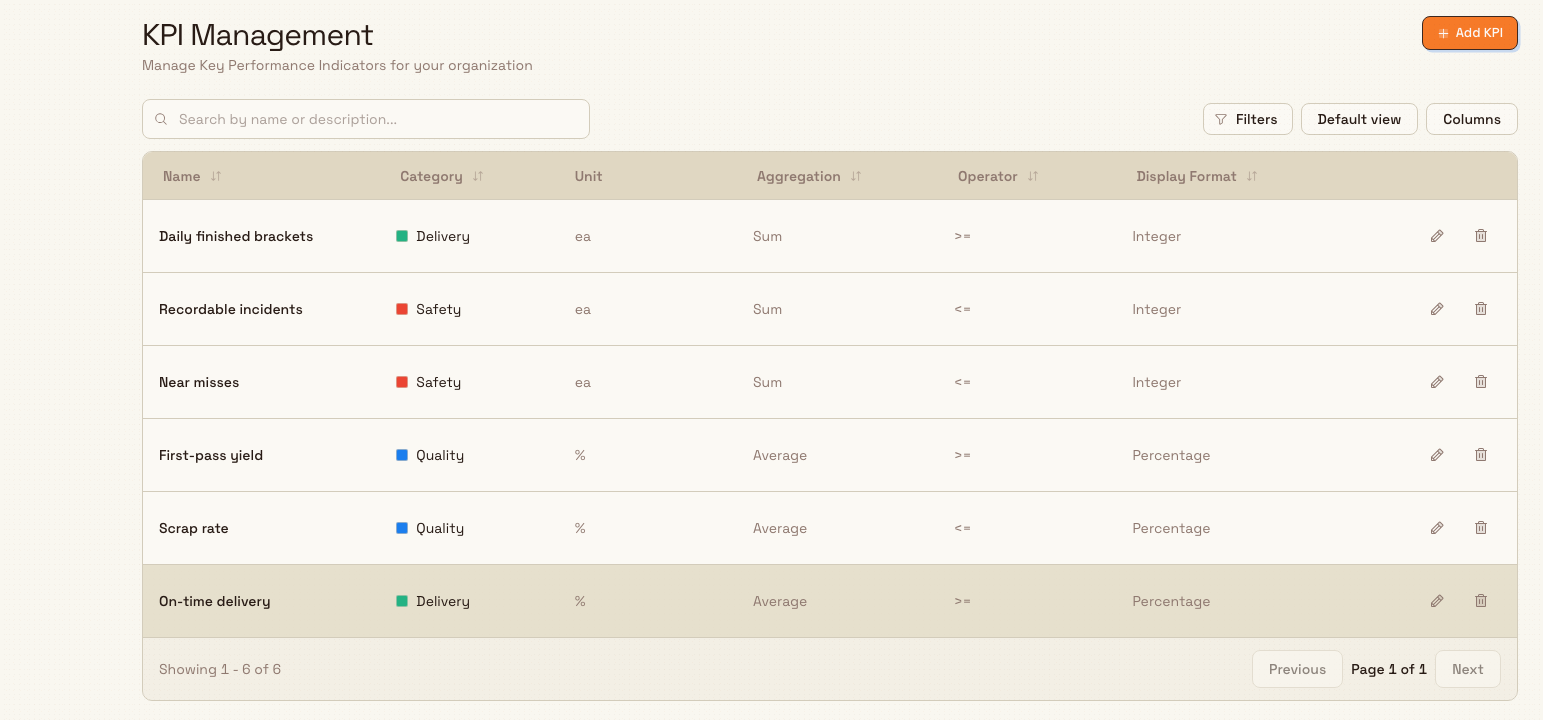
Create a KPI
Select Add KPI to open the Create KPI page. Complete its four sections: Identity, Measurement, Data source and Scope. A short uppercase KPI code is generated from the name and shown in Identity for use in formulas and exports. The page title follows the name as you type.
The footer reports whether required fields are complete. Select Create KPI when the definition is ready. If you cancel a changed draft, Bulk asks whether to discard the unsaved changes.
Identity
Set the KPI's identity:
- Name (required): what the metric is called, for example
Scrap Weight. If you end the name with an abbreviation in parentheses, such asRight First Time (RFT), that abbreviation becomes the code. - Description (optional): a short explanation shown on the KPI card and in reports so everyone knows exactly what it measures.
- Category (required): the group this KPI belongs to.
Measurement
Choose how the metric is quantified:
- Unit (required): determines how the value is displayed and rounded.
- How values are combined: the aggregation used when several daily values roll up into a weekly or monthly figure. The options are Combined total (add all values), Average value (the mean), Peak value (the highest), and Lowest value (the lowest).
- Goal is achieved when: the direction that counts as good: Higher is better, Lower is better, or Exact match. Each option shows a worked example so you can confirm the outcome you picked.
Data source
Choose where the KPI's numbers come from. This is what makes a KPI automatic or manual:
- Manual: enter values by hand each period.
- Audits: count or score results from an audit template.
- Production. Build a production query as a sentence of blocks: a source, a measure, and any filters. See Build a production query below.
- Incidents: count incidents by status and type.
- Formula: combine other KPIs with a formula. This source is newer than the others; a formula KPI can only be reported at entities where every input KPI also exists.
Each source except Manual opens its own settings. Audits, Production, and Incidents use a query sentence. Formula opens the formula builder.
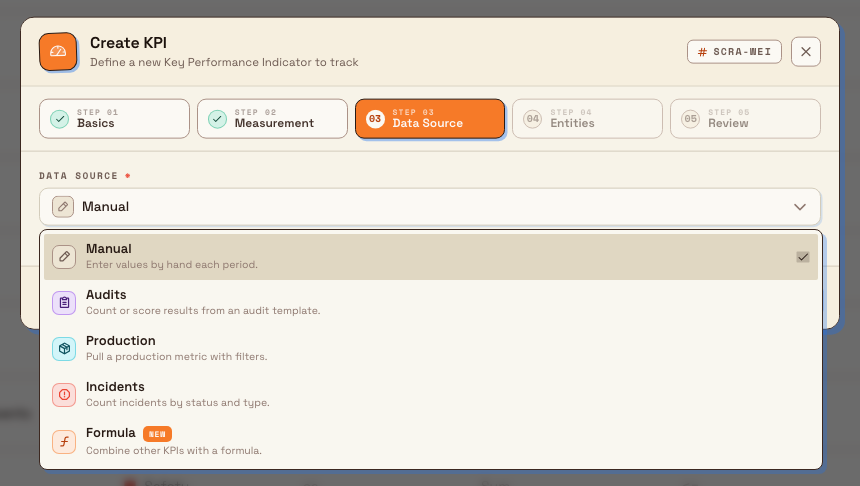
Scope
Select the entities (sites, lines, or teams) this KPI is reported for. At least one is required. Start typing to add more. For a formula KPI, Bulk shows a coverage note here: it confirms when every selected entity has all the formula's inputs, or warns you which entities are missing which inputs. An asset activity query can use only one entity. The picker then allows a single site, and its help says asset activity KPIs use one entity at a time.
Save the definition
Review the four sections and select Create KPI. The new definition appears in KPI Management and becomes available for targets, records and teamboards. Formula settings include input coverage and a preview in the form.
Example: setup readiness at Gotham Applied Sciences
Bruce Wayne opens Settings → KPI → Management and selects Add KPI for a shift-handover metric:
- Identity: Name
Setup Readiness (SR), Category Process Stability, description "Completed tooling and first-off checks before shift handover." - Measurement: Unit Percentage (%), combine values as Average value, goal Higher is better.
- Data source: Manual, for a supervisor to enter the completed-check percentage.
- Scope: Gotham Applied Sciences.
Review the definition and select Create KPI to save it. The screenshot shows the source picker in this filled draft. That capture draft was discarded, so it did not add a KPI to the shared account.
Build a production query
In the Data source section, choose Production. A Production query opens under the source. Until you pick anything, it reads Start building your query and tells you to choose a source. How days roll up stays on Measurement.
The query is a visual sentence. Each part is a block, and choosing a block opens its list:
- Select the Choose a source block. The list is titled Sources, and you can search it. Picking one starts the sentence with that source and its first measure.
- Open the measure block to change what is counted. Each measure has a one-line description of what a day's number is.
- Choose Add filter to narrow the sentence. The first filter is joined with where, and further filters with and.
- Some sources add another choice, such as hours or minutes, or whether inspection counts.
- Clear query removes the sentence so you can start again.
The note under the sentence says what the current source counts. The sources are Invoicing, Recording batches, Jobs, Orders, Inbound documents, Inbound items, OEE events, Timers, Asset activity, Work at resource, and Buffer. First timer sessions is a Timers measure, described at the top of this article. Invoicing is described in the next section.
Daily active assets and utilization
Choose the source Asset activity. It reads time-weighted active assets or utilization for one site. The measures are:
- Daily active assets. Active time divided by the length of the day. Running timers count, and so do OEE reasons you include as still active, such as paused. Only time inside an activation window counts. When that window covers the day, one asset active all day counts as 1, one asset active for half the day counts as 0.5, and two assets active all day count as 2. Today uses the day so far, not a full 24 hours.
- Utilization percent. Active time divided by activation-window time, as a percentage. Time outside a window is ignored, so the figure does not go above 100 percent. An asset active for its whole window is 100 percent even when that window is shorter than the day.
- Active assets average. The same time-weighted count as Daily active assets.
- Idle assets average. A time-weighted count of idle assets across the day. Idle time is activation-window time that was not spent active.
An activation window is the time an asset is set as active. If none is recorded, an active asset counts from when it was created until it is deleted. An inactive asset with no activation window is left out.
The query can cover the whole site. Do not add an Assets filter, or open it and leave it empty. The placeholder reads All active assets, and the note says leaving it empty includes every active asset on the entity. When you already have a site selected, create fills that site in on Scope. Asset activity allows only that one site.
If you have not selected exactly one site, the Assets note says to select a single entity before you can choose specific assets. If the site has too many assets for one whole-site reading, including assets that are no longer active, Bulk will not save an empty Assets filter. The message is "Select at least one asset because all-assets mode is unavailable." Pick the assets you want instead.
The Reasons filter is optional. Its placeholder is None, running timers only. The note says these are OEE downtime reasons that still count as active (for example paused), and that running timers always count as active. The line under the query says active time is running timers plus those reasons, idle time is the rest of the activation window, and each day is a time-weighted average.
Track invoices
Choose Production, then choose Invoicing in the production query. The measure starts as Count. You can change it to invoice value, credited value, or net invoice value. For a value measure, set the unit to a currency. If the unit is not a currency, or a required exchange rate is missing, the result is unavailable.
Choosing Invoicing sets How values are combined to Combined total. The other rollup choices are unavailable. The note says: "Invoice KPIs use combined totals so each invoice contributes once."
The query counts each invoice once, on the day it entered its latest selected stage. That stage is judged as of the end of the period you are reading, or as of now when the period is still open. If the invoice later moves into another selected stage, only that later day counts. If it moves into a stage you did not select, it drops out. An invoice that entered its selected stage before the period does not count, even if it is still in that stage.
Invoice stages is already on the query, and you cannot remove it. Open selects unfinished stages, including issue and send failures. Completed selects the issued confirmed stage only, not issued and confirmed as two stages. All stages selects every stage, including voided. You can also select individual stages. At least one stage is required, and you cannot clear the last one.
Add Invoice and order fields filters to narrow the result by invoice details, linked order details, custom fields, or custom dates. Reference fields use searchable names. Every condition must match. The filter note says latest values apply when any period is recalculated. Invoices without an order still count unless an order condition requires a match.
A day with no matching invoices is zero, and those days do not change a combined total. Each invoice still contributes once, on the day its stage was entered. Recalculation uses the latest amounts, credits, and field values, so a correction can change an earlier period. Changing an order custom field can change which invoices match. Correcting a lifecycle date moves the day the stage was entered. Daily totals are calculated when you open the result, rather than saved as separate records.
If the invoice history cannot be read completely, the result is unavailable. Resolve that missing evidence before you use the KPI. Invoicing KPIs do not report payment status, uninvoiced orders, or process duration.
Automatic actuals stop at today
Audits, Production, Incidents, and Formula KPIs calculate actuals through today on the site calendar, and no further. Today is included, using what has happened so far. Days after today stay empty. If the whole range you open is still in the future, there is no calculated actual.
The day boundary is the site's time zone, not the time zone on your computer. A past month still shows every day in that month. A month that includes today stops on today.
Manual KPIs are different. Values you enter for a later day are kept. Targets you set for later days are kept as well. Only the calculated actual stops at today.
Edit a KPI
In the active list, right-click a KPI's row and select Edit. The full-page form opens with the existing definition pre-filled. Change the relevant fields, including the data source, and select Save changes. Edits apply everywhere the KPI is used. In edit mode the code is shown as stored and is not re-derived when you rename the KPI, so an established code stays stable.
Bulk blocks one change: you cannot switch a KPI's data source to Formula if that KPI is already used as an input by another formula KPI, because formula inputs must not themselves be formulas. Bulk names the formulas that reference it so you know what to adjust first.
Delete and restore a KPI
Deleting a KPI is a soft delete: it is reversible. Right-click a row, select Delete and review the confirmation. The KPI is removed from the catalog and from teamboard widgets, but its targets, records, and annotations are kept. Deleted KPIs move to the Deleted view, where each row offers Restore through its context menu that returns the KPI to the active catalog.
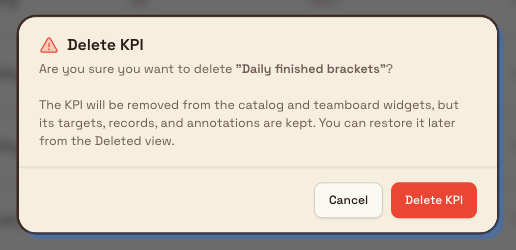
Restoring does not re-add teamboard widgets
When you restore a KPI, its targets, records, and annotations are already intact, but any teamboard widgets that were removed during deletion are not re-added automatically. Add those widgets back manually if you need them.
A KPI used by a formula cannot be deleted
If a KPI is referenced as an input by a formula KPI, deletion is blocked and Bulk names the formulas that depend on it. Remove or repoint those formulas first, then delete the KPI.
Expected result
After creating a KPI it appears in the active KPI Management list and is available to set targets for, enter or calculate values for, and add to teamboards and dashboards. After editing, your changes apply everywhere the KPI is shown. After deleting, the KPI leaves the active list and moves to the Deleted view, from which it can be restored with its history intact.
Feature state and limitations
This capability is generally available. A few behaviors are worth knowing:
- KPIs measure daily and roll up. Each KPI collects a value per day; the How values are combined setting controls how those daily values become the weekly or monthly figure. There is no separate weekly-only or monthly-only frequency to choose.
- The Formula data source is newer than Manual, Audits, Production, and Incidents. A formula KPI can only be reported at entities where all of its input KPIs exist, and it cannot be used as an input by another formula.
- Formulas fill gaps in totals with zero. When an input KPI combines its values as a Combined total, a day with nothing recorded for it counts as zero, so the formula still has a value for every day any input reported. Inputs that use Average value, Peak value, or Lowest value have no meaningful zero, so the formula only has a value on days where each of those inputs has one. A day that would divide by zero is left empty.
- Calculated actuals stop at today. Audits, Production, Incidents, and Formula have no actual after today on the site calendar. Manual values, and targets for later days, remain.
- Asset activity covers one site. Leave assets empty to include every active asset on that site, unless Bulk tells you all-assets mode is unavailable.
- Deletion is a soft delete, not a permanent one. Definitions move to the Deleted view rather than being erased, and their history is retained.
Troubleshooting
- You do not see an Add KPI button, or Edit and Delete actions. You are either viewing the Deleted view (which only offers Restore) or your role lacks the KPI management permissions. Switch the filter back to the active view, or ask an administrator for a role that can manage KPIs (Super user, Entity admin, or Manager).
- The Category dropdown is empty. No KPI category exists yet. Create one first in Settings → KPI → Categories, then return to the form: see Manage KPI categories.
- The unit you want is not listed. Only active units appear. Add or reactivate the unit in your master data, then reopen the form.
- Deletion is refused. The KPI is used as an input by one or more formula KPIs. Bulk lists them; adjust those formulas first, then delete.
Related guidance
- KPIs overview: how KPIs fit together across categories, targets, and reports.
- Manage KPI categories: create the categories a KPI must belong to.
- Set KPI targets: give a KPI the target it is measured against.
- Review KPI detail and reports: enter values and review results over time.
- Use AI assistance with KPIs: create and edit KPIs with the built-in assistant.
Manage KPI categories
Group your KPIs into named, color-coded categories such as Safety, Quality, and Delivery so every metric stays organized and easy to find across your plants.
Set KPI targets
Set a daily target for every KPI assigned to a plant on a month sheet: type a value in a day cell, or drag a filled cell to copy it across the month.