Set KPI targets
Set a daily target for every KPI assigned to a plant on a month sheet: type a value in a day cell, or drag a filled cell to copy it across the month.
Last updated
A KPI (key performance indicator) is a metric you track over time, such as on-time delivery or daily output. A target is the value you plan to hit for that metric on a given day: the goal that actual results are measured against.
The Targets page lets you set those daily values for every KPI assigned to the plant you are working in, for one month at a time. You use it when you are planning ahead: setting this month's output goals, or changing a target after a shift pattern or a customer commitment changes. Targets are the benchmark Bulk compares actual values against to decide whether a KPI passed or missed for each period.
Before you start
To set targets you need all of the following:
- The "Manage KPI targets" permission. This permission (internally
kpi.target_manage) is what lets you create and update targets. In the default roles it belongs to Super user, Entity admin, and Manager. Operators do not have it. With only the "View KPIs" permission you can open the page and read existing targets, but the values are not yours to change: ask an administrator if you need it. - A KPI that already exists, is active, and is assigned to your plant. KPIs are created in Settings under KPI, in the Management area. The sheet lists only active KPIs assigned to the plant you have selected. If the one you want is missing, check that it is active and assigned to that plant.
- The right plant selected. Targets are stored per plant. Set the plant you are planning for before you begin: the page reads and writes targets for whichever plant you currently have selected in Bulk.
In Bulk a plant (also called an entity or site) is one physical location, such as a factory. These examples use Wayne Enterprises' Gotham Applied Sciences site.
Open the targets page
Go to Settings, open KPI, and choose Targets. The page is titled KPI Targets. Under the title it reads "Set daily targets for every KPI assigned to this entity".
In the header, two menus sit beside the title. The first is named Month and shows a month name, such as September. The second is named Year and shows a year, such as 2026. The month menu lists the twelve month names. The year menu lists the current year, the two years before it, and the two years after it.
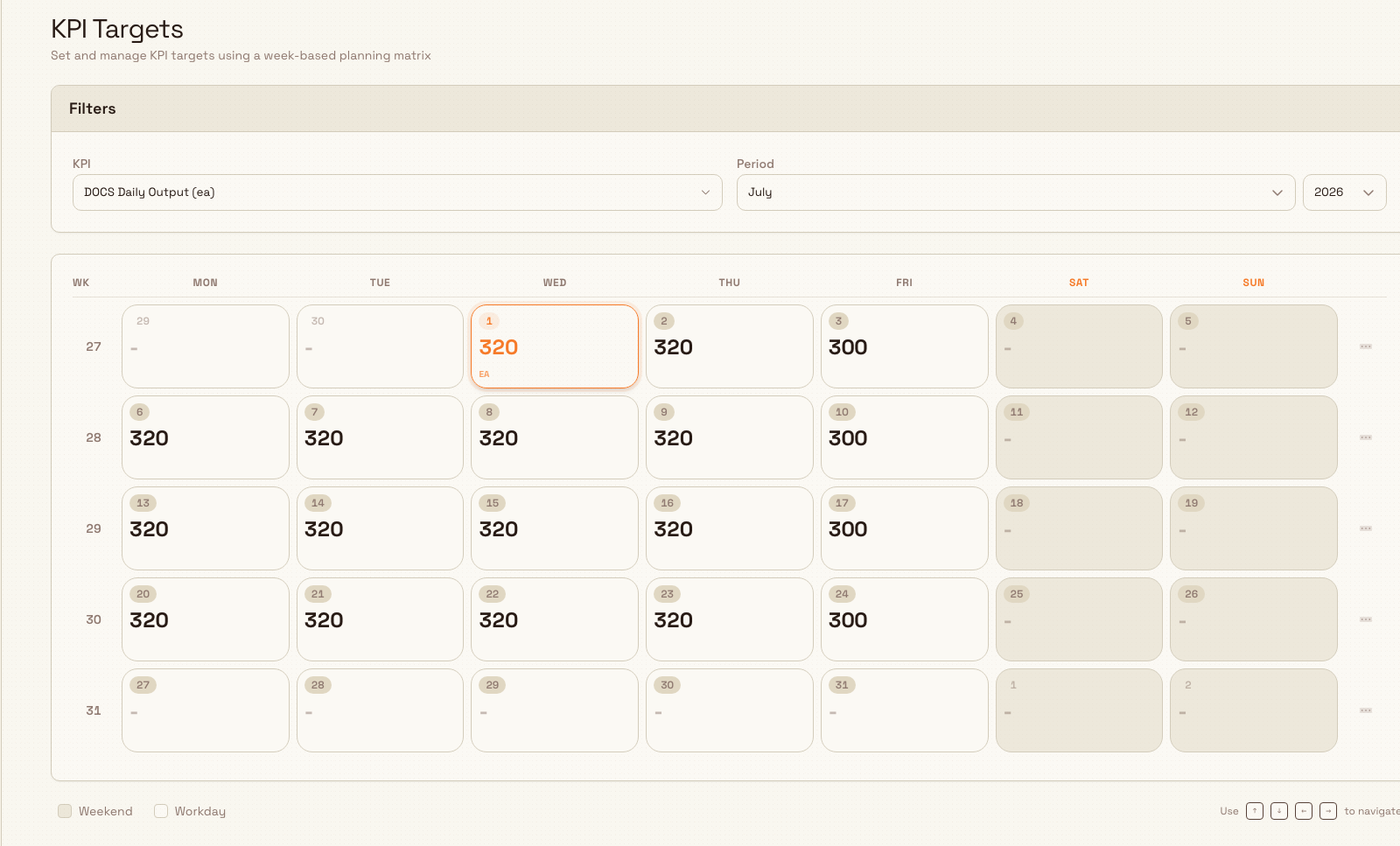
The picture below shows the current month sheet with existing daily targets.
Read the month sheet
The sheet has one row for each active KPI assigned to the plant you have selected. You do not pick a single KPI from a filter. The columns are:
- Category: the KPI's category.
- KPI: the KPI name.
- Unit: the unit symbol, such as
unitsor%. The unit is this column, not a mark inside the day cell. - One column for each day of the open month. The heading is the day number, from 1 through the last day of that month. Days from the previous or next month are not shown.
Each row starts with its row number. Rows start in category order, then by KPI name. Select the Category, KPI, or Unit heading to change that sort. Category and KPI stay in place when you scroll sideways to later days.
Saturday and Sunday columns are shaded. When today falls in the open month, that day's column is highlighted.
Until a plant is selected, the page shows Select an entity and "Choose an entity to plan KPI targets". If the plant has no active KPIs assigned, it shows No KPIs assigned and "Assign KPIs to this entity before setting targets". While the list is loading, it shows Loading KPIs.
Enter a target
Each day is one cell on that KPI's row:
- Type a number that is zero or greater, such as
320or12.5. When you leave the cell, the target saves on its own. One change shows "Target saved". Several cells saved together show "Targets saved". - Empty a cell to remove that day's target. Clearing a cell saves too. One cleared cell still shows "Target saved". There is no separate message for a cleared cell.
- A negative number, or text that is not a number, is not saved. The cell returns to the value it already had.
Press Enter to leave a cell and move down the sheet. Press Tab to move to the next cell. There is no separate Save button.
Targets save when you leave a cell
Each cell saves by itself when you move off it. Emptying a cell removes that day's target. There is no undo, so to bring a value back you type it again.
Copy a value across days
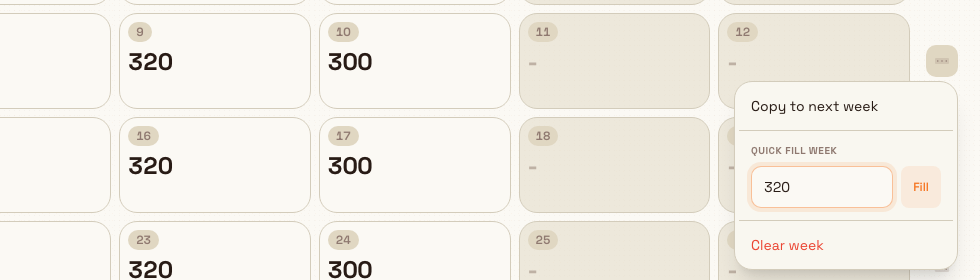
Drag the corner of a filled cell to copy that value across other days in the open month. The handle is titled Drag to copy. Empty cells are not copied. A zero is a real target, so a drag does copy it. There is no Week actions menu on this page, and no Copy to next week, Quick Fill Week, or Clear week. There is also no control on this page, or when you create or edit the KPI, that copies one week forward for several weeks or through the end of the year. Choosing another month shows that month's own targets. It does not copy the month you were just editing.
A Gotham example
Gotham Applied Sciences tracks Daily Output, measured in ea. Its existing October targets are 200 on most weekdays, 100 on Saturday, and zero on Sunday.
- Open Settings, then KPI, then Targets. With Gotham Applied Sciences selected, choose October and 2026. The sheet lists all 14 assigned KPIs.
- Find the
Daily Outputrow. The first day has a target of200. - Select that cell to show its corner handle. To plan a similar run of days, drag the handle across the required cells. The drag also covers weekends if you include them.
- Check Saturday and Sunday separately. A zero is a target, while an empty cell means no target.
- For another month, choose its month and year and plan its own values.
The screenshot shows the existing target and handle. No values were changed during capture.
What happens to your targets
Targets you set here are stored for that KPI, the selected plant, and each specific day. From then on they act as the goal that plant's actual results are checked against: Bulk compares each period's actual value to its target using the comparison operator set on the KPI (at or above, at or below, or equal to) and marks the period as a pass or a miss. You can compare targets and actual values in KPI Table, and enter daily results in KPI reporting.
Every change you make, whether you add, update, or remove a value, is written to the KPI audit log, so there is a record of who changed a target and when.
Limitations and troubleshooting
This page sets one plant's daily target values. It does not create KPIs, change how a KPI is calculated, or enter the actual results. Those are separate tasks, linked below.
- The KPI you want is not in the sheet, or the page reads "No KPIs assigned." The sheet only lists KPIs that are active and assigned to the plant you currently have selected. Confirm the KPI is active and assigned to this plant in the Management area, or switch to the plant the KPI belongs to. The empty page also reads "Assign KPIs to this entity before setting targets".
- The page shows "Select an entity". The sheet appears only when a plant is selected. The message under that title reads "Choose an entity to plan KPI targets". Select the plant in Bulk, then return to this page.
- A value will not stay in the cell. Targets accept only zero or a greater number. Use a plain number such as
320or12.5. A negative number, or text that is not a number, is dropped and the cell keeps its previous value. To have no target for a day, leave the cell empty instead. - You can see targets but cannot change them. Reading targets needs "View KPIs". Changing them needs "Manage KPI targets". If the values will not save, you likely have view access only: ask an administrator to grant the target permission.
Related
- KPIs overview: how KPIs fit together across Bulk.
- Create and manage a KPI: create a KPI, set its unit and frequency, and assign it to a plant so it appears here.
- Manage KPI categories: group KPIs so they are easy to find.
- Review daily KPI reports: enter and review reported KPI values.
Create and manage a KPI
Define, edit, delete, and restore a Key Performance Indicator from KPI Management, choosing how each metric is measured and where its data comes from.
Review and enter daily KPI reports
Open a dated report to review or enter a site's manual KPI values, then check the saving, clearing, and skipping summary before submitting.