Select a Teamboard plant
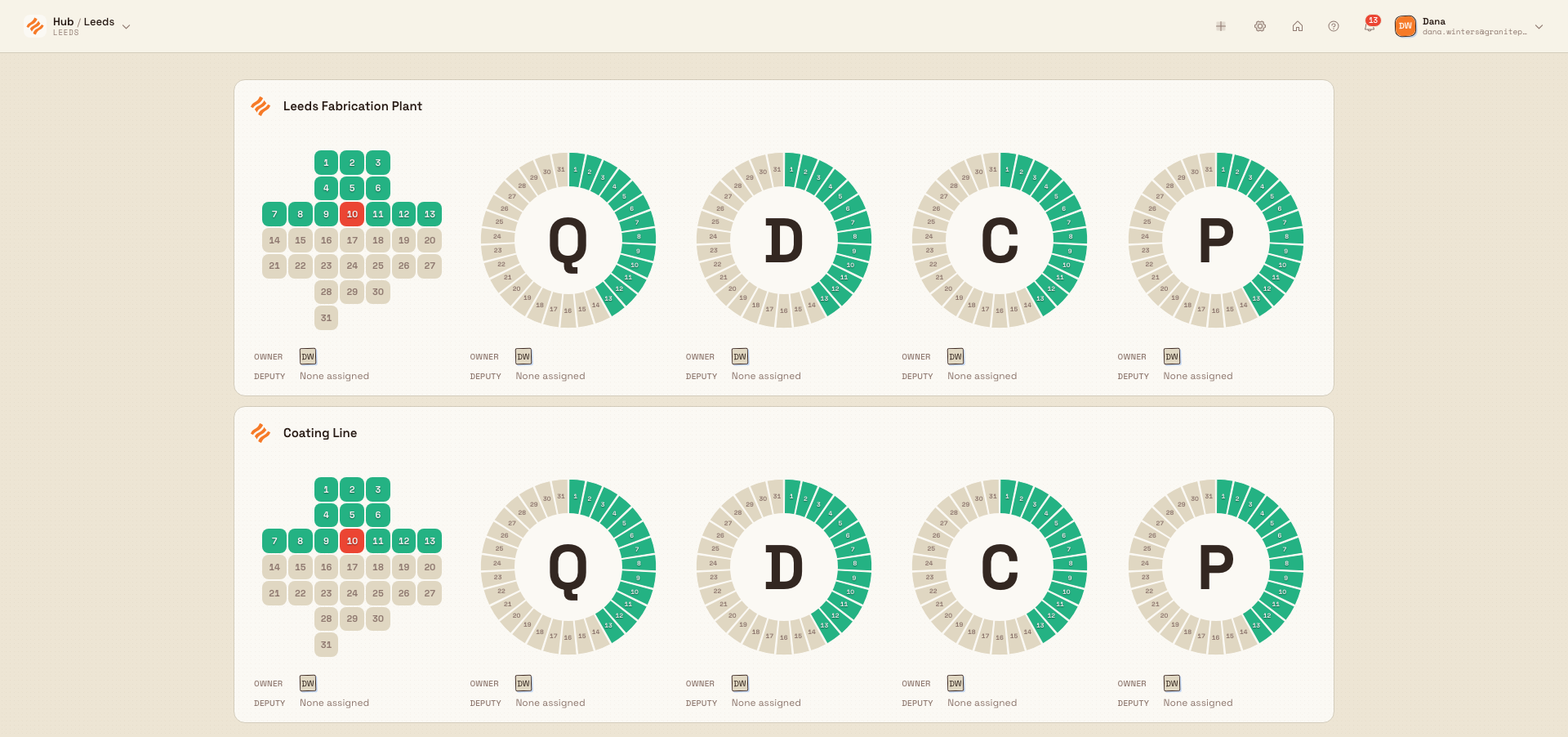
Use the Teamboards plant switcher to pick a shared SQDCP board, jump into a board's settings, or create a new board, with a card per teamboard.
Last updated
The plant switcher is where you choose which Teamboard to open. In Bulk, a teamboard is a shared, wall-ready visual-management board that a team gathers around for its daily stand-up. Each board is organised around the five lean daily-management categories known as SQDCP: Safety, Quality, Delivery, Cost, and People. This screen — labelled Select Teamboard in the browser tab — is the front door to the Teamboards module: it shows one card for every board you can open, so you can pick a plant, jump straight into its settings, or start a new board.
Bulk calls each teamboard a plant on this screen, so the terms are interchangeable here — one card is one board. A site (called an entity in Bulk — a single physical location) is different: a board can draw its numbers from one site or several, and which boards you see depends on the sites you have access to.
Use the plant switcher when you want to open a team's board for a morning meeting, put a board up on a line-side screen, tidy up a board's setup, or spin up a new board for a team that does not have one yet.
When to use the plant switcher
Open the plant switcher whenever you need to move between shared boards or manage the set of boards for your teams:
- Open a team's board to run or display its daily SQDCP stand-up.
- Switch from one team's board to another without leaving the module.
- Step into a board's settings to change its categories, widgets, or the people accountable for each indicator.
- Create a brand-new board for a line or team that does not have one yet.
Before you start
You can open the plant switcher once you are signed in and have a site selected. If no site is selected, Bulk sends you to the site picker first.
To open the switcher and see boards, your role needs the View teamboards permission (teamboards.view). By default this is granted to the Super user, Entity admin, Manager, Operator, and Dashboards roles.
Two actions on this screen need more than viewing rights:
- Create new board needs the Create teamboards permission (
teamboards.create). Because a new board is set up with its five default SQDCP categories, creating one also uses the Edit teamboards permission (teamboards.update). - Edit in a card's menu opens its settings and needs Edit teamboards (
teamboards.update).
By default, both Create teamboards and Edit teamboards are granted to the Super user, Entity admin, and Manager roles. Viewers such as the Operator and Dashboards roles can open boards but cannot create or edit them.
Which boards you see
The switcher lists every teamboard you have access to across your organisation, based on the sites your role covers — not only boards tied to the one site you have selected. A board appears when you have access to any of the sites it draws from.
Open the plant switcher
The plant switcher opens as its own full-screen page, separate from the main app with no left sidebar:
- From the Home screen, open the Teamboards tile (labelled Visual management). The switcher loads at the
/teamboards/plantsroute. - The page opens with a slim header at the top; the global search box is hidden so the boards get the full width of the screen.
- The boards you can open appear as a grid of cards below the header.
When you are already inside a board, the Switch Plants button in that board's header brings you straight back to this switcher, so you can jump to a different board.
Read a plant card
Each card is a preview of one teamboard. From top to bottom, a card shows:
- The board's logo mark and its name.
- A row of SQDCP indicators — one per category the board uses. Safety is shown as a safety cross, a calendar-shaped grid with one cell per day of the month coloured by that day's safety result. Quality, Delivery, Cost, and People are shown as circular gauges that summarise the month against target.
- The Owner and Deputy for each indicator, shown as small avatar chips. The owner is the person accountable for that category; the deputy is their stand-in. When nobody is assigned, the row reads None assigned.
The indicators and people are read-only here — they give you enough signal to pick the right board at a glance. You change them inside the board or its settings, not on this screen.
Open a board
Click a plant card to open that board. Bulk takes you into the board's live SQDCP dashboard for the current month, where the indicators, widgets, and daily data are fully interactive.
There is no separate confirm step on this screen — a single click on a card opens it.
Edit a board's setup
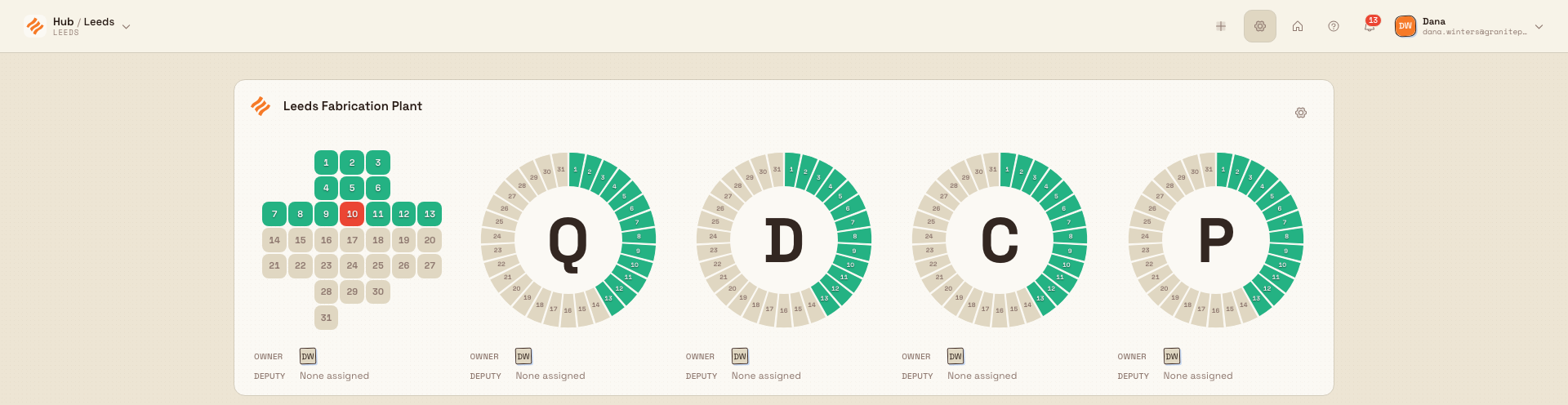
The current picker uses a menu on each card:
- Right-click the board's card.
- Select Edit to open that board's settings under
/teamboards/plants/<board-id>/settings. - Change the board's categories, widgets or indicator owners there when needed.
The same menu offers Open, Open in new tab and, when permitted, Delete. Clicking the card normally opens the board. There is no global Enter edit mode or Exit edit mode control in this design.
Create a new board
To add a board, select Create new board (the plus icon) in the header, review the confirmation, then select Create. When the selected site already has a plant board, the confirmation creates a line board under it. Otherwise it creates a plant teamboard. The new board starts with:
- A default name, such as New Plant 3 or New Line Board 1, numbered from the corresponding board count.
- A placeholder location that you rename later.
- The five default SQDCP categories — Safety, Quality, Delivery, Cost, and People — ready to configure.
A confirmation message reads New teamboard created successfully, and the screen scrolls to its plant card rather than opening the board, so you can keep working in the switcher. Open the new board or its settings to rename it, set its location, and assign owners.
When you have no teamboards at all, the switcher shows an empty state instead of a grid: a No Teamboards heading, the prompt Create your first teamboard to get started., and an Add New Teamboard button that does the same thing as Create new board.
Example: Gotham Daily Operations
Bruce opens Teamboards at Gotham Applied Sciences. The Gotham Daily Operations card shows its configured Safety, Quality, Delivery, Cost and People indicators for October. The first four days have actual green, red and amber results; future days remain grey. Bruce is assigned as each category's owner, and no deputies are assigned.
A normal click opens the board for the daily meeting. To review its configuration, Bruce right-clicks the same card and chooses Edit. That opens its existing settings without changing any data. Returning to the picker leaves the board and its history intact.
Feature state and limits
The plant switcher is available. A few things to keep in mind:
- Creating and editing boards depend on your role. If you only have the View teamboards permission, you can open boards but the Create new board and card-menu Edit actions will not let you make changes.
- The cards are a preview only. The SQDCP indicators, owners, and deputies are set inside a board or its settings, not on the switcher.
- Indicator previews reflect the current month. Historical months are viewed inside a board, not from this screen.
Troubleshooting
- The screen shows "No Teamboards". No boards exist yet for the sites you can access. Use Add New Teamboard (or Create new board) to make the first one, if your role allows it.
- You cannot create or edit a board. Your role most likely has View teamboards but not Create teamboards or Edit teamboards. Ask an administrator to grant those permissions or move you to a role that has them.
- A board you expect is missing. You see a board only when you have access to one of the sites it draws from. Confirm your role covers that site, or ask an administrator to check the board's site assignments.
- The page shows "Error Loading Teamboards". The board list failed to load. Reload the page; if it keeps failing, confirm your role has the View teamboards permission for the selected site.
Related
- Teamboards — the wider Teamboards module and how SQDCP boards work.
- Use and manage a Teamboard — run a board and change its settings, categories, and owners.
- Create a Teamboard report — turn a board's data into a shareable report.
- Use AI assistance with Teamboards — get AI help while working with a board.
- Dashboards — the related picker for Bulk's built-in analytics boards.
- Insights and visual management — the wider reporting and visual-management area.
Teamboards
Run a plant's daily SQDCP board on a shop-floor screen: safety, quality, delivery, cost, and people indicators, live widgets, and daily reports.
Create a Teamboard report
File a plant's daily KPI report from its Teamboard: open the New report dialog, choose the site and date, and record the manual values the board uses.