Use and manage a Teamboard
View a plant's SQDCP Teamboard, log improvement actions, rearrange its widgets, and manage its indicators, owners, and settings.
Last updated
A Teamboard in Bulk is a full-screen daily-management board built around the SQDCP structure used in lean manufacturing: one column each for Safety, Quality, Delivery, Cost, and People. Each column carries a status indicator, the live KPIs and charts behind it, and a running list of improvement actions. Teams gather in front of a Teamboard: often on a wall display or TV: to run a shift huddle: check where each area stands today, raise issues, and assign the actions that close the gaps.
In this module each board is called a plant. A plant is one Teamboard tied to an owning site (in Bulk, a site is called an entity), and existing boards can aggregate KPI data from their configured entities. You use a Teamboard to read the day's status and capture actions; you manage a Teamboard to change what its columns show, who owns each indicator, and its name and status.
This page covers both. Choosing which board to open is covered in Select a Teamboard plant, and filing a KPI report from a board is covered in Create a Teamboard report.
Before you start
What you can do on a Teamboard depends on your role's permissions:
- View a board needs the
teamboards.viewpermission. The Owner and admin role, the Manager role, and the read-only Operator and Dashboards roles all include it. - Add an action (task) to a column needs
teamboards.create. - Edit the layout or change board settings needs
teamboards.update. - Delete a board needs
teamboards.delete.
The Owner and admin role and the Manager role carry all four permissions.
Operators and the Dashboards role can view boards but cannot edit them: the
management page opens as an access-denied screen for anyone without
teamboards.update.
A board is also scoped to its entities. You can only open a board if you have access to at least one of the entities it belongs to: its owning entity or an entity assigned to it. If you have no overlap, Bulk blocks access to that board.
Plant means board here
Throughout the Teamboards area, "plant" refers to a Teamboard, not to a physical factory. A single physical site can have several plants (boards): for example a separate board per production line: and one board can roll up data from several entities.
Open a board
From the main navigation, open Teamboards. If a board is already selected it opens straight to that plant's dashboard; otherwise you land on the plant picker. To choose a different board, select the Switch Plants control (the building icon) in the board header: this opens the Select Teamboard picker, where each card previews a plant's SQDCP indicators. Selecting a card opens that board. If no plant is selected you see an empty state reading "No plant selected" with a Switch Plants action.
Read the board
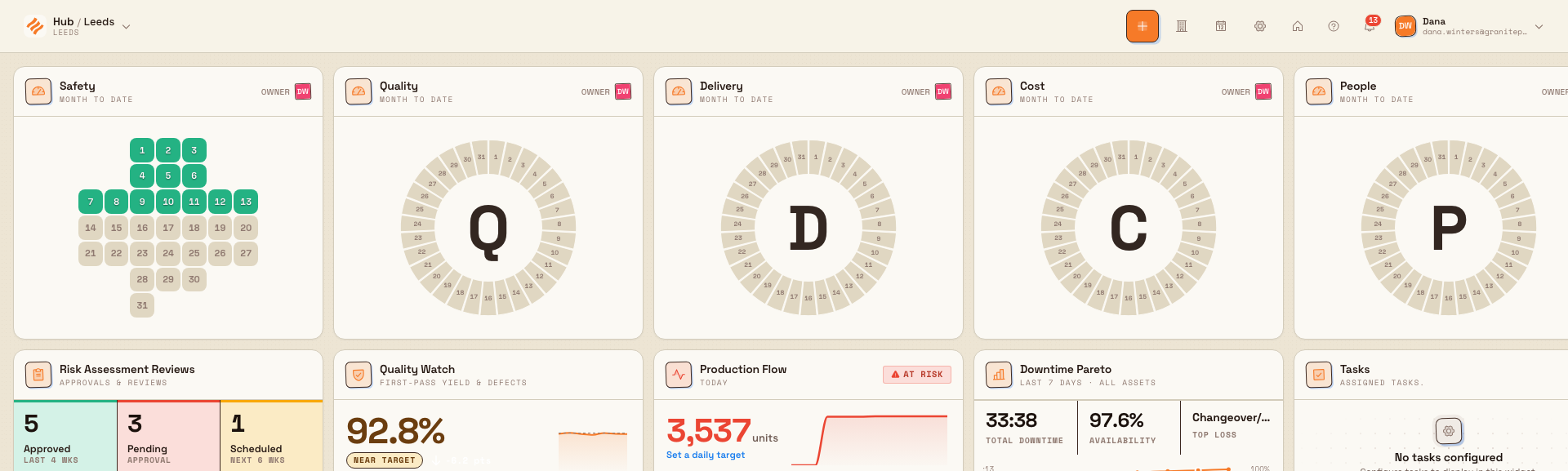
Each SQDCP column is topped by an indicator: a visual summary of how that area is doing:
- Safety typically uses a safety cross: a calendar-shaped grid where each day is coloured by its safety status (for example, green for an incident-free day).
- Quality, Delivery, Cost, and People typically use a circular gauge that shows each day of the month coloured by its configured rules.
The indicator colours come from rules you set in edit mode (below). Each rule ties a KPI or a daily audit schedule to a colour, and you can save the indicator with no rules. Below the indicator, the column shows the widgets attached to it, such as KPI charts, KPI tables, an audit-schedule table, and the column's action list.
Two header controls change what you are looking at without changing the board:
- Select date (the calendar icon) opens a date picker so you can view the board for a specific day. On an unattended display the board defaults to the current day and rolls over automatically at midnight.
- New Report (the plus icon) starts a KPI report for the selected entity and date, so the numbers behind the indicators can be filled in. See Create a Teamboard report.
Add an action to a column
The everyday job of a Teamboard is capturing actions against problems. Each column has an action list; use its add control to open the Create New Task dialog for that column. The dialog has these fields:
- Issue (required): what the problem is.
- Action (required): what will be done about it.
- Deadline (required): the date the action is due.
- Priority (required): Low, Medium, High, or Critical; the default is Medium.
- Assignee (optional): who owns the action.
- Description (optional): any extra detail.
Select Create Task to save it. The action appears in that column's list, and
Bulk confirms with "Task created successfully". Adding actions needs the
teamboards.create permission.
Edit the board layout
To change what a board shows, open it and select the edit-mode control (the
gear icon) in the header. The gear turns into a spinner while changes save, and
its label changes between Enter edit mode and Exit edit mode. Editing the
layout needs the teamboards.update permission. In edit mode you can:
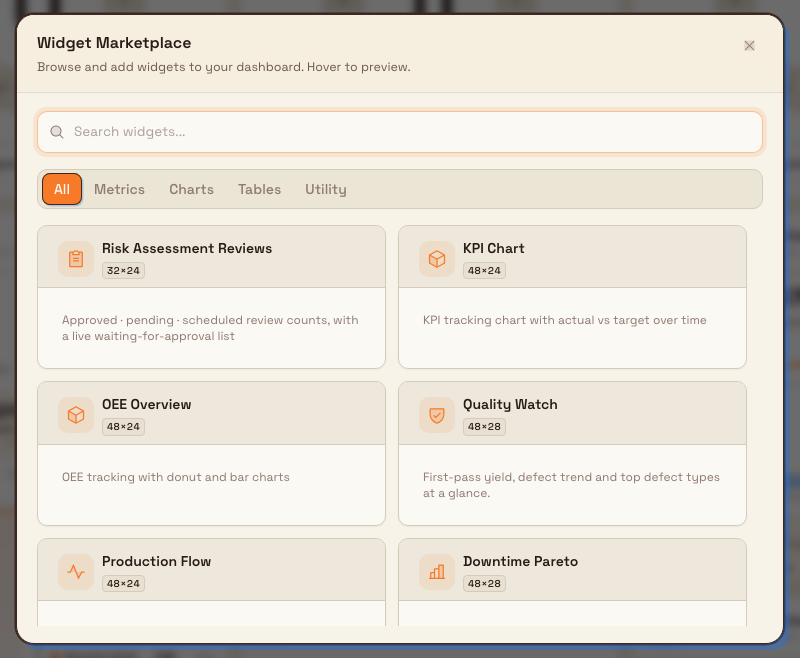
- Add a widget. Select Add Widget to open the Widget Marketplace, choose a widget, then choose which SQDCP column to place it in. Teamboard widgets include KPI Chart, KPI Table, Task Table, Versatility Matrix, Attendance, OEE Events, Orders, Audit Schedule Table, OEE Overview, Status Calendar, and Checklist, among others.
- Move a widget by dragging it within a column or into another column.
- Remove a widget using its remove control. Reordering and most changes save automatically; Bulk shows "Widget added", "Widget removed", and "Teamboard layout saved" as you work.
- Configure an indicator's colour rules by opening an indicator's settings. Each rule maps a KPI or a daily audit schedule to a colour. You can select Save when the indicator has no rules. If a rule has no source, Save stays off until that rule has a source. When several rules miss on the same day, the rule higher in the list sets the colour, so drag rules to put the most important first. A day where nothing misses stays green. Green is reserved for those on-track days, so it is not a colour you can pick for a rule.
When you leave edit mode after adding or removing widgets, Bulk asks Save Changes?: choose Save & Exit to keep them or Cancel to stay in edit mode.
Some widgets store their own data
The Status Calendar and Checklist widgets keep their own records: the day states you mark or the items you tick. Removing one of these widgets permanently deletes everything recorded in it, and this cannot be undone. Bulk asks you to confirm before it removes a data-owning widget.
Widgets you can add
Versatility Matrix is a heat map of a saved training layout. In its settings, Saved matrix lists All and each layout saved for the site. All is the site training matrix. A named layout shows the people and programs in that layout. Changes made in Training show on the widget. People who are on site are marked, and the legend says On site. The people column takes the width left beside the program columns. Select Open matrix for a read-only training matrix of that layout, including employee codes the heat map does not show.
Attendance shows In and Out counts for the board date, then the people in each state. Only an approved absence marks someone Out. Under Departments, leave every box unchecked to include all departments, including people who are not assigned to one.
OEE Events lists OEE events that are still open. Open time is always the last column, headed Open. Choose up to three other columns from Asset, Asset code, OEE reason, OEE category, and Loss category. A latest comment, when the event has one, sits under the OEE reason. Group by can use Loss category, OEE category, and OEE reason. Events that share the checked values collapse into one row with their combined open time. Select a group to see its events. Leave OEE reasons and Loss categories unchecked to include all of them.
Orders lists production orders. Choose one or more Statuses (New, Open, In Progress, On hold, Completed, and Cancelled). Entered can be Any time or the last 3, 7, 14, or 30 days. Required date can be Any required date, Overdue, Next 3 days, Next 7 days, Next 14 days, or Overdue and next 7 days.
Task Table has a Due date filter. Any due date includes tasks with no due date. Overdue shows open tasks whose due date is before today. Overdue and next 7 days, Overdue and next 14 days, and Overdue and next 30 days keep those overdue tasks and tasks due inside that window. Custom days uses the same window for a count from 1 to 90 days. After you set a window, tasks with no due date are hidden.
Hover a day on a KPI Chart to read that day's report comment. The hover shows Comment only when a comment was entered. On a Stacked KPI Chart, the hover shows each series comment on its own, not one comment for the combined total.
If your role cannot view a widget's data, the widget says you do not have access and names the permission an administrator can grant:
- KPI widgets, including KPI Chart, Stacked KPI Chart, and KPI Table,
need
kpi.view. - Task Table needs
tasks.view. - Audit Schedule Table needs
audits.view. - Orders needs
production_orders.view. - Versatility Matrix needs
training_matrix.view. - OEE Events needs
production_jobs.view. - Attendance needs both
employees.viewandabsences.view_team. The message namesemployees.view.
Manage board settings
Layout is edited on the board itself; the board's settings live on a separate
page. To reach it, open the Select Teamboard picker (Switch Plants),
right-click the board card, then select Edit from its menu. This opens the
Manage Teamboard page, which needs the teamboards.update permission and is
organised into three sections.
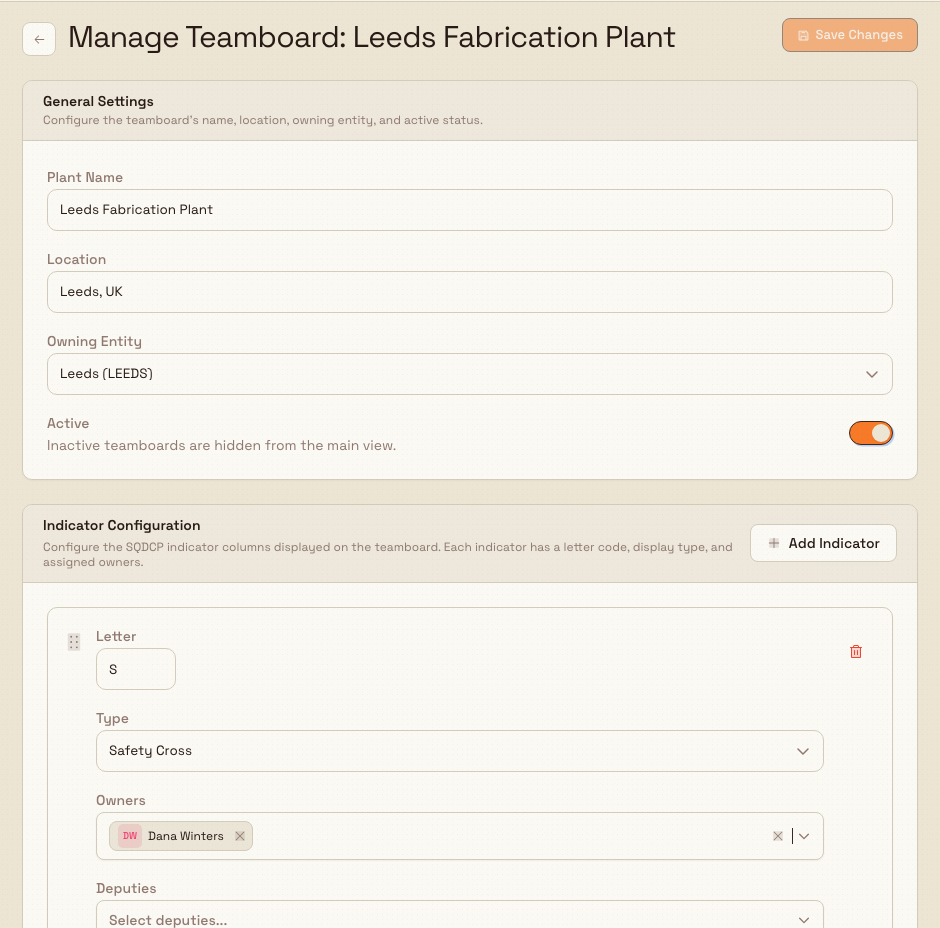
General Settings control the board's identity:
- Plant Name: the board's name (required, up to 100 characters).
- Location: a free-text location label.
- Owning Entity: the entity that owns the board, locked to the entity the board was created with.
- Active: an on/off switch. Inactive boards are hidden from the main view.
Indicator Configuration controls the SQDCP columns. Each indicator has a letter code (S, Q, D, C, P), a display type (gauge or safety cross), and assigned people. You can Add Indicator, drag indicators to reorder them, set each one's type, and assign an Owner and a Deputy who are accountable for that area.
Danger Zone holds the permanent Delete Teamboard action. The current settings page has no Entity Assignment section; it does not let you change the owning entity or add aggregation entities.
Select Save Changes to apply everything at once. The button stays disabled until you make a change, and reads "Saving..." while it works; Bulk confirms with "Teamboard settings saved successfully".
Delete a board
The Danger Zone section holds Delete Teamboard. Deleting is permanent: it
removes the board and all of its associated data, and Bulk asks you to confirm in
a dialog before it proceeds. After a successful delete you return to the plant
picker. Deleting needs the teamboards.delete permission.
Deleting a board is permanent
Delete Teamboard removes the board and everything recorded on it. There is no undo. Set the board to Inactive in General Settings if you only want to hide it from the main view.
Example: reviewing Gotham Daily Operations
Bruce Wayne opens Gotham Daily Operations for the October shift huddle. The Safety cross has four green days. Quality, Delivery and Cost include red days, and People has amber days. The monthly indicators give the team a quick route to the KPI charts and actions beneath each category.
To inspect available widgets, Bruce enters edit mode and opens Add Widget. The Marketplace shows illustrative previews, including Risk Assessment Reviews and KPI Chart. Closing it and exiting edit mode leaves the board unchanged. From Switch Plants, right-clicking the Gotham card and choosing Edit opens its settings: all five indicators have Bruce as owner, and the owning entity remains locked to Gotham Applied Sciences.
What you can expect
- Opening a board shows the current day's SQDCP status, with each indicator coloured by its rules when you have set some, and each column carrying its widgets and actions.
- A Task Table can be limited to overdue tasks and tasks due in the next few days. Hovering a KPI chart shows that day's report comment when one was entered.
- A widget you cannot view names the permission it needs.
- Adding an action files it against that column immediately and confirms with a success message.
- Layout edits (adding, moving, removing widgets) save as you make them, and the board reflects them right away.
- Settings changes apply together when you select Save Changes, and take effect the next time the board loads.
Availability and limits
Teamboards are generally available; no preview or beta opt-in is required. A few limits are worth knowing when you build out a board:
- To protect display performance, Bulk loads a bounded number of KPIs and a bounded number of entities per indicator. If you configure more than the limit, Bulk shows a "Performance limit" message and only the first items are displayed in the indicators.
- Owning Entity is fixed when the board is created. The current management page displays it read-only and has no Entity Assignment controls.
Troubleshooting
- The management page shows an access-denied screen. Your account does not
have the
teamboards.updatepermission. Viewing a board only needsteamboards.view; ask an administrator to grant the update permission if you need to edit layout or settings. - A widget says you do not have access. That widget needs a permission your
role does not have, and it names the permission. Ask an administrator to grant
it. You can still read the rest of the board with
teamboards.view. - You cannot open a board at all. A board is scoped to its entities. If you have no access to the board's owning entity or any of its assigned entities, Bulk blocks it. Ask an administrator to give you access to one of those entities.
- The board reads "No plant selected". No board is chosen yet. Select Switch Plants and pick a plant from the Select Teamboard picker.
- A widget you removed took its data with it. Status Calendar and Checklist widgets own their data, so removing them deletes it permanently. Re-add the widget to start fresh; the previous records cannot be recovered.
- Save Changes is greyed out on the settings page. The button only enables once you change something. Edit a field first, then save.
Related guidance
Create a Teamboard report
File a plant's daily KPI report from its Teamboard: open the New report dialog, choose the site and date, and record the manual values the board uses.
Use AI assistance with Teamboards
Configure a teamboard by chatting with Hugo, the built-in AI assistant that adds KPI charts to your board's sections while you edit.