Files
Store, organize, and open manufacturing documents in shared folders with role-based access, per-folder permissions, in-browser previews, and drag-and-drop uploads.
Files is Bulk's shared document library. It gives your site one organized place to keep the documents your team works from every day — work instructions, drawings, certificates, standard operating procedures, supplier paperwork, and photos of finished work. Instead of documents living on personal drives or in email, you store them in folders that the right people can find, open, and reuse across Bulk.
Open Files from Files in the main navigation (the document icon). The page is a Finder-style browser: a folder list on the left, the contents of the selected folder in the middle, and a status strip along the bottom showing item counts and how much storage your site has used.
Use Files when you want to:
- Keep controlled documents (procedures, forms, quality certificates) in a predictable, shared location.
- Organize files into folders that mirror how your plant actually works.
- Restrict a sensitive folder so only named people can open it.
- Preview an image or PDF without leaving Bulk, or download a document to work on it.
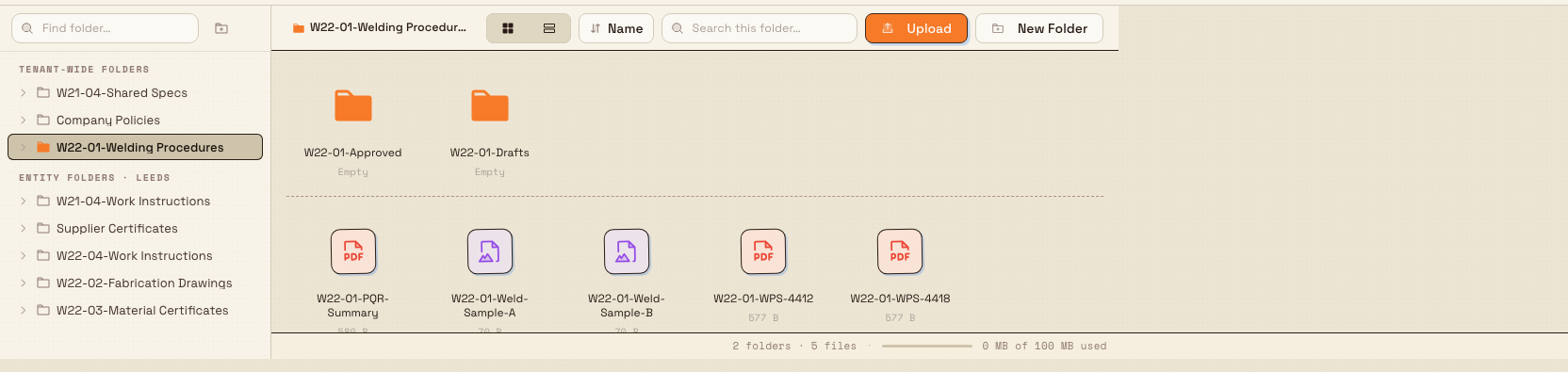
files.overview-01
Before you start
Access to Files is controlled by two permission levels:
- View files lets you browse folders you are allowed to see, and open or download the files inside them. You cannot change anything.
- Manage files lets you create folders, upload files, and rename, move, or delete folders and files.
Administrator and manager roles (for example Super user, Entity admin, and Manager) include the manage permission by default. View-only roles such as Operator can browse and open files but cannot change them. If Files is missing from your navigation, or a folder appears locked, your role likely does not grant the access you need — ask an administrator.
Access is per folder as well as per role
Beyond your role, individual folders can grant or restrict access. A folder set to Managed is only visible to the people explicitly listed on it, regardless of role. See How folders are organized below.
What you can do in Files
Files brings a small set of everyday document tasks together. Each task has its own step-by-step guide:
- Browse files — navigate folders, switch between icon and list views, sort, and search within a folder.
- Upload a file — add documents by dragging them onto a folder or using the Upload button.
- Organize files — create folders, and rename, move, or delete folders and files, including selecting several files at once.
- Preview a file — open images and PDFs directly in Bulk, or download other file types.
- Use files in another module — attach stored documents to records elsewhere in Bulk.
How folders are organized
Folders in the sidebar are grouped into two scopes:
- Tenant-wide folders are shared across your whole organization in Bulk. Everyone with Files access sees them, and they stay the same no matter which site you are working in.
- Entity folders belong to a single site. In Bulk, an entity is one site, plant, or location — for example a fabrication plant. The sidebar labels this group with your current site's name, and its folders only appear while you are working in that site.
Folders can be nested, so you can build a structure such as Quality → Certificates → 2026. The breadcrumb at the top of the browser always shows where you are, and you can click any step to jump back up.
Each folder also has an access mode, which you set from Manage Access:
- Public — anyone with Files access can open the folder. This is the default.
- Managed — only the users you list can open the folder. On a managed folder, you grant each person either Viewer (open and download) or Manager (full control). Managed access also applies to everything inside the folder.
Example: Granite Peak Manufacturing
Granite Peak Manufacturing runs its Leeds Fabrication Plant on Bulk. The quality team wants every welder to be able to pull up the current welding procedure at their station, while keeping supplier audit reports restricted to the quality managers.
An administrator creates a Tenant-wide folder called Welding Procedures and leaves it Public, then uploads the approved procedure PDFs. Every operator with Files access can now open those procedures from any station.
Next, they create an Entity folder under Leeds Fabrication Plant called Supplier Audits and switch it to Managed, adding the three quality managers as Manager and the plant director as Viewer. Now the audit reports are visible only to those four people, even though the folder sits in the same shared Files browser.
Supported files and limits
- Maximum size: up to 25 MB per file.
- Accepted types: PDF, Word (
.doc,.docx), Excel (.xls,.xlsx), PowerPoint (.ppt,.pptx), and images (.jpg,.jpeg,.png,.gif,.webp). - In-browser preview: images and PDFs open in a preview inside Bulk. Any other supported type (such as a Word or Excel document) prompts you to download it, because it cannot be shown in the browser.
The status strip at the bottom of the browser shows how much storage your site has used against your plan's limit — for example 2.4 GB of 10 GB used. If your plan has no storage limit, it simply shows the amount used.
Limitations and feature state
Files is generally available. Keep the following in mind:
Deleting a file or folder cannot be undone
When you delete a file or folder, Bulk removes it and the action cannot be undone from the Files page — there is no trash or restore view for recovering it yourself. Deleting a folder removes its contents too. Move anything you want to keep before you delete, and if you are unsure, rename or move the item instead.
- You manage files inside folders, not free-floating. Every file lives in a folder, so you select a folder before you can upload.
- Uploads are one at a time per file record, but you can queue several. Each file keeps its own name and optional description.
- Access follows folders down. A person's access to a managed folder also governs everything nested inside it.
Troubleshooting
- A folder shows a lock, or you see "You don't have access to this folder." The folder is Managed and you are not on its access list, or your role lacks Files access. Ask an administrator, or a folder Manager, to add you.
- You can open a folder but cannot upload, rename, move, or delete. You have view access but not manage access. This can come from your role (for example Operator) or from being added to a managed folder as a Viewer rather than a Manager.
- A file will not preview and asks to download instead. Only images and PDFs preview in the browser. Office documents are downloaded so you can open them in the right application.
- Your upload is rejected. Check that the file is 25 MB or smaller and is one of the accepted types listed above.
Related guides
Archive a project
Hide a finished or paused project from your active Projects list while keeping its board, tasks, and history, then restore it whenever you need it again.
Browse files
Navigate the Files area — folder sidebar, breadcrumb, icon and list views, search, and sorting — to find any shared file at your site.