Respond to a stock alert
Notice, act on, and configure the low, critical, and over-stock alerts Bulk raises for tracked consumable variants at your site.
Last updated
What a stock alert is
A stock alert is the automatic warning Bulk raises when a tracked material crosses one of its stock limits. In Bulk a consumable is a material used up during production — film, adhesive, welding wire, powder coat — and a variant is the specific, countable form you actually stock (a grade, a colour, a spool size). Bulk keeps a live count of each tracked variant, and when that count moves out of its healthy range it tells the right people so they can act before production is affected.
There are four things a stock alert can tell you:
- Low stock — the quantity has fallen below the variant's Min Stock (its reorder point), but is not yet critical. Time to reorder.
- Critical stock — the variant has run out, or has fallen below the site's Critical threshold share of its Min Stock. Production of anything that needs this material is at risk.
- Over stock — the quantity is above the variant's Max Stock. You are holding more than you planned, which ties up space and cash.
- Stock recovered — a follow-up notice sent when an item that was low, critical, or over returns to a healthy level, so recipients know the situation is resolved.
You respond to a stock alert whenever one reaches you: confirm what ran short, book in a delivery or correct the count, and let Bulk clear the alert once the balance is back in range.
Where alerts reach you
Bulk surfaces the same alert in more than one place, so you can catch it wherever you happen to be looking:
- In-app notification. Each recipient gets a notification such as "Low stock: Protective Film / D2 Class" with the current quantity and the configured minimum. Opening it takes you straight to the Stock page filtered to that one variant.
- Email. Recipients also receive an email. With Immediate delivery the email arrives as the alert happens; with Digest delivery, several alerts are grouped into a periodic summary email instead.
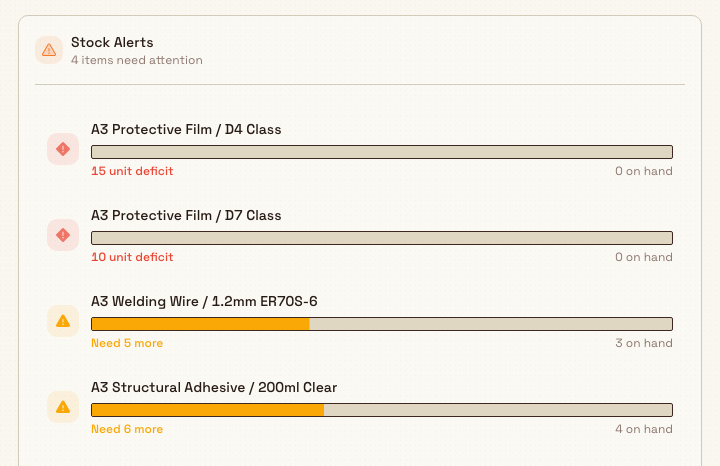
- Stock Alerts panel on Inventory Home. The Stock Alerts panel on the Inventory Home dashboard lists the items that need attention, showing each item's shortfall and quantity on hand, with a View all action when there are more than a few.
- Stock page. On the Stock page every variant carries a colour-coded status badge, and rows are sorted so Critical and Low items rise to the top.
The Home panel lists low and critical items
The Stock Alerts panel on Inventory Home shows items that are Low or Critical — the things at risk of running out. Over stock does not appear in this panel, but it still reaches recipients as an in-app notification and email and is visible on the Stock page, where over-stock rows carry their own Over badge.
When Bulk raises and clears an alert
Bulk decides a variant's health automatically from its quantity on hand, the reorder points set on the variant, and the site's Critical threshold:
- Zero (or below) is Critical.
- Below the Critical threshold percentage of Min Stock is also Critical. With a threshold of 25% and a Min Stock of 40, anything below 10 is Critical.
- Otherwise, below Min Stock is Low.
- Above Max Stock is Over.
- Anything in range is OK.
An alert fires on the change into Low, Critical, or Over — the moment a stock movement (a receipt, an adjustment, or material consumed by production) pushes the balance across a limit. A movement that leaves the status unchanged does not raise a fresh alert. To avoid flooding recipients, Bulk raises the same alert for the same item at most once per day. When a later movement brings the balance back into range, Bulk marks the alert resolved and sends the Stock recovered notice.
The Critical threshold sets how early Critical starts
At the default of 0%, a variant only turns Critical when it runs out. Raise the Critical threshold on the Alerts screen to flag items as Critical while some stock is still on the shelf. The threshold applies to every tracked variant with a Min Stock in the site, on the Stock page as well as in alerts, even while alerts are switched off.
Before you start
Responding to alerts and configuring them rely on a few things being in place for the entity (the plant or site) you have selected in the entity switcher — alerts always belong to one site.
- To configure alert defaults you need the Manage stock alerts permission (
inventory.stock.alerts). Bulk grants it by default to the Entity admin, Manager, and Master data roles, and to the Super user. The Operator role does not have it. - To receive alerts, a person needs either View stock levels (
inventory.stock.view) or Manage stock alerts in that site. Bulk skips any configured recipient who lacks the permission, so operators — who hold View stock levels by default — can still be notified. - The variant must be set up to trigger alerts. Stock tracking has to be on, and the reorder points have to be set: Min Stock drives Low, Max Stock drives Over, and reaching zero (or the site's Critical threshold share of Min Stock) drives Critical. A variant with no Min Stock is never flagged Low; with no Max Stock it is never flagged Over.
If any of these are missing, see Manage consumables and variants to switch on tracking and Configure replenishment thresholds to set Min and Max.
Respond to an alert
When an alert reaches you, work through it in four steps:
- Read the alert. The notification and email name the consumable and variant, the current quantity, and the configured minimum or maximum — enough to know how far short (or over) you are.
- Open the item. Click the in-app notification, or select the item in the Stock Alerts panel on Home, or open the Stock page and find the flagged row. Each route lands you on the affected variant.
- Fix the balance. For a low or critical item, book in a delivery with Receive Stock (or Bulk Receive for several at once), or correct a miscount with a stock adjustment. For an over-stock item, confirm the count is right and move or consume the surplus. See Record a stock movement for how to receive and adjust stock.
- Confirm it clears. Once the movement returns the variant to OK, its status badge flips back, it drops off the Home panel, and recipients receive the Stock recovered notice — your signal that the item is handled.
Configure alert defaults
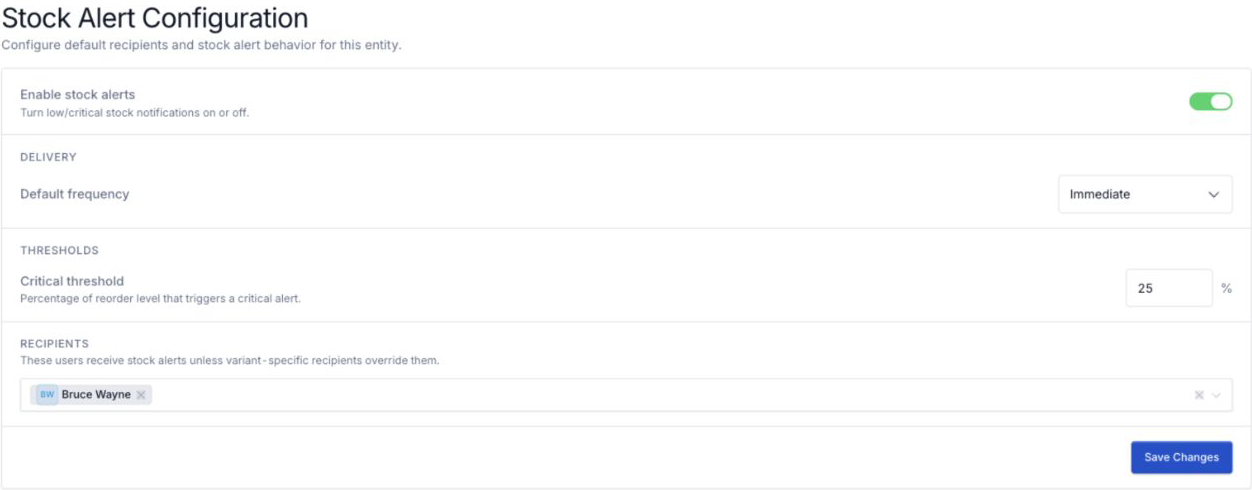
Set who gets alerted and how from the Alerts screen. Open Inventory in the main navigation and choose Alerts (the URL is /inventory/stock-alerts). The page header reads Stock alerts.
The screen groups the settings into sections:
- Alerts: Enable stock alerts. The master switch. Turn it off to stop all low, critical, and over-stock notifications for this site; turn it back on to resume them.
- Delivery. Choose Immediate to send each alert as it happens, or Daily digest to batch alerts into one summary email. Selecting Daily digest reveals a Digest time, which uses the site's timezone.
- Thresholds: Critical threshold. A slider from 0% to 100%. Stock below this percentage of its Min Stock counts as Critical; the hint under the slider shows a worked example for the value you pick. Drag the slider, or focus it and use the arrow keys (1% steps) or Page Up and Page Down (10% steps). When you save a new value, Bulk rechecks every variant in the site straight away, and while alerts are on, any variant that changes status raises the matching alert.
- Recipients. Up to 10 people who receive alerts for this site. As the screen notes, "Only these people receive stock alerts, unless a variant has its own recipients." A count under the field shows how many of the 10 places are used.
Make your changes and choose Save changes. While Enable stock alerts is on, you must choose at least one recipient before you can save. Bulk never sends stock alerts to everyone in the site by default. If a site has no recipients yet, the Alerts screen shows a warning. Alerts for variants without their own recipients are still recorded on the item but reach no one until you choose recipients.
Override alerts for one variant
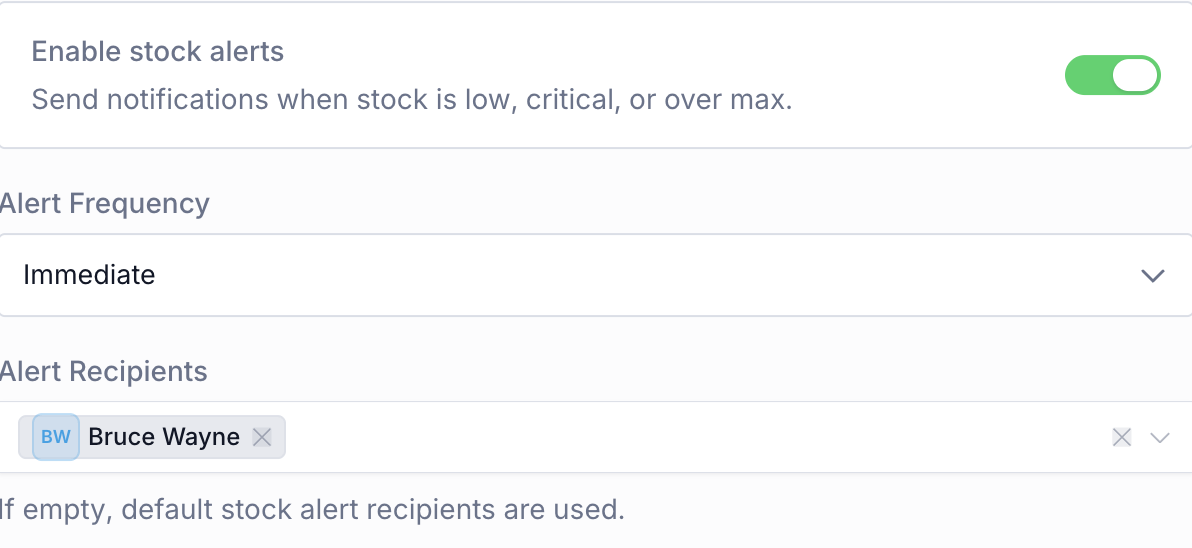
Some materials deserve different handling from the site default. You can override the recipients and frequency on an individual variant from its Stock settings in Consumables. On the variant form you can:
- Enable stock alerts for that variant, described as sending notifications when stock is low, critical, or over max.
- Set an Alert Frequency of Immediate or Digest for that variant alone.
- Choose up to 10 Alert Recipients for that variant. As the field notes, an empty list uses the site's default recipients from Inventory / Alerts. A variant with its own recipients overrides the site list, and clearing the list returns it to the site defaults.
Example: keeping the Leeds line supplied
Granite Peak Manufacturing's Leeds Fabrication Plant laminates panels, and its busiest consumable is Protective Film. Dana Winters, the operations lead, opens Inventory, then Alerts, adds the Leeds stores team as Recipients, and leaves Default frequency on Immediate so shortfalls surface straight away. On the fast-moving D2 Class film variant she sets Min Stock to 20 rolls and Max Stock to 200.
Overnight, production laminates a large order and records the film it used. The count slips from 24 rolls to 12 — below the 20-roll minimum — so Bulk flips D2 Class to Low and raises a single alert. Dana arrives to an in-app notification, "Low stock: Protective Film / D2 Class — Current stock is 12. Minimum configured is 20," and a matching email. She clicks through to the Stock page, already filtered to that variant, confirms the shortfall, and uses Receive Stock to book in a fresh delivery of 60 rolls against the purchase-order number. The balance jumps to 72, the status returns to OK, and Dana and the stores team receive a Stock recovered notice — the whole loop closed before the morning shift needs film.
What to expect
- Alerts arrive for each site independently, to the recipients you configured, through in-app notifications and email.
- The same alert for the same item is raised at most once a day, and only when the item's status actually changes.
- Fixing the balance clears the alert automatically and sends a recovery notice; you do not clear alerts by hand.
- Low and critical items appear on the Inventory Home Stock Alerts panel; all alert types appear as notifications, emails, and status badges on the Stock page.
Limitations and availability
Stock alerts are generally available.
- One Critical threshold per site. The threshold is set for the whole site; individual variants cannot have their own. A variant with no Min Stock only turns Critical when it runs out.
- Digest timing. Choosing Daily digest batches alerts into summary emails rather than sending each one immediately. The Digest time is recorded with your configuration, but digests are currently flushed on a recurring schedule rather than sent at the exact time you enter.
- One alert per item per day. To prevent noise, Bulk raises the same alert type for the same variant at most once per calendar day, even if the item crosses the threshold repeatedly that day.
- Alerts follow status changes. An alert fires on the transition into Low, Critical, or Over. A movement that keeps the same status does not raise a new alert.
- Quantities show up to 2 decimals. Stock that production logs in part amounts, such as half a roll, can leave a balance like 12.5. Alert notifications and emails show quantities with at most 2 decimals.
- Up to 10 recipients per list. The site default list and each variant's Alert Recipients hold at most 10 people each. To reach a wider group, give each variant the people responsible for it.
- Recipients must have permission. A configured recipient who lacks View stock levels or Manage stock alerts in the site is skipped, so check permissions if someone expects alerts but does not receive them.
Troubleshooting
- Nobody is receiving alerts. If the Alerts screen warns that the site has no default recipients, only variants with their own Alert Recipients still send alerts. Every other variant notifies nobody. Choose at least one recipient and choose Save Changes.
- Someone is not receiving alerts. Confirm alerts are switched on for the site on the Alerts screen, that the person is listed under Recipients (or covered by a variant's Alert Recipients), and that their role holds View stock levels or Manage stock alerts — recipients without the permission are skipped.
- No alert fired for an item that ran low. Open the variant and check that Enable stock tracking is on and that Min Stock (for Low) or Max Stock (for Over) is set — without a threshold Bulk cannot flag it. Remember an alert fires only when the status changes, and only once per day.
- The alert did not clear. An alert clears when the variant returns to OK. If it is still showing, the balance is likely still below the minimum (or above the maximum); receive or adjust more stock until it is back in range, and the recovery notice follows.
Related guidance
- Inventory overview — how stock health, alerts, and receiving fit together.
- Review stock levels — read the Stock table and each variant's status badge and history.
- Configure replenishment thresholds — set the Min and Max levels that drive Low, Critical, and Over.
- Record a stock movement — receive, bulk-receive, and adjust stock to clear an alert.
- Manage consumables and variants — switch on stock tracking so a variant is counted and can raise alerts.
- Review production consumption — see how production draws stock down and triggers alerts.
Configure replenishment thresholds
Set the Min Stock and Max Stock levels on a tracked consumable variant so Bulk flags it Low, Critical, or Over and raises stock alerts at the right time.
Review production consumption
See how much stock production has drawn down in a consumable's movement timeline, where Production Usage and Reversal entries show running balances.