Operations
Use Inbound, Production, Scheduling, Prioritisation, Inventory, and Finance together to turn incoming customer work into produced, tracked, and invoiced output.
Last updated
Operations is where you run the day-to-day work of a plant. You capture incoming customer demand, plan or rank it across your machines, manufacture it, track the materials it uses, and invoice it once it is finished.
In Bulk, this work is split across six areas: Inbound, Production, Scheduling, Prioritisation, Inventory, and Finance. Each one appears as its own entry under MODULES in the main navigation sidebar. There is no single "Operations" menu in the app; "Operations" is how this documentation groups the areas that belong to the shop floor and its supporting paperwork. This page explains what each area is for and links to the detailed guides.
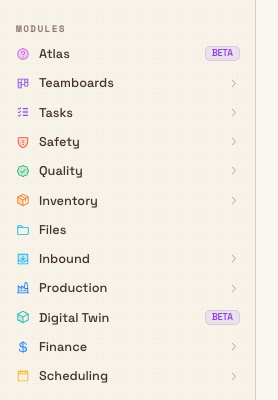
Prioritisation is in that same MODULES list, directly after Scheduling.
How the areas fit together
A single piece of work usually moves through the operations areas in a chain, sharing the same order and jobs from start to finish. Prioritisation is not another name for the Scheduling board. It is a separate module you can use as well as Scheduling, or instead of it:
- Inbound captures the incoming document: a purchase order or work order: from an uploaded file or from manual entry. When you approve the document's items, Bulk creates the matching production order (a request to manufacture a customer's items) and the jobs beneath it. A job is a single unit of work that moves through a fixed sequence of steps called a routing.
- Scheduling places those jobs on the planning board so you can see the work queue and each machine's timeline, then set when each run starts. That board is not Prioritisation.
- Prioritisation is its own module beside Scheduling. You rank the job steps on each machine without setting start times. It is not a rename of the planning board.
- Production is where you carry out the jobs at a workstation, the on-machine screen on the shop floor. You record output and progress against the routing, and you record process cycles when the loaded process asks for a named pass.
- Inventory tracks the consumables (materials used up during production, such as packaging or coolant) and the stock those jobs draw down.
- Finance turns completed production into invoices, and raises credit notes (documents that reduce or refund an amount already invoiced) when an adjustment is needed.
You do not have to use every area, and each can be used on its own. Access is controlled separately for each area, so a plant can adopt them at its own pace.
Before you start
Every operations area is scoped to a site: called an entity in Bulk, meaning a single plant or location. To open an area you need:
- Access to the site you want to work in, chosen from the entity picker.
- The view permission for that area. In the role editor these appear as View inbound documents (Inbound), View production (Production), View job planning (Scheduling), View prioritisation (Prioritisation), View consumables (Inventory), and View production invoices (Finance).
The built-in Super user and Entity admin roles include all of these. More focused roles: such as Operator or Invoicing: grant only the permissions relevant to their work, so those users may see some operations areas and not others.
Site-scoped access
Most operations permissions apply to the selected site. If you manage more than one plant, switch to the right entity first: what you can see and do follows the site you have chosen.
The operations areas
Inbound
Inbound captures incoming purchase orders and work orders as inbound documents, taken from uploaded files (such as PDFs or spreadsheets) or entered by hand. You review, correct, and approve each document; approving its items creates the production order and jobs that carry the work into Production. Sidebar entries include New Document, Inbound Documents, Import Documents, and Import History.
Read: Inbound.
Production
Production is where manufacturing work is organized and carried out. Orders group the work for a customer, Jobs are the individual units that move through a routing, and operators run those jobs at a workstation on the shop floor. On that screen you record process cycles when the loaded process asks for a named pass, such as a bend or a coat. The Transactions view gives a step-by-step record of job activity.
Read: Production.
Scheduling
Scheduling opens the planning board, where you place jobs onto asset timelines, see the work queue, and set when each run starts. It is where you balance load across machines before work reaches the shop floor. This is not Prioritisation. You open it from Scheduling in the sidebar, at /scheduling/home. Scheduling no longer carries a Beta label.
Read: Scheduling.
Prioritisation
Prioritisation is its own module, listed next to Scheduling. It is not a rename of the planning board. You rank job steps on each machine without setting start times. Scheduling is where you place those steps on a timeline. Open Prioritisation in the sidebar. The board is at /prioritisation/home.
Read: Prioritisation.
Inventory
Inventory tracks the materials your plant uses. Consumables are materials used up during production (for example, packaging or coolant); Stock shows current levels and movements; and Alerts flag items that have fallen to their replenishment threshold so the storeroom can restock.
Read: Inventory.
Finance
Finance turns finished production into money owed. Create and issue Invoices for completed work, and raise Credit notes when you need to reduce or refund an amount already invoiced.
Read: Finance.
Example: one order at Wayne Corp
At the Gotham Applied Sciences, Wayne Corp receives a purchase order for 200 laser-cut steel brackets.
- A coordinator uploads the purchase order in Inbound, checks the extracted line items, and approves the document. Bulk creates a production order and the job for the 200 brackets.
- The planner opens Scheduling and drops the job onto the laser cutter's timeline for Tuesday's early shift, ahead of a lower-priority run. To order that step on the machine without a start time, open Prioritisation instead. That module is not a rename of the planning board.
- On Tuesday, an operator opens the job at the laser cutter workstation, works through the routing, and records output as brackets are completed.
- As the run proceeds, Inventory draws down the steel sheet and packaging consumables. When packaging falls below its replenishment threshold, an alert appears so the storeroom can restock before the next run.
- Once the brackets pass their final step, a finance user opens Finance, creates a standard invoice for the completed quantity, and issues it to the customer.
Each step happens in its own area, but they all reference the same order and job, so the work stays connected from receipt to invoice.
Feature state
The areas on this page are generally available. Scheduling no longer carries a Beta label in the sidebar. Transactions in Production does not carry one either.
Related guidance
End-to-end workflows that span these areas:
- Turn customer work into production
- Manage materials through production
- Prepare and run a workstation safely
Adjacent reference areas:
- Quality: issues and holds that can pause work in production.
- Product reference: the full map of Bulk's modules.
Respond to a blocking pre-use check
Clear a workstation that Bulk has blocked from production by completing its compulsory pre-use check, or by requesting a time-limited supervisor override.
Inbound
Understand how the Inbound module turns customer paperwork into structured inbound documents and production jobs, and where to manage each step.