Browse files
Use the folder sidebar, Icon and List views, search, and sorting to find shared files.
Last updated
The Files app holds shared drawings, work instructions, certificates, photos, and other documents. Open it to browse folders, find a file, or check its details. Uploading, organizing, and previewing files have separate guides linked below.
Before you begin
Open the Files app while signed in at the correct site. Viewing requires file access. Uploading, creating folders, renaming, moving, and deleting require permission to manage files. Site folders also require access to that site. A restricted folder may need a separate user grant.
Find your way around
The Files area has a folder sidebar on the left, a file pane on the right, and a status strip below the pane. The Storage panel sits at the bottom of the sidebar.
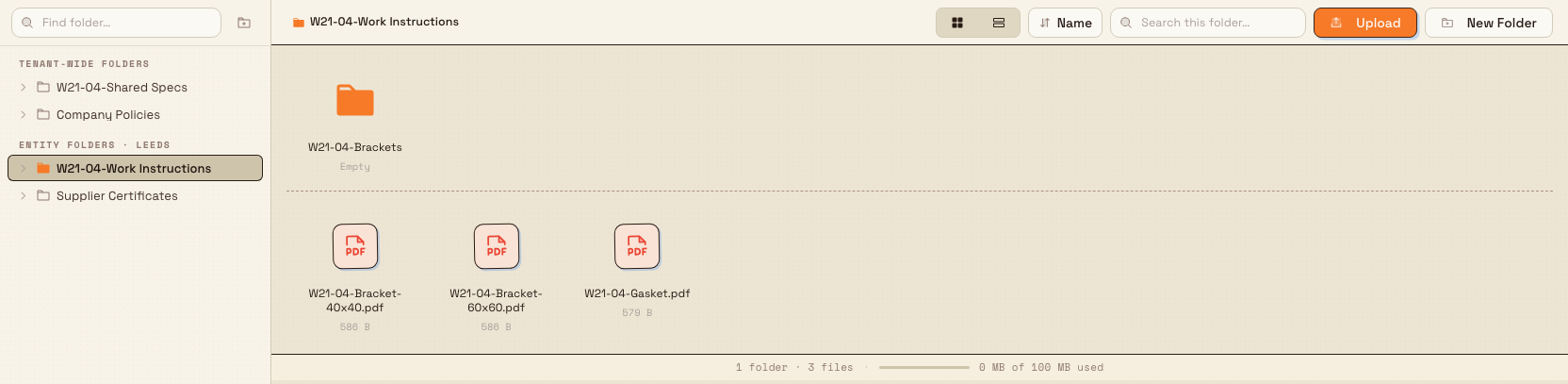
Folder sidebar. Tenant-wide folders are shared across the organization. Site folders appear under the current site name, such as Gotham Applied Sciences. Click a folder to open it. Click the triangle beside it to reveal its subfolders without leaving the current folder.
Breadcrumb. The toolbar shows the path to the current folder. Click an earlier step to go back up the tree. Longer paths collapse their middle steps into a menu.
File pane. Subfolders appear before files. Until you choose a folder, the pane says Select a folder.
Status strip. The bottom of the pane shows the folder count, for example 2 folders, 4 files. When items are selected, it shows the selected count. The sidebar Storage panel shows the storage used, split into Documents, Images, and Other.
Switch between Icon and List views
Use the two-button view toggle in the toolbar:
- Icon view shows tiles with a thumbnail or file-type icon.
- List view shows Name, Kind, Size, and Date Modified columns.
Your choice is remembered for next time.

Sort files
Use the toolbar sort button, which shows the current key, such as Name. Choose Name, Kind, Size, or Date Modified, then Ascending or Descending. In List view, you can also click a column header to sort by it, then click again to reverse the direction. Folders remain grouped before files.
The folder, sort key, and direction are stored in the page address. You can bookmark the view, and the browser Back button steps through previously opened folders.
Search files and folders
Type a name into Search files at the top of the sidebar. The file pane switches to search results, with All files selected. Results come from folders you can access. File results include a Where column showing their location.
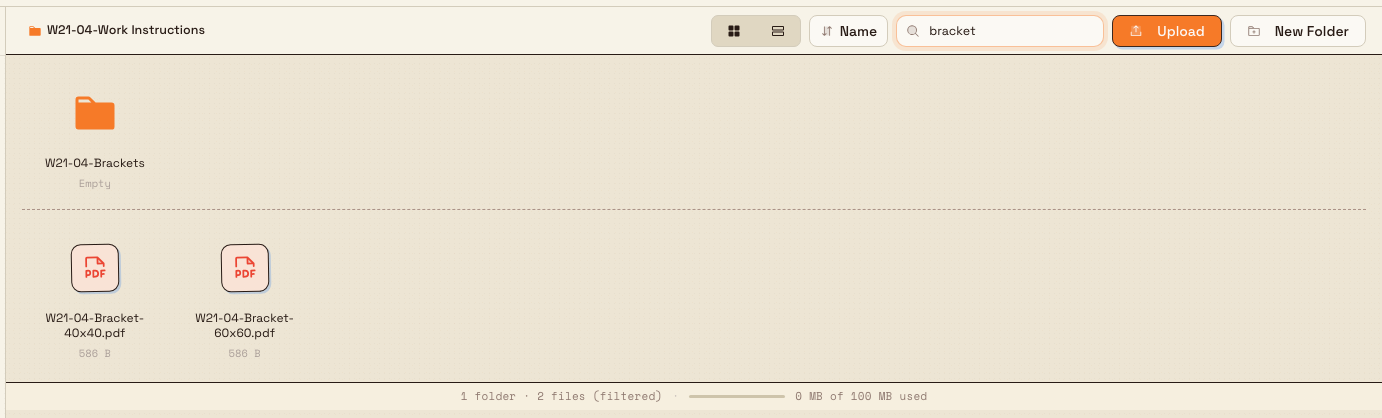
When a folder is open, the search bar also offers that folder's name as a scope choice. Select it to narrow the search to the current folder. Any kind offers file-type filters. Done, the clear button in the search field, or Escape returns to folder browsing.
The status strip shows the number of matching results. Search results use their own count instead of adding a (filtered) suffix to the folder count.
Open and preview files
Double-click a folder or file to open it. On a touch device, a single tap opens it. Images and PDFs open in an in-app preview. Other file types prompt a download.
Right-click an item or use its action menu for available actions. Files offer Preview, Download, Rename, Move to, and Delete. Folders offer Open, Rename, Manage Access, Move to, and Delete. Actions depend on your permissions.
See Preview a file for the viewer controls.
Select items
Click an item to select it. Hold Shift to select a range, or Ctrl / Cmd to add or remove individual items. Use arrow keys to move between items and Enter to open the focused item. In List view, row checkboxes help you select several items on a touch screen.
When several items are selected, use the available selection actions, such as Move and Delete.
Example: finding the Wayne start-up guide
Bruce needs the production start-up guide while reviewing the Gotham machining documents.
- He opens Files, expands Standard Operating Procedures, and opens Gotham Machining.
- He types
Wayneinto Search files and leaves All files selected. - The start-up guide appears. Where shows Standard Operating Procedures, so he can see that it is outside the current folder.
- He clears the search to return to the machining documents. In List view, he can scan each document's kind, size, and modification date.
Restricted folders
A Public folder is available to people with Files access. A Managed folder limits access to listed users. Restricted folders can show a lock, and opening a folder without access shows You don't have access to this folder.
Ask a folder owner or administrator for access. They can use Manage Access to review the folder's mode and permitted users.
Feature state and limitations
Browsing files is available. Keep these limits in mind:
- Search has its own results view. Use All files for a wider search or the current folder scope for a narrower one.
- New files can take time to appear in search. Folder browsing can show a file before the search index catches up.
- Only images and PDFs preview inline. Other formats prompt a download.
- Drag-and-drop is a desktop convenience. On touch devices, use row checkboxes and menus.
- Managed folders require access. Ask an owner or administrator if a folder is locked.
Troubleshooting
- Select a folder appears. Choose a folder in the sidebar. On a narrow screen, use Folders to open the sidebar first.
- Search returns no results. Check the spelling, try fewer words, or choose All files. If a recently added file is missing, allow time for indexing. Clear the search to return to browsing.
- A folder is locked. Ask an owner or administrator to add you through Manage Access.
- A file prompts a download. Its format cannot be previewed inline.
- An action is unavailable. Check whether your role allows you to manage files.
Related guidance
Files
Store and open manufacturing documents in shared folders with role-based access, per-folder permissions, in-browser previews, and drag-and-drop upload.
Upload a file
Add PDFs, Office documents, images, and CAD files into a folder in the Files area, with an editable name and description for each file.