Use files in another module
Reuse documents and images stored in Files by linking them to a manufacturing process revision with the shared file picker.
Last updated
Files is the central store for documents, drawings, and images. Upload a file once, then link it where it is needed. A process attachment points to that stored file, so you do not need to upload another copy for each process.
This guide shows how to add a reference file to a manufacturing process revision, such as a housing press instruction. Processes are grouped into catalogues under Settings / Master Data / Processes.
Before you start
- You need access to the process catalogue and permission to manage the revision's attachments. The Add or Manage control in its Files column is disabled when you cannot manage attachments.
- You must be able to view the folder containing the file. The picker lists folders and files available to your signed-in account.
- To upload a new file inside the picker, you need manage access to that folder. You can also use an existing file without uploading it again.
Open the attachment picker
- Open Settings, then Master Data, then Processes.
- Open the catalogue containing your process. Processes without a catalogue are under Uncatalogued.
- Open the process's Details. You can also right-click its row and choose View Details.
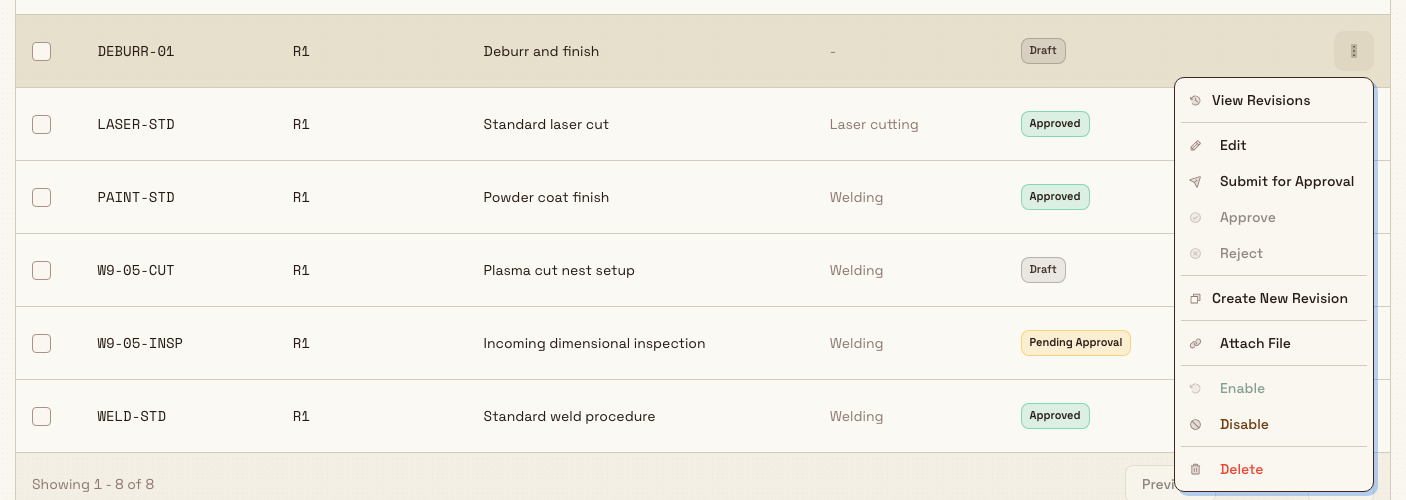
- In the revision table, find the revision you want. In its Files column, choose Add when its count is zero, or Manage when it already has attachments.
- In Attachments, choose Add file. The shared Attach a file picker opens.
Choose a file
The picker stays above the process page and offers three ways to find a file:
- Browse: choose a folder from Folders. Inside a folder, the breadcrumb lets you return to a parent or All files.
- Search: enter a filename or keyword. Search all files searches across the folders you can view. Search this folder searches the open folder and its subfolders.
- Upload: open a folder you can manage and choose Upload a new file. The uploaded file is selected automatically. New folder is also available when you can create one.
At All files, Recent files provides a quick way to select a document. Choose a file on the left to show its preview on the right and enable Attach file. Images show the image itself; PDFs use the browser's PDF viewer. Other file types show their name, size and an Open file control when a link is available.
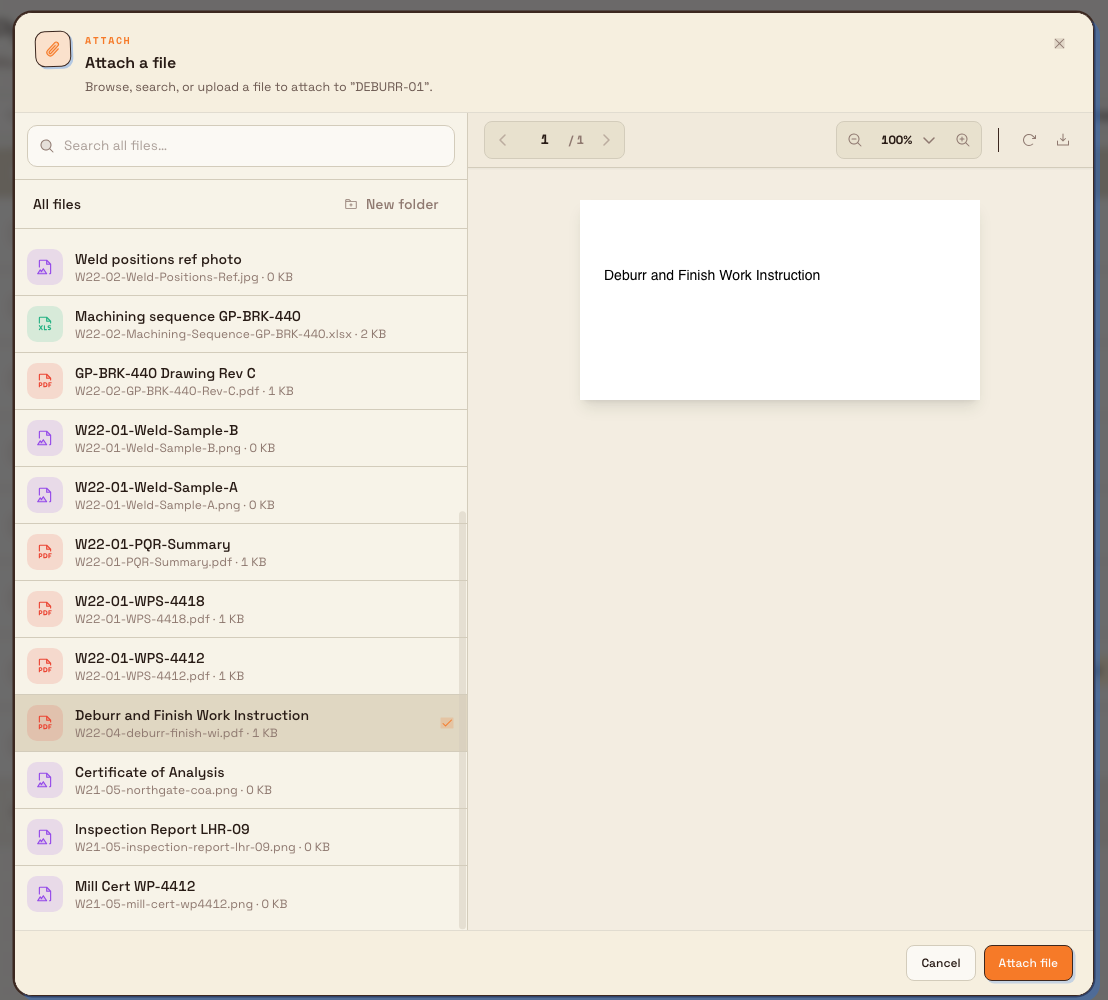
Choose Attach file to add the selected file to the revision. Bulk shows Attachment added, and the Attachments list includes the file. Choose Cancel to close the picker without linking it. Cancel does not remove a file you already uploaded into Files.
Gotham example
Bruce Wayne stores Housing Press Setup in Gotham Machining, within Standard Operating Procedures. From the HOUS-PRESS revision details, he can select the stored setup image to check its fixture orientation and first-off steps before adding it as a reference. The file stays in Files; the process revision gains a link to it.
Add, replace or remove attachments
A process revision can have several attachments, up to 20 files. Each file is selected separately in the picker.
To add another document, open Manage in the revision's Files column, then choose Add file again. Adding a file preserves the existing attachments. The same file is not added twice to one revision.
To remove a link, use that file's remove control in Attachments. The Remove attachment confirmation identifies the file and process. Choose Remove to unlink it, or Cancel to keep the attachment. The file itself stays in Files.
To replace a reference document, remove its old link and add the replacement. Check that you are managing the correct process revision before changing its references.
Other places files appear
Other Bulk surfaces also read from Files:
- A Teamboard file display widget can show a stored file or folder contents.
- Inbound documents can include reference PDFs selected from the library, as well as newly uploaded files.
These surfaces have their own selection and configuration dialogs. Their file links still refer to the central Files store.
Availability and limits
Process attachments are generally available.
- Attachments belong to the selected process revision. Check its revision number in the attachment dialog.
- The picker starts from tenant and plant folders; global folders are not offered as starting points here.
- Removing an attachment removes only its link. It does not delete the stored file.
- PDF rendering depends on the browser. If the embedded PDF remains blank, Open original PDF lets you try the original in another tab.
Troubleshooting
- Attach file is disabled: select a file on the left. If the control remains unavailable, check your permission to manage the process revision.
- No upload area appears: open a folder you can manage. You can still choose an existing file that you can view.
- You cannot find the file: check the folder breadcrumb or return to All files before searching. Folder search includes its subfolders.
- You selected the wrong file: choose another file or Cancel. If already linked, remove its attachment and add the correct reference.
- The PDF preview is blank: try Open original PDF. An image reference can be previewed directly in the picker.
Related guidance
File upload and revision timestamps preserve the exact event moment. When a file is linked to a record with a calendar-only date, that date continues to use the owning plant's timezone and stays on the selected day.
Preview a file
Open an image or PDF stored in Files in a full-size viewer without downloading it, and learn what happens for file types that can't be previewed.
Improvement and compliance
Find, fix, and prove out shop-floor problems with Bulk's Quality, Safety, and Audits modules, which together cover improvement and compliance work.