Review access requests
Approve or deny requests from people who need access to one of your organization's sites, and grant site access in a single click.
When someone in your organization needs to work at a site they cannot yet open, they send an access request. The Access requests screen is where an administrator reviews those pending requests and either approves them, which grants the person access to that site, or denies them.
A site — called an entity in some parts of Bulk — is one physical location or plant, such as a fabrication plant or a warehouse. Each person can only open the sites they have been given access to. When you approve a request, the person can select that site the next time they sign in.
Use this screen when:
- A new team member has joined and needs access to a site to see its jobs, boards, or reports.
- An existing user moves between sites and needs access to an additional location.
- You received an email notification that someone requested access and you want to act on it.
Before you start
Reviewing access requests requires the Manage entity user access permission (entities.manage_users). This permission controls who can decide which people can open each site.
- By default, only the Owner role holds this permission.
- The Entity admin role does not include it out of the box — an Entity admin can view site settings but cannot approve or deny access requests unless the permission is added to their role.
- You can grant Manage entity user access to any custom role. See Manage roles and permissions.
If you open the screen without this permission, Bulk shows the message "You do not have permission to manage entity user access." and no requests are listed. Ask an Owner to grant your role the permission, then reload the page.
Where requests come from
Requests are created by the people who need access, not by you. On their Select an entity screen, sites a person cannot open appear as locked tiles with a Request access action. When they submit a request they can add a short note explaining why they need access. Bulk then records a pending request and emails every administrator who can manage site access. For the requester's side of this flow, see Select an entity.
Open the Access requests screen
- In the left navigation, open Settings.
- Under Organization, select Access requests.
The screen lists every request across your whole organization that is still waiting for a decision — it is not limited to the site you currently have open. Requests are shown newest first.
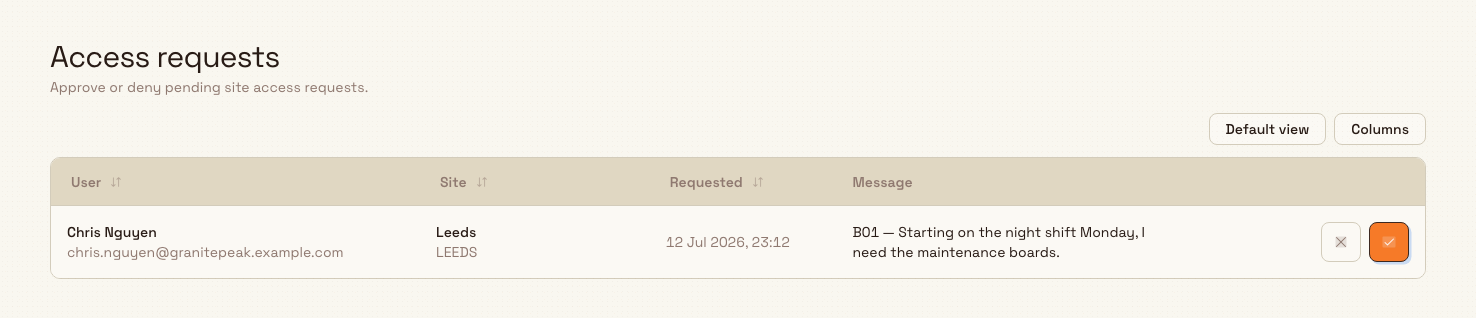
administration.access.requests-01
What each column shows
| Column | What it tells you |
|---|---|
| User | The name of the person requesting access, with their email address below it. |
| Site | The site they want to open, with the site code below the name when one is set. |
| Requested | The date and time the request was submitted. |
| Message | The note the requester added, or "No message" when they did not add one. |
At the end of each row are two buttons: a deny button (a cross) and an approve button (a check mark). Their labels read "Deny access for" and "Approve access for" followed by the person's name.
When there are no requests waiting, the screen shows an empty state titled "No pending requests" with the line "New site access requests will appear here."
Approve or deny a request
To approve a request, select the approve (check mark) button at the end of its row. Bulk grants the person access to that site and confirms with the message "Access approved". The request then leaves the pending list.
To deny a request, select the deny (cross) button at the end of its row. Bulk records the denial and confirms with "Access denied". No access is granted, and the request leaves the pending list.
Both decisions are final for that request and are recorded against your name and the time you made them, so there is an audit trail of who resolved each request. Resolved decisions are captured in your organization's Activity logs.
Approving grants site access only
Approving a request lets the person open the site. It does not change what they can do there — their actions are still governed by their existing role and permissions. To change a person's role, use Manage users.
Example: a new technician at Granite Peak
Priya Nair joins Granite Peak Manufacturing as a maintenance technician and needs to work at the Leeds Fabrication Plant. When she signs in and opens her Select an entity screen, the Leeds tile is locked, so she selects Request access and adds the note "Starting on the night shift Monday, I need the maintenance boards."
Dana Winters, the organization Owner, receives an email notification titled "New entity access request". Dana opens Settings → Organization → Access requests and sees Priya's pending request: her name and email, the Leeds Fabrication Plant, the time she asked, and her note. Dana selects the approve button, sees "Access approved", and the request disappears from the list. The next time Priya opens her Select an entity screen, the Leeds Fabrication Plant is available to select.
Notifications
When a person submits a request, Bulk emails every administrator in your organization who can manage site access. The email subject names the requester and the site, and includes their note and a Review request button that opens this screen. You do not need to watch the screen to know a request has arrived — the email tells you, and the request stays in the pending list until someone acts on it.
What you can and cannot do here
- The screen shows pending requests only. Once a request is approved or denied it leaves the list; there is no in-screen history of past decisions. Review resolved requests in Activity logs instead.
- The list covers all sites in your organization, not just the one you currently have selected.
- This screen offers approve and deny only. There is no bulk action — decisions are made one request at a time.
- Approving adds the person's site access. It does not assign or change their role.
This capability is generally available; no preview flag or special setup is required beyond the Manage entity user access permission.
Troubleshooting
The approve button is greyed out, but deny is still available. A request can only be approved while both the person and the site are still active. If the requester was deactivated or the site was archived after they asked, you can no longer approve the request, but you can still deny it. To approve instead, restore the person or the site first, then return to this screen.
You see "Access request is already resolved" after selecting approve or deny. Another administrator approved or denied the same request moments before you did. The list updates in real time, so the resolved request will already have dropped off — no further action is needed.
You see "You do not have permission to manage entity user access." Your role does not include the Manage entity user access permission. Ask an Owner to add it to your role in Manage roles and permissions, then reload the screen.
The list is empty. There are no requests waiting for a decision. New requests appear here automatically as people submit them from their Select an entity screen.
Related
- Select an entity — how people request access from a locked site tile.
- Manage users — add people and set their roles.
- Manage roles and permissions — grant the Manage entity user access permission.
- Manage entities — create and configure the sites people request access to.
- Activity logs — review approved and denied requests after the fact.