Manage roles and permissions
Create custom roles, set their permissions module by module, and control what each person can see and do in Bulk.
Bulk controls access with roles. A role is a named bundle of permissions — each permission unlocks one specific action, such as viewing production orders, editing customers, or deleting files. You grant a person access by assigning them one or more roles, rather than by turning on individual permissions per user. This is known as role-based access control (RBAC), and it keeps access consistent as your team grows.
Use the User roles page when you want to see who can do what, tailor a role to a job on your shop floor, or tighten access before an audit.
Where to find roles
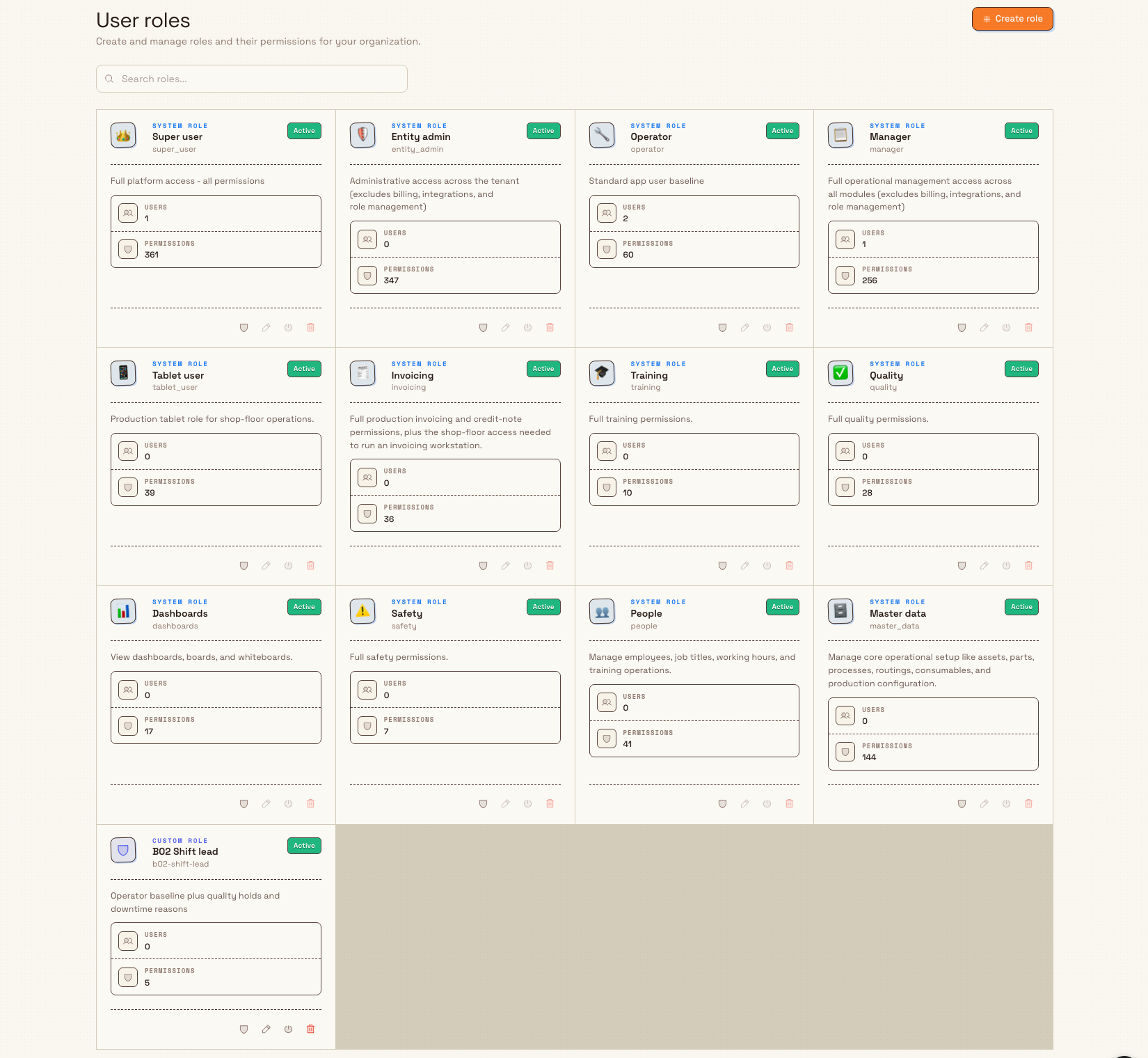
Open Settings, then Organization, then User roles. The page lists every role in your organization as a card, with a search box to filter by name, and — if you have permission — a Create role button in the top right.
administration.access.roles-permissions-01
Each card shows the role name, a System role or Custom role label, an optional description, and two counts: how many Users have the role and how many Permissions it grants. The card's action buttons let you open its Permissions, Edit role, Lock role or Unlock role, and Delete role.
Before you start
The page and its actions are gated by permission, so what you can do depends on the roles assigned to you:
- View roles (
roles.view) — required to open the page and inspect a role's permissions. - Create roles (
roles.create) — required to add a new custom role. - Edit roles (
roles.update) — required to rename a role and to change its permissions. - Lock or unlock roles (
roles.toggle_lock) — required to make a role unavailable for new assignments, or to make it available again. - Delete roles (
roles.delete) — required to remove a custom role.
Who can manage roles
In practice, the built-in Super user role holds every permission, including role management. The Entity admin and Manager system roles deliberately exclude role management, so they cannot edit role definitions or reassign roles on existing accounts without extra permission. They can still invite, add, edit, and deactivate people when their other user-management permissions allow it. To let someone else manage roles without making them a Super user, create a custom role that grants the five roles.* permissions above and assign it to them.
Roles are given to people on the Users page, not here. A directly added person receives Operator automatically; showing extra roles in Add User requires both Manage user roles and View roles. Invitations use a separate role picker under What will they do?.
Changing an existing person's roles needs Manage user roles (users.manage_roles). The invitation picker is controlled by Create invitations (invitations.create): people who can manage user roles may offer any active, unlocked role, while other inviters see only the built-in Operator and Entity admin roles plus roles whose permissions they already hold. Super user remains restricted to people who can manage user roles. See Manage users.
System roles and custom roles
Bulk seeds every organization with a set of system roles — ready-made roles tuned for common manufacturing jobs. System roles are marked with the System role label and are read-only: you cannot rename them, change their permissions, lock them, or delete them. They give you a sensible starting point and a reference for how permissions map to a job.
The current system roles are:
- Super user — Full platform access; every permission.
- Entity admin — Administrative access across the organization, excluding billing, integrations, and role management.
- Manager — Full operational management across all modules, excluding billing, integrations, and role management.
- Operator — The standard app-user baseline.
- Tablet user — Shop-floor access for production tablets.
- Invoicing — Full production invoicing and credit-note access, plus the shop-floor access needed to run an invoicing workstation.
- Quality — Full quality permissions.
- Safety — Full safety permissions.
- Training — Full training permissions.
- People — Manage employees, job titles, working hours, and training operations.
- Master data — Manage core setup such as assets, parts, processes, routings, consumables, and production configuration.
- Dashboards — View dashboards, boards, and whiteboards.
When a system role is close to what you need but not exact, create a custom role instead of trying to change the system one. Custom roles are yours to name, describe, edit, lock, and delete.
Create a custom role
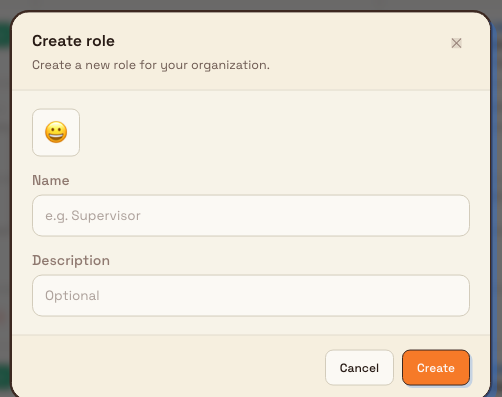
- On the User roles page, select Create role.
- Optionally pick an emoji to make the role easy to spot on its card.
- Enter a Name (at least two characters — for example,
Shift lead). Names must be unique within your organization. - Optionally add a Description so colleagues understand what the role is for.
- Select Create.
The new role starts with no permissions. Open its Permissions to grant access, as described next.
administration.access.roles-permissions-02
Set a role's permissions
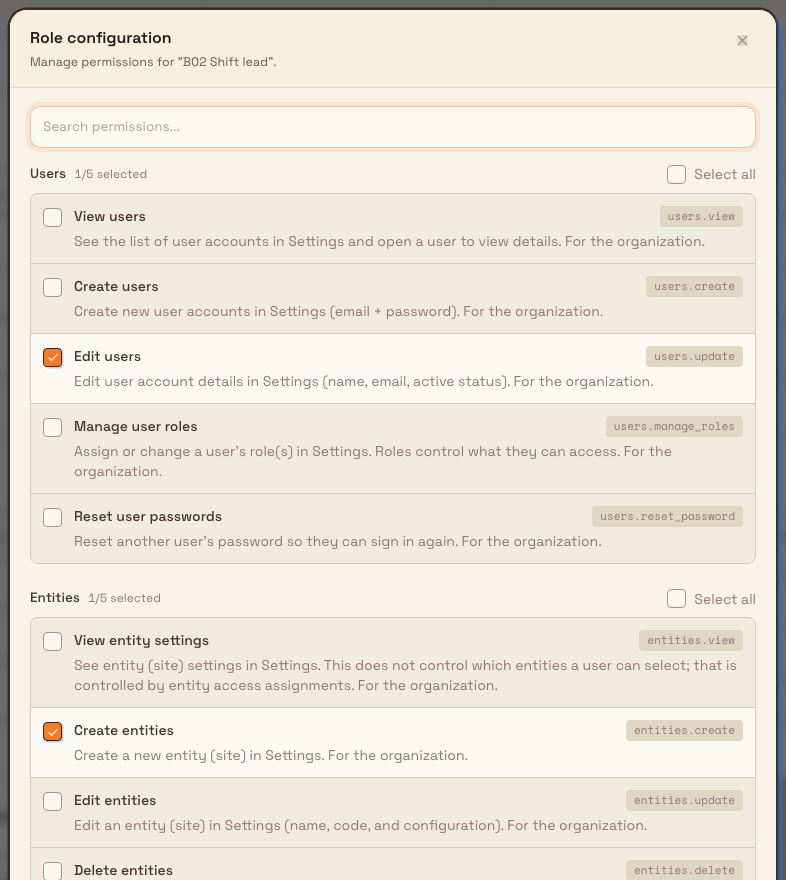
- On the role's card, select Permissions. The Role configuration dialog opens.
- Permissions are grouped by module — the area of Bulk they control, such as Users, Production orders, Quality holds, or Safety. Each row shows the permission's plain-language label, a short description, and its technical name.
- Use the Search permissions... box to jump to a specific permission or module.
- Tick individual permissions, or use a module's Select all control to grant every permission in that module at once. Each module header shows a count of how many of its permissions are currently selected.
- Select Save to apply your changes, or Cancel to discard them.
Because there is one permission for each distinct action across every module in Bulk, granting a whole module is usually faster than picking rows one by one. Grant only what the job needs — it is easier to add permissions later than to explain why someone could reach something they should not.
administration.access.roles-permissions-03
When permission changes take effect
Changing a role updates access for everyone assigned to it. A person may need to reload the page or sign in again before a newly granted or removed permission is reflected in what they see.
Production-order Datasheets use order access
In the first Datasheets release, anyone who can open a production order can also view all connected fields shown inside that order's Datasheets. Datasheets do not add separate access rules for linked jobs, inbound items, parts, processes, users, or setup records.
Demo sites: warning and action permissions
Everyone who can open a demonstration site sees its warning banner. The banner's cleanup actions — Reset demo, Clear activity, and Delete demo — require Delete entities (entities.delete). Review and go live requires Create entities (entities.create) instead, and only appears when the current demo is ready to become a live site. A role can have either permission without the other. See Complete onboarding.
Edit, lock, or delete a role
For any custom role, the card's action buttons let you:
- Edit role — change the name, emoji, or description. (Changing permissions is done through Permissions, above.)
- Lock role — a locked role can no longer be assigned to new users, but people who already have it keep their permissions. Locking is useful when you are retiring a role gradually. Unlock role makes it assignable again.
- Delete role — permanently removes the role and all of its permission assignments.
Deleting is only available for a custom role that has no users assigned. If people still hold the role, reassign them first (on the Users page); until then the Delete role button is disabled and its label explains why. System roles can never be edited, locked, or deleted, so those buttons stay disabled on system-role cards.
Deleting a role cannot be undone
Deleting a role removes it and every permission it granted. The confirmation dialog states that the action cannot be undone. If you might need the role again, lock it instead of deleting it.
Example: a Shift lead role at Granite Peak Manufacturing
Granite Peak Manufacturing runs its Leeds Fabrication Plant across two shifts. The plant manager wants shift leads to do everything an operator can, plus place quality holds and record downtime reasons — but not touch master data, invoicing, or user access.
Dana Winters, the Granite Peak administrator, handles it like this:
- Opens Settings > Organization > User roles and selects Create role.
- Names the role
Shift lead, adds the descriptionOperator baseline plus quality holds and downtime reasons, and selects Create. - Opens the new role's Permissions, uses Search permissions... and the per-module Select all controls to grant the Production operate, Production jobs, Quality holds, and Downtime reasons modules, then leaves the master-data and invoicing modules unticked.
- Selects Save.
- Goes to Settings > Organization > Users and assigns the
Shift leadrole to each shift lead.
When a shift lead later moves on, Dana removes the role from their account on the Users page. If the Shift lead role is ever discontinued, she reassigns everyone off it first, then deletes it.
Expected result
After you save, the role's card shows its updated permission count immediately. Anyone assigned that role gains or loses the corresponding access the next time their session loads. Role changes are recorded in the organization's activity log for audit purposes — see Activity logs.
Limitations and feature state
Roles and permissions are generally available. Keep these behaviors in mind:
- System roles are read-only. You cannot rename, re-permission, lock, or delete them. Attempting to edit one shows the message that system roles cannot be modified. Build a custom role when a system role is not an exact fit.
- A role name must be unique within your organization. Reusing a name shows a conflict error.
- You cannot delete a role that still has users. Reassign those people first.
- At least one administrator must remain. When you change a person's roles on the Users page, Bulk stops you from removing the last Super user or admin assignment, so your organization can never be locked out.
- Permissions apply organization-wide. A role's permissions are not scoped per site. Which sites (entities) a person can open is controlled separately by entity access, not by roles — see Manage entities.
Troubleshooting
- The Create role, edit, lock, or delete controls are missing or disabled. You are missing the matching
roles.*permission, or you are looking at a system-role card (system roles can never be edited, locked, or deleted). Ask a Super user to grant you the role-management permissions. - "System roles are read-only." You opened a built-in role. Create a custom role instead of changing the system one.
- The Delete button is disabled with a "Cannot delete" note. The role is either a system role or still assigned to users. Reassign its users on the Users page, then delete it.
- "Role already exists" when creating or renaming. Another role in your organization already uses that name. Choose a different name.
- A teammate still cannot access something after you granted the permission. Ask them to reload the page or sign out and back in so their session picks up the change.
Dates and time zones
Roles control who may view or change a record, but they do not change which timezone owns its dates. Calendar-only values follow the record's plant, while access, approval, and activity-log timestamps preserve their exact event moment.
Related guidance
- Manage users — assign roles to people and reset access.
- Review access requests — approve who can reach each site.
- Manage entities — control site (entity) access separately from roles.
- Activity logs — review a record of role and permission changes.
- Administration overview — the full set of organization and access settings.
Review access requests
Approve or deny requests from people who need access to one of your organization's sites, and grant site access in a single click.
Entity settings
The per-site settings that control how one entity handles inbound documents, production jobs, customer gating, and the invoices and credit notes it issues.