Manage entities
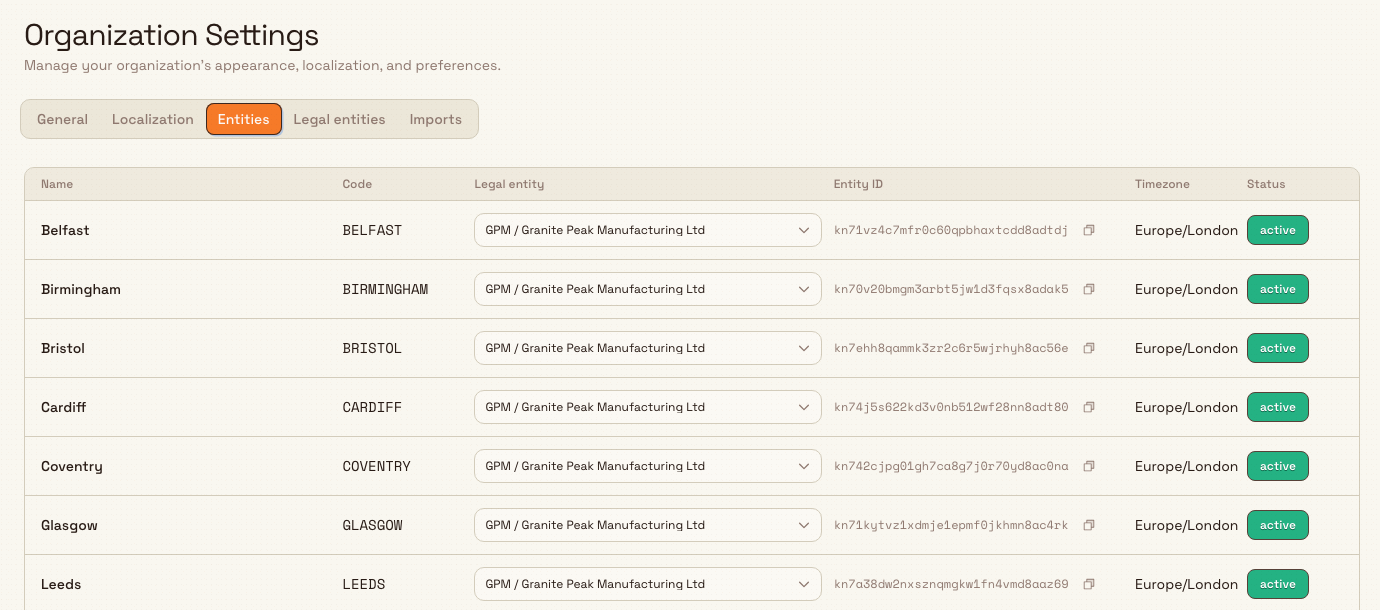
Review every site in your organization and assign each one to the legal entity it invoices under, from the Entities tab of Organization Settings.
In Bulk, an entity is a single site — a plant, factory, or location where you make things. Your organization can hold one entity or many, and most settings, jobs, and data belong to a specific entity. The Entities tab is where you see every entity your organization has in one place and connect each one to the legal entity it bills and invoices under.
You reach it at Settings › Organization › Settings (/settings/organization/settings), then select the Entities tab. The page is titled Organization Settings and groups related tabs — General, Localization, Entities, Legal entities, and Imports — for settings that apply across your whole organization rather than to one site.
This tab has one job beyond showing you the list: assigning each site to a legal entity. A legal entity is the registered company that issues invoices — it carries the seller name, tax and VAT numbers, and payment terms that appear on documents. One legal entity can cover several sites, so this is where you tell Bulk which company each plant trades as.
administration.organization.entities-01
Before you start
Anyone signed in to your organization can view this list. Opening the Entities tab and reading the sites, codes, and statuses needs no special permission beyond being a member of the organization.
Assigning a legal entity needs the organization manage permission. To pick a legal entity for a site, your role must hold the organization.update permission. In the default roles, administrators have it. If the legal-entity dropdown on a row is present but your assignment does not save, ask an administrator to grant that permission.
Sites are created elsewhere. This tab reviews and connects sites; it does not create, rename, or delete them. Adding a new site is a separate administrative action that needs the entities.create permission, and editing or removing one needs entities.update or entities.delete. If your organization has no sites yet, the tab shows No entities found with a note to add entities from the entity management page.
Set up your legal entities first. The dropdown on each row only offers legal entities that already exist. Create them on the neighbouring Legal entities tab (use New legal entity in the page header) before you try to assign sites here.
Read the entities list
Each row is one site, sorted by name. The table shows six columns:
- Name — the site's display name, for example Leeds Fabrication Plant.
- Code — the short code used to identify the site across Bulk.
- Legal entity — the company the site invoices under. Until you assign one, this shows an Unassigned dropdown you can act on. Once assigned and merged, it becomes a read-only label of the legal entity's code and name.
- Entity ID — the site's stable internal identifier, shown in a monospace font with a Copy to clipboard button. You need this ID when wiring the site into REST API integrations, such as sensor gateway ingest.
- Timezone — the site's timezone, or a dash when none is set. This affects how times are shown for that site's data.
- Status — a badge reading
activeorinactive. Inactive sites are kept for their history but are not in day-to-day use.
The sites listed here are the same ones your people choose on the Select entity screen when they sign in; which users see which site is controlled separately by entity access assignments, not on this tab.
Assign a site to a legal entity
Assigning a site to a legal entity is deliberate and permanent, because it also merges any duplicate customers into that legal entity so invoicing is consistent. Bulk walks you through a preview, a confirmation, and a progress step so nothing happens by accident.
To assign a site:
- On the site's row, open the Legal entity dropdown and choose a legal entity. Each option shows the legal entity's code and name.
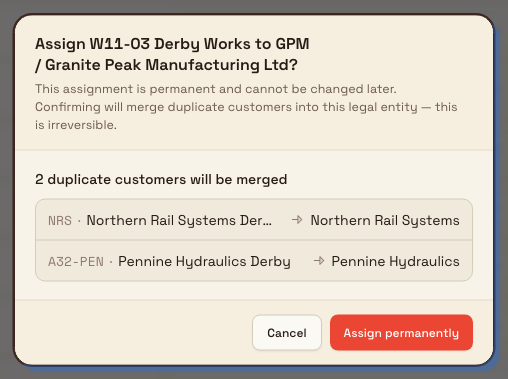
- A confirmation dialog opens, titled with the site and legal entity you picked — for example
Assign Leeds Fabrication Plant to GB01 / Granite Peak Manufacturing Ltd?. It explains that the assignment is permanent and that confirming will merge duplicate customers into this legal entity, which cannot be undone. - Bulk runs a dry-run and shows what will happen. While it checks, you see
Checking which duplicate customers will be merged…. Then one of three results appears:- No duplicates:
No duplicate customers need merging. The plant will be assigned to this legal entity. - Duplicates found: a count such as
3 duplicate customers will be merged, with a list of which customer merges into which surviving customer. - Blocked:
This assignment can't proceed yet, with the reasons listed. Confirmation stays disabled until the blockers clear.
- No duplicates:
- Select Assign permanently to proceed, or Cancel to back out. While the assignment runs, the button reads
Assigning….
Assigning a legal entity is permanent and merges customers
Confirming an assignment cannot be reversed. Bulk permanently merges duplicate customers into the chosen legal entity, and the site's legal entity becomes locked afterwards. Review the merge preview carefully before you select Assign permanently, and make sure you have picked the correct legal entity.
administration.organization.entities-02
Follow the assignment progress
After you confirm, a progress dialog headed Legal entity assignment takes over. You cannot navigate away while it runs. It moves through clear stages:
Preparing assignment…while it sets up.Merging duplicate customerswith a live count, such as3 of 3 merged, as it works.Assignment completewhen it finishes — select Done to close.
If something goes wrong, the dialog shows Assignment failed with a note that no further changes were made and that you can retry. Select Retry to run it again, or Close to dismiss. A row whose last attempt failed shows a Failed badge with an inline Retry button, and a site still being merged shows a Merging… badge.
If the legal entity is busy
If the legal entity you chose is already merging another site, Bulk shows a Legal entity is busy message asking you to wait for that merge to finish and try again. This is temporary — start the assignment again once the other merge completes.
Example: Granite Peak Manufacturing
Granite Peak Manufacturing runs two sites: its established Leeds Fabrication Plant and a newly opened Sheffield Finishing Works. Both trade under the same registered company, Granite Peak Manufacturing Ltd, which invoices customers.
An administrator opens Settings › Organization › Settings and selects the Entities tab. Both sites are listed, each with its code, entity ID, timezone, and an active status. Leeds is already assigned to the legal entity GB01 / Granite Peak Manufacturing Ltd; Sheffield still shows Unassigned.
The administrator opens Sheffield's Legal entity dropdown and picks GB01 / Granite Peak Manufacturing Ltd. The confirmation dialog previews two duplicate customers — the same buyer had been set up separately for each site — and shows each merging into the surviving Leeds customer. The administrator reviews the list, confirms with Assign permanently, and watches the progress dialog reach Assignment complete. From then on, both sites invoice under one company with a single, de-duplicated customer list.
Expected result
After setup, every site in your organization is visible on the Entities tab with its code, entity ID, timezone, and active status, and each site that should invoice is connected to the correct legal entity. Assigned rows are locked to their legal entity, and duplicate customers have been merged so billing is consistent across the sites that share a company.
Limitations and feature state
This tab is generally available. Keep these behaviours in mind:
- It is a review-and-connect surface, not full site editing. You cannot create, rename, deactivate, or delete a site here. Those actions happen through the separate entity management path and need the matching
entities.create,entities.update, orentities.deletepermission. - Legal-entity assignment is one-way. Once an assignment completes, the site's legal entity is locked and cannot be changed or cleared from this tab.
- Merging duplicate customers is irreversible. The customer merges that accompany an assignment cannot be undone, so the preview step is the moment to check the outcome.
- The dropdown only lists existing legal entities. If the company you need is not in the list, create it on the Legal entities tab first.
Troubleshooting
- The tab shows "No entities found". Your organization has no sites yet. Sites are added through the entity management path, which needs the
entities.createpermission — ask an administrator to set up your first site. - The Legal entity dropdown is empty or disabled. No legal entities exist yet. Open the Legal entities tab and add one with New legal entity, then return here.
- The confirmation dialog says the assignment can't proceed. A blocker is listed in the dialog, such as the target legal entity being inactive. Resolve the reason shown, then try again.
- You see "Legal entity is busy". Another site is still merging into that legal entity. Wait for it to finish, then start the assignment again.
- The assignment shows Failed. The merge did not complete and no further changes were made. Select Retry on the row or in the progress dialog to run it again.
Related guidance
- Organization settings — the full set of organization-wide settings tabs this page belongs to.
- Update entity settings — configure the operating rules and options for an individual site.
- Configure an invoicing profile — set the seller details and payment terms a legal entity invoices with.
- Select an entity — how people choose which site to work in after signing in.
- Review access requests — control which users can access each site.
- Review activity logs — see changes made across your organization's settings.
Configure localization
Set your organization's default timezone and review the fixed English (UK) display language and regional format on the Localization tab of Organization settings.
Configure import availability
Choose which spreadsheet import types your team can use, from the Imports tab of Organization settings.