Configure reports
Build multi-page PDF reports from widgets, publish them, generate one-off downloads, and schedule email delivery for each site.
Reports let you design multi-page PDF layouts for a site, fill them with live production and quality data, and either download a PDF on demand or email it on a recurring schedule. Each report is a document you build from widgets (headings, KPI metrics, charts, tables, and more), then publish when it is ready to generate. Unpublished drafts stay editable; published reports are read-only until you unpublish them.
Use this page when you want a weekly production summary for plant leads, a daily OEE pack for shift supervisors, or a quality overview for quality review — layouts you control, delivered as PDF, without building a one-off spreadsheet each time.
Before you start
Open Settings, expand the Data group, and select Reports. The page address ends in /settings/data/reports.
You need permissions for the selected site:
- View report layouts requires View report templates (
report_templates.view). - Create, edit, publish, unpublish, and duplicate layouts require Create / Edit report templates (
report_templates.create,report_templates.update). - Delete layouts requires Delete report templates (
report_templates.delete). - View schedules and run history requires View report schedules (
reports.view). - Create, edit, pause, and delete schedules require Manage report schedules (
reports.manage). - Run a report now from a schedule requires Run reports manually (
reports.run).
These management permissions are granted by the built-in Super user, Entity admin, Manager, and Master data roles. The Operator role can view layouts and schedules and run reports, but cannot create or change layouts or schedules. If New report, New Schedule, or card actions are missing or fail, ask an administrator to adjust your role.
Reports are per site (entity). Each plant keeps its own layouts, schedules, and run history. Switch site first if you need another facility’s reports.
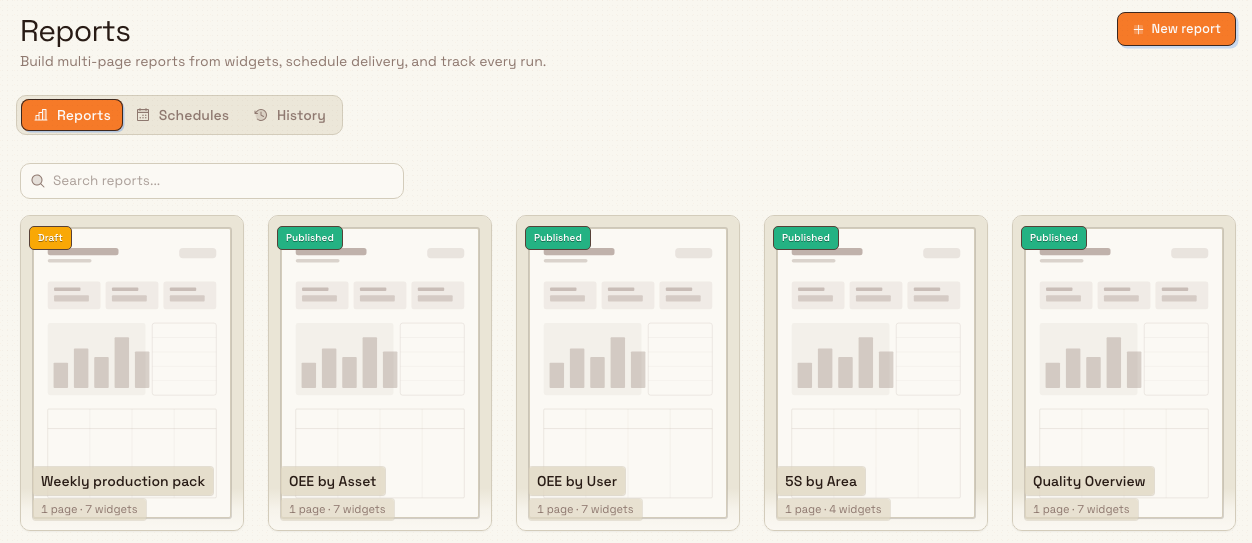
The page description reads: “Build multi-page reports from widgets, schedule delivery, and track every run.”
administration.data.reports-01
What the Reports page shows
The page has three tabs:
| Tab | Purpose |
|---|---|
| Reports | Build and manage multi-page report layouts (documents). |
| Schedules | Configure when a report runs and who receives the email. |
| History | Review past report runs, status, emails sent, and PDF downloads. |
The header button changes with the tab: New report on Reports, New Schedule on Schedules, and no primary action on History.
Reports tab
Each layout is a portrait card in a grid. A card shows:
- A status badge: Draft, Published, or Archived.
- The report name.
- Page and widget counts (for example
2 pages · 8 widgets). - A hover menu with actions that depend on status and your permissions.
If the site has no reports yet, the empty state reads No reports yet with the description “Build your first report by dragging widgets onto a page, then schedule or download it as a PDF.” and a New report action.
Schedules tab
A Schedules card lists recurring deliveries. Each row shows the report name and type label, cadence (for example Weekdays at 07:00), recipient count, last result, an Active / Paused badge, and a switch to pause or resume. An empty list shows No schedules configured with Create schedule.
History tab
A table of the last 50 runs (or runs for one schedule when you open history from a schedule row). Columns: Date, Report, Type, Status, Sent, and Actions. Filter by report type with All Types. Statuses include Queued, Processing, Completed, Failed, and Cancelled. Empty state: No report runs yet.
Add a report layout
- On the Reports tab, select New report.
- Bulk creates a draft named Untitled report, adds a first page (default A4 portrait), and opens the report editor at
/settings/data/reports/builder/<id>.
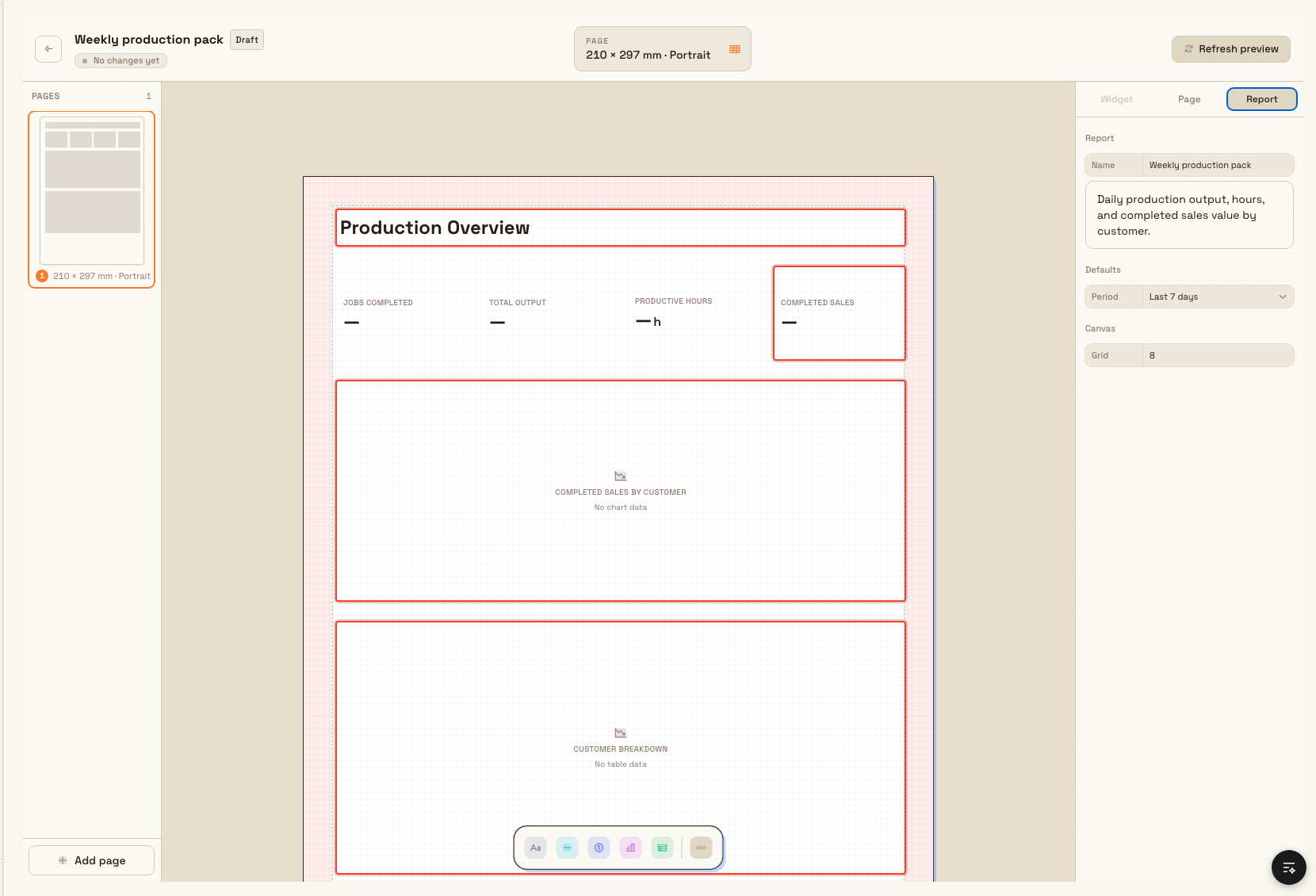
In the editor:
- Rename the report on the Report inspector tab (Name and optional Description). Set a default Period if you want Generate and Schedule to pre-select one (for example Last 7 days).
- Drag widgets from the floating dock onto the page. Categories include Basic (Text, Heading, Image), Layout (Divider, Box, Spacer), Metric (KPI metric, Stat group, Gauge, Progress bar), Charts (Chart), and Tables (Data table). Use Browse all / Search widgets… to find a type.
- Select a data widget and bind it to a dataset such as OEE by asset, OEE by operator, Production overview, 5S by area, Quality overview, or Pre-use checks (or leave static with No data (static)).
- Use Refresh preview to load live sample data into the canvas. Edits auto-save while the report is a draft.
- Add more pages from the page strip when you need a multi-page pack. Adjust page size (A4 or Letter) and Portrait / Landscape on the Page inspector tab.
When the layout is ready, return to the Reports list (back control) and use the card menu Publish — or publish only after you are sure the layout is correct.
Publish locks the layout
A Published report is read-only. The editor shows Published — read only and offers Unpublish to edit. Unpublishing returns the report to Draft and pauses any active schedules linked to that layout so you do not keep emailing a layout you are still changing.
administration.data.reports-02
Publish, generate, and schedule
Card menu actions:
| Action | When it appears | What it does |
|---|---|---|
| Edit / Open | Always | Opens the editor (edit if draft and you can edit; otherwise open). |
| Preview | Always | Opens a preview of the layout. |
| Duplicate | Always | Copies the document; confirmation Report duplicated. |
| Publish | Draft (not archived) | Marks the layout published; confirmation Report published. Requires at least one widget. |
| Generate now | Published | Opens Generate report to build a one-off PDF. |
| Schedule | Published | Prepares a linked delivery definition, then opens Schedule Report. |
| Unpublish | Published | Returns to draft; confirmation Report unpublished. |
| Delete | When allowed | Soft-deletes the layout; dialog Delete report with “This cannot be undone.” Confirmation Report deleted. Delete is blocked while the report is Published. |
Generate a PDF once
- On a Published card, choose Generate now.
- In Generate report, choose a Reporting period: Yesterday, Today, This week, Last week, This month, Last month, Last 7 days, or Last 30 days.
- Select Generate PDF. A loading toast reads “Generating report…” / “You can keep working while the PDF is prepared.” The PDF downloads when the run completes. Generation uses the data scope saved in the layout and does not send email.
Generate a PDF from a Workflow
Workflow administrators can add the Generate PDF Action when a report should run as part of an automation. Choose one saved Report definition and, if needed, override its saved time period. Custom report layouts must be published before the Workflow can use them.
Preview checks the Report, its scope, the Workflow actor's reports.run permission, and the selected site's access without creating a Report run or file. A live run uses the same Reports queue and renderer as Generate now, so it appears in Report history and follows the standard Report process. Retrying the same Workflow step returns the same result instead of queuing a duplicate Report run.
Schedule recurring email
From a published card’s Schedule, or from the Schedules tab with New Schedule / Create schedule:
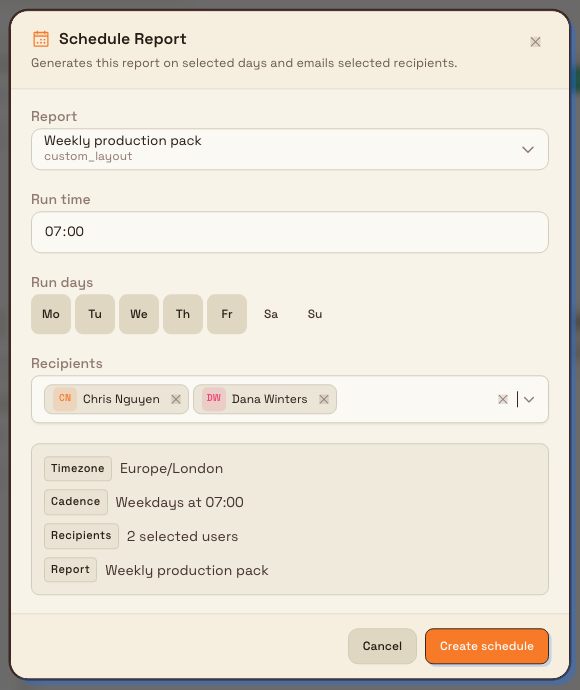
- The Schedule Report dialog describes: “Generates this report on selected days and emails selected recipients.”
- Choose the Report (pre-selected when you start from a card).
- Set Run time (default
07:00) and Run days (Mo–Su toggles; default all days → Daily at …). - Select Recipients (at least one user). The summary shows Timezone (the site’s timezone), Cadence, recipient count, and report name.
- Select Create schedule (or Save schedule when editing). Confirmation: Schedule created / Schedule updated.
Cadence labels also include Weekdays at …, Weekends at …, or named days (for example Mon, Wed, Fri at 07:00).
On the Schedules list you can:
- Toggle the switch to pause or resume (Schedule paused / Schedule resumed).
- Edit schedule, Run & download (immediate run with auto PDF download), View history (jumps to the History tab filtered to that schedule), or Delete schedule (dialog warns that future runs will stop; confirmation Schedule deleted).
administration.data.reports-03
History and downloads
Open the History tab to audit every run. For a completed run with a PDF:
- Use the download control to open the PDF.
- Use the eye control to open Report Run Details (status, report date, type, triggered by, queue/start/complete times, recipient and email counts, file name/size, and any error message). Failed runs surface the error in the detail dialog.
Scheduled runs are created by the background scheduler; Run & download and Generate now create manual runs. Email delivery applies to scheduled runs with recipients; one-off generate from a definition is download-only.
Example: weekly production pack at Granite Peak Manufacturing
Granite Peak Manufacturing’s Leeds Fabrication Plant needs a Monday pack for the operations lead. Dana Winters opens Settings → Data → Reports, selects New report, and renames the draft Weekly production pack. On the Report inspector tab she sets the default period to Last 7 days.
She adds a Heading, a KPI metric bound to Production overview, a Chart, and a Data table. After Refresh preview looks right, she returns to the list and selects Publish. From the published card she chooses Schedule, sets Run time to 07:00, leaves weekdays on, and picks the operations lead as recipient. She selects Create schedule.
On Monday morning the schedule runs, emails the PDF, and the run appears on History as Completed with 1/1 sent. When she needs a mid-week snapshot, she uses Generate now with Last 7 days and downloads the PDF without changing the schedule.
Expected result
- Draft layouts appear on the Reports tab with a Draft badge and stay editable until published.
- Published layouts show Published, support Generate now and Schedule, and open read-only in the editor until you unpublish.
- Active schedules run on the chosen days at the site timezone and email selected users; you can pause them without deleting.
- History shows each run’s status and lets you download completed PDFs.
Feature state and limits
Configuring reports is generally available. Keep these behaviors in mind:
- Layouts, schedules, and history are per site; they are not shared across sites.
- Publish requires at least one widget; empty layouts cannot be published.
- You cannot edit a published layout until you Unpublish to edit (which also pauses linked active schedules).
- Delete is not offered for published reports; unpublish or leave them archived first as applicable.
- One-off Generate PDF does not email recipients; use a schedule for delivery.
- Data widgets depend on analytics and operational data for the selected period and scope; empty source data yields empty or low metrics in the PDF.
- Built-in PDF report types (OEE asset/user, production overview, 5S area, quality overview, pre-use checks, and custom layout) power generation under the hood. Day-to-day configuration on this page is the report builder plus schedules and history. An older free-standing “report definition” form remains in the product code but is not the primary create path on this settings page.
Troubleshooting
- “Cannot publish a report with no widgets” — add at least one widget to a page, then publish again.
- “Cannot edit a published report. Unpublish it first.” — choose Unpublish on the card or Unpublish to edit in the editor, change the layout, then publish again.
- Generate now / Schedule missing on the card — the layout is still a draft (or archived). Publish a draft with widgets first.
- “Please select at least one recipient” / create disabled — the schedule form requires one or more recipients before Create schedule.
- “Please select a report” — on New Schedule from the Schedules tab, pick a report that already has a delivery definition (usually created when you schedule or generate from a published layout). Prefer Schedule on a published card so the report is pre-selected.
- PDF never downloads after Generate or Run & download — open History, check for Failed and the error in Report Run Details, then fix data scope, period, or permissions and retry.
- Schedule stopped after unpublishing — unpublish pauses linked active schedules. After you republish, turn the schedule Active switch back on if you still want delivery.
- New report or schedule actions fail — your role may be view-only. Ask an administrator for
report_templates.create/report_templates.updateandreports.manage(andreports.runfor manual runs).
Production overview money figures use payable job totals that include assigned order services.
Related
- Configure exports — download organization data extracts (separate from PDF report packs).
- Run data imports — bulk-load data into Bulk.
- Roles and permissions — grant report template and schedule permissions.
- Manage PDF templates — job document / printout templates (different from analytics report packs).
- Review KPI detail and reports — KPI-side reporting in Insights.
Configure exports
Build reusable data exports from production, inbound, KPI, and settings tables; save templates, run downloads, schedule email delivery, and track history.
Run data imports
Upload CSV or Excel files to create bulk records for a site — customers, parts, jobs, tasks, and more — through a guided six-step import wizard.