Run a 5S audit
Run a scheduled 5S workplace-organization audit, score each of the five pillars, and track how your areas hold their standard on the 5S dashboard.
Last updated
A 5S audit is a structured walk that scores how well a work area — or a piece of equipment — holds the lean housekeeping standard known as 5S. 5S is a workplace-organization method with five stages: Sort, Set in Order, Shine, Standardize, and Sustain. You work through a checklist grouped by those five stages, mark each item pass or fail, add a comment where a check falls short, and submit. Bulk grades the run, gives it a score out of 100 and a per-pillar breakdown, and files a timestamped report you can reopen.
"5S" is one of six audit types in Bulk — alongside Safety, Quality, Maintenance, Pre-Use, and Custom. It reuses the same run mechanics as every other audit, but it differs in two ways that this page focuses on: it is scored by weight (a percentage, not a plain pass/fail), and its results roll up into a dedicated 5S dashboard so you can see how each area trends over time. Run a 5S audit when a scheduled 5S walk falls due, or when a supervisor wants a signed, scored record that an area met its standard on a given shift.
The five pillars
Every 5S audit is organized around the five pillars. Each section of the checklist maps to one pillar, and each pillar earns its own sub-score:
- Sort (Seiri) — remove unnecessary items from the workspace.
- Set in Order (Seiton) — organize necessary items so they can be easily found.
- Shine (Seiso) — clean the workspace and inspect equipment.
- Standardize (Seiketsu) — create procedures to maintain the first three pillars.
- Sustain (Shitsuke) — stick to the rules and keep improving.
How 5S scoring works
Unlike a Safety or Maintenance audit, which resolves to a plain pass or fail, a 5S audit uses weighted scoring. Each answered item contributes points; the overall score is the points you earned as a percentage of the points possible. A 5S audit passes when that score reaches its threshold (70 by default), and each pillar is scored the same way so you can see which stage is dragging the total down.
The overall result is still one of three values:
- Pass — the score met the threshold and nothing critical failed.
- Fail — the score fell below the threshold, or a critical item failed. A critical failure fails the whole audit regardless of the score.
- Pass with Issues — the audit passed overall, but at least one item needs attention.
Scores also map to a status band used across the 5S views — excellent (90 and above), good (70–89), warning (50–69), and critical (below 50).
Scoring is set on the template
The threshold, the section weights, an optional target score, and whether an item is critical are all defined on the 5S audit template by whoever built it. This page describes the default behavior — a threshold of 70 with critical items treated as fatal. Your site's template may set different values.
Before you start
Two things must be in place to run a 5S audit.
Permission. Running any audit requires the Run audits permission (internally audits.execute); reviewing reports and opening the 5S dashboard requires the View audits permission (audits.view). In the default workspace both are granted to the Super user, Entity admin, Manager, Operator, Tablet user, and Invoicing roles, so most shop-floor and supervisory accounts can run and review 5S audits. If you can reach the Audits area but nothing appears, that is usually a setup gap rather than a permission gap.
A 5S audit that is set up. For the run flow described here, an administrator must first create a 5S-type template, publish it, define at least one audit area, and add an active schedule that links the template to that area. Template, area, and schedule setup live under Settings → Audits and need the audits.create, audits.update, and audits.publish permissions. Bulk also ships a ready-made 5S Audit template in the template library — five sections, one per pillar, with 25 pass/fail items — that an administrator can duplicate as a starting point.
Nothing to run yet?
If no published 5S template has an active schedule in an area you cover, the 5S Audit family is greyed out in the start flow with a No audits label, and your inbox is empty. That is expected — ask an administrator to publish and schedule a 5S template under Settings → Audits, or confirm you are working in the right site.
Run a 5S audit
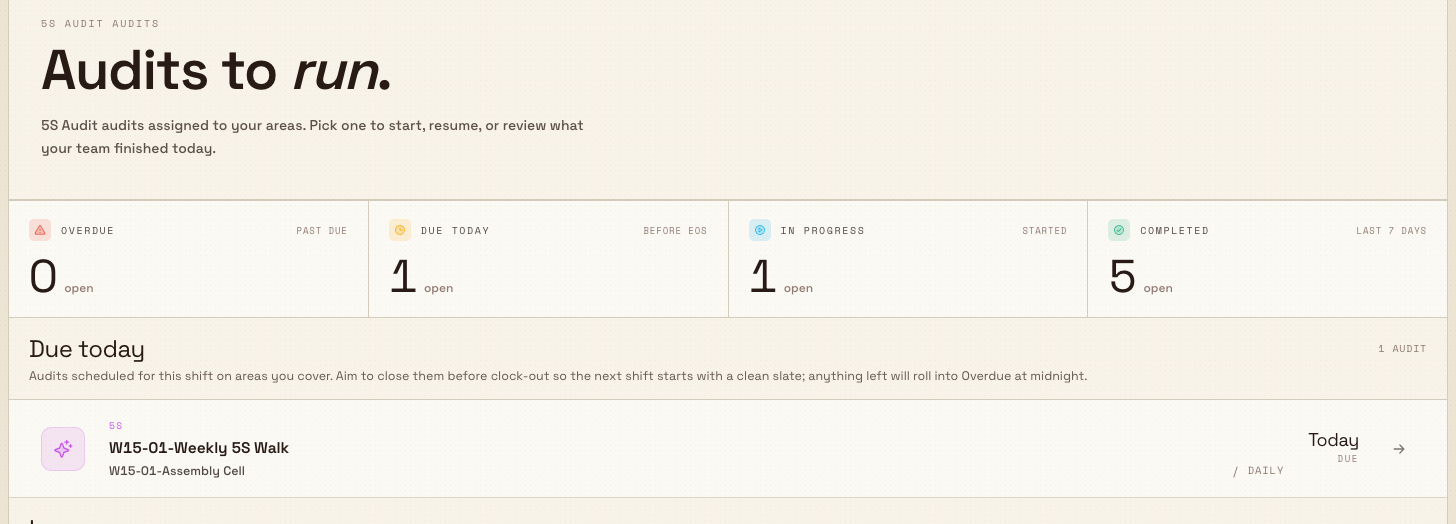
The audit inbox is where you run audits. Open /audits for every audit due to you, or the 5S-filtered inbox at /audits/5s for 5S only. The page is titled Audits to run. and groups your work into Overdue, Due today, In progress, and Completed / last 7 days, with a status band at the top to jump between groups.
- Open the inbox. Find the 5S walk under Overdue, Due today, or In progress. A due or overdue row starts a fresh run; an in-progress row resumes exactly where it was left off, so a colleague can hand a half-finished walk over to you.
- Or start one manually. Use Start a new audit to open the three-step picker. Choose the 5S Audit type (its row reads "Sort, Set in Order, Shine, Standardize, Sustain."), then the template, then the area. The checklist opens as soon as you pick the area. Families with no eligible audits in your areas are greyed out.
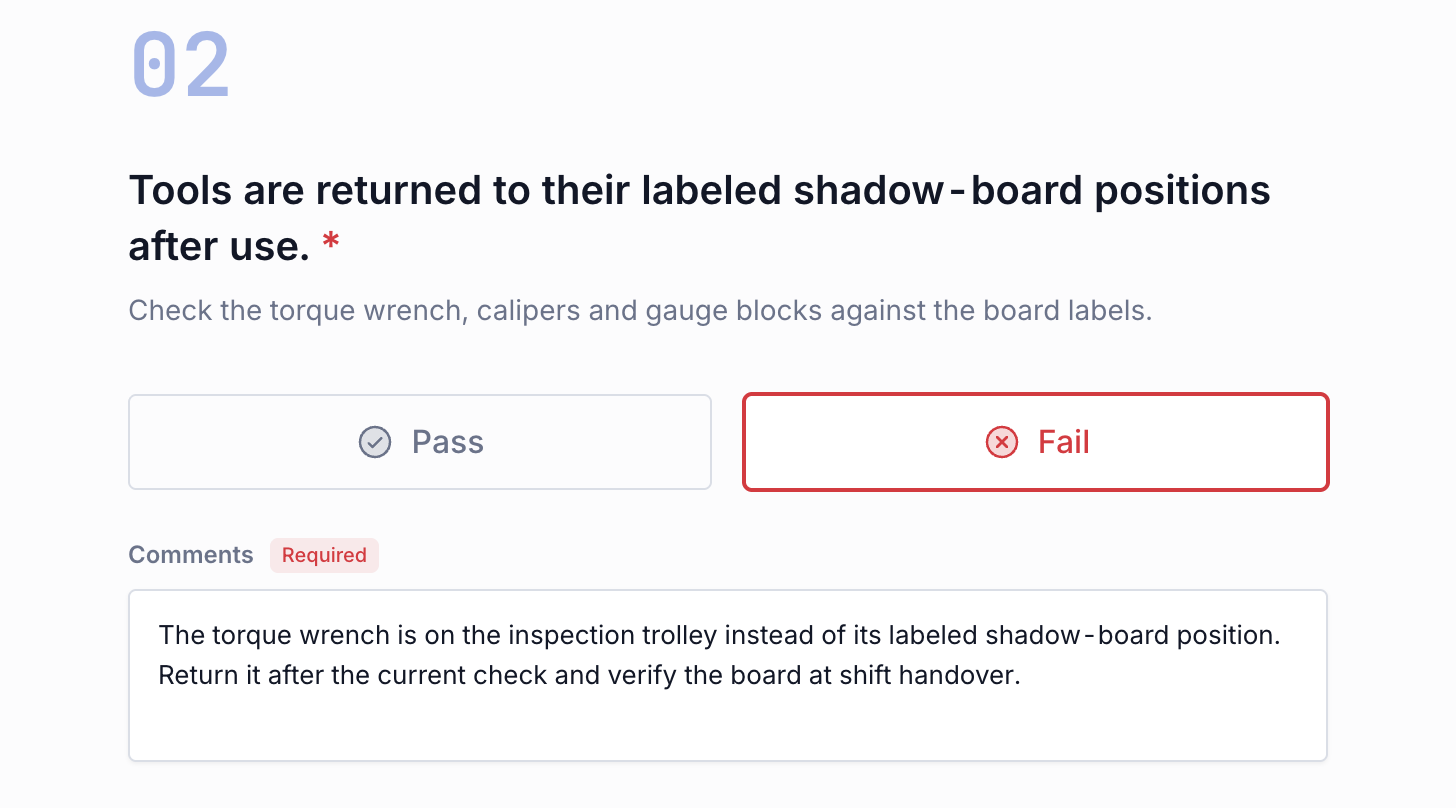
- Work through the checklist. The audit opens as a wizard that shows one question per page, with a checklist rail you can use to jump to any item. Items are grouped by pillar, so you answer all of Sort, then Set in Order, and so on. Your answers save automatically — there is no separate save button. A required item must be answered before you can advance, and on the default 5S template a failed item asks you for a comment before you continue (the wizard shows a reason such as "Comment required for failed items").
- Submit. On the last question, choose Submit. A Submit Audit dialog confirms the action cannot be undone and summarizes how many checks passed and failed. Confirm, and a toast reports the outcome — for example "Audit submitted: Pass with Issues" — before returning you to the inbox.
Submitting and cancelling are final
Submitting a 5S audit cannot be undone — you cannot reopen and edit your own responses afterward. Choosing Cancel audit while you run discards every response you have entered. If you only need to pause, simply leave the page: the audit stays under In progress for you or a teammate to resume. To correct a submitted result, run the audit again or ask an administrator with the Override audits permission to override it.
For the shared step-by-step detail of answering questions and adding evidence, see the canonical guides: Complete an audit response and Attach audit evidence.
Example: a five-pillar review at Gauge Bench
Bruce runs Gotham Bench 5S Review on Gauge Bench at Gotham Applied Sciences. The checklist has seven equally weighted checks: one each for Sort, Shine, Standardize and Sustain, plus three for Set in Order. Its policy uses a 70% pass threshold, a 60% minimum pillar score and an 85% target. A weekly Sunday schedule links the published checklist to this area, and Bruce starts the review through the normal type, template and area picker.
Six checks pass. The tool-return check fails because the torque wrench is on the inspection trolley instead of its labeled shadow-board position. Bruce saves the required comment describing the finding and the need to return the tool and check the board at handover. Reopening the question confirms the note is saved.
After the normal confirmation shows 6 passed and 1 failed, the completed run records 85.71%. The report rounds that to 86%, marked On Target against the 85% target. Set in Order shows 67% with two of three checks passed; the other four pillars each show 100%. This makes the weak pillar and failed item clear even when the overall score meets the target.
Review a completed 5S audit
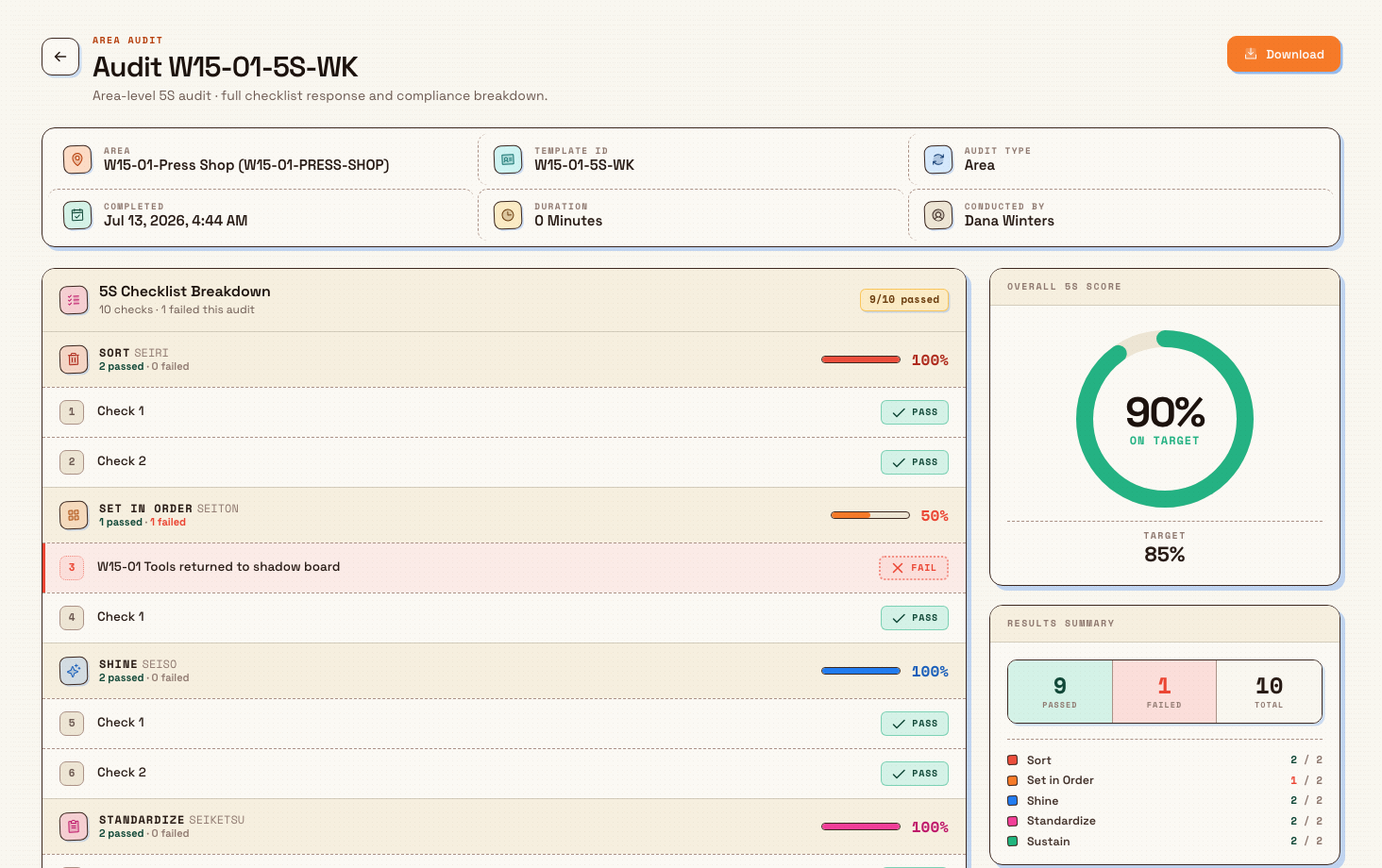
Opening a completed 5S audit shows a report built for 5S rather than a plain pass/fail summary. It includes the area or asset, template code, completion time, duration and auditor, a weighted overall score compared with the template target, and a checklist grouped by all five pillars. Each pillar shows its score and pass/fail tally, with the recorded answer beside each question. The results summary repeats the totals and per-pillar counts. Use Download for the report export.
The current 5S checklist summary displays question labels and Pass/Fail results; it does not display the execution comments in this view. Record and verify a required finding while completing the question, as shown above.
Track 5S performance on the dashboard
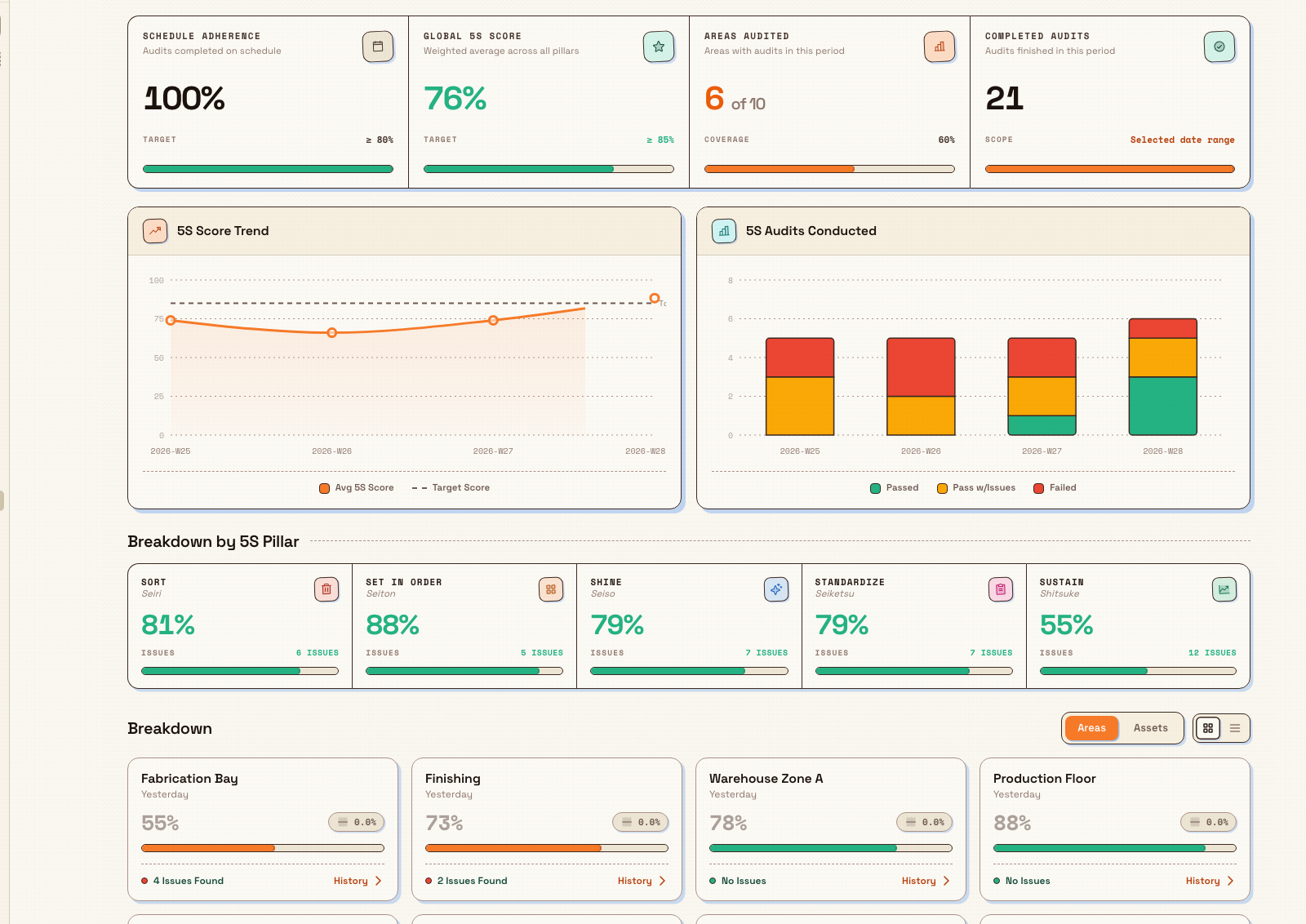
Where the other audit types each have a review list in the sidebar, 5S has a dedicated 5S Dashboard under the Analytics section (/analytics/five-s). It aggregates every completed 5S audit in a date range into one view: a pillar scorecard with the average score and trend for each of the five pillars, an overall score trend chart, an audits-conducted chart, and a per-area or per-asset breakdown you can view as cards or a table and drill into for detail. A filter bar sets the date range (the last 30 days by default) and the granularity (day, week, or month). Opening the dashboard needs the View audits permission.
The 5S dashboard is in Beta
The 5S Dashboard is labelled Beta in the navigation. Running and scoring 5S audits is generally available, but the analytics rollup is still being refined, so treat its aggregated figures as an evolving view rather than a finalized report. If a metric looks empty, widen the date range — the dashboard only counts completed 5S audits within the selected window.
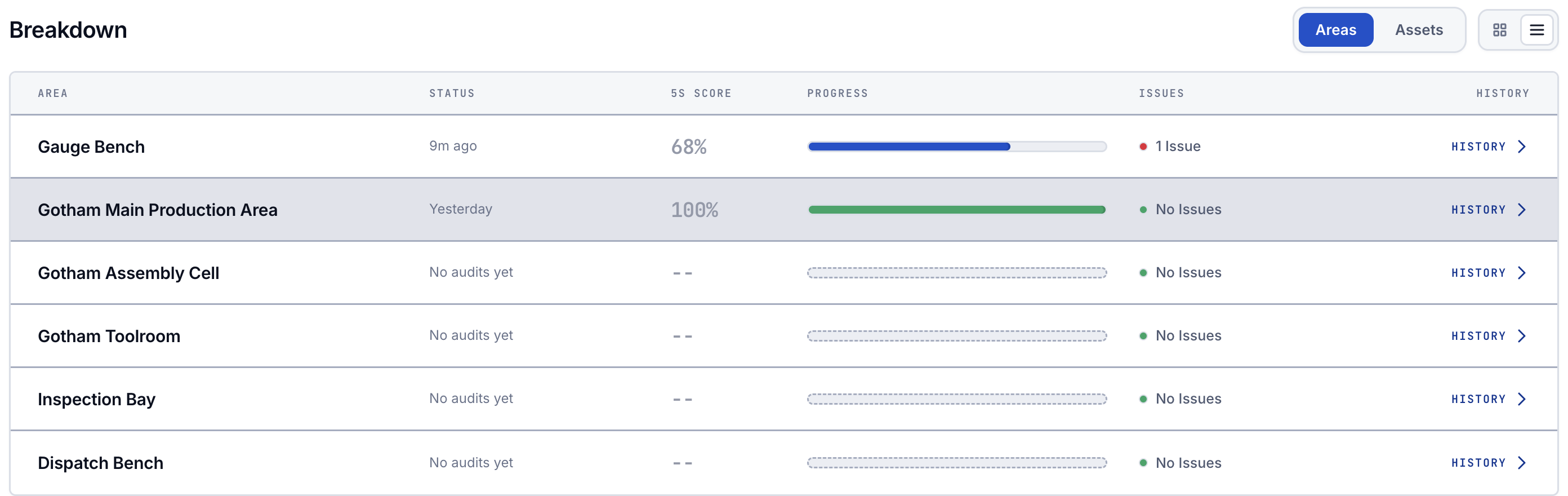
Feature state and limitations
Running and scoring 5S audits is generally available — a shipped part of the Audits module. Keep these boundaries in mind:
- The 5S Dashboard is in Beta. The analytics rollup at
/analytics/five-sis still being refined; the underlying run and scoring flow is not. - You can only run what is scheduled. If no published 5S template is scheduled into an area you cover, the 5S Audit family is unavailable in the start flow and nothing appears in your inbox. This is expected, not an error.
- 5S has no sidebar review list. Unlike Safety, Quality, Maintenance, Pre-Use, and Custom audits, 5S results are not listed in the sidebar Audits group. You reach a completed 5S report from the inbox's Completed rows or by drilling in from the 5S Dashboard.
- Scheduled, area-based audits use the inbox. Some 5S audits are attached to a specific asset instead of an area; those are started from the asset's context in production rather than from the schedule-based inbox flow. Both kinds still feed the 5S Dashboard.
- Submissions are final. There is no self-service edit after submit — corrections mean running the audit again or an administrator override.
- Follow-up automation is opt-in. A template author can configure a 5S template to notify people or raise a follow-up task when an audit scores below a threshold or fails a critical item, but nothing fires unless it was set up.
Troubleshooting
- The 5S Audit family is greyed out with "No audits". No published 5S template has an active schedule in your areas. Ask an administrator to publish a 5S template and add a schedule under Settings → Audits → Schedules.
- You cannot advance past a question. A required item is unanswered, or a failed item still needs its comment. The wizard shows the reason — for example "Comment required for failed items" — so add the input and continue. Use the checklist rail to jump to any unanswered item.
- The 5S Dashboard looks empty or shows a dash for completion. The dashboard only counts completed 5S audits in the selected date range, and its schedule-completion figure is based on area-based 5S schedules. Widen the date range, and confirm at least one 5S audit has been completed. A purely asset-based 5S program has no schedule to measure adherence against, so the completion rate reads as a dash.
- You submitted with a mistake. You cannot reopen your own submission. Run the audit again for a fresh record, or ask an administrator with the Override audits permission to override the result.
Related guidance
- Start an audit — the shared start flow for every audit family.
- Complete an audit response — answering individual checklist questions.
- Attach audit evidence — adding photos and comments to a response.
- Review audit results — filtering, opening, and exporting completed reports.
- Override an audit response — supervisor overrides where they apply.
- Audits overview — how the whole Audits module fits together.
Run a custom audit
Run a custom audit, a checklist your site defines for routines the standard audit families don't cover, from the shared start flow, then review the result.
Run a pre-use audit
Run a pre-use safety check on a machine before it starts: open it from the workstation or Audits, work the checklist, and submit a pass or fail.