Run a quality audit
Run a scheduled quality-control checklist against an area of your plant, record pass and fail results with photo evidence, and produce a shareable audit report.
Last updated
A quality audit is a structured quality-control or inspection checklist you run against an area of your plant — for example a coating bay, an assembly cell, or a packing line. You work through a fixed list of questions, record a result for each one, attach photos where they are needed, and submit. Bulk then grades the audit, stores a report you can reopen or export, and — if the template was set up that way — can notify people or open a follow-up task automatically.
Use a quality audit when you need a repeatable, signed-off record that in-process material, finished work, or a workstation met your quality standard on a given shift. "Quality" is one of six audit families in Bulk (alongside Safety, Maintenance, Pre-Use, 5S, and Custom); this page covers running one that has already been set up for you.
Before you start
Running a quality audit depends on two things: the right permission, and a quality audit that has been scheduled onto an area you cover.
Permissions. Two permissions control the run-and-review experience:
audits.execute— start, fill in, and submit an audit.audits.view— open completed and in-progress audit reports.
Built-in roles that include both are Super user, Entity admin, Manager, Operator, and Tablet user. Note one easy point of confusion: the separate Quality role governs quality-management records such as CAPAs, non-conformance reports, and holds — it does not, on its own, grant audit execution. If you can reach the Audits section but no quality audits appear, it is usually a setup gap rather than a permission gap.
Setup that must already exist. A quality audit can only be run once an administrator or manager has, in Settings → Audits:
- Built and published a quality-type audit template (the checklist of questions).
- Created at least one audit area — the place the audit applies to.
- Added a schedule that links the published template to that area at a cadence (one-time, daily, weekly, or monthly).
Creating templates, areas, and schedules needs the audits.create, audits.update, and audits.publish permissions, which the Super user, Entity admin, and Manager roles carry. If nothing is scheduled onto your areas, the quality family shows as unavailable in the start flow.
Find and open a quality audit
There are two ways in.
From the Audits inbox. Open /audits for every audit due to you, or the quality-filtered inbox for quality only. The inbox groups work into Overdue, Due today, In progress, and Completed / last 7 days. Click a due or overdue quality row to begin; click an in-progress row to resume exactly where it was left off.
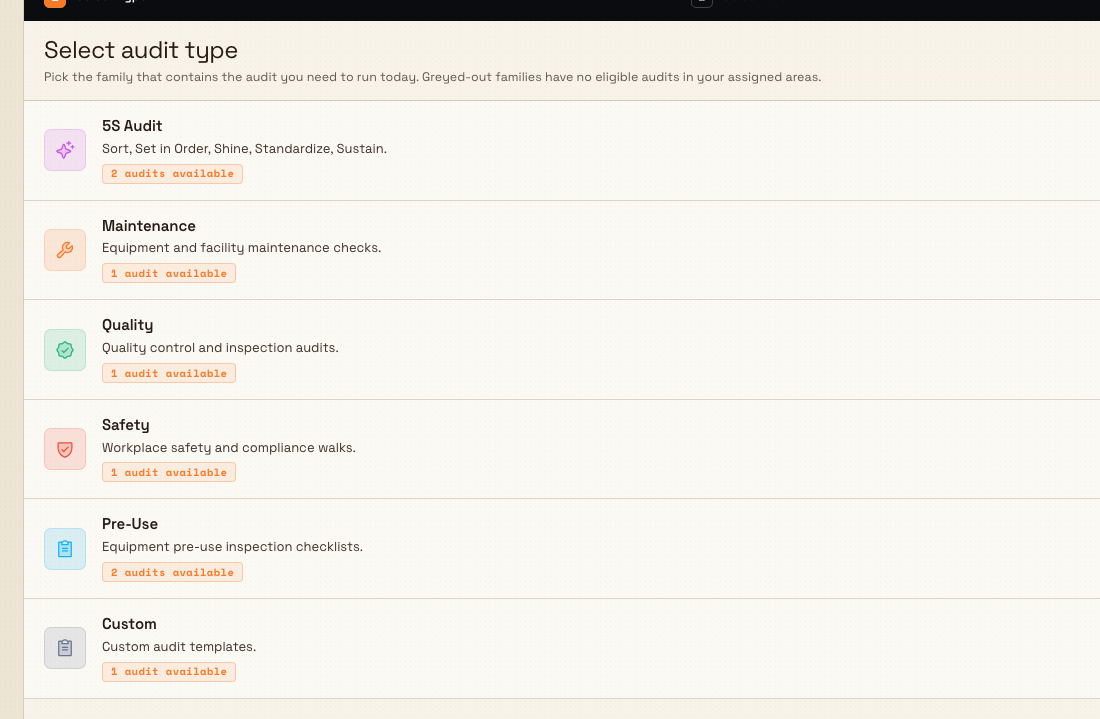
From "Start an audit". Use the start flow when you want to pick an audit deliberately rather than from your due list. It is a three-step picker:
- Select audit type — choose Quality (its row reads "Quality control and inspection audits"). Families with no eligible audits in your areas are greyed out.
- Select audit — pick the published template you want to run. Each row shows the template code and its cadence.
- Select area — pick where you are running it. Only areas the template is scheduled into appear. The checklist opens as soon as you choose the area.
Work through the checklist
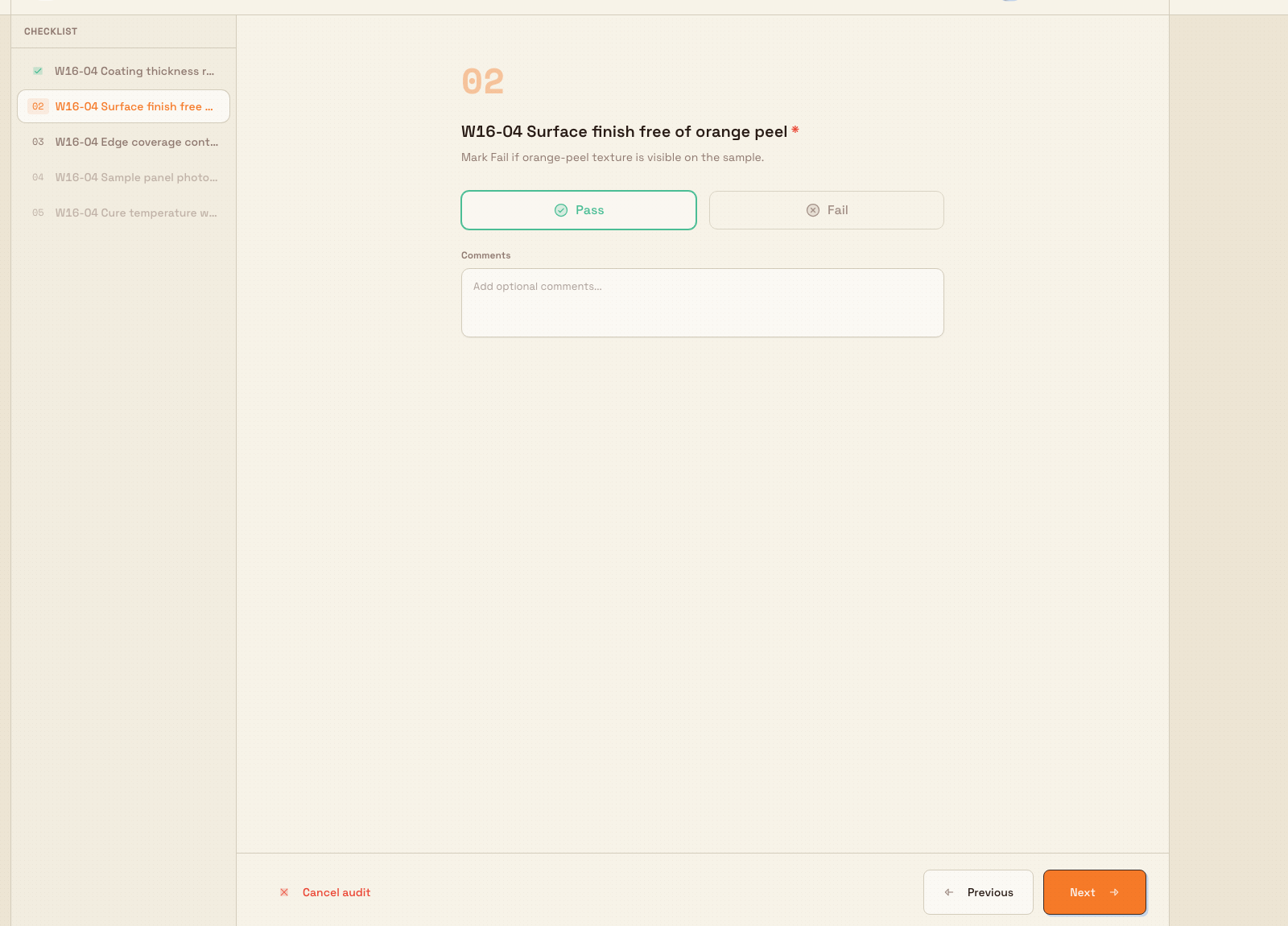
The audit opens as a single-question-per-page wizard with a checklist sidebar on the left, so you always know how far through you are.
- Answer each question. Question types include Pass / Fail, Yes / No, a numeric reading, single- or multi-select, free text, a date or time, a photo, or a signature. Your answers save automatically as you go — there is no separate save button.
- Attach evidence. Where a question asks for a photo, add one directly on that question. Photos are stored with the response and appear in the finished report.
- Move around. Use Next and Previous to step through, or click any question in the sidebar to jump to it. A required question must be answered before the wizard will let you move past it, so nothing mandatory is missed.
- Stop safely if needed. Cancel audit discards the in-progress attempt — you are asked to confirm ("Keep Working" or "Cancel Audit"), and all responses are discarded. If you simply leave the page, the audit stays In progress in the inbox for you or a teammate to resume.
Submit and get a result
When every required question is answered, choose Submit. A Submit Audit confirmation summarises how many checks passed and failed and warns that the action cannot be undone. Confirm to finish.
On submission Bulk grades the audit and returns one overall result:
- Pass — everything met the standard.
- Fail — the audit did not meet the standard.
- Pass with Issues — it passed overall but at least one item needs attention.
You are returned to the Audits inbox with a confirmation of the result.
Automatic follow-up (only if configured). A template author can attach completion triggers to a quality template so that submitting an audit — for example one that fails, or scores below a set threshold — automatically notifies chosen people or creates a follow-up task in a project. These are off unless someone set them up on the template, so do not assume a failing audit will alert anyone by itself.
Blocking is not part of quality audits
An older "block the asset" completion action exists in template configuration but is deprecated and no longer stops production. Completing or failing a quality audit records the result and can notify people or raise a task, but it does not itself halt an asset or line.
Example: a release review in Gotham Toolroom
Bruce starts Gotham Quality Release Review in Gotham Toolroom. He passes the dimension check and records that the first-article measurements match drawing GTH-214 revision C. The traceability check also passes: the traveller, batch identifier and inspection sheet agree.
The finish item fails because a sharp burr remains on the front mounting slot. This item requires a comment and photo. Bruce records the defect and the need for deburring and repeat inspection, then uploads the bracket inspection image. Once both are saved, Submit becomes available.
The confirmation shows 2 passed and 1 failed. After Bruce confirms, the completed report records Failed and 66.67%, with the comment and photo beside the failed item. Bruce uses the recorded defect to arrange deburring and a repeat inspection.
Review the completed report
Completed and in-progress quality audits live under Audits → Quality Audits (/audits/views/quality). The list shows Template, Subject (the area or asset audited), Status, Result, Completed By, and Completed At, and you can filter by status or result and search across them.
Open any row to see the full report: an Audit Score out of 100, the passed and failed counts, every question with its recorded answer and any attached photos, and who completed it and when. Export Report produces a PDF you can share outside Bulk or keep for compliance records.

Feature state and limitations
Quality audits are generally available — a shipped part of the Audits module, not a beta or preview feature.
Keep these boundaries in mind:
- You can only run what has been scheduled. If no published quality template is scheduled onto an area you cover, the Quality family is unavailable in the start flow and nothing appears in your inbox. This is expected, not an error.
- Submitting is final. The confirmation states the action cannot be undone; treat submission as sign-off rather than a draft save.
- Follow-up automation is opt-in. Notifications and follow-up tasks only happen when a template author configured them; the "block the asset" action is deprecated and has no effect.
- Reports are read at the report screen. Editing responses after submission is not part of this flow — corrections mean running the audit again.
Troubleshooting
- The Quality family is greyed out, or "No audits" shows. No published quality template is scheduled into your areas. Ask an administrator or manager to publish a quality template and add a schedule for it in Settings → Audits.
- You cannot submit — a required item is flagged. A required question is still blank. Use the checklist sidebar to jump to any unanswered item; the wizard blocks forward navigation on required questions until they are answered.
- An audit you started earlier is not in the list. It is under In progress in the Audits inbox (not yet in the completed Quality Audits list). Open it there to resume; it reopens where you left off rather than starting over.
- You expected an alert or task after a fail and none appeared. Completion triggers are per-template and opt-in. Confirm with the template's author whether a notify or create-task trigger is configured.
Related guidance
- Start an audit — the shared start flow for every audit family.
- Complete an audit response — answering individual checklist questions.
- Attach audit evidence — adding photos and files to a response.
- Override an audit response — supervisor overrides where they apply.
- Review audit results — filtering, opening, and exporting completed reports.
- Audits overview — how the whole Audits module fits together.
Run a safety audit
Run a scheduled, area-based safety audit in Bulk, from opening a due audit to submitting a Pass, Fail, or Pass with Issues result, and find the report.
Run a maintenance audit
Start, complete, and submit a scheduled maintenance audit against a plant asset or area, then review its pass or fail result.