Review audit results
Where completed and in-progress audit reports collect in Bulk — the per-type Audits review views — and how to filter, open, and export a report.
Last updated
Once an audit has been run and submitted, its report needs a home where you can find it again, check how it turned out, and pull the detail when someone asks. In Bulk that home is the Audits review views: a set of read-only lists, one per audit type, that gather every completed and in-progress audit report for the plant you are working in. An audit is a checklist-driven inspection of a work area or a piece of equipment; a report is the scored, timestamped record it produces.
Reach for the review views whenever you need to look back rather than run something new — to confirm a failed check was followed up, to see who signed off a report and when, to pull an evidence-backed record for a customer or an external auditor, or to watch how an area or asset is trending week to week.
Reviewing is read-only
The review views show finished and in-progress reports. You do not answer questions or change a result here — running and completing audits happens in the audit flow. See the related guides at the end for those tasks.
The five review views
Open the Audits group in the left navigation. It lists one review view per audit type:
- Safety Audits — workplace health, safety, and environmental walks. Route:
/audits/views/safety. - Pre-use Checks — equipment checks an operator runs before use. Route:
/audits/views/pre-use-checks. - Quality Audits — quality control and inspection audits. Route:
/audits/views/quality. - Maintenance Audits — equipment and facility maintenance checks. Route:
/audits/views/maintenance. - Custom Audits — any checklist your site defines. Route:
/audits/views/custom.
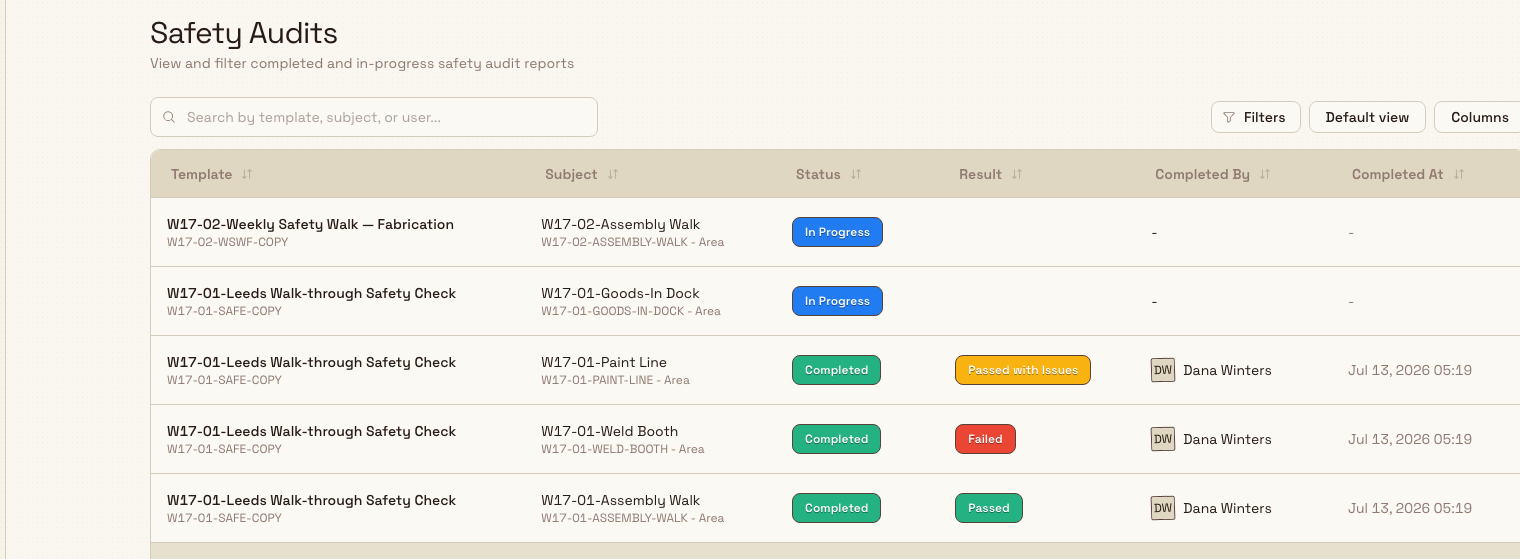
Each view is already scoped to a single type, so opening Quality Audits shows only quality reports. Every list carries a one-line summary under its title — for example, Safety Audits reads "View and filter completed and in-progress safety audit reports."
5S reports have no top-level review list
The 5S audit type does not appear as its own entry in the Audits navigation group. You reach a 5S report from the 5S area and asset views rather than from a per-type review list like the five above.
Before you start
- Permission to view audits. The review views are backed by a query that requires the
audits.viewpermission. In a default workspace this is granted to the Super user, Entity admin, Operator, Tablet user, Manager, and Invoicing roles, so most shop-floor and supervisory accounts can open and read reports. - The Audits module enabled. The Audits navigation group appears when the audits module is switched on for your workspace. If the group is missing entirely, the module is off rather than your permission being wrong.
If a review view returns a permission error or a report opens as "not found", your role is missing audits.view or you do not have access to that record — ask an administrator to adjust your role.
What a review list shows
Every review view is the same table with six columns:
- Template — the audit template's name, with its short code beneath.
- Subject — the area or asset the audit was run against, with its code and whether it is an Asset or an Area.
- Status — a badge showing where the report stands. In these lists you see In Progress or Completed.
- Result — the scored outcome: Passed, Failed, or Passed with Issues. A report that is still in progress has no result yet.
- Completed By — the person who submitted the audit, shown with their avatar and name.
- Completed At — the submission date and time, for example
Jul 12, 2026 14:30.
Reports are ordered newest first. Use the page controls to move through the history, click a sortable column header to change the order, and click a row to open the full report. Search and filters apply across the history, not just the visible page.
Find a specific report
The bar above the table narrows a long list down to what you want.
- Search — the box reads "Search by template, subject, or user...". Type any part of a template name or code, an area or asset name or code, or the name of the person who completed the audit, and the list filters as you type.
- Status — choose ALL, IN PROGRESS or COMPLETED above the table.
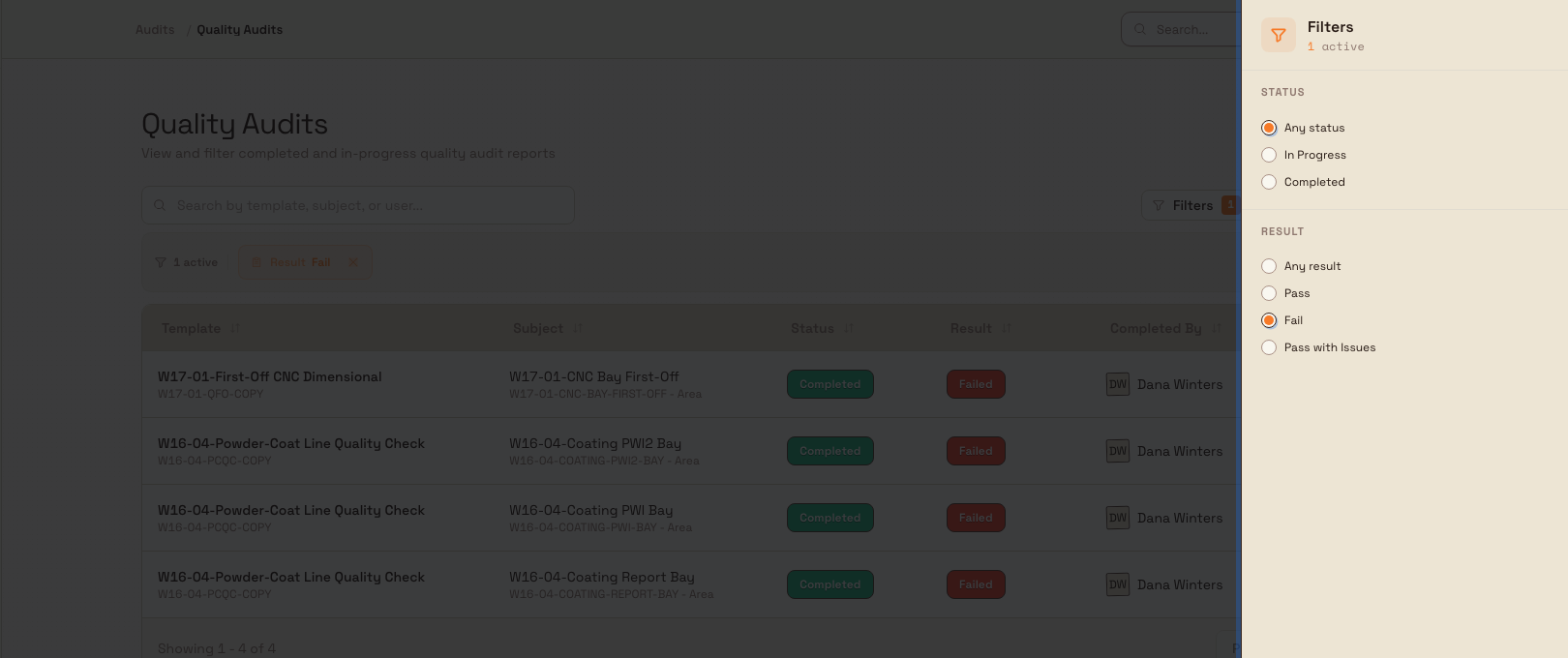
- Filters — the panel narrows the list by result: Any result, Pass, Fail or Pass with Issues.
- Active filters — each applied search or filter shows as a removable chip, and Clear resets everything at once.
Because each of the five views is already fixed to one audit type, you do not pick a type inside the view — the view you open is the type.
If nothing matches, the list shows No audits found with "Try adjusting your search or filters." A view with no reports at all instead shows No audits yet with "Audit reports will appear here after audits are started."
Open and export a report
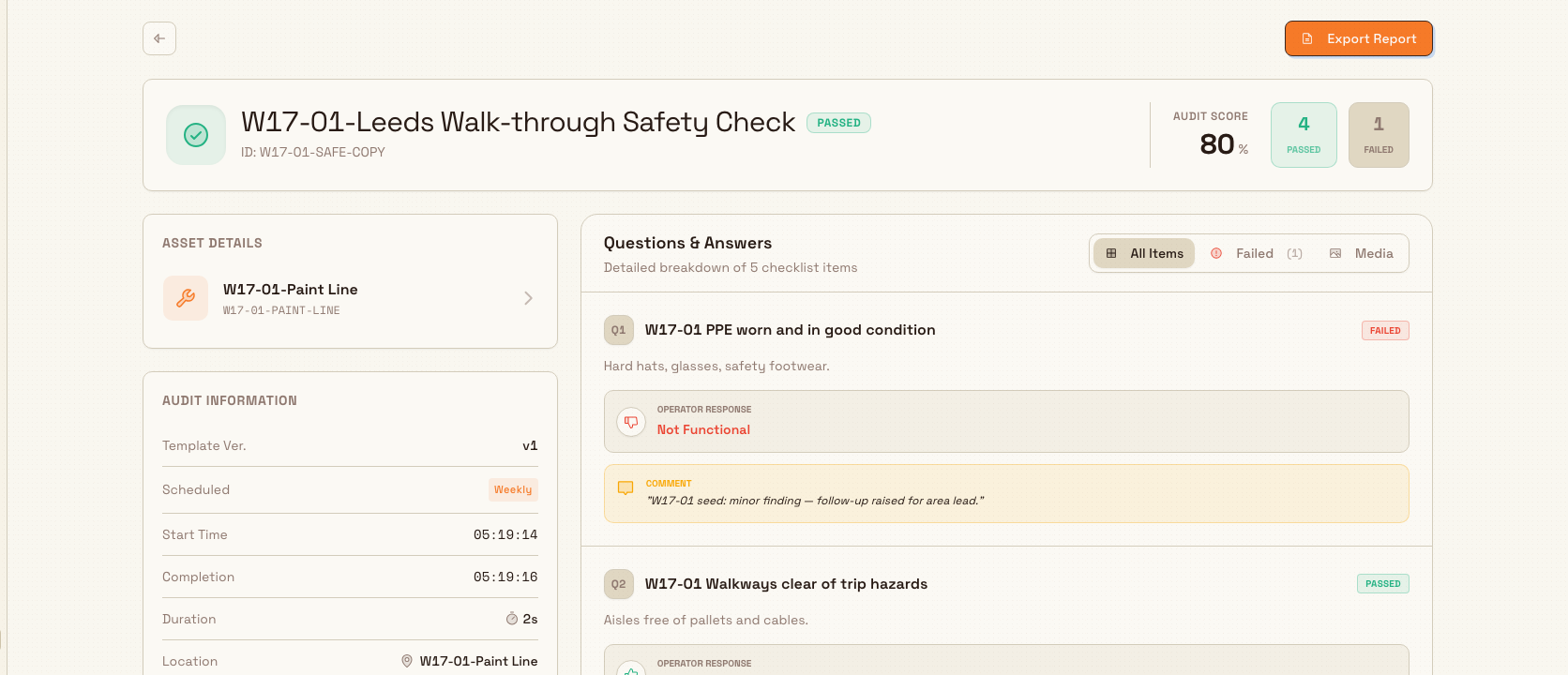
Click a row to open its report. For safety, quality, maintenance, and custom audits the report opens with:
- A header showing the template name, the outcome (Passed or Failed, or a terminal state such as Cancelled or Expired), an Audit Score as a percentage, and counts of items Passed and Failed.
- An Audit Information panel with the template version, the scheduled frequency, start and completion times, how long the audit took, the location, and who completed it.
- The per-item responses, so you can read exactly how each question was answered and see any photos or comments attached as evidence.
The report header uses Passed for both passing outcomes. Check the review list's Result badge to distinguish Passed with Issues.
An Export Report button generates a PDF of the report and downloads it, confirming with a "PDF exported successfully" message — handy for sharing a signed record outside Bulk.
Exporting for an external auditor
When a customer or a certification body asks for proof that a check was done, open the report and use Export Report to hand them a self-contained PDF, rather than granting them access to Bulk.
Pre-use checks and 5S audits use their own report layouts, so the exact panels differ from the four types above, but you still reach them by clicking a row (pre-use) or opening the report from its 5S area or asset view.
Example: reviewing a Gotham release check
Bruce completes Gotham Quality Release Review in Gotham Toolroom. Its report records Failed, an Audit Score of 66.67%, two passed items and one failed item. Audit Information shows the template version, one-time cadence, start and completion times, location and Bruce Wayne as the person who completed it.
The Media (1) tab isolates the finish item. Its response is Not Functional, and the comment explains the sharp burr on the front mounting slot, the batch hold and the required repeat inspection. The saved bracket photo sits beside that item, so the reviewer can inspect the defect and follow-up context together. The photo is fictional demo media illustrating the workflow.
Expected result
You can find any completed or in-progress audit report for a given type, narrow the list by status, result, or a search term, and open a report to see its score, its item-by-item detail, and its evidence. Exporting produces a PDF you can share. Nothing you do in the review views changes a report — they are for reading and reporting only.
Feature state and limitations
The Audits module, including the review views, is generally available. A few things to keep in mind:
- Only in-progress and completed reports are listed. Audits that were never started, or that expired or were cancelled without being completed, do not appear in these lists — though a report opened directly can still show a terminal state such as Expired or Cancelled.
- The history is paginated. Use the page controls, search and filters to find reports beyond the visible page.
- There is no separate scores-over-time chart in these views. You track how results move by scanning the chronological list and opening individual reports; each report carries its own audit score.
- Report layouts vary by type. Safety, quality, maintenance, and custom reports share one detail layout; pre-use checks and 5S audits have their own.
Troubleshooting
- A report you expected is not in the list. Confirm the audit was actually submitted — only in-progress and completed reports appear. Then clear any active status or result filter, since a filter may be hiding it, and check you are in the review view for the right audit type.
- You cannot see the Audits review views. If the whole Audits navigation group is missing, the audits module is off for your workspace. If the group is there but a view errors, your role is missing the
audits.viewpermission — ask an administrator to grant it. - A report opens as "not found". The link points at a report you do not have access to, or at a record that no longer exists. Return to the review list and open the report from there.
Related guidance
Run a pre-use audit
Run a pre-use safety check on a machine before it starts: open it from the workstation or Audits, work the checklist, and submit a pass or fail.
Workflows
End-to-end journeys through Bulk, from setting up a site to producing, checking, and invoicing work, each linking to the guide for every step.