Boards
Build custom, per-site widget dashboards by dragging KPI, chart, table, and utility widgets onto a column grid.
Boards are custom dashboards you build yourself for a single site. Instead of choosing from a fixed set of reports, you start with an empty column grid and drag the widgets you care about — a KPI tile, an OEE trend, a live downtime feed, a checklist — into the arrangement that suits your shift, line, or role. A "widget" is a single self-contained panel that shows one thing, such as a metric, a chart, or a short list.
Use a board when the prebuilt dashboards do not match how you want to watch your operation. A shift lead might want first-pass yield, current OEE, and open incidents side by side on a wall display; a quality engineer might want a defect Pareto next to an aging list of non-conformances. You decide what goes on the board and how it is laid out, and the layout is saved for everyone at your site who can view boards.
How Boards differ from the other visual tools
Bulk has several visual-management surfaces with similar names. Boards are the do-it-yourself option:
- Boards (this article) — custom widget grids you assemble and arrange yourself, scoped to one site.
- Dashboards — ready-made analytics screens (for example OEE, quality, and production flow) that you open rather than build.
- Teamboards — plant and shift reporting boards used across plants.
- Whiteboard — a freeform collaborative canvas for sketching and notes, not a widget grid.
Prerequisites
Boards use four permissions. What you can do depends on the role your administrator has given you:
- View boards (
boards.view) — open the board picker and view any board you have access to. The standard Operator and Dashboards roles include this. - Create boards (
boards.create) — start a new board. - Edit boards (
boards.update) — add, configure, duplicate, move, and remove widgets, and change board settings such as the name and column count. - Delete boards (
boards.delete) — remove a board.
The Manager, Entity admin, and Super user roles include all four board permissions, so those users can create and edit freely. If you can open a board but the edit and settings controls are missing, your role is view-only — ask an administrator to grant the create and edit permissions.
Boards belong to the site (in Bulk, the "entity") you are currently working in. Each site has its own set of boards, so switching sites shows a different list.
Find and open a board
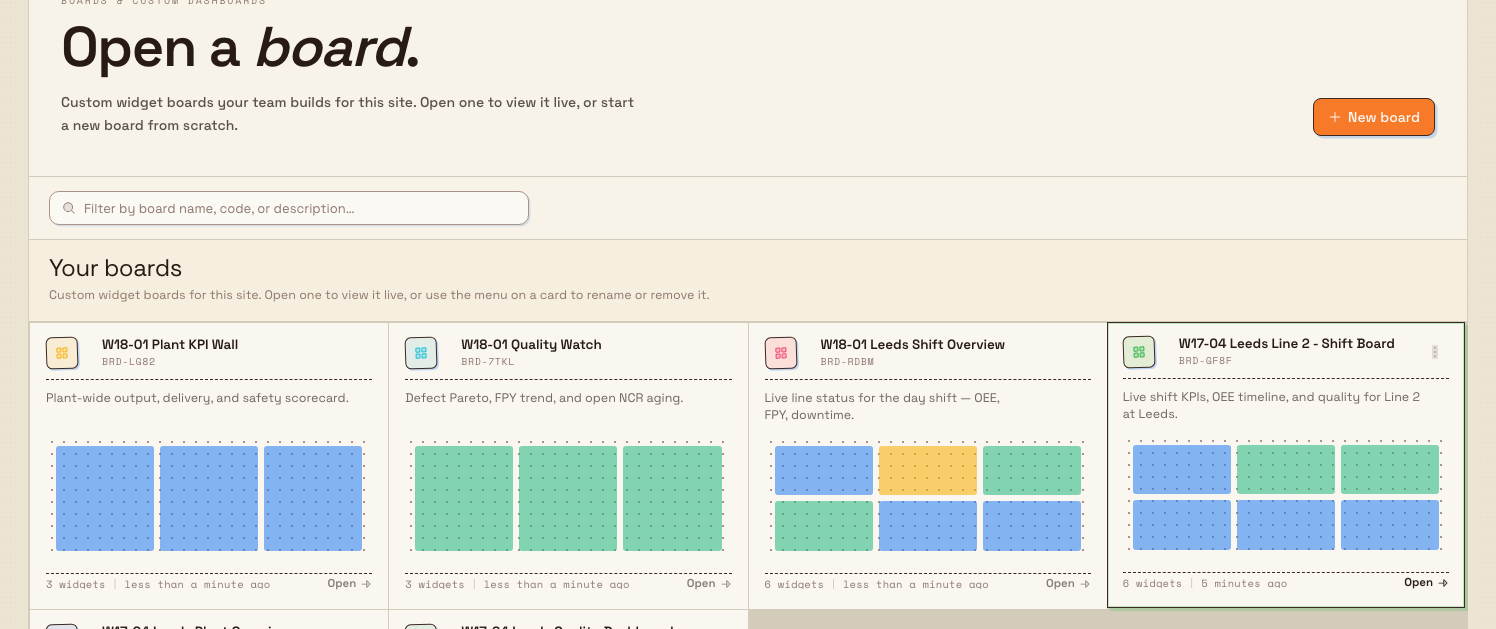
You reach boards at the /boards address, and the Boards tile on your Home screen links to the same place. The board picker is headed Open a board with the eyebrow Boards & custom dashboards.
The picker lists every board at your site under the Your boards section, most recently updated first. Each board appears as a card. To open one:
- Select a card. A bar slides up from the bottom showing the board you picked.
- Choose Open board to view it, or Open in new window to open it in a separate browser tab — useful for putting a board on a dedicated wall display. Back to home returns you to the Home screen.
You can also search boards by name or description using the toolbar search field, which is helpful once your site has many boards.
boards.overview-01
Create a board
- From the picker, choose New board (or Create board on the first-run empty state).
- In the Create Board dialog, enter a Name — for example
Shift Overview. - Optionally add a Description so teammates know what the board is for.
- Choose the number of Columns, from 1 to 6. The default is 3. Columns set how wide the grid is; you can change this later in board settings.
- Choose Create Board.
The board opens empty, ready for you to add widgets.
Add and arrange widgets
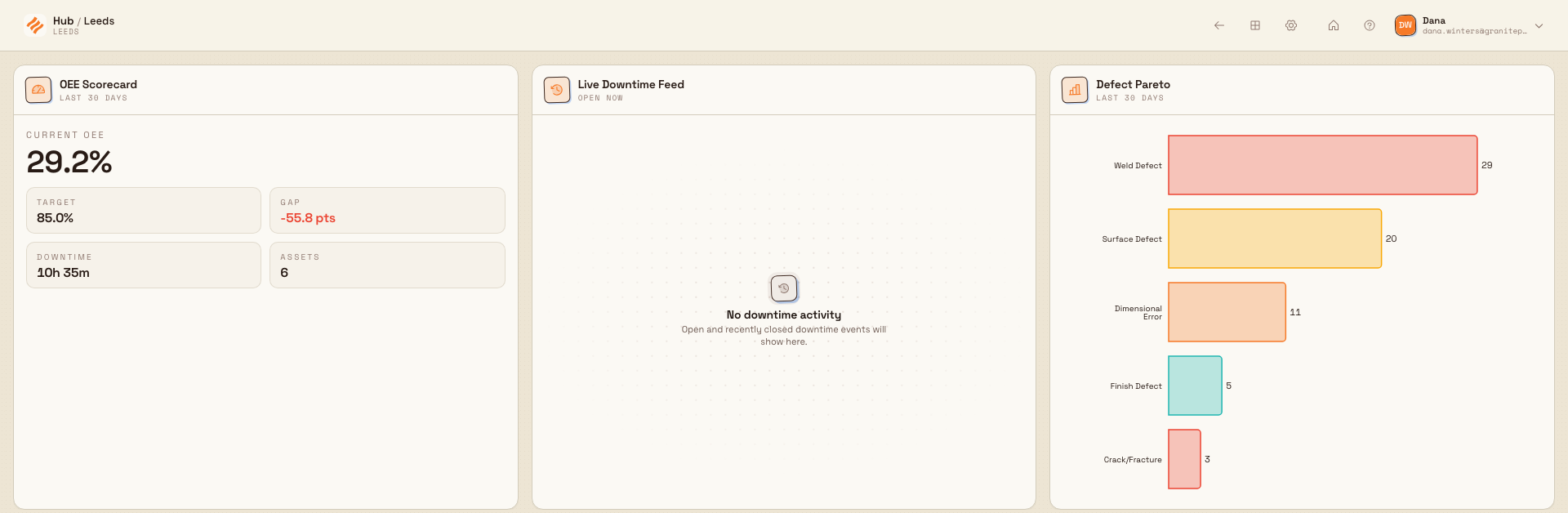
Open a board and select the Edit board layout control (the grid icon) in the top bar to enter edit mode. In edit mode you can add, configure, move, duplicate, and remove widgets. A reminder reads Changes save when you drop a widget — you do not save the layout manually; each change is stored as you make it.
Add a widget
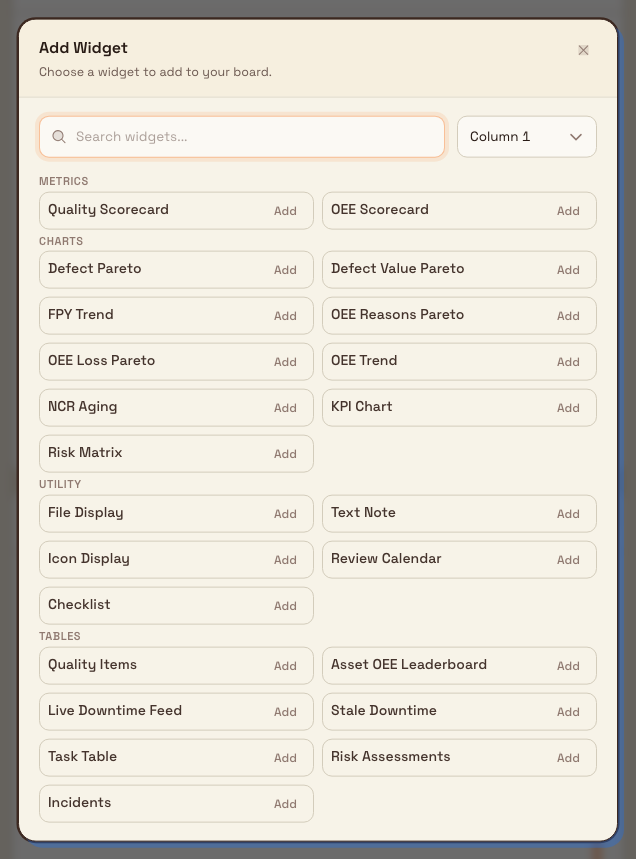
- Choose Add Widget.
- In the Add Widget dialog, browse or search the widget catalog, and pick the target Column.
- Select a widget to place it at the bottom of that column.
Widgets are grouped into four categories:
- Metrics — single-number scorecards such as OEE Scorecard and Quality Scorecard.
- Charts — trends and breakdowns such as FPY Trend, OEE Trend, Defect Pareto, KPI Chart, and Risk Matrix.
- Tables — lists such as Live Downtime Feed, Asset OEE Leaderboard, Task Table, Incidents, and Quality Items.
- Utility — helpers such as Text Note, Icon Display, Checklist, Review Calendar, and File Display.
Widgets that update in real time carry a Live badge in the catalog.
Configure, move, duplicate, and remove
With the board in edit mode, each widget shows its own controls:
- Configure (the gear icon) opens a widget's settings, where present — for example choosing which assets or metric a widget tracks.
- Duplicate widget adds a copy alongside the original.
- Remove widget takes the widget off the board.
- Drag a widget by its handle (Drag to move) to reorder it within a column or move it to another column. The layout saves when you drop it.
When you are finished, choose Done to leave edit mode.
boards.overview-02
boards.overview-03
Change board settings
Select the Board settings control (the gear icon) in the top bar to rename a board, edit its description, or change the column count. Choose Save Changes to apply.
If you reduce the column count, any widgets in the removed columns move to the last remaining column rather than disappearing. The dialog warns you of this before you save: Reducing columns will move widgets from removed columns to the last column.
Delete a board
From the picker, open the menu on a board card and choose to delete it. You are asked to confirm because the action cannot be undone from the interface. Deleting a board removes it from the picker for everyone at your site.
Who can see a board
Every board you create is visible to everyone at your site who has permission to view boards. There is currently no control in the board interface to limit a board to specific people, so treat boards as shared within the site. Board changes are recorded in your site's activity log.
Removing a Checklist deletes its data
Most widgets only display information that lives elsewhere, so removing them is harmless. The Checklist widget is different — it stores its own items on the board. Removing a Checklist permanently deletes those items, and this cannot be undone. Bulk asks you to confirm before removing a widget that owns its data.
Example: a shift-overview board at Granite Peak
A shift lead at Granite Peak Manufacturing's Leeds Fabrication Plant wants a single screen for the wall display by the fabrication line. They:
- Open
/boardsand choose New board. - Name it
DOCS Leeds Shift Overview, add the descriptionLive line status for the day shift, and choose 3 columns. - Enter edit mode and add an OEE Scorecard and a Quality Scorecard to column one, an FPY Trend chart to column two, and a Live Downtime Feed table to column three.
- Drag the widgets until the most-watched numbers sit top-left.
- Choose Done, then reopen the board with Open in new window on the display's browser.
The result is a purpose-built screen the whole shift can read at a glance, without touching the standard analytics dashboards. Because the board lives at the Leeds site, a different site's shift board stays separate.
Feature state and limitations
Boards are generally available. Keep these current limits in mind:
- Boards are shared within a site. Per-board viewer restrictions are not exposed in the current interface; anyone at the site with view permission can open any board.
- Boards are per-site. A board built at one site is not visible at another; recreate it where you need it.
- Layouts save on drop, not with a Save button. There is no manual save step and no undo for layout moves — drag a widget back if you change your mind.
- Deleting a board cannot be undone from the interface.
Troubleshooting
- You see "Board not found" when opening a board. The board may have been deleted, or it belongs to a different site. Return to the picker with Back to boards and open a current board, or switch to the correct site.
- The edit and settings controls are missing. Your role is view-only for boards. Ask an administrator to grant the create and edit permissions described under Prerequisites.
- A board is missing from the picker. Confirm you are on the site where it was created — boards do not carry across sites. Deleted boards are also removed from the list.
Dates and time zones
Date-based widgets use the board's plant timezone for today and calendar-day ranges. Timestamped events keep their exact moment, and weekly widgets use the organization's shared week-start rule.
Related guidance
- Open a board
- Dashboards — ready-made analytics screens you open rather than build.
- Teamboards — plant and shift reporting boards.
- Whiteboard — a freeform collaborative canvas.
- Insights and visual management — the full set of reporting and visual tools.