Use AI assistance with Teamboards
Configure a teamboard by chatting with Hugo, the built-in AI assistant that adds KPI charts to your board's sections while you edit.
A teamboard is a shared performance board that organises a plant's daily numbers into sections, most often the SQDCP categories: Safety, Quality, Delivery, Cost, and People. Each section holds widgets, and one of the most common widgets is a KPI chart. A KPI (Key Performance Indicator) is a single tracked measure such as scrap rate or production volume.
AI assistance lets you build those KPI charts by describing what you want in plain language instead of clicking through the widget picker and KPI settings yourself. The assistant is a chat helper named Hugo. On a teamboard it reads your board, finds the right section, and adds the chart for you.
When to use it
Use the assistant when you are laying out or adjusting a teamboard and you want to add KPI charts quickly. It is well suited to:
- Adding a chart for a KPI that already exists, without opening the widget marketplace.
- Creating a sensible starter KPI and its chart in one step when no suitable KPI exists yet.
- Checking what a board already contains before you add more.
For fine layout work, indicator styling, or reordering, keep using the board's own edit controls. The assistant focuses on adding KPI charts, not on every editing action.
Before you start
The assistant only appears while you are editing a teamboard, and it can only change the board if your role allows it.
- Open a teamboard and enter edit mode. Open the board, then use the gear (Enter edit mode) control in the top bar. The floating assistant button appears only in edit mode.
- Permission to use the assistant. Your role needs the Use chat / AI assistant permission (
chat.use). Without it, the chat will not send messages. - Permission to change the board. For the assistant to actually add a chart, your role needs Update teamboards (
teamboards.update). Every board change the assistant makes is checked against this permission and recorded in the audit trail. - Access to the board's plant. You must have access to the entity (plant) the teamboard belongs to. The assistant only offers KPIs that are available to that plant.
By default the Super user, Entity admin, and Manager roles have both the chat.use and teamboards.update permissions, so people in those roles can use teamboard AI assistance out of the box. Other roles need those two permissions added before the assistant can change a board.
The assistant works on the board you have open
The assistant always acts on the teamboard you are currently editing and its selected plant. There is no board picker inside the chat. If you want to work on a different board, open that board and enter edit mode first.
Open the assistant
While a teamboard is in edit mode, a round chat button sits in the bottom-right corner of the screen. Select it to open the assistant panel.
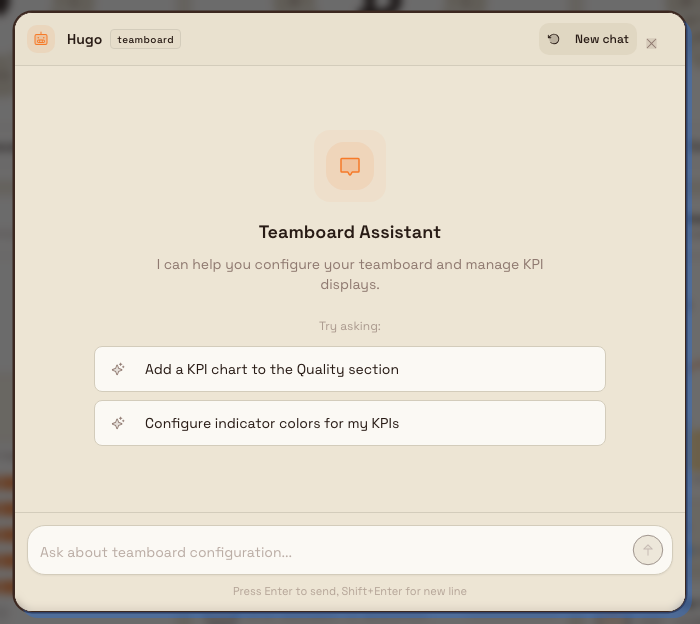
The panel header shows the assistant name, Hugo, with a small teamboard badge so you know it is scoped to board actions. Before you type anything, the empty panel shows the title Teamboard Assistant and the line "I can help you configure your teamboard and manage KPI displays." The message box reads Ask about teamboard configuration..., and two starter suggestions appear, including Add a KPI chart to the Quality section.
teamboards.ai-assistance-01
What the assistant can do
On a teamboard the assistant has a small, focused set of actions. It can:
- Read the current board. It looks at your sections, the KPI charts already placed, and the KPIs available to the board's plant. It does this automatically before making a change.
- Add an existing KPI as a chart. When you name a section and a KPI that already exists, it places that KPI's chart in the section.
- Create a KPI and add its chart. When no suitable KPI exists, it creates one with sensible defaults for the section and then adds the chart.
- Look up KPI definitions. It can search existing KPIs and read their details to pick the right one.
To ask for a chart, name the section you want it in. You can type a request such as "Add a scrap rate chart to Quality" or select the Add a KPI chart to the Quality section suggestion. The assistant matches your words to a section (by its name or its SQDCP letter), adds the chart, and replies with a short confirmation such as Added First Pass Yield as a chart in Quality.
Defaults when the assistant creates a KPI
When you ask for a chart and no matching KPI exists, the assistant creates one using defaults that fit the section. New KPIs are always manual-entry KPIs, which means someone types the values in rather than the value coming from an automated feed. The starting points are:
- Quality — Scrap Rate, measured as a percentage, entered daily, averaged, where lower is better.
- Safety — Safety Incidents, a count, entered daily, summed, where lower is better.
- Delivery — Production Volume, a count, entered daily, summed, where higher is better.
- Cost — Cost per Unit, a currency amount, entered monthly, averaged, where lower is better.
- People — Overtime Hours, a time value, entered weekly, summed, where lower is better.
You can override the name, description, unit, frequency, aggregation, or target direction in your request, and you can adjust the KPI later from the KPI settings. If you name a KPI that already exists in the section, the assistant reuses it instead of creating a duplicate.
Example: setting up Leeds Fabrication Plant's board
Dana Winters, an Owner/admin at Granite Peak Manufacturing, is preparing the daily SQDCP teamboard for the Leeds Fabrication Plant. The board's sections are in place but the Quality and Delivery sections are still empty.
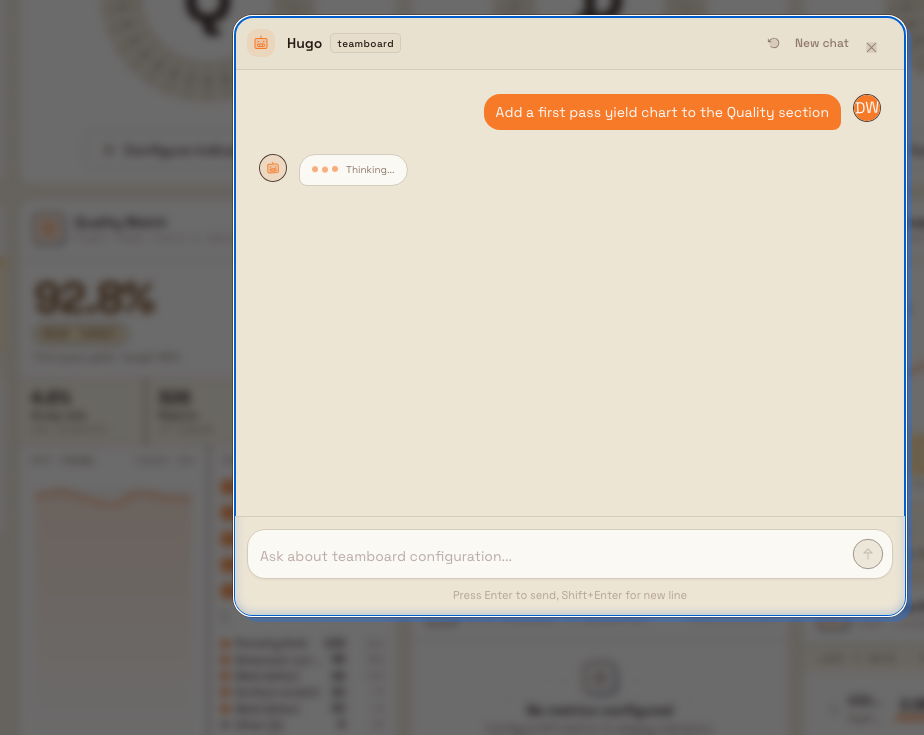
Dana opens the Leeds Fabrication Plant teamboard, selects the gear control to enter edit mode, and opens the assistant from the bottom-right chat button. In the message box she types "Add a first pass yield chart to the Quality section" and sends it.
The assistant reads the board, sees there is no First Pass Yield KPI for Leeds yet, creates one as a daily percentage where higher is better, and adds its chart to the Quality section. It replies with a one-line confirmation naming the KPI and the section. Dana then sends "Add a production volume chart to Delivery," and the assistant creates a daily count KPI where higher is better and places its chart in Delivery.
teamboards.ai-assistance-02
What to expect
- The assistant adds a KPI chart widget to the section you named, at the end of that section.
- It replies with a short confirmation that names the KPI and the section, and whether it created a new KPI or reused an existing one.
- Board changes are real writes checked against your
teamboards.updatepermission and recorded in the audit trail. - If it cannot act, it tells you the exact reason in plain language, for example that it could not match a section or that a KPI is not available for the board's plant.
Limitations and feature state
- KPI charts only. The assistant's board actions are limited to adding KPI charts (existing or newly created). It does not build other widget types.
- No indicator colour changes. One starter suggestion mentions configuring indicator colours, but there is no assistant action that changes colours today. Set indicator colours yourself using the board's edit controls.
- Manual KPIs only. KPIs the assistant creates are manual-entry KPIs. If you need an automated or calculated KPI, create it from the KPI settings instead.
- Edit mode only. The assistant button is only present while the board is in edit mode. It disappears when you exit edit mode.
- Conversation is not kept. The teamboard assistant panel starts a fresh conversation each time you open it and does not save chat history, so closing the panel clears the thread.
- Requires AI to be configured. The assistant depends on the AI service being set up for your deployment. If it is not configured, the assistant cannot answer. Contact your administrator if the assistant never responds.
Troubleshooting
- No chat button on the board. The button only shows in edit mode. Enter edit mode with the gear control, and confirm you have access to the board's plant.
- The chat will not send your message. Your role may lack the Use chat / AI assistant permission (
chat.use). Ask an administrator to add it. - The assistant says it could not add the chart. If it asks you to choose a section, name one of the board's sections (for example Quality) or its SQDCP letter in your request. If it says a KPI is not available for the board, that KPI is scoped to a different plant; pick a KPI available to this board's plant or let the assistant create one.
- The chart was not created even though the reply looked positive. Confirm your role has Update teamboards (
teamboards.update). Without it, the board write is blocked even though the chat works.