Whiteboard
Create, share, and co-edit real-time visual canvases in Bulk. Freeform whiteboards for sketches, diagrams, and photos, shared across your whole workspace.
Last updated
A whiteboard in Bulk is a shared visual canvas: an open drawing surface where you and your colleagues sketch diagrams, drop in shapes and sticky notes, type text, and add photos together in real time. Bulk is a Manufacturing Execution System (MES), the software that runs and records shop-floor work. Structured screens such as jobs, assets, and dashboards capture the system of record; whiteboards give teams a fast, freeform place to think through the problems those screens do not cover, like a changeover plan, a root-cause sketch, a cell layout, or a stand-up board.
Whiteboards are for thinking and communicating, not for recording production data. Nothing you draw on a whiteboard feeds calculations, reports, or traceability. When you need structured, data-backed views, use Dashboards or Teamboards instead.
When to use a whiteboard
Reach for a whiteboard when the work is visual and collaborative:
- Sketching a plan or idea during a meeting or daily stand-up, where several people edit the same canvas at once.
- Working through a root-cause diagram (for example a fishbone) as a group.
- Mapping a process, changeover sequence, or line layout before it is formalised elsewhere.
- Capturing an annotated photo of a part, fixture, or defect to talk it through with the team.
Where whiteboards live
Whiteboards have their own area, reached at /whiteboard/home (/whiteboard also opens the picker) and titled Whiteboards. They are scoped to your whole Bulk workspace (your tenant), not to a single plant. In Bulk an entity is a plant or site, but a whiteboard is not tied to one entity. Every whiteboard in the workspace appears in the same list for everyone, and per-board sharing controls who can actually open each one (see Prerequisites and access below).
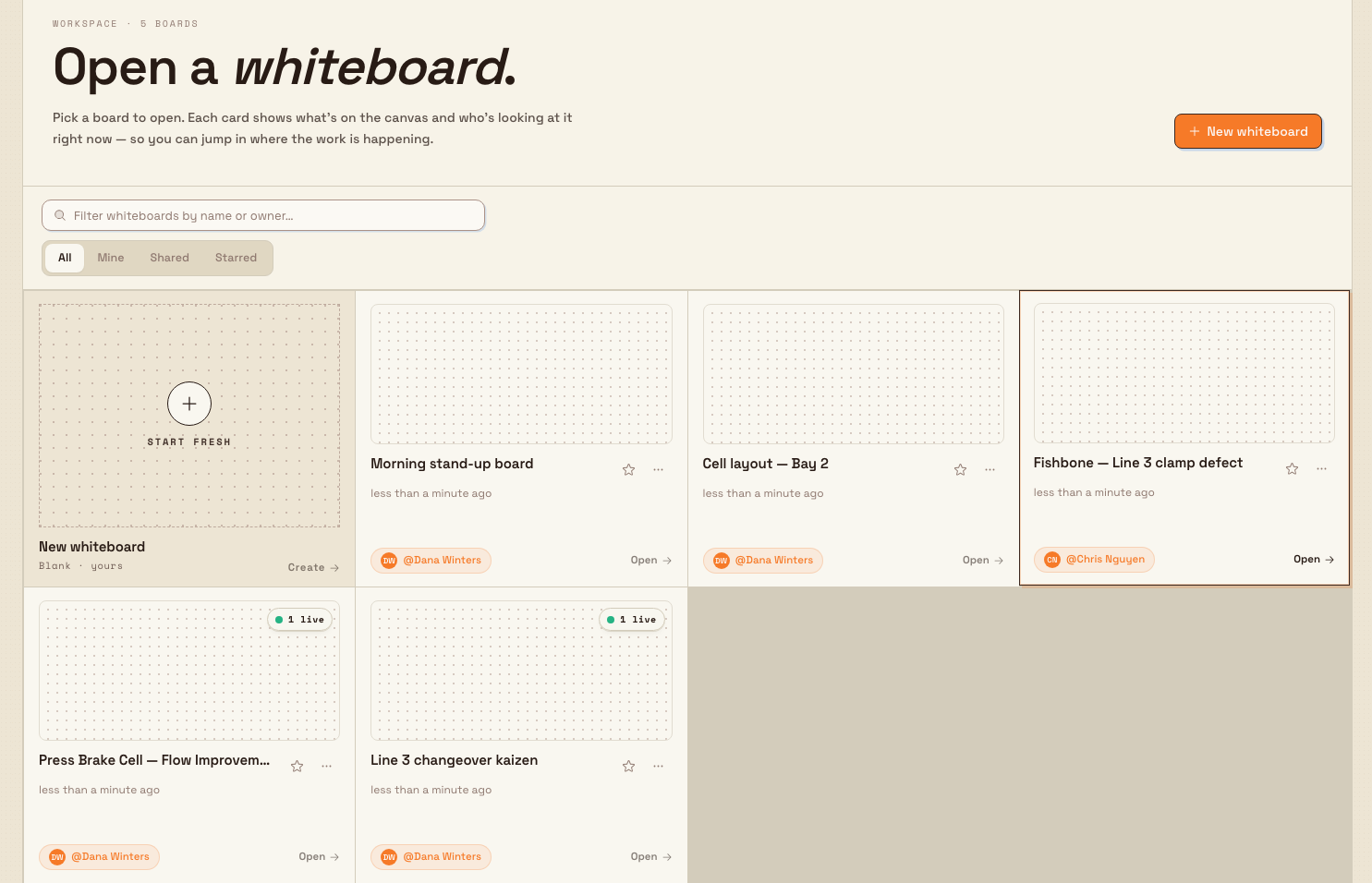
The Whiteboards home gives you everything you need to find and open a board:
- New whiteboard: the primary button that starts a fresh canvas. The leading tile in the grid, labelled Start fresh, does the same.
- A search field with the placeholder Filter whiteboards by name or owner….
- One card per whiteboard, showing decorative artwork, the board name, when it was last updated, and an owner pill in the form of the creator's name. Click or tap an accessible card to open it, or focus it and press Enter or Space. Cards you can open show an Open affordance; when other people are viewing a board, a small live pill shows how many are looking at it right now.
If a search returns nothing, the list shows No whiteboards match. with a Clear filters button to restore the full list.
What you can do
The Whiteboard area breaks into four tasks. Each has its own guide:
- Create or open a whiteboard: start a new canvas or open an existing one. See Create or open a whiteboard.
- Edit a whiteboard: draw shapes, add text and sticky notes, and arrange the canvas. See Edit a whiteboard.
- Collaborate on a whiteboard: co-edit in real time, see who else is on the board, and rely on autosave. See Collaborate on a whiteboard.
- Use files and media: bring images and photos onto the canvas. See Use files and media on a whiteboard.
Prerequisites and access
Two separate layers control what you can do.
Role permissions decide who may create or delete whiteboards at all:
whiteboards.create: create new whiteboards.whiteboards.delete: delete whiteboards.
By default these permissions belong to the Super user, Entity admin, and Manager roles. A user without whiteboards.create can still open and edit boards that are shared with them, but cannot start a new one.
Per-board access decides who may open and edit each specific whiteboard, and it is independent of your role:
- The owner (the person who created the board, or whoever ownership was transferred to) always has full access.
- Other people get access only when the owner shares the board with them, as a Viewer (can open and watch) or an Editor (can open and change the canvas).
- Anyone who has not been given access can still see the board in the list, but cannot open it. Its card shows a locked overlay with No access.
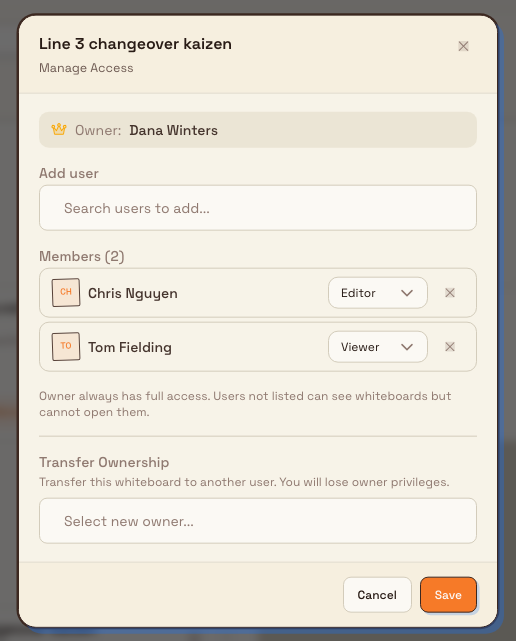
You manage this from the Manage access action on a board's card menu, which opens a dialog headed with the board name and Manage Access. There you can see the current Owner, add users with Add user and set each one to Viewer or Editor, and, as the owner, use Transfer Ownership to hand the board to someone else. The dialog states the rule plainly: "Owner always has full access. Users not listed can see whiteboards but cannot open them." Save applies the member list; Cancel discards the draft. Ownership transfer has a separate confirmation.
Deleting a whiteboard is permanent
Deleting a whiteboard removes it for everyone it was shared with. The confirmation dialog states "This action cannot be undone", and the Whiteboards list gives you no undo control, so capture anything you need to keep before you confirm.
Example: a Gotham workshop
Bruce Wayne uses Gotham Changeover Workshop and Wayne Assembly Layout to prepare discussions at Gotham Applied Sciences. The canvas holds proposed work sequences and questions for operators. The picker keeps these boards together across the workspace, with clear names, owner pills, updated times, and live counts when a board has active viewers.
To invite colleagues, the owner uses Manage access, chooses Viewer or Editor for each user, and saves the member list. A canceled draft does not grant access.
Expected result
You end up with a named, shared canvas that the right people can open and co-edit, and that everyone in the workspace can see in the Whiteboards list. Edits save automatically. Starring marks a favorite on its card and places it ahead of other accessible boards; the current picker has no Starred filter.
Real-time editing, autosave, and status
Whiteboards are built for several people to work at once. Changes save automatically as you draw, and Bulk tells you when something needs your attention:
- If you only have Viewer access, the editor shows a View only banner ("You do not have edit rights for this whiteboard.") and your tools are disabled.
- If your connection drops, an Autosave offline banner warns that "Changes are not syncing. Check your connection." While Bulk retries, you may see a Reconnecting banner; once it succeeds, an Autosave restored confirmation appears.
- If another person edits the same shape at the same time, Bulk keeps your other changes syncing and notes the conflict rather than silently overwriting your work.
Feature state and limitations
Whiteboards are an available, generally released part of Bulk. A few boundaries are worth knowing:
- The locked card on a board you cannot open shows a Request access label, but there is no built-in request-access workflow. To get in, ask the board's owner to add you through Manage access.
- Sharing in the interface is by individual user only (Viewer or Editor). There is no screen for role-wide or team-wide whiteboard sharing.
- A whiteboard is a visual workspace, not a record. It does not link into jobs, assets, or reporting from this screen, and its contents are not audited or version-controlled for the reader.
Troubleshooting
- A board shows "No access" and will not open. You have not been shared into it. Ask the owner to open Manage access and add you as a Viewer or Editor.
- You see a "View only" banner and cannot draw. You have Viewer access. Ask the owner to change your permission to Editor in Manage access.
- An "Autosave offline" banner appears. Your device lost its connection to Bulk. Check your network; edits resume syncing automatically and you will see Autosave restored when the connection is back.
Related guidance
Navigate the 3D factory floor
Open the Digital Twin, switch between Live, Bird, and Edit views, move the camera, and read machine status, OEE, and 5S zone scores on a 3D map.
Create or open a whiteboard
Start a new whiteboard or open an existing one from the Bulk whiteboard picker, and understand who can create boards and how access to them works.