Collaborate on a whiteboard
Work on one whiteboard with your team in real time: see who is on the board, share it as Viewer or Editor, transfer ownership, and rely on autosave.
Last updated
A whiteboard in Bulk is a shared visual canvas — a free-form surface where your team sketches diagrams, drops in shapes and sticky notes, types text, and adds photos. Bulk is a Manufacturing Execution System (MES), the software that runs and records shop-floor work. Collaborating on a whiteboard means several people working on that same canvas at once: you see who else is there, their changes appear as they draw, and everything saves automatically, so no one presses Save or merges versions by hand.
This page covers the two sides of working together on a board: live collaboration (real-time editing, seeing who is present, and autosave) and access (sharing a board and choosing who can open or change it). For how to draw and arrange content, see Edit a whiteboard. For starting a new board or finding an existing one, see Create or open a whiteboard.
Who can collaborate
Two separate things decide what you can do on a board.
- Per-board access decides whether you can open a specific board, and whether you can change it. The owner (the person who created it, or whoever ownership was transferred to) always has full access. Everyone else needs the owner to share the board with them as a Viewer (can open and follow) or an Editor (can open and change the canvas). Anyone not shared in can see the board in the Whiteboards list but cannot open it.
- Role permissions decide only who can create or delete boards (
whiteboards.createandwhiteboards.delete, held by the Super user, Entity admin, and Manager roles by default). You do not need either permission to collaborate. If a board is shared with you as an Editor, you can co-edit it even if your role cannot create boards of its own.
Editing is also enforced on the server for every change, so a board can never be altered by someone who only has Viewer access, even if they reach the editor.
Work on a board together in real time
When you and a colleague open the same board, you are both on one live canvas.
- Their edits stream onto your canvas as they make them. You do not refresh or reload — a shape someone else draws, a note they move, or text they type appears in place for everyone with the board open.
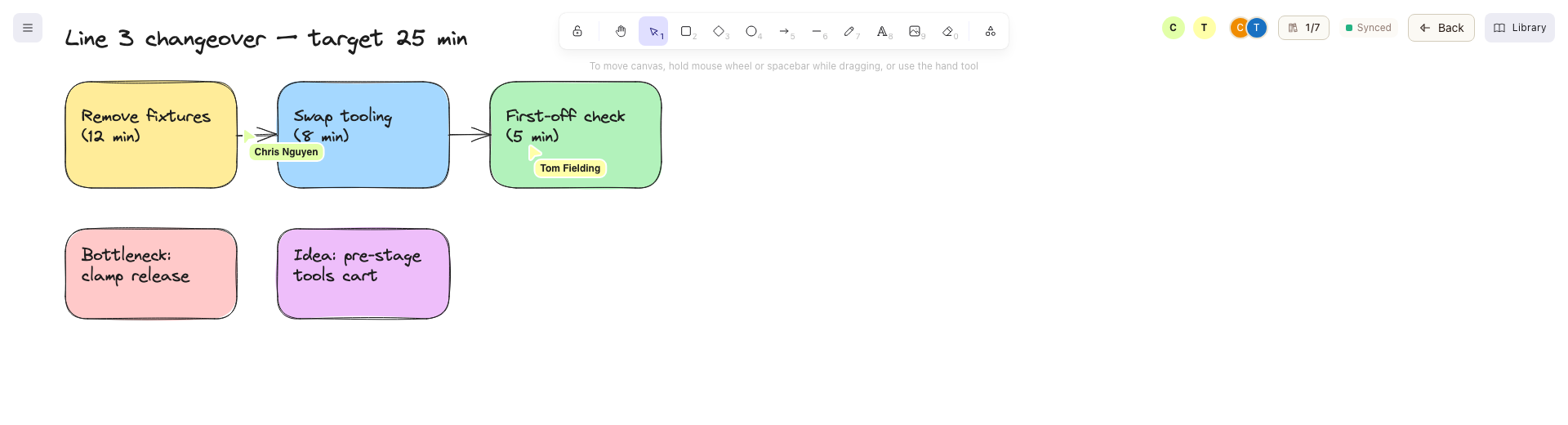
- You see who else is present. Each other person on the board gets a colored avatar in the top-right cluster of the editor, and their pointer shows on the canvas as a labeled cursor in the same color. Up to five avatars are shown; beyond that, a
+Nbadge counts the rest. Hover an avatar to see that person's name. - Autosave keeps the shared board current. There is no Save button; Bulk writes changes a moment after you stop making them, so the board others see stays up to date.
When someone leaves the board or closes their tab, their avatar disappears.
See who is on a board before you open it
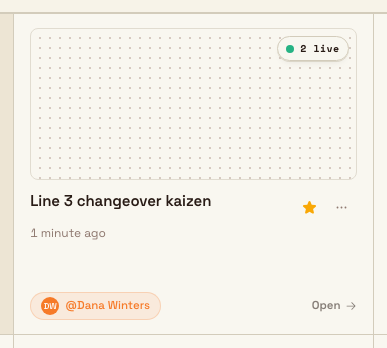
You can spot activity from the Whiteboards home without opening anything. When people are viewing a board right now, its card shows a small live pill — a count with a pulsing green dot, for example "2 live". The pill shows the number of active viewers only, not who they are. It can include your own open board. Opening another tab as the same user does not create another collaborator avatar or cursor.
Changes save automatically as you work together
Because several people can edit at once, Bulk merges everyone's changes and shows where your own edits stand on a small status pill in the top-right of the editor:
- Synced — everything is saved.
- Saving... — your latest changes are being written.
- Merging... — your changes are being combined with edits someone else made at the same time.
- Conflict — two people changed the same element at the same moment.
- Offline — changes are not reaching the server right now.
When two people change the same shape at once, Bulk does not silently overwrite your work: it keeps your other changes syncing and shows a brief note, "Another user edited this shape." For the full detail of how autosave, merging, and read-only mode behave, see Edit a whiteboard.
When edits arrive while you are away
If remote edits land while the board's tab is in the background, Bulk tells you when you return with a "Whiteboard changed while you were away" note and a count of the edits. If your connection drops, an Autosave offline banner warns that changes are not syncing; while Bulk retries you may see a Reconnecting banner, and an Autosave restored confirmation appears once it succeeds.
Share a board and manage access
Sharing is controlled per board, and only the board's owner manages it. Sharing is the way you bring people onto a board — this is where you turn a private canvas into a shared one.
- Go to the Whiteboards home.
- On the board's card, open the actions menu (the three-dot button) and choose Manage access. This option appears only for the owner.
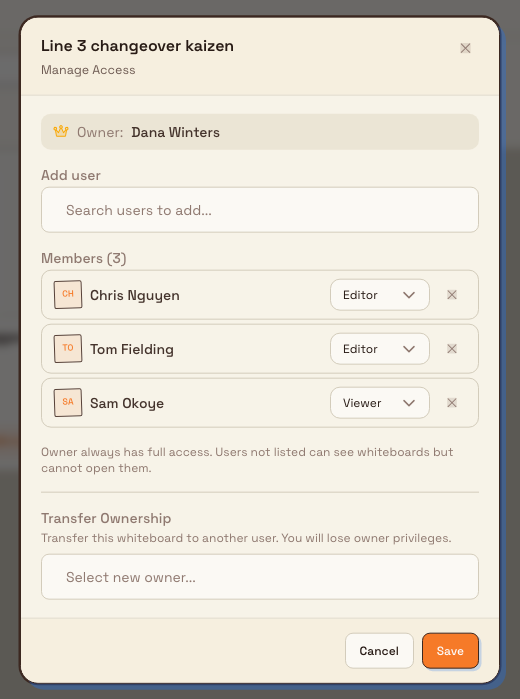
- In the dialog — headed with the board name and Manage Access — use Add user: select Search users to add..., find the person, and pick them. They are added as a Viewer by default.
- For each person in the Members list, choose Viewer or Editor from the permission selector, or remove them with the X.
- Select Save. Bulk confirms with an "Access updated" message.
The dialog states the rule plainly: "Owner always has full access. Users not listed can see whiteboards but cannot open them." A Viewer can open the board and follow along but cannot draw; an Editor can open the board and change the canvas.
Transfer ownership
Only the current owner can hand a board to someone else. In Manage access, use the Transfer Ownership section: select Select new owner..., choose a person, and confirm in the Transfer Ownership dialog. Bulk confirms that ownership moved to that person.
Transferring ownership changes who controls the board
When you transfer ownership you lose owner privileges. As the dialog states, you will not be able to manage access again unless the new owner grants it back to you. Transfer a board only when you intend to hand over control — for example when you are going on leave and someone else must own the team's board.
Example: reviewing a Wayne assembly layout
Bruce Wayne owns Wayne Assembly Layout at Gotham Applied Sciences. The home card shows 1 live while the board is open under his account. This is a viewer count, not proof that a different person is present.
The access picture shows a canceled draft using the existing Goods in and Receiving door station identities to illustrate Viewer and Editor choices. No access was saved and Bruce remains the owner. In a real team review, the owner chooses the intended colleagues and saves their access before they join the board.
Expected result
Everyone you shared the board with can open it and, if they are Editors, co-edit the same canvas live. You see who is present through avatars and cursors in the editor and a live-viewers count on the home grid. Each person holds exactly the access you gave them — Viewer or Editor — and every change autosaves so all collaborators stay on the same, current board.
Feature state and limitations
Real-time collaboration on whiteboards is generally available. A few boundaries are worth knowing:
- Managing access is owner-only. Viewers and Editors cannot re-share a board or change other people's access; only the owner can, through Manage access.
- Sharing is by individual user. You add people one at a time as Viewer or Editor. There is no screen for sharing a board with a whole role or team at once.
- There is no request-access workflow. A board you cannot open shows a locked card with a Request access label, but selecting it does nothing. To get in, ask the owner to add you in Manage access.
- The live-viewers pill shows a count only. It includes the current user when their board is open. The editor shows avatars and cursors for other users, excluding your own identity across tabs.
- The remote collaboration picture is pending refresh. The current screenshot environment has one signed-in identity and no verified other-user presence. The retained original picture is historical; no remote cursors were simulated for this refresh.
- A whiteboard is a visual workspace, not a record. It does not link into jobs, assets, or reporting from this screen, and its contents are not version-controlled for the reader. Use Dashboards or Teamboards when you need structured, data-backed views.
Troubleshooting
- A View only banner appears and you cannot draw. You have Viewer access to the board. Ask the owner to change your access to Editor in Manage access.
- A board shows "No access" and will not open. It has not been shared with you. Ask the owner to open Manage access and add you as a Viewer or Editor.
- There is no Manage access option on a board. You are not its owner. Only the owner sees Manage access and can change sharing; ask the owner to make the change.
- You see "Another user edited this shape." You and someone else changed the same element at the same moment. Your other changes keep syncing; if that one element did not come out as you wanted, make the change again.
- An "Autosave offline" banner appears. Your device lost its connection to Bulk. Check your network; edits resume syncing on their own, and you will see Autosave restored when the connection is back.