Create or open a whiteboard
Start a new whiteboard or open an existing one from the Bulk whiteboard picker, and understand who can create boards and how access to them works.
Last updated
A whiteboard in Bulk is a free-form drawing canvas for brainstorming, sketching, and visual planning. Map a line layout, rough out a changeover sequence, or capture workshop ideas before they become structured work. This article covers the two ways you start working on a whiteboard: creating a new blank board, and opening one that already exists.
Whiteboards belong to your whole workspace rather than to a single site. Every board you have access to appears in the same picker, no matter which plant or entity you currently have selected.
Before you start
- The Whiteboard module must be enabled for your account. If your organization has not turned on whiteboards, the module does not appear on your home screen.
- Creating a whiteboard requires the create-whiteboards permission. In Bulk's default roles, the Super user, Entity admin, and Manager roles can create whiteboards. Roles built for the shop floor, such as Operator, cannot create them by default. Ask an administrator if you need this permission added to your role.
- Opening a whiteboard requires access to that specific board. You can always open a board you created. Any other board must be shared with you before you can open it. Sharing is covered in Collaborate on a whiteboard.
Open the whiteboard picker
Both creating and opening start from the whiteboard picker.
- From the Bulk home screen, select the Whiteboard module (labelled "Brainstorming & sketches").
- The picker opens at
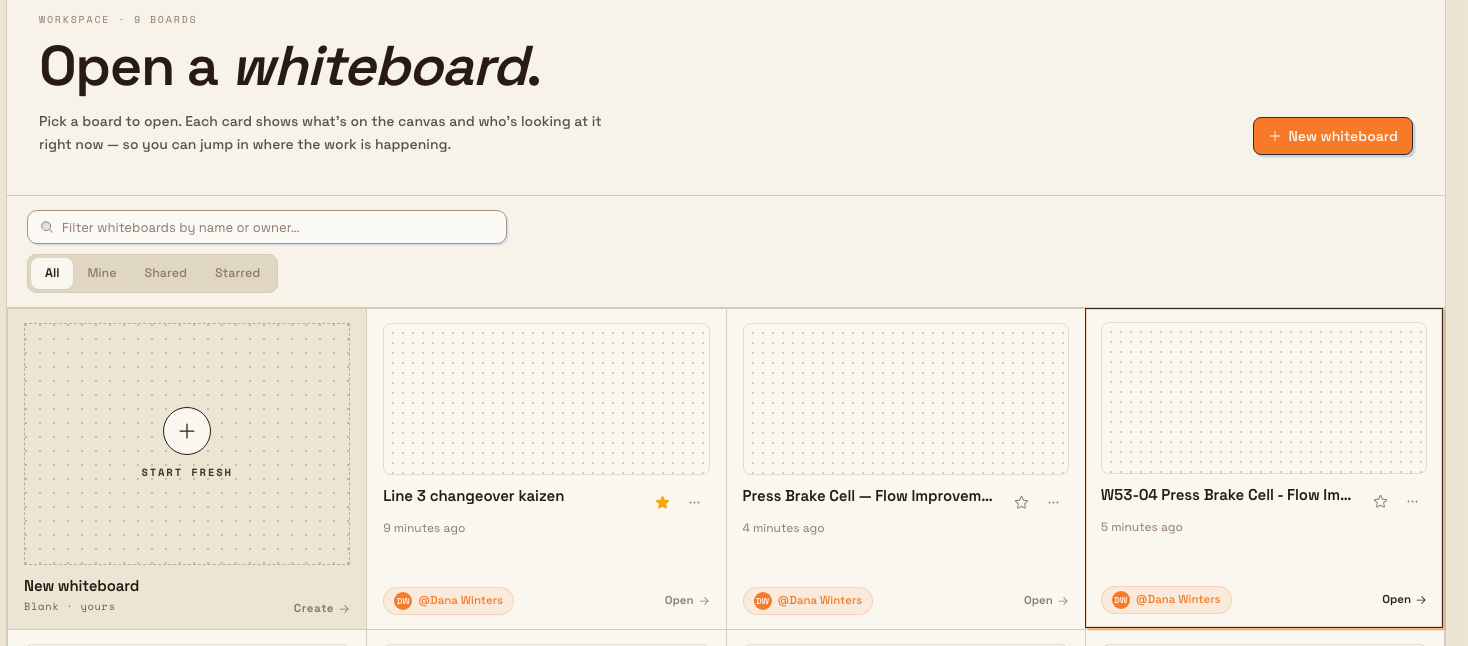
/whiteboard/home. Its header reads Open a whiteboard. and shows a New whiteboard button on the right.
The picker lists every whiteboard in your workspace as a card. Each card shows decorative artwork, when it was last updated, who created it, and a live viewer count when someone is viewing it. Open the board to see its actual canvas content.
Create a new whiteboard
- On the picker, select New whiteboard in the page header, or select the Start fresh tile at the front of the grid. Both open the same dialog.
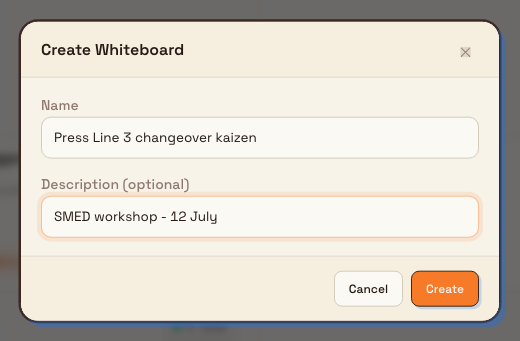
- In the Create Whiteboard dialog, enter a Name. A name is required. If you leave it blank, Bulk shows a "Name is required" message and does not create the board.
- Optionally, add a Description to help others recognise the board in the list.
- Select Create.
Bulk creates an empty board, shows a "Whiteboard created" confirmation, and opens the new board full-screen so you can start drawing straight away. You are the board's owner, which means you have full control over it, including sharing it with others later.
Example: a Gotham changeover workshop
Bruce Wayne is preparing a changeover workshop at Gotham Applied Sciences. He opens the picker, selects New whiteboard, enters Gotham Changeover Workshop and the description Tool preparation, first-off checks and cell release., then selects Create. The blank board opens so he can sketch the preparation, first-off checks, and release sequence. Bruce owns the board; other workspace users need a share before they can open it.
Open an existing whiteboard
- Open the whiteboard picker at
/whiteboard/home. - Find the board you want. Type in Filter whiteboards by name or owner... to match its name or creator. The current picker uses search without scope filters.
- Click or tap the card to open it. You can also focus an accessible card and press Enter or Space. A single click opens the editor.
The board opens full-screen in the editor. To go back to the picker, use the back control in the whiteboard header.
Boards you can see but cannot open
Every whiteboard in your workspace is listed in the picker, but you can only open the ones you created or that have been shared with you. A board you cannot open appears greyed out with a lock icon, a No access label, and a Request access prompt, and it does not respond when you select it. Ask the board's owner to share it with you.

Feature state
Creating and opening whiteboards is generally available. It does not require a beta opt-in. The only gate is that the Whiteboard module is enabled for your organization and that your role includes the create-whiteboards permission when you want to make a new board.
Troubleshooting
- You cannot find a board you expected to see. Clear the search box. When a search hides everything, the picker shows a "No whiteboards match." message with a Clear filters button that restores the full list.
- A card is greyed out and will not open. The board has not been shared with you; it shows No access and Request access. Ask the person who created it to share it. See Collaborate on a whiteboard.
- Creating a board fails with an error. Your role does not include the create-whiteboards permission. The New whiteboard and Start fresh controls are visible to everyone, but the board is only created if your role allows it. Ask an administrator to grant the permission, or ask someone with the Manager, Entity admin, or Super user role to create the board and share it with you.
Related guidance
- Whiteboard: overview of the whiteboard module.
- Edit a whiteboard: draw and change content on the canvas.
- Collaborate on a whiteboard: share a board and work on it with others.
- Use files and media on a whiteboard: add images and files to the canvas.