Allocate a credit note
Apply an issued credit note's available credit to a customer's outstanding invoices in Bulk, and reverse an allocation to return the credit.
Last updated
Allocating a credit note means applying its available credit to one of the customer's outstanding invoices, which lowers what that invoice still owes. A credit note is a finance document that records money owed back to a customer (for a return, a discount, a dispute, or a goodwill gesture). Once you have created and issued a credit note, its value sits as available credit until you decide where to put it. Allocating is how you settle a real invoice with that credit instead of, or alongside, a cash payment.
You do this in the Finance module, on the detail page of an issued credit note. Allocation is a post-issue step: you can apply the credit in one go or spread it across several invoices, and you can reverse any allocation later to hand the credit back. Nothing about allocation touches the credit note's own lines or total, it only records how the credit is distributed.
When you would use this
- A customer has a credit on file and an unpaid invoice, and you want to net the two so the invoice's outstanding balance drops.
- You issued a goodwill or price-correction credit and now want to apply it against the customer's next bill.
- You spread one credit across two or more invoices for the same customer.
- You applied a credit to the wrong invoice, or the situation changed, and you need to reverse the allocation and return the credit to the pool.
Before you start
To apply or reverse credit you need the Allocate credit permission (production_credit_notes.allocate). By default this is granted to the Owner, Entity admin, Manager, and Invoicing roles. The same permission covers both applying credit and reversing an allocation. If you lack it, the Apply credit and Reverse controls do not appear, ask an administrator to grant the permission or to apply the credit for you. Viewing a credit note only needs the View credit notes permission (production_credit_notes.view).
A few conditions must hold before any credit can be allocated:
- The credit note must be issued. A draft has no credit to give yet, and a voided credit note cannot be allocated. The Allocations card only appears on an issued credit note.
- There must be available credit left. Once every bit of the credit is applied, the Apply credit button no longer appears.
- The target invoice must be the same customer, the same currency, issued, and still have an outstanding balance. Bulk never nets credit across different customers or currencies, and only issued invoices with a remaining balance are offered as targets.
Amounts are always positive
Credit is entered and shown as a positive amount. Applying 90.00 of credit means the invoice now owes 90.00 less. Bulk keeps track of the direction of the money for you, you never type a negative number.
Apply available credit to an invoice
Open the Finance module from the left sidebar (the currency icon), choose Credit notes, and select the issued credit note you want to work from. Its detail page is at /finance/credit-notes/<id>.
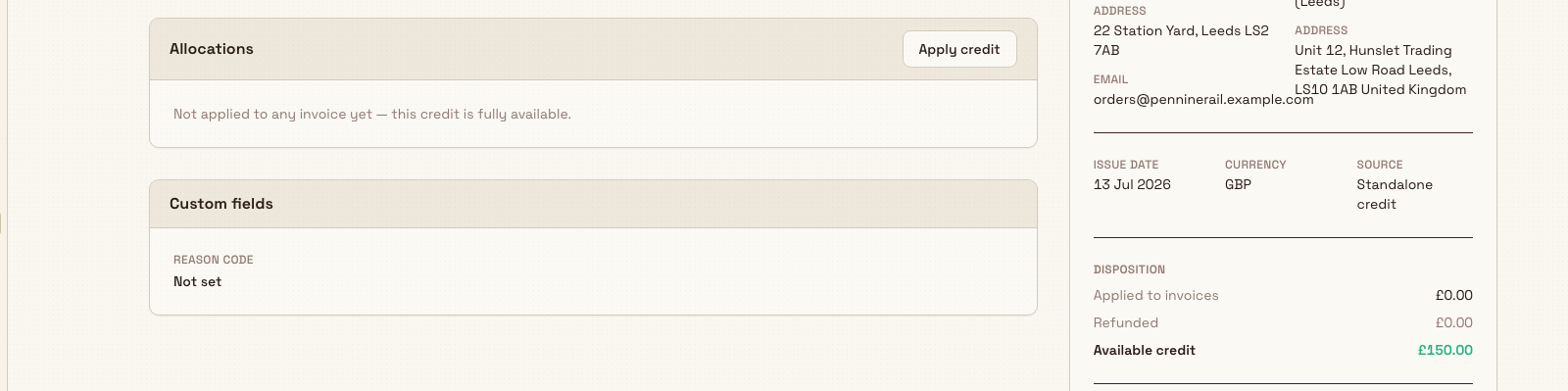
- In the Allocations card, select Apply credit. If the card instead reads "Not applied to any invoice yet, this credit is fully available", that is the normal starting state for a credit that has not been allocated. The Apply available credit dialog opens.
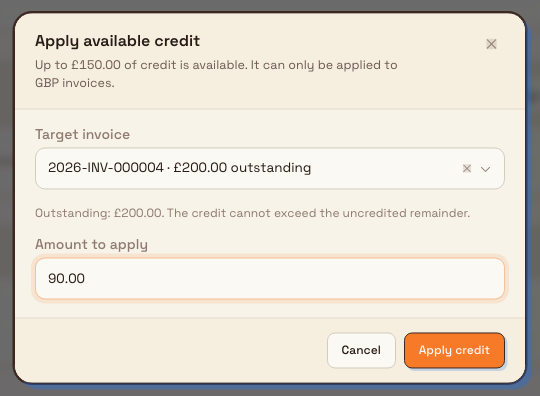
- The dialog tells you how much credit is available and reminds you it can only be applied to invoices in the credit note's currency.
- Open the Target invoice list and choose an invoice. Only the customer's issued, same-currency invoices with an outstanding balance appear; each option shows the invoice number and how much is still outstanding. If the list is empty, you see "No matching outstanding invoices for this customer."
- Once you pick an invoice, a note shows its outstanding amount and reminds you the credit cannot exceed the uncredited remainder.
- In Amount to apply, enter the amount in the customer's currency. Bulk caps it at the smaller of the credit still available and the invoice's outstanding balance.
- Select Apply credit. On success you see a "Credit applied" confirmation, the dialog closes, and a new active allocation appears in the Allocations card.
You can repeat this while any credit remains: each Apply credit posts another allocation, and the credit note's Available credit falls each time until it reaches zero.
What changes when you allocate
Applying credit updates three things at once, all computed by Bulk:
- The invoice you targeted now shows less outstanding, its balance drops by the amount you applied.
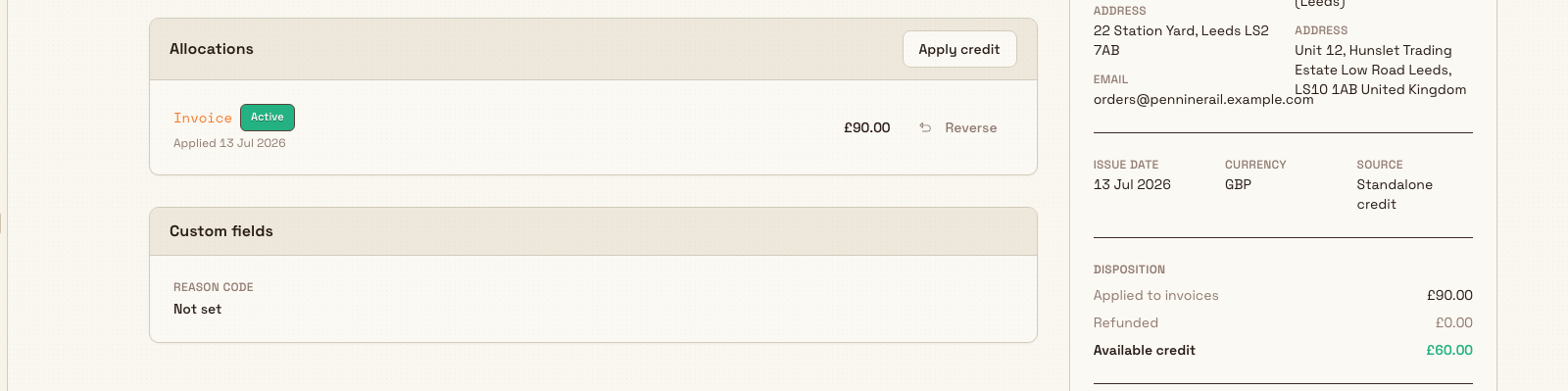
- The credit note's Disposition on the summary card updates: Applied to invoices rises and Available credit falls by the same amount.
- The Allocations card gains a row for the new allocation, marked Active, showing the applied date and the amount, with a link to the invoice.
Reverse an allocation
If you applied credit to the wrong invoice or need to undo the netting, reverse the allocation. This returns the amount to available credit and pushes the invoice's outstanding balance back up.
- In the Allocations card, find the Active allocation and select Reverse.
- In the Reverse allocation? dialog, confirm the amount that will return to available credit. You can add an optional reason.
- Select Reverse allocation. You see an "Allocation reversed" confirmation.
The reversed allocation is not deleted, it stays in the list marked Reversed (with its reason, if you gave one) so the history is auditable, and the freed amount is immediately available to apply elsewhere.
Voiding does the reversing for you
You do not need to reverse allocations by hand before voiding. Voiding the credit note reverses all of its active allocations and returns those amounts to the affected invoices. Likewise, voiding a target invoice automatically reverses the credit allocations pointing at it and restores that credit to its credit notes.
Example: a packing adjustment at Gotham
Bruce issues an Iceberg Logistics goodwill credit of £12 for a packing adjustment. Invoice 2026-INV-000002 has £255 outstanding. In Apply available credit, Bruce selects that invoice and enters £5.
The saved application appears as an Active row. The native summary shows Applied to invoices £5 and Available credit £7. An earlier £5 application was reversed with a review reason and remains visible as Reversed. Reversal restores available credit without deleting the history.
Expected result
After a successful allocation, the credit note lists the allocation as Active, its Available credit is lower by the applied amount, and the target invoice's outstanding balance is reduced by the same amount. After a reversal, the allocation shows as Reversed, the credit returns to available, and the invoice's balance is restored. All of these figures are calculated by Bulk from the current set of active allocations, so they always reconcile.
Feature state and limits
Allocating credit is generally available. These rules are enforced and worth knowing:
- Issued only. You can allocate only from an issued credit note, and only to an issued invoice. Draft and voided documents are not eligible.
- Same customer, same currency. Credit cannot be applied across customers or across currencies. The target list is filtered to the customer's same-currency invoices.
- Two over-credit caps. An allocation can never exceed the credit note's remaining available credit, nor the target invoice's uncredited remainder. When a credit line was raised against a specific invoice line, the credit applied to that line is also held to the original billed quantity and value.
- Reversals are kept. A reversed allocation is retained for audit rather than removed, and its amount returns to available credit.
- No refunds path in this version. The Disposition summary shows a Refunded figure, but crediting back as a cash refund is not yet available in the app; in practice Available credit equals the credit total minus what is applied.
Troubleshooting
- The Apply credit button is missing. The credit note may still be a draft or already voided, it may have no available credit left, or you may lack the Allocate credit permission. Confirm the credit note is issued with credit remaining, and check your permission with an administrator.
- "No matching outstanding invoices for this customer." The customer has no issued invoice in the credit note's currency with an outstanding balance. Issue an eligible invoice first, or confirm the invoice currency matches the credit note.
- "Enter an amount greater than zero." The amount must be a positive number, type an amount above zero.
- "Amount exceeds the maximum applicable credit." Your amount is above the cap shown for the selected invoice. Reduce it to at most the smaller of the available credit and the invoice's outstanding balance.
- "Select an invoice to apply credit to." Choose a target invoice before applying.
Related guidance
Issue or void a credit note
Commit a draft credit note so its credit becomes usable, or void an issued credit note to cancel it and return the credited amounts to the affected invoices.
Review attendance
See who is on the clock today on the Attendance board, open timesheets and punch history, and correct a break, a clock out, or a missed punch.