Review attendance
See who is on the clock today on the Attendance board, open timesheets and punch history, and correct a break, a clock out, or a missed punch.
Attendance is the live board of who is on the clock at the current site, with the timesheets and punch history for those days. Open People, then Attendance. The page is at /people/attendance and opens only when your role has attendance.view (View attendance and timesheets).
The page title is Attendance. The line under it reads "Who is on the clock right now, and the timesheets behind it". Two tabs sit under the title: Today and Timesheets. Reading the board needs attendance.view. Ending a break, clocking someone in or out, adding a punch, editing times, voiding an entry, and approving a day need attendance.manage (Edit and approve time entries and manage clock-in PINs).
By default, Super user, Entity admin, Manager, and People include both permissions. Operator and Tablet user do not, so Attendance stays out of their sidebar. The board is the current site only. Switch site to see another plant.
Open Attendance
Select Today for the floor right now. Select Timesheets for a date range of days, hours, and flags. If older days still have no clock out, Today shows a count beside the tab name. That count is the number of entries with no clock out. It does not change the board. Use the To close tile, described below, to open those rows.
people.attendance-01
See who is on the clock
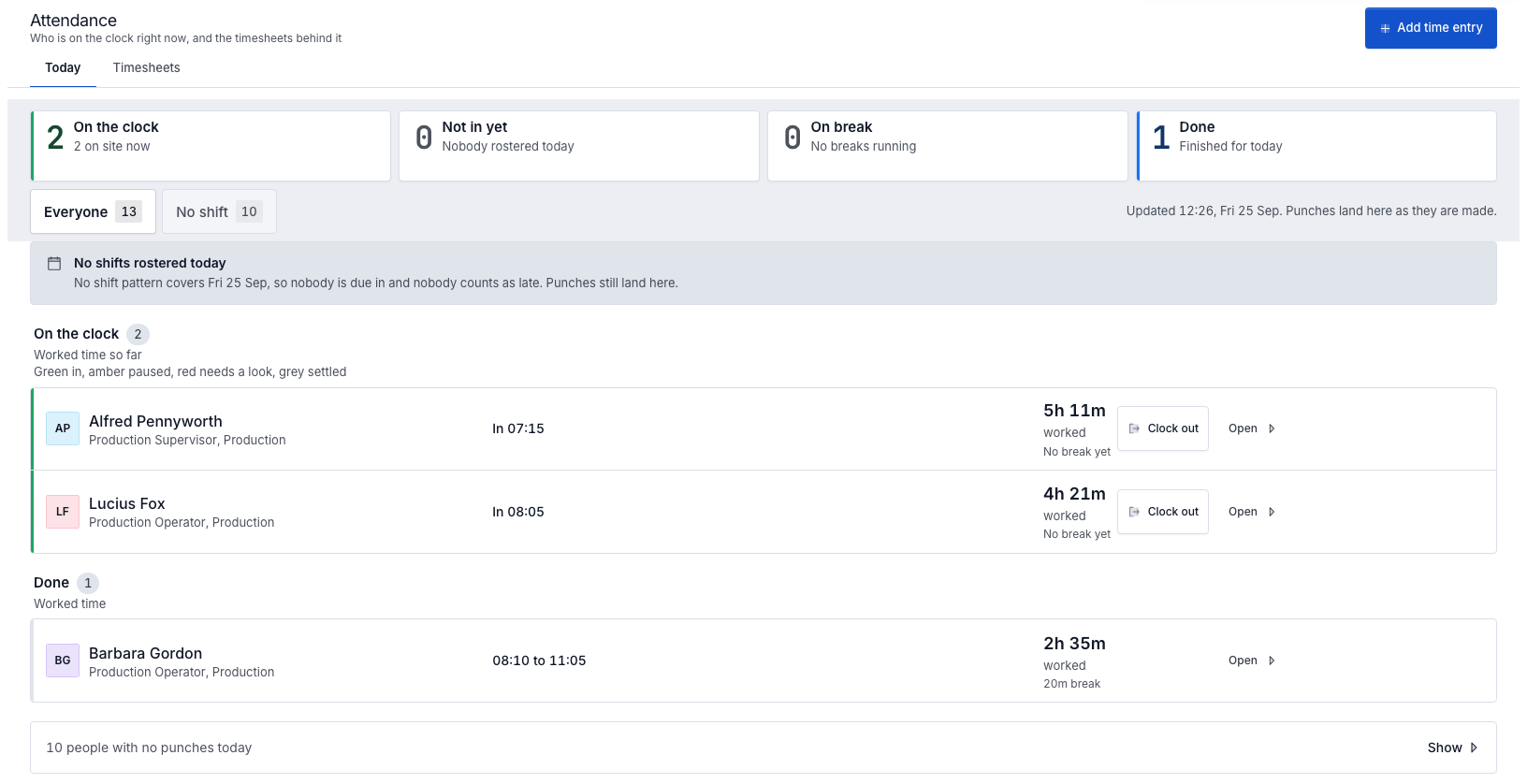
Today groups the site under the words the floor uses. Four tiles across the top are also filters. Press a tile to show only that group. Press it again to show everyone.
- On the clock: people whose day is running and who are not on a break. The note under the count starts with how many are "on site now". It can add "in since yesterday", "over limit", or "arrived late".
- Not in yet: the shift has started and they have not arrived. The note can read "Worst" plus a duration and "late", "Nobody late yet", "Nobody late so far", "still to start", "who were due are in", or "Nobody rostered today".
- On break: a break is running. The note reads "No breaks running", "Counting break time", "Longest" plus a duration, or that same line with ", over limit" when a break has passed the limit.
- Done: people who have clocked out and finished. The note reads "Finished for today" or "Nobody out yet". A finished row usually shows the clock-in time, the word "to", and the clock-out time. If those times are missing, the row reads Clocked out or Out at plus a time. Done is the group name. Clocked out is only the fallback line.
A fifth tile, To close, appears only when its count is above zero. Its note is "Open in timesheets". It is not a filter of today's rows. It opens Timesheets on yesterday through today with the chip Missing clock out only.
Chips under the tiles cover the other cuts. Everyone shows the whole board. Arrived late appears when someone who did punch in was late. It is a cut across groups, so its count reads as a number "of" the people on the board. People who never arrived stay under Not in yet. They are not in Arrived late. Further chips appear only when that group has someone in it:
- Due later: the shift has not started. The row reads Starts in plus a duration, or Due later today.
- Auto clocked out: the time clock closed the day. The caption is "Closed by the system, not by a punch". The row can read In plus a time and ", no clock out", or No clock out. The hours line can read Auto out plus a time, or "Closed by the system".
- Punches under 1 minute: the day opened and closed inside one minute. The caption is "Worked time".
- On leave: approved leave. The row reads On leave today, and the due line reads Not expected in.
- No shift: no rostered window today. The group starts collapsed. The closed line reads "not scheduled" and names the first people, with Show to open it and Hide to close it. On a day when no pattern covers anyone, that line counts "people with no punches today" instead.
On the clock and On break caption the hours as "Worked time so far". Done and Punches under 1 minute say "Worked time". Auto clocked out says "Closed by the system, not by a punch". Not in yet counts who "have not arrived" against how many were "due so far". One person uses "has not arrived". The first group also prints the colour key: "Green in, amber paused, red needs a look, grey settled".
A row puts the punch above the rostered window. A running day reads In plus the clock-in time, or In plus the time and "yesterday" when the punch is still open from the day before. A break reads On break plus how long it has run. On a wide screen it adds ", since" and the start time. The window reads Due, the start, "to", and the end, then either "of shift left" or, before the shift starts, a duration and "shift". The shift name is added on a wide screen. On a running or finished day the large figure is worked time, labelled worked. Under it you may see No break yet, a break duration, No break, or Clock paused while a break is running.
The line at the right of the chips reads "Updated", the time, the date, and "Punches land here as they are made." While a fresh read is in flight it reads "Refreshing. Last updated" and the same time and date.
If nobody is on the board yet, the empty title is "Nobody has clocked in yet today". If no shift pattern covers the day, a notice reads No shifts rostered today: nobody is due in, nobody counts as late, and punches still land on the board.
Read timesheets and punch history
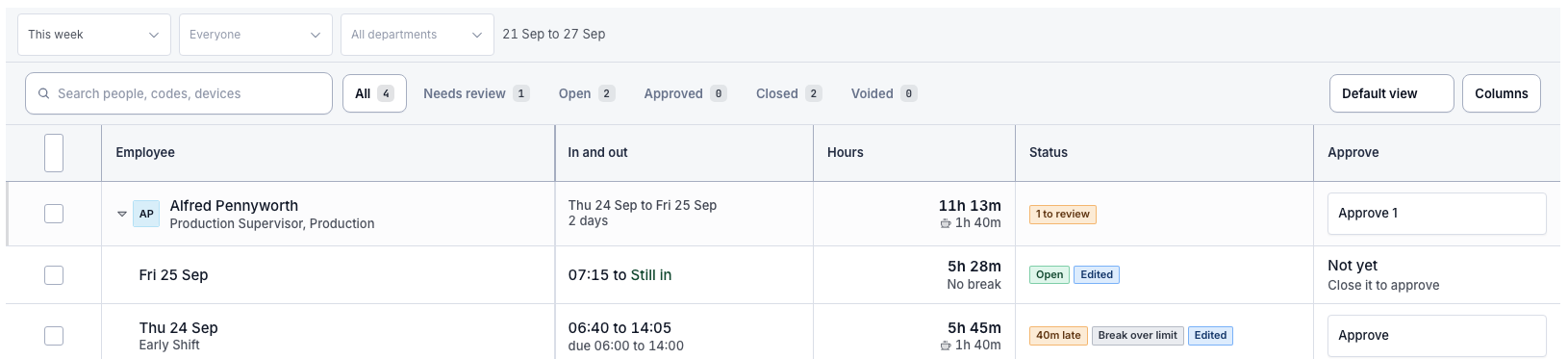
Select Timesheets. The range control starts on This week. The choices are This week, Last week, Today, Yesterday, This month, and Custom. Custom adds From and To. The range must start on or before the end, and it can cover at most 62 days. Until both dates are set, the table says Pick the dates to load.
The people filter starts on Everyone. The department filter starts on All departments. Search uses the placeholder "Search people, codes, devices". Status filters are All, Needs review, Open, Approved, Closed, and Voided. On a narrow screen they collapse to a Status menu, such as "Status: All". Open includes a day still on the clock and a day on a break. Closed includes a normal close and Auto clocked out.
The columns you see first are Employee, In and out, Hours, Status, and Approve. Columns can show Device, Shift, and Last note, which start hidden. Employee is the person. Expand the row to list each day, with the shift name under the date when there is one. In and out shows the clock-in time, "to", and the clock-out time, or Still in, On break, or Missing. Under that, a rostered day reads "due", the start, "to", and the end. Hours is worked time, with the break under it, or No break. A voided day is struck through. Status shows the flags for that day. A closed day with no flag reads Closed. Open, On break, Auto clocked out, and Voided show up as flags when they apply. A person row can read "to review", All approved, or Nothing flagged. A run of tiny punches reads No time recorded and a label such as "1 punch under 1 minute" or "3 punches under 1 minute".
Select a day to open the time entry. The header is the person and the date, then the status and flags. Four figures follow: Clock in, Clock out (Still in while the day is open, or Missing when a closed day has no out time), Breaks, and Worked. When a shift was rostered, a line names the shift, the start, "to", the end, and ", " plus a duration and "late" when they were late. Punches lists the ledger. Each row is a time and a kind: Clock in, Break start, Break end, Clock out, or Undo of an earlier punch. The source reads Tablet, Manager, or Automatic. A punch that no longer counts is marked Undone, Replaced, or Ignored. If the ledger is empty, the dialog reads "No punches recorded."
Right-click a row for Open, Open in new tab, and Copy employee number. Open on a day opens the time entry. Open on a person expands the days. Open in new tab opens that person's employee record. On a day, a manager also sees Edit times, Clock out now, and Approve or Unapprove. Clock out now works only while the day is still open and not approved.
The footer reads Totals, or Totals on screen when a filter has hidden rows. The figures are Hours, Breaks, Entries, People, and Approved. A review count reads "to review" and applies Needs review. When nothing is waiting, the footer reads "Nothing to review".
Export CSV is on the Timesheets tab for anyone who can open the page. It downloads the rows that match the current filters. The file name starts with timesheets- and the dates. A success toast reads "Timesheets exported". If the filter matches nothing, the toast reads "Nothing to export".
A night shift that started before the range stays in the list. The toolbar then reads "Includes" a count of "shifts that started" on that earlier day, or "that started earlier".
people.attendance-02
End a break or clock someone out
These buttons show only when you have attendance.manage.
On an On break row, End break sends the person back to work immediately. There is no extra confirm. The toast reads that they are "back on the clock", and that the break is closed and the entry is marked as edited.
Clock out is on a row that is On the clock or On break. It asks "Clock out" the name "at" the site time, or "now" when the time cannot be shown. Cancel leaves the day open. Clock out writes the punch on their behalf and marks the entry as edited. You can change the time later in Timesheets. The same close exists as Clock out now in the time entry dialog and on the day row's right-click menu.
Clock in is on Not in yet and Due later when that person has no entry running. It asks "Clock" the name "in at" the site time. The text repeats when they were due in. Clock in records the punch now, not back at the rostered start, and marks the entry as edited. The toast says they are "on the clock". Use Add time entry when you need an earlier time, or when the person has already finished.
If you also have absences.create, the same not-yet rows show Log absence. It opens the absence form with that person and today's date filled in. It does not invent an attendance state.
Open on a row with a time entry opens the same dialog as a day on Timesheets. It is hidden when the row already has two other actions, so End break, Clock out, Clock in, or Log absence stay on screen.
Add a missed punch
Select Add time entry. The button is on both tabs when you have attendance.manage. The dialog title is Add time entry. The description says you are recording a punch that was not taken on a tablet. Leave Clock out empty to record the clock in and let the day run. Fill Clock out to record a whole shift. Either way, the punches are manual and they keep your note.
- Employee: search with "Search people". The empty search reads "No matching people".
- Clock in and Clock out. The clock out help reads "Leave it empty to record the clock in only."
- Break minutes. The help reads "One unpaid break in the middle of the entry." A break is rejected until Clock out is set. The message is "Add the clock out before recording a break".
- Note. The placeholder is "Why this entry is added by hand". A note is required.
Cancel closes the dialog. The save button reads Add clock in when Clock out is empty, and Add entry when it is filled. An open clock in toasts "Clocked in" and says the day is running. A full entry toasts "Time entry added".
The clock out must be after the clock in. The entry cannot be longer than 24 hours. Breaks must be a whole number of minutes, cannot be negative, and must be shorter than the entry. A time cannot be in the future. If the window crosses another entry, the error reads "These times overlap another time entry on" that date.
Edit or void a time entry
Open the day. If you can manage it, and it is not approved or voided, the dialog shows Correct the times.
- Clock in and Clock out. On an open day, the clock out help reads "Setting a clock out closes the entry."
- Break minutes. On an open day the field is locked and the help reads "Close the entry before editing its breaks." On a closed day, leave it empty to keep the breaks the tablet recorded. A number replaces them with one break in the middle of the entry. The placeholder shows how many minutes are "recorded".
- Note. The placeholder is "Why the times changed, for the audit trail". A note is required, and the save does nothing if no time changed. The error then reads "Nothing to change on this time entry".
Save changes writes the correction into the punch ledger. The toast reads "Time entry updated". Clock out now is beside Void while the day is still open. Cancel closes the dialog. A viewer who cannot manage the entry sees Close instead.
An approved day cannot be edited. The dialog reads "Unapprove the entry to change its times." Right-click Edit times stays disabled until you do that. Approve as recorded signs the closed day off without changing it. Unapprove clears that stamp so you can edit again. The toast reads "Time entry unapproved".
There is no Delete control. Void opens a confirm that asks "Void this entry for" the person. Reason uses the placeholder "Why this entry should not count". Back returns to the times. Void entry keeps every punch, marks them undone, drops the hours from the timesheet, and lets the person clock in again. The toast reads "Time entry voided". A voided day cannot be approved. The Approve column reads Not yet.
A single punch under one minute on Today has Void punch. On Timesheets, a run of them is one row with Approve all and Void all. The confirm title starts with "Void" and the punch count. The reason starts as "Duplicate tablet taps, no time worked". One punch uses Void punch. More than one uses Void all.
The Approve column is how you sign days off. A closed day shows Approve, and after that Approved. An open day shows Not yet and "Close it to approve". A person row can show Approve and the number of days that can be signed off, or a count and "approved". Tick the row boxes and the bar offers Approve and Unapprove. You can approve at most 100 entries at once. Voided entries cannot be approved. The right-click Approve item says "Close the entry before approving it" while the day is still open.
Void keeps the punches
Void does not erase the ledger. The punches stay, marked undone, and the hours stop counting. Use it for a duplicate tap or a day that should not be paid. Use Correct the times when the day happened but the times are wrong.
Check late arrivals, long breaks, and odd shifts
Flags are the words on a board pill and in the timesheet Status column. Needs review is every unapproved, non-voided day that still has one of these problems, including a punch that recorded no time. Approving the day clears the review reasons.
Late. A clock in after the rostered start, and before the rostered end, is late. The board pill reads a duration and "late", such as "12m late" or "2h 12m late". The timesheet shows the same words. The stored flag is "Late" plus the minutes. Arrived late counts only people who have already punched in. Not in yet can still say how late the worst missing person is, in the tile note "Worst" plus a duration and "late".
Started after shift ended. A clock in at or after the rostered end is not labelled late. The punch is kept. The board pill and the timesheet flag both read Started after shift ended.
Break over limit. A running break of 90 minutes or more. The On break tile adds ", over limit", and the row pill reads Break over limit. On a finished day the timesheet uses the same flag when the break is at least 90 minutes and the break is not longer than the work.
Break longer than work. The break is at least 30 minutes and longer than the time worked. The board and the timesheet both use Break longer than work. On the timesheet that flag is used instead of Break over limit when both would apply.
No break taken. The person is on the clock or finished, worked time is at least 6 hours, and no break was recorded. The pill reads No break taken.
Under 5 minutes worked. The entry spans at least 60 minutes, but worked time is under 5 minutes. That is the flag for a shift that does not read as a real day, often because a break never ended. The timesheet shows Under 5 minutes worked.
Past shift end. A day that is still running more than 60 minutes after the rostered end. The timesheet flag reads Past shift end. An hour past the end is treated as an ordinary handover. The flag starts after that hour.
Over a number of hours. On the board, worked time longer than the rostered window plus 60 minutes, or longer than 12 hours when nobody was rostered, shows a pill that reads Over and the worked hours rounded down, such as "Over 13h".
No time recorded. A closed entry shorter than a minute, or a closed entry with no worked minutes. The status pill reads No time recorded. The board files a punch that opened and shut inside a minute under Punches under 1 minute.
Other flags you will see are Open, On break, Missing clock out, Auto clocked out, Edited, Approved, and Voided. A punch more than 60 minutes before the rostered start can show a duration and "early" on the board. A handoff from People home can also filter the timesheet to Clocked in early only.
A day someone was booked off and still clocked in shows Booked off today. That outranks a late pill. If the row was opened from Arrived late, the late duration is still printed beside it.
Limitations
Attendance is generally available. Keep these limits in mind:
- The page is the current site. Another plant has its own board.
- Clock in on Today writes the current site time. It does not backdate the punch to the shift start. Use Add time entry to type an earlier Clock in.
- Add time entry says the break is "One unpaid break in the middle of the entry." Worked hours still follow the site time clock setting. If breaks are paid, that break is not taken off worked time. A paid break that is still running keeps the worked figure moving, while the row caption still reads Clock paused.
- Void keeps the punches. It is not a delete.
- An approved entry is locked until you Unapprove it.
- A custom range cannot exceed 62 days. A very large result can also refuse to load and ask you to narrow the dates or filter by employee. The message starts "Too many time entries in this range."
- Approve accepts at most 100 entries at once.
- Device, Shift, and Last note start hidden. Use Columns to show them. Export still includes device, shift, notes, flags, and approval columns.
- Time clock pairing, PINs, and the auto clock-out rule are not set on this page. They live in People settings. This page shows the result, including Auto clocked out.
Troubleshooting
Attendance is missing under People. Your role does not have attendance.view. Ask an administrator to grant View attendance and timesheets for this site.
You can see the board, but Add time entry, End break, and Clock out are missing. Those need attendance.manage. Log absence also needs absences.create.
Edit times does nothing, or the dialog says to unapprove. The day is approved. Select Unapprove, then edit. The right-click item says "Unapprove the entry before editing it".
Approve is not offered. An open day reads Not yet and "Close it to approve". Clock out first, or set a Clock out in Correct the times. A voided day cannot be approved.
"These times overlap another time entry". The clock in and clock out cross another day for the same person. Change the times, or void the other entry first.
"A time entry cannot be longer than 24 hours" or a clock time "cannot be in the future". Shorten the entry, or pick a time that has already happened.
The timesheet says "Pick a start on or before the end, up to 62 days." Fix From and To. The start has to be on or before the end, inside a 62 day span.
"Nothing to export". The current filters match no rows. Clear them, or pick another range. Clear filters is also the empty-state action when a search or status matches nothing. With no filters and no rows, the title is "No time entries in this range".
A Sunday looks empty of shifts. If no pattern covers that day, the notice is No shifts rostered today. Punches still appear. Nobody is marked late only because they had no window.
Related guidance
- Manage shifts: the patterns behind Due times, lateness, and Started after shift ended.
- Review an employee record: open a person from a timesheet row.
- Record an absence: the form behind Log absence.
- People: the rest of the People module.
Allocate a credit note
Apply an issued credit note's available credit to a customer's outstanding invoices in Bulk, and reverse an allocation to return the credit.
Use the time clock tablet
Open the shared plant tablet at /clock to pair it, enter your PIN, and clock in, start a break, or clock out. It is not the manager attendance board.