Prioritise work on the board
Rank job steps on the Prioritisation board to order the queue across machines, so each station can see which job comes next on the shop floor.
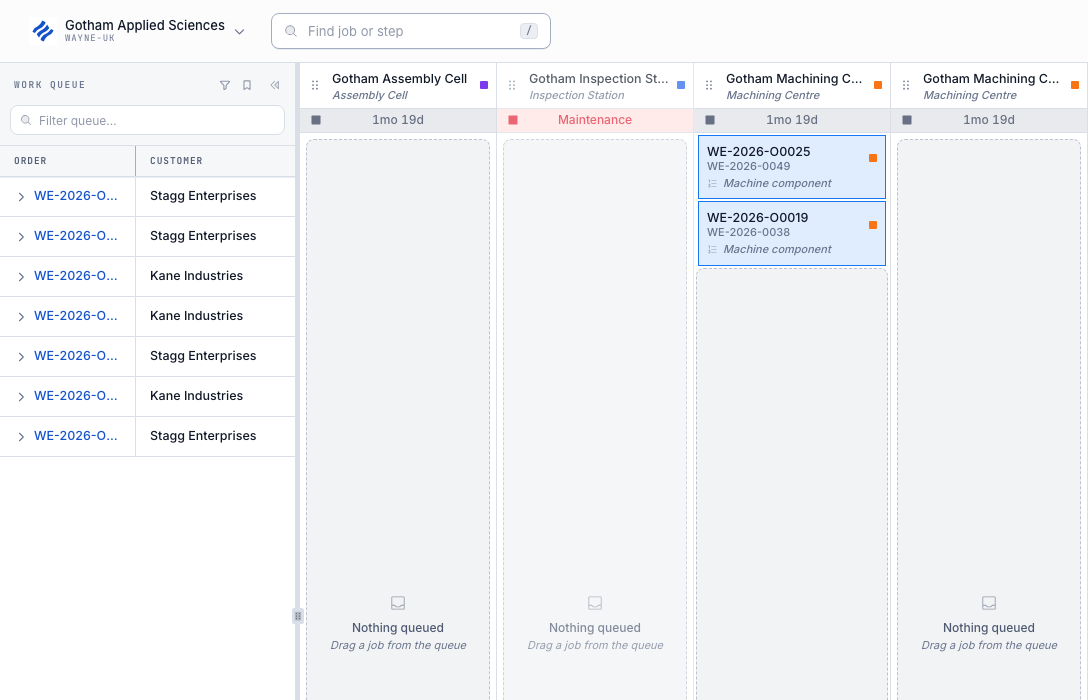
The Prioritisation board is where you put job steps in the order each machine should run them. It is not the Scheduling planning board, and it is not a rename of that screen. In the left sidebar, select Prioritisation. The board opens full screen at /prioritisation/home. The browser tab title starts with Prioritisation. You need View prioritisation (prioritisation.view) for the site you have selected. Scheduling is a different screen: it opens at /scheduling/home and places steps on a machine timeline. Prioritisation has no timeline. You rank a queue instead.
prioritisation.overview-01
Open the board
- In the left sidebar, select Prioritisation. It is its own module. It does not sit under Scheduling, and the sidebar entry has no Beta badge.
- Confirm the address is
/prioritisation/home.
View prioritisation lets you open the board and read every machine's ranked work and the unranked pool. Rank work (prioritisation.rank) lets you add, reorder, move, and take steps off the board. Both apply to the selected site. Super user, Entity admin, Operator, and Manager include both. Tablet user includes View prioritisation only, so that role can read the board but not change it. If you can see the columns but cannot drag a chip or open the right-click menu, ask an administrator for Rank work.
The board also needs at least one active machine whose asset type allows a resource. With none, the page reads No machines to rank on, with the note "Add machines in Settings → Assets and allow resources on their asset types to start ranking job steps."
Read the board and its queues
The board has two kinds of queue.
The Work queue on the left lists steps that are not ranked yet. The heading is Work queue. Orders start collapsed. Open an order to see its jobs and steps. The field under the heading is Filter work queue, with the placeholder Filter queue…. Collapse work queue folds the panel to a Work queue rail. Expand work queue opens it again.
While the list is loading it reads Loading work queue, then Loading more jobs... as more rows arrive. If a filter matches nothing, it reads No matching work in the queue. When every remaining step is already ranked, it reads Queue is clear. Every step is planned.
On the right, each machine is one column. The header shows the machine name, its type, a colour mark for each resource it can run, and a status: Active, Paused, Stopped, Maintenance, Offline, Away, Unknown, or Idle. Dragging that header rearranges the columns. That is covered below.
Inside a column, ranked steps are chips from first to last, top to bottom. A chip for work already loaded on the machine sits above them on Default Queue, with a lock, labelled Loaded or Running. You cannot drag that chip. It is not part of the rank you set. The first ranked chip under it is first in the queue.
A column starts with one queue, and the name Default Queue stays hidden until you add another. After you add one, each queue shows its name, including Default Queue.
Under the chips, every queue keeps an empty drop area. On an empty queue that area reads Nothing queued. If you can rank, it also reads Drag a job from the queue. When the queue already has chips, the space is blank. It is still a drop target, and its accessible name is Drop a job under the queue. Drop there to put work last.
The footer counts how many steps are ranked, for example 12 ranked. If more ranked rows are still loading, it also reads Loading more ranked jobs....
The header has Find job or step (keyboard shortcut /). The search box placeholder is Find order, job or step…. Choosing a ranked result flashes that chip. Choosing a step that is still in the Work queue opens the queue and scrolls to it. The gear is Display settings. Display covers ranked-chip titles, work queue columns, and which asset types to show. Those choices are saved for you on this site. Work queue columns and asset types are the same choices Scheduling stores. Hiding an asset type removes those columns from this board. Steps already ranked on a hidden machine stay out of the Work queue here.
Rank steps
Drag a step from the Work queue onto a machine's queue. It always lands at the bottom of that queue, then leaves the Work queue. Dropping it on a chip does not insert it in the middle. To place it somewhere else, drag the ranked chip after it has landed.
Drag a ranked chip up or down the same queue. Drop it on another chip to move it to that place in the order. Drop it in the blank space under the chips to put it last. If it is already last, dropping it there again does nothing.
Drag a chip onto another machine that can run the step. Drop it on a chip to place it in front of that chip, or drop it under the queue to put it last. If the machine cannot run the step, the board says This machine cannot run that step. A machine set to Maintenance or Offline will not take the drop. Dragging a ranked chip there says That machine is not accepting work. Dragging from the Work queue onto that machine says This machine cannot run that step.
Click a chip to select it. Shift-click selects a range on that same machine. Command-click on a Mac, or Ctrl-click on Windows, adds or removes one chip. Esc clears the selection. A selection does not cross machines.
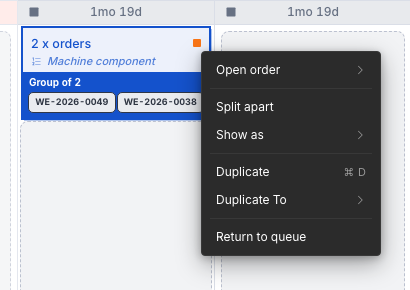
Right-click a ranked chip for the chip menu. The items depend on what you clicked:
- Open order, or Open order followed by the order number. This is covered below.
- Group together, when two or more chips are selected and they are not already one group.
- Split apart, when the chip is a group.
- Show as, when you can group the selection or the chip is already a group.
- Duplicate, with the shortcut Command-D on a Mac or Ctrl+D on Windows.
- Duplicate To, only when every selected step is in a group.
- Remove this copy, only on an extra copy, not on the original.
- Return to queue.
Delete or Backspace on a selected chip also returns it to the Work queue. You need Rank work for every change in this list. View only leaves the chips where they are.
Rearrange machine columns
Drag a machine by its column header. The header is a button named Reorder followed by the machine name. What you see is the grip, the machine name, and its type. Drop it on another column to move it left or right. The new order is saved for the site, so the board opens that way next time. The ranked steps inside a column do not change. You need Rank work. Without it, the header is not a drag handle.
Add a queue on a machine
Right-click empty space in a queue, not a chip.
On the default queue the menu shows New queue. Rename queue and Delete queue are disabled, because that queue is always there.
Choose New queue, type a name in Queue name, and select Create queue. The name cannot be Default Queue. The board then says That name is reserved for the default queue. A name already used on that machine says A queue with that name already exists. A machine can have eight extra queues. Past that, it says This machine already has the maximum number of queues.
On a queue you added, right-click empty space and choose Rename queue. The field is labelled Name, the placeholder is still Queue name, and the button is Save name. Delete queue removes that queue. The ranked steps are not sent back to the Work queue. They move onto Default Queue, at the bottom of the steps already there.
Drag from the Work queue onto the named queue, not the default one, when you want the step to rank there. The drop still goes to the bottom of the queue you drop on.
Group steps
Select two or more chips on the same machine, right-click, and choose Group together. They become one chip. The chip reads Group of and the number of steps, and each job in the group has its own label.
Show as sets the title of that chip:
- Order number
- Step name
- Part
- Routing
- Custom
Custom asks you to Type a name in Custom name, then select Apply. Choosing a Show as title before the steps are grouped also groups them under that title.
Split apart turns the group back into separate chips.
A group moves as one chip. You cannot drop another step into the middle of it. The step lands before the group or after it.
Display settings changes how groups and chips read, without changing the order:
- Chip title: Order number, Part, Step name, or Routing.
- Chip details: Step name, Part, Order number, Customer, Resource code, Routing, and Process.
- Group job labels: Job number, Part number, or Process. These are the small labels inside a group.
- Asset types: which machine columns are on the board.
Copy a group onto other machines
Duplicate copies the chip on the same machine, just under the original. The badge reads Copy, the copy number, of, and how many copies exist, for example Copy 2 of 2. Hover the badge to highlight every copy in the set. The tooltip reads All copies are highlighted, then Click to lock. After you select the badge it reads Click to unlock. Remove this copy deletes only that extra copy. It is not offered on the original. Return to queue on the original also takes the other copies of that step off this machine. Copies on other machines stay until you return them there.
Duplicate To is the way to copy a group across frames. A frame is one machine column on the board. The menu does not use the word frame. It says Duplicate To, and it appears only when the chip is a group (or every step you selected is already in a group). An ungrouped chip has Duplicate only.
Open Duplicate To. The box placeholder is Search assets by name or code (the field is labelled Search assets). Tick the machines you want. Select Duplicate to assets. Cancel closes the list and does not copy. While it saves, the button reads Duplicating....
Each copy is added at the bottom of that machine's Default Queue, even when the machine also has named queues. The badges update, for example Copy 2 of 3, and hovering one still highlights the set.
The list only includes machines currently shown on the board. The machine you started from is not in the list. To copy on that same column, use Duplicate. A machine you cannot use stays in the list with a reason under its name, and you cannot tick it:
- This machine cannot run this step
- This machine is unavailable right now
- Default Queue is being updated
If nothing matches the search, the list reads No matching assets. If a ticked machine disappears while the list is open, it says A selected asset is no longer available. Clear the selection and choose available assets. and offers Clear selection. If the copy would create too many placements at once, it says Select fewer assets and states the limit. Duplicate to assets stays off until the selection is valid.
prioritisation.overview-02
Filter the Work queue
Select Work queue filters (the funnel beside Work queue). The panel title is Filter. The field heading reads Where and the field name, for example Where customer.
The fields are Due date, Priority, Customer, Part, Routing, Process, and Ready now, then each job custom field and each order custom field under its own name.
For every field except Ready now, the condition is Is or Is not.
Is keeps jobs that match the values you tick. Is not hides jobs that have one of those values. The panel says Hides jobs with the selected values. Jobs with no value in that field stay in the queue. The panel says so in the same words: Jobs with no customer are kept, and the same sentence for part, routing, process, due date, and each custom field, using that field's name. Priority does not add that sentence. Every job has a priority, so there is no blank priority to keep.
Due date offers Overdue, Due today, and Due this week. Pick one. Priority offers urgent, high, medium, normal, and low, in those lowercase labels. Customer, Part, Routing, Process, and custom fields include Search values.
Ready now is not an Is / Is not choice. It is the switch Only steps that are ready to start. The note under it says it hides steps still waiting on an earlier step in the job's routing.
You can fill more than one field. Apply changes keeps a job only when it passes every field you set. Clear all removes the filter. Until you apply something, Apply changes stays off. Apply changes filters this visit. It is not kept unless you save a template.
The bookmark beside the funnel is Filter templates. Under Generated you can choose Overdue, Due today, Due this week, High priority, or This resource. This resource stays disabled until a ranked step is selected, and the hint is Select a resource first. Under Saved, the site's own templates are listed. An empty list reads No saved filters on this site. With Rank work, type a Template name and select Save template. A generated choice or a saved template stays selected for you on this site. Scheduling uses those same templates.
The Filter queue box is separate. It narrows the rows by the words you type. Clear queue filter removes that text. It does not clear a Work queue filters rule.
Open the order
Right-click a ranked chip.
If the chip belongs to one order, the item is Open order followed by that order number. Choosing it opens the order.
If the selection covers more than one order, Open order opens a list of the order numbers. Choose one.
If the chip has no order, Open order is shown and disabled. It is also disabled when you do not have View production orders (production_orders.view). The rest of the chip menu still works. Ask an administrator for View production orders if you need to open the order from here.
What this board does not do
Prioritisation does not plan a start time, and it does not replace Scheduling. Ranking a step takes it out of the Work queue on this board. It does not place that step on a Scheduling timeline. To put a step on a machine at a time of day, open Scheduling at /scheduling/home. See Scheduling.
Use files and media on a whiteboard
Add photos and images to a whiteboard canvas, understand how Bulk uploads and stores them, and export a finished board as an image file.
Record process cycles
Record process cycles on the Operate screen, follow runs on the Cycles card, and see what Complete Stage blocks until required cycles and rework are done.