Record process cycles
Record process cycles on the Operate screen, follow runs on the Cycles card, and see what Complete Stage blocks until required cycles and rework are done.
You record process cycles on the Operate screen at your station. This is not Settings. A process cycle is a named pass on the job's process, such as a bend or a coat. You save a cycle run when you record a count against that cycle. The Cycles card then shows every active cycle on the batch you are working. Complete Stage blocks the job when a required cycle is still missing, or when a run is waiting for rework that holds the job.
An administrator creates the cycles on the process and chooses which ones are required. You cannot add a cycle from Operate. Active cycles are the ones left turned on. Inactive cycles do not appear, and they do not block the stage.
Record a cycle run
You need a job loaded on the station, and a counter whose production item includes a Cycle step. The Tablet user role can record. It includes Record production output. The standard Operator role can view production, but it cannot record a count, so it cannot save a cycle run.
- Open Production and select your station. See Select an asset or workstation and Load a job.
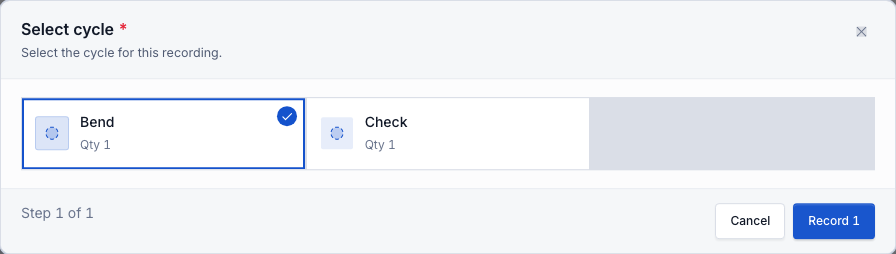
- On the job card, tap the plus control on the counter. Its name is Increase count. If that production item has a Cycle step, Select cycle opens instead of saving at once. Steps open in their saved order.
- Tap the cycle tile. Each tile shows the cycle name and a quantity target, written as Qty plus the number, for example Qty 4. The tiles are the active cycles for the process, in the saved order.
- Tap Next if more steps remain, or Record on the last step. Record includes the quantity, for example Record 1. Cancel closes without saving. Back returns to an earlier step.
A required Cycle step shows a red asterisk beside Select cycle. Next or Record stays off until you tap a cycle. An optional step offers Skip. Skip leaves that cycle off the count.
The footer shows where you are, for example Step 1 of 2. The prompt under the title is Select the cycle for this recording. If the process has no active cycles, the dialog says No cycles configured for this process.
production.process-cycles-01
Saving shows Production recorded. That save creates the cycle run and ties it to the count. A defect counter with a Cycle step works the same way: the defect is tied to the run, and the cycle still counts as recorded. The quantity target on the tile is not a remaining quantity. One saved count or defect is enough to mark that cycle recorded, even when the quantity is below the target. Later counts of the same cycle do not add another segment on the card.
While a timer is already running, the first cycle you record stays on that timer. The next count in the same timer opens Select cycle on that cycle only. Other tiles are disabled. The prompt changes to Stop the timer and start a new session to record a different cycle. Stop the timer, start it again, then record. The new timer can take a different cycle. See Run production timers.
If the counter has no Cycle step, the plus control records the count with no cycle. That count does not fill the Cycles card.
One cycle for the whole batch
The count is saved for every job in the batch you are viewing. Those jobs must share one process. If they do not, the save is rejected and the message is All jobs in this recording must share the same process.
Check the Cycles card
On a production tablet, Operate includes a card titled Cycles. It follows the batch on screen, not every job loaded on the station.
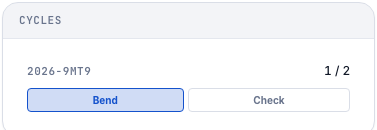
For each job that has active cycles, the card shows:
- The job number.
- A count such as 1 / 2. That is how many active cycles already have a run, out of every active cycle on the process. Required and optional cycles are both in that count.
- One bar per cycle when the job has eight or fewer. A recorded cycle is filled. A missing cycle is empty. The cycle name sits in the bar unless an administrator turned names off.
- One bar and the count, without a name in each segment, when the job has more than eight active cycles.
When every active cycle has a run, the count matches the total, for example 2 / 2.
If a run on the job is still marked for rework, a line under the job says 1 run marked for rework, or 2 runs marked for rework when there are more. The line is highlighted when at least one of those marks holds the job. A mark that does not hold the job still shows the line.
Jobs with no active cycles are left off the card. If none of the jobs on the batch have cycles, the card says No cycle progress and Cycles for jobs on this batch will show up here. The same empty state shows when no batch is on screen. A job with no active cycles can still appear when it has open rework: you see the job number and the rework line, and no bar.
The card does not mark which cycles are required. Use Complete Stage for that.
production.process-cycles-02
Clear a Complete Stage block
Complete Stage sits under the timer. It needs Complete production phase. Tablet user includes that permission. Operator does not, unless an administrator adds it.
- Tap Complete Stage. The dialog title is Complete Stage.
- Under Job items, read the badge on each row. Will complete means you can finish it here. Needs time means time is missing. Unload only means the job is also loaded on another station, so this station only unloads it. Blocked means the cycle check failed.
- Read the red line under the job number. Leave blocked rows unselected. Select all skips them. Next stays off until at least one row you can complete or unload is selected.
Two messages block a finish:
- A required cycle has no saved run. The line is the recorded count of the required total, for example 0 of 2 required cycles recorded or 1 of 2 required cycles recorded. Optional cycles that are still empty do not block, even when the Cycles card is not full.
- Required cycles are already recorded, and a run is marked for rework with the hold turned on. One run reads 1 cycle run is marked for rework. Record the rework first. More than one starts with the count, for example 2 cycle runs are marked for rework. Record the rework first.
If required cycles are missing and a holding rework is also open, the row shows the required-cycles sentence. Record the missing cycles first. If time is also missing, the badge says Needs time, and the cycle sentence still appears under the job number.
A job that is also on another station shows Unload only. The cycle check does not block that unload.
When the row says Will complete, continue with Next and finish with Complete. The rest of that wizard is in Skip or complete a production phase.
Mark for rework and Rework are quality steps on the same counter, not part of saving the cycle itself: see Complete production quality steps.
Open the process instruction PDF
The process on the job is the revision assigned to that job. On the Loaded Jobs card, a Process field shows that code when the layout includes it. The field does not open the file.
The PDF opens from Operator Tools:
- On Operate, open Operator Tools. Below desktop width, those rows can sit under the timer instead of in their own card.
- Tap Instructions. The row also says View PDF.
- The dialog title is Instructions. The prompt is Process instruction PDFs for the jobs loaded on this asset.
- Tap a card. The card title is the process code, rev, and the revision number, then the process name when it has one. Under that you see the file name and the loaded job numbers, for example Jobs: JOB-4412. The PDF opens in Bulk.
- If nothing is attached, the dialog says No instructions available and None of the loaded jobs have a process with an instruction PDF.
Only PDF files on that process revision are listed. The same revision is listed once when several loaded jobs use it. Other files on the job, the order, or the inbound document open from the Attachments card, not from Instructions. See Production.
If Instructions is missing, the layout has no Operator Tools card, or Instructions is turned off on that card.
Example: two passes on a press at Leeds
At Granite Peak Manufacturing's Leeds Fabrication Plant, Marcus runs job JOB-4412 on Press Brake 2. The process has two active cycles, Bend and Check. Both are required. The good-parts counter includes a required Cycle step.
He taps Increase count. Select cycle opens. He taps Bend, then Record 1. Production recorded appears. The Cycles card shows JOB-4412, 1 / 2, with Bend filled and Check empty.
He taps Complete Stage. The row is Blocked, and the line reads 1 of 2 required cycles recorded. He closes the dialog, stops the timer, and starts it again. He taps Increase count, taps Check, then Record 1. The card shows 2 / 2. Complete Stage now marks the row Will complete.
Expected result
After Record, the count is saved with the cycle you chose, and the Cycles card fills that cycle for the job. A later count in the same running timer stays on that cycle. Complete Stage accepts the job when every required cycle has a run and no holding rework is still open. Optional cycles can stay empty. The instruction PDF for the assigned process revision opens from Instructions without leaving Operate.
Limitations
- You record a cycle only from a counter that has a Cycle step. There is no separate cycle button on the Cycles card.
- The card is part of a production tablet Operate layout. Other station types do not add it.
- The card counts cycles, not pieces. It does not fill as you approach the Qty target.
- A corrected count does not keep the cycle recorded. The card uses counts and defects that are still in place, and it ignores adjustments.
- If the counter starts the timer for you, Select cycle does not lock the tiles to the current timer. A running timer is stopped and started again when you record, so the cycle you pick is saved on the new timer. A paused timer is resumed, and a different cycle is still rejected.
- Instructions lists PDFs only. A process file that is not a PDF does not appear there.
Troubleshooting
- No cycles configured for this process. The process has no active cycles. Ask an administrator to turn the cycles on. You cannot add them at the station.
- Record stays disabled. The Cycle step is required. Tap a cycle tile. Notes on other steps are separate. A required quality step still needs its own answer. See Complete production quality steps.
- Other cycle tiles are disabled. A timer is running and already has a cycle. Stop it and start a new one. The message is Stop the timer and start a new session to record a different cycle.
- All jobs in this recording must share the same process. Split the batch so the jobs you record together use one process.
- Timer must be running to add items. That counter requires a timer. Start it, then record. See Run production timers.
- The plus control never opens Select cycle. That production item has no Cycle step. The count can still save, but it will not mark a cycle.
- The Cycles card stays on No cycle progress. The batch on screen has no job with active cycles or open rework. Load the job, or switch to the batch that has the cycles.
- Complete Stage says a required cycle is missing, but the card looks finished. The card counts every active cycle. Complete Stage counts required cycles only. Read the red line: it names the required total, for example 1 of 2 required cycles recorded.
- Instructions is missing, or it says No instructions available. Confirm Operator Tools is on the layout and Instructions is enabled. The PDF must be attached to the process revision on the loaded job, and it must be a PDF.
Related guidance
Prioritise work on the board
Rank job steps on the Prioritisation board to order the queue across machines, so each station can see which job comes next on the shop floor.
Production
Understand how the Production area organizes manufacturing work into orders and jobs, and where operators run those jobs at a workstation on the shop floor.