Scheduling
Plan production job steps onto machine timelines in the Scheduling planning board, then move, resize, split, and balance work before it hits the floor.
Last updated
Scheduling is where you plan production work before it starts. The module has a single screen, the job planning board, which you reach from the left sidebar under Scheduling → Planning. Prioritisation is the neighbouring module. You open it from the sidebar at /prioritisation/home. On the board you take the steps of your open production jobs and place them onto a timeline for each machine, so you can see what runs where, in what order, and whether anything overlaps. Everything you see and change is for the site you are currently working in.
Bulk is a Manufacturing Execution System (MES): it tracks the jobs your plant makes and the routing — the ordered list of steps — that each job follows. Scheduling adds a planning layer on top of that production data. A few terms are used throughout this section:
- A job step is one step of a production job's routing (for example, a laser-cut or a weld).
- A work centre (also called a resource) is the capability a step needs. A step can only be planned on a machine whose asset type allows that work centre.
- A run is a slice of a job step placed on a machine's timeline. Placing a step creates a run; splitting a step creates several runs that together cover the step's quantity.
When to use scheduling
Open the planning board when you want to:
- Lay out the coming days of work across your machines instead of deciding step by step on the floor.
- Balance load — move a run to a quieter machine, or split a long step across two machines to finish sooner.
- Resequence work to hit a due date.
- Spot overlaps (called conflicts) before they cause a clash on a real machine.
- Give everyone with access a shared, live picture of the plan, since the board updates in real time.
Before you start
Three things need to be in place before the board is useful.
- Permission. You need View job planning to open the board and read the work queue, machine timelines, and planned runs. You need Plan jobs to place, move, resize, split, merge, or unplan work. By default the Super user, Entity admin, Manager, and Operator roles have both, so most planners can change the board straight away. The Tablet user role can view the board but not plan on it. Both permissions apply only to the site you have selected.
- Machines and work centres. At least one active machine (asset) must exist, and its asset type must allow the work centres your steps use. If no machine can host any work, the board shows the message "No machines to plan on" with a shortcut to open asset settings. See Assets and layouts and Resources to set these up.
- Work to plan. The board's work queue is fed by production jobs whose status is open or in progress. If nothing is open or in progress, the queue is clear and there is nothing to place. See Orders and jobs for how jobs reach that state.
View-only access
If you have View job planning but not Plan jobs, the board opens normally but is read-only: you can browse the queue and timelines, but the drag handles and the right-click planning menu are switched off. Ask a site administrator to grant Plan jobs if you need to change the schedule.
What is on the board
The planning board fills the screen with its own header, work queue, and asset timelines.
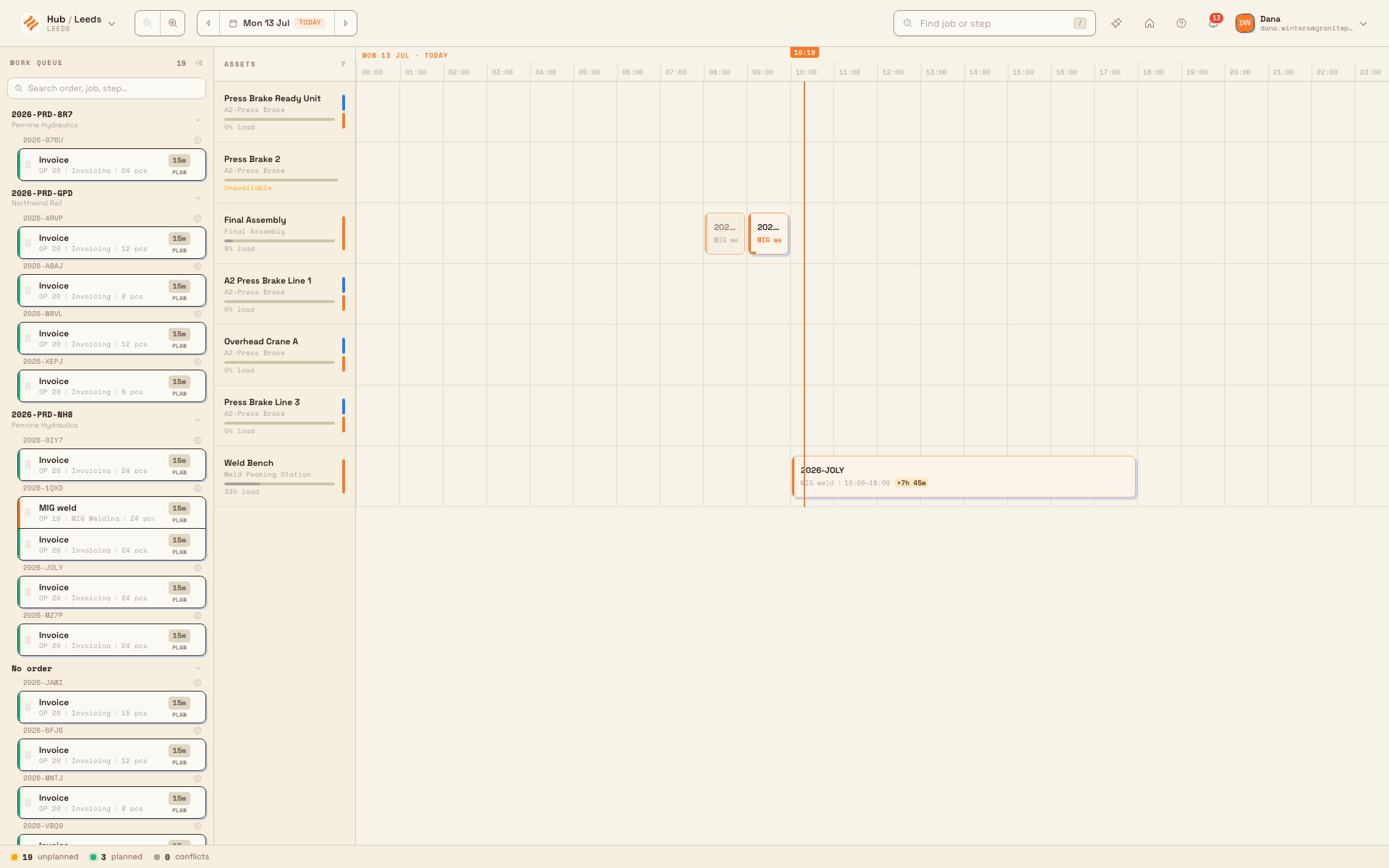
- Work queue (left). A collapsible table groups work by order. Expand an order to see job numbers, steps, operations, resources, and quantities. Use Filter queue or the filter controls to narrow the work. Drag the panel divider or column separators when labels need more room.
- Asset timelines (right). One lane per visible asset. Planned runs show their job number and selected details, positioned by start time and duration. Asset rows show load and availability. A run under way can show progress.
- Header controls. Use Previous day, Today, Next day, and the zoom buttons to navigate time. Find job or step opens with
/. Display settings controls block titles and details, queue columns, and visible asset types. - Keyboard hints. The bottom bar lists shortcuts for search, planning, selection, and resizing. The overview image crops this bar out to keep the queue and timelines readable.
What you can do
The overview links out to a focused guide for each task. Each one uses the exact controls above.
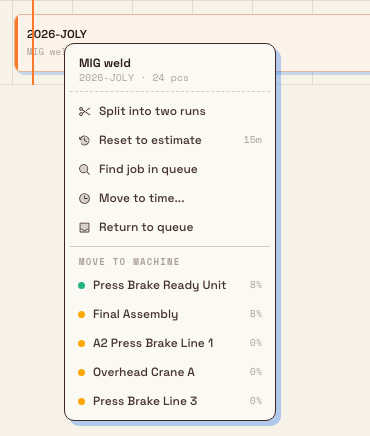
- Use the planning board — read the queue and timelines, split a long step into two runs, and merge split runs back together.
- Place or move a job — drag a step from the queue onto a machine, move a run to another time or machine, resize its duration, or return it to the queue. You can also use the keyboard: the "Plan queue step" dialog asks for a Machine, Day, and Start time. Moving an existing run also offers Duration.
- Set a planning time window — choose how many days the board shows (it starts at today and can span up to 60 days), page to earlier or later dates, and zoom the timeline in or out.
- Review capacity and resource context — read each machine's load, understand which machines a step is allowed on, and see where a step's estimated duration comes from (recent history for the part or step, or a fallback estimate). You can override a run's duration and reset it back to the estimate.
- Hand planned work to production — understand how the plan relates to what operators actually run in the Production module.
Example: planning a morning in Gotham
A planner at Wayne Corp opens the board for Gotham Applied Sciences. The work queue shows orders for Stagg Enterprises and Kane Industries. Expanding an order reveals its job steps and quantities.
The planner places the Press step for job 2026-ZKJ5 on Gotham Machining Centre 1 from 08:00 to 11:00. The run shows the job number, step, time range, and an override against the original estimate. Right-clicking the run opens actions to change the plan, including Reset to estimate and Move to machine.
What you will see
Placed runs appear on the selected site's asset timelines and the plan is visible to colleagues with view access. Placing a run records your intended schedule; it does not book time against a job or load a machine on the floor. Operators still start and record work in the Production module.
Dates and time zones
The board's days, today marker, due dates, and planned local times use the selected site's timezone. A planner viewing the board from another timezone sees the same plant schedule and calendar dates. Weekly planning still uses the organization's shared week-start rule.
Feature state and limitations
Scheduling has no Beta badge in the sidebar. Keep the following limits in mind.
The schedule is a plan, not a floor booking
In this version the board is a planning overlay. Placing, moving, or splitting a run records the plan only — it does not change a job's assigned machine or the live machine loading that operators see in Production. Treat the board as the shared plan, and confirm actual work in the Production module.
- Manual planning. Place work yourself using the queue, timelines, or keyboard planning dialog.
- Loading and run duration. The keyboard bar can show Loading more scheduled jobs... while more work is fetched. Runs are at least 15 minutes long and snap to 15-minute steps.
- Site scope. The board only shows and changes work for the site you have selected. To plan another site, switch sites first.
Troubleshooting
- "No machines to plan on." The board shows this empty state when no machine can host any work. Add machines and allow the right work centres on their asset types, then reopen the board. The empty state's "Open asset settings" button takes you straight to asset settings.
- A step will not go onto any machine. In the keyboard planning dialog you may see "No compatible machines are available." This means the step's work centre is not allowed on any active machine's asset type. Allow that work centre on a suitable machine's asset type and try again.
- Some work is still loading. Wait for the loading notice to clear before treating the visible board as complete. Narrow the time window or filters to focus on the work you need.
- You cannot drag or right-click to plan. The board is read-only for you because you have View job planning but not Plan jobs. Ask a site administrator to grant Plan jobs.
- Runs overlap. Review the highlighted runs on the timeline, then move or resize work to remove the overlap.
Related guidance
Promote inbound work to production
Turn an approved inbound document's ready items into production jobs under a production order, and see what changes once it reaches In production.
Use the planning board
Get oriented on the Scheduling planning board, where you drag job steps onto machines across a multi-day timeline, and learn to open, read, and use it.