Configure exports
Build reusable data exports from production, inbound, KPI, and settings tables; save templates, run downloads, schedule email delivery, and track history.
Last updated
Data Exports is how you pull structured records out of Bulk into a file you can open in a spreadsheet, finance system, or reporting tool. You choose a source table (for example production jobs or inbound documents), pick the columns you need, optionally resolve linked IDs to readable names, filter the rows, then download CSV, Excel, or JSON. You can save the setup as a template, run it again later, or schedule it so selected people receive the file by email on a daily, weekly, or monthly cadence.
Use this page when finance needs a recurring jobs extract, quality needs a filtered batch list, or an admin is building a one-off download for an audit. Day-to-day module screens may still offer their own export entry points; this settings page is the shared place to design reusable exports and manage schedules and history.
Before you start
Open Settings, expand the Data group, and select Exports. The page address ends in /settings/data/exports.
You need permission:
- View templates, schedules, and history requires View exports (
exports.view). - Run an export and download the file requires Run exports (
exports.run). - Create, edit, or delete saved templates require Create / Edit / Delete export templates (
export_templates.create,export_templates.update,export_templates.delete).
The built-in Super user and Entity admin roles include the full set. Manager and Master data can view and run exports but do not get the template management permissions. If New export, template actions, or schedule controls are missing, ask an administrator to adjust your role.
Export jobs and schedules are tied to the site (entity) you are working in. Switch site first if you need history or schedules for another plant. Many source tables themselves are also site-scoped (for example production jobs at Gotham Applied Sciences only).
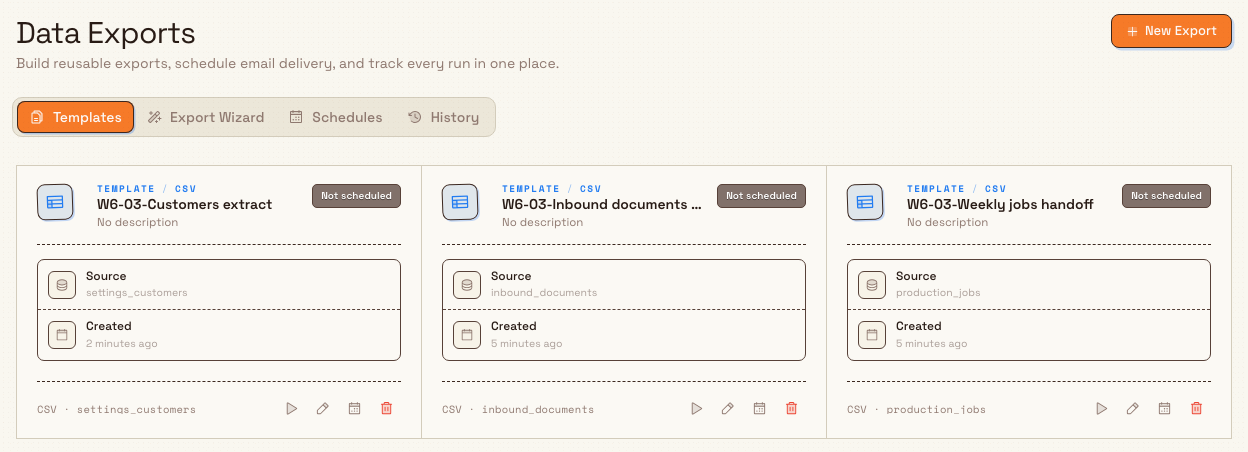
What the Data Exports page shows
The page title is Data Exports, with the short description Build reusable exports, schedule email delivery, and track every run in one place. Four tabs sit under the header:
| Tab | Purpose |
|---|---|
| Templates | Default tab. Saved export configurations as cards. Header action New export. |
| Export wizard | Five-step builder to configure (and optionally save) an export. |
| Schedules | Recurring email delivery for a template. Header action New Schedule. |
| History | Recent export runs for this site, with status and download. |
Templates tab
When no templates exist, you see No templates saved with the note to create your first template for recurring exports, and a Create Template action that opens the wizard.
When templates exist, each card shows:
- A CSV, XLSX, or JSON file illustration with the first selected column headers. The grey lines are part of the illustration; open the wizard to see actual sample rows.
- The template name, plus Never run or the relative time of its Last run.
- A Run export icon and More actions menu containing Run now, Edit, Schedule, and Delete.
Select the card or its name to open the saved configuration in the wizard. Schedule status is shown on the Schedules tab.
From More actions, Delete opens Delete Template and asks whether you are sure you want to delete that named template, with the warning that the action cannot be undone.
Export wizard tab
A numbered stepper walks through five steps:
- Select Table — choose the data source.
- Configure Fields — pick and order columns.
- Linked Fields — optional; map reference IDs to display columns.
- Filters — optional; limit which rows are included.
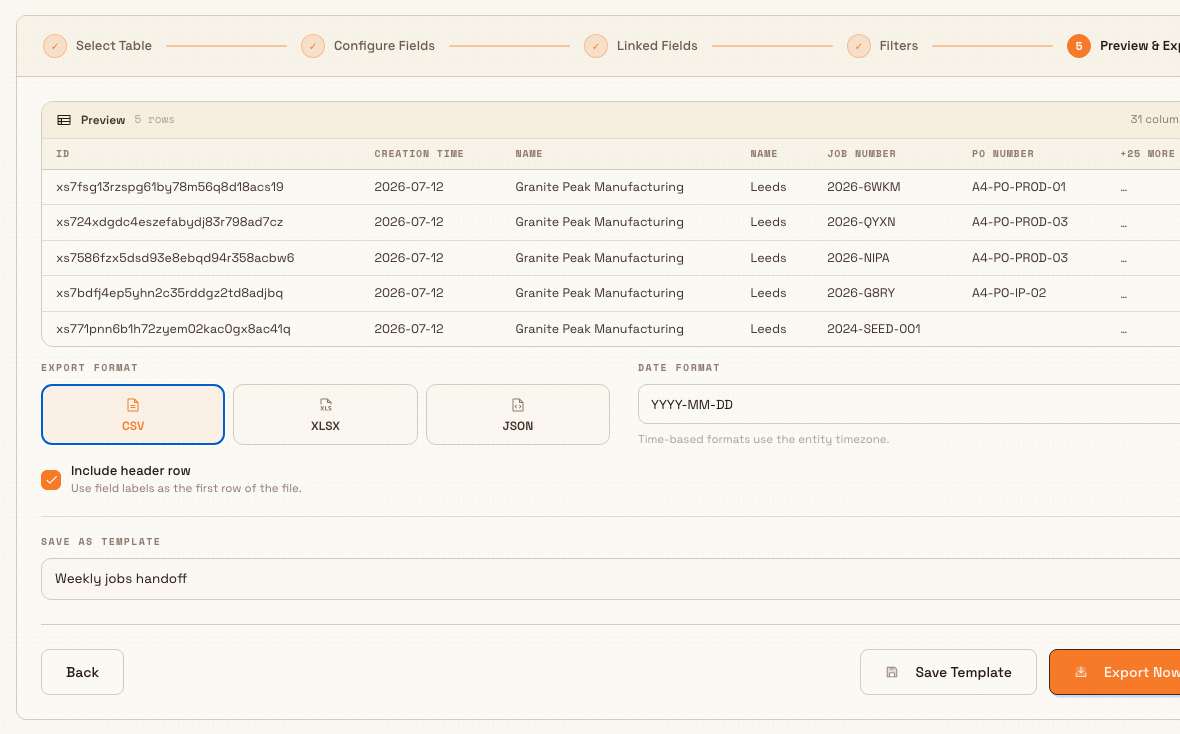
- Preview & Export — sample rows, format options, save template, and export.
Use Back and Continue between steps. On the last step, Export Now starts the job; Save Template appears when you have entered a template name (or Update Template when you opened a template for edit).
Schedules tab
A card titled Schedules explains that exports are sent automatically to selected recipients. Empty state: No schedules configured, with guidance to email exports daily, weekly, or monthly, and a Create schedule action.
Each row lists the template name and source table, recipient count (N selected users), cadence label (for example Daily at 09:00 (Europe/London)), Scheduled or Paused badge, next run, last result, an Active switch, and a menu for Edit schedule, Recent runs, and Delete schedule.
History tab
Export History lists recent jobs with columns Table, Format (CSV / Excel / JSON), Status (Pending, Processing, Completed, Failed, Cancelled), Created, and Action (Download, Cancel, or an error/cancelled note). Empty state: No export history.
Build an export in the wizard
- Select New export (or open the Export wizard tab). The wizard starts at Select Table.
- Search with Search tables… and pick one source. Tables are grouped by category labels such as Production, Settings, Inbound, KPIs, Projects, and Users. Examples of labels you may see: Production Jobs, Inbound Documents, KPI Actuals, Customers, Timer Records.
- Select Continue.
- On Configure Fields, search fields, use presets (Essentials, References, Everything), or Select all / Deselect all. Toggle rows to include columns and drag to reorder (reorder is disabled while a search filter is active). The bar shows how many fields are selected.
- Select Continue. On Linked Fields, if you included reference columns (IDs that point at other records), choose which related columns to surface instead of raw IDs. If the table has no references, or none of those fields are selected, the step explains you can continue.
- Select Continue. On Filters, choose Match All conditions or Any condition, optionally turn on Show advanced fields, then Add condition. Date fields support presets such as Today, This week, and This month. With no filters, the empty message states that every row on the record will be exported.
- Select Continue. On Preview & Export:
- Review a sample table (up to a few preview rows and columns).
- Choose Export format: CSV, XLSX, or JSON.
- Choose Date format (for example
YYYY-MM-DDorDD/MM/YYYY HH:mm). Calendar-only values keep their stored day in previews, downloads, and scheduled exports, while time-based formats use the site timezone. Weekly filters use the organization's shared week-start rule. - Set Number locale for the number formatting you need.
- For CSV, choose CSV delimiter, Decimal separator, and Text encoding.
- Set Filename template with the
name,table,date, ortimestampplaceholders. - For CSV and Excel, leave Include header row on if you want field labels as the first row. Include empty fields keeps columns whose values are empty; for CSV, Quote every CSV field wraps every value in quote marks.
- Optionally type a name under Save as template (placeholder example:
e.g. Finance handoff).
- Select Export Now to run, and/or Save Template if you entered a name.
A progress dialog opens (Exporting "…" or Exporting Data). Status moves Queued → Processing → Complete (or Failed / Cancelled). When complete, use Download. You can Run in Background, or Cancel Export (confirm with Yes, Cancel Export). Excel exports over 10,000 rows are delivered as CSV instead, with a note on the dialog.
If another export is already running for the site, starting a new one fails with An export is already in progress. Please wait for it to complete. Wait for it to finish, cancel it from History or the progress dialog, then try again.
Export right-first-time data for cycles
Choose Cycle Runs (Right First Time) to see which process cycle runs needed a re-shoot. Each row is one recorded cycle run on one job step.
- Right First Time is false when the run on that job was picked in a Mark for rework or Rework press. A mark that was deleted does not count.
- Responsible Person is the operator who recorded the cycle run. It is only filled when a re-shoot was needed.
- Quality Reasons, Root Causes, Quality Comments, and Quality Issue Numbers come from the defect raised by the Mark for rework press. When Quality has changed the issue's category or root cause since, the export shows the current values. A run reworked more than once lists every reason, oldest first.
- Rework Rounds, Rework Status, Marked for Rework By, and Reworked By show how the re-shoot went. Good Qty and Inspection Qty are what the run recorded on that job.
To list only failures, add a filter on Right First Time equals false. Quality Item Batches also includes Cycle, Cycle Operator (Responsible), Cycle Rework Status, Quality Issue Number, and Quality Issue Status for defects recorded on a cycle run.
Run, edit, and schedule a template
Run
On a template card, select Run export, or open More actions and select Run now. Bulk creates a job from the saved configuration and opens the same progress dialog. When status is Complete, download the file. The run also appears under History.
Edit
Select the card or its name. You can also open More actions and choose Edit. Bulk loads the template into the wizard (on Preview & Export) so you can change fields, filters, format, or the template name, then Update Template or Export Now.
Schedule email delivery
Each template can have one schedule. Selecting More actions, then Schedule, on a card (or New Schedule on the Schedules tab) opens Schedule Export with description Runs this template automatically and emails selected recipients.
- Choose the Template (read-only when editing an existing schedule).
- Set Frequency: Daily, Weekly, or Monthly.
- Set Run time (24-hour
HH:mm). For weekly, choose Day of week; for monthly, Day of month (1-28). - Select at least one Recipients user. The summary shows the site Timezone (from the entity) and the selected user count.
- Select Create schedule or Save schedule.
Toasts report Schedule created, Schedule updated, Schedule resumed, Schedule paused, or Schedule deleted. Toggle Active to pause or resume without deleting. Recent runs opens a side panel of scheduled executions. Deleting a schedule confirms that future runs will stop.
Example: weekly production jobs extract at Wayne Enterprises
Bruce Wayne at Wayne Enterprises needs a weekly list of jobs from Gotham Applied Sciences for finance.
He opens Settings → Data → Exports, selects New export, and chooses Production Jobs. On Configure Fields he uses Essentials, then keeps job number, status, customer, and key dates. On Linked Fields he resolves customer and similar references to names instead of IDs. On Filters he matches All conditions and adds a date filter for the past week. On Preview & Export he picks CSV, date format YYYY-MM-DD, names the template Weekly jobs handoff, selects Save Template, then Export Now once to verify the download.
He returns to Templates, opens More actions, selects Schedule on that card, sets Weekly on Monday at 07:00, adds the finance lead as recipient, and creates the schedule. Each Monday the same extract is generated and emailed; he can check History or Recent runs if a delivery looks wrong.
Expected result
- A successful run ends with status Complete (or Completed in History), a downloadable file in the chosen format (or CSV when an Excel request exceeds the row limit), and a History row for the site.
- A saved template appears on the Templates tab and can be re-run without rebuilding the wizard.
- An active schedule shows Scheduled, a next-run time in the entity timezone, and sends to the selected users on the configured cadence.
- Only one export job runs at a time per site; completed download files remain available for a limited retention period (currently 45 days), while job history remains listed afterward without a download once the file has expired.
Feature state and limits
Configuring exports is a generally available feature. Keep these limits in mind:
- Source tables are a fixed registry (production, inbound, KPI, settings, projects, users, and related keys). You cannot invent a new table from this page.
- One active export at a time per site. Start another only after the current job finishes or is cancelled.
- Excel (XLSX) is capped for large results: more than 10,000 rows is delivered as CSV.
- Download files expire after 45 days; re-run the template if you still need the data.
- Schedules: one schedule per template, recipients are selected users only (not free-form email lists), monthly days are 1–28, and timing uses the entity timezone.
- On this settings wizard, template save does not show a private/team visibility picker; new templates default to team (shared for the current site). Other product surfaces may offer me / team scope when exporting from a single record.
- Some tables apply default filters in the registry (for example completed timers or closed OEE records only). Preview and export respect those rules plus your own filters.
Troubleshooting
- "An export is already in progress. Please wait for it to complete." — another job is pending or processing for this site. Wait, or cancel it from the progress dialog or History, then run again.
- "No valid fields selected for export" / "No valid fields selected for template" — every included column was invalid for the table. Reopen the wizard, select at least one valid field, then export or save.
- Preview shows "No data matches your filters" — loosen or clear filters; confirm you are on the correct site for entity-scoped data.
- Download is missing on a Completed row — the file may have passed the retention window. Run the template again.
- Excel became CSV — the result set exceeded 10,000 rows; use the CSV download or narrow filters.
- Schedule form requires a recipient — select at least one user; empty recipient lists are blocked with Please select at least one recipient.
- Template or Run actions missing — you may have view-only access, or lack
exports.run/ template permissions. Ask an admin for Entity admin or the specific export permissions.
Related
- Configure reports — saved analytical reports in Settings → Data.
- Run data imports — bring data into Bulk from files.
- Manage PDF templates — printable layouts; large bulk PDF/ZIP downloads (up to 1,000 records) assemble in the background separately from Settings → Data → Exports.
- Roles and permissions — grant
exports.view,exports.run, and export template permissions. - Manage entities — sites that scope many export tables, schedules, and history.
Configure KPI categories
Create and manage the named groups, such as Safety, Quality, and Delivery, that organise KPIs across your organisation, with colour and description.
Configure reports
Build multi-page PDF reports from widgets, publish them, generate one-off downloads, and schedule email delivery for each site.