Understand integration availability
Read the Available, Beta, and roadmap status labels on the Integrations catalog so you know which connectors you can open today and which are still planned.
The Integrations catalog is Bulk's map of systems you can connect — ERP, identity, messaging, data tools, and AI agents. Each connector card carries a status label so you can tell at a glance whether you can configure it now, whether it is in a limited beta, or whether it is still planned. This guide explains those labels and lists which connectors fall into each status today.
Use this page when you are deciding how to connect an external system, checking whether a connector is ready for Granite Peak, or understanding why a card has no button yet. It does not walk through configuration of a specific connector — those steps live in the guides linked from each available card.
Open the Integrations catalog
- Sign in and open Settings from the left-hand navigation.
- Expand the Organization group.
- Select Integrations.
The page address ends in /settings/organization/integrations. The header title is Integrations, with the description "Connect ERP, identity, messaging, data, and AI tools to Bulk."
The catalog itself is a shared organization page. Opening a specific connector console may still require that connector's permissions (for example View API keys, View MCP settings, or View D365 connector). If you can see the catalog but cannot open a console, ask an administrator for the matching permission.
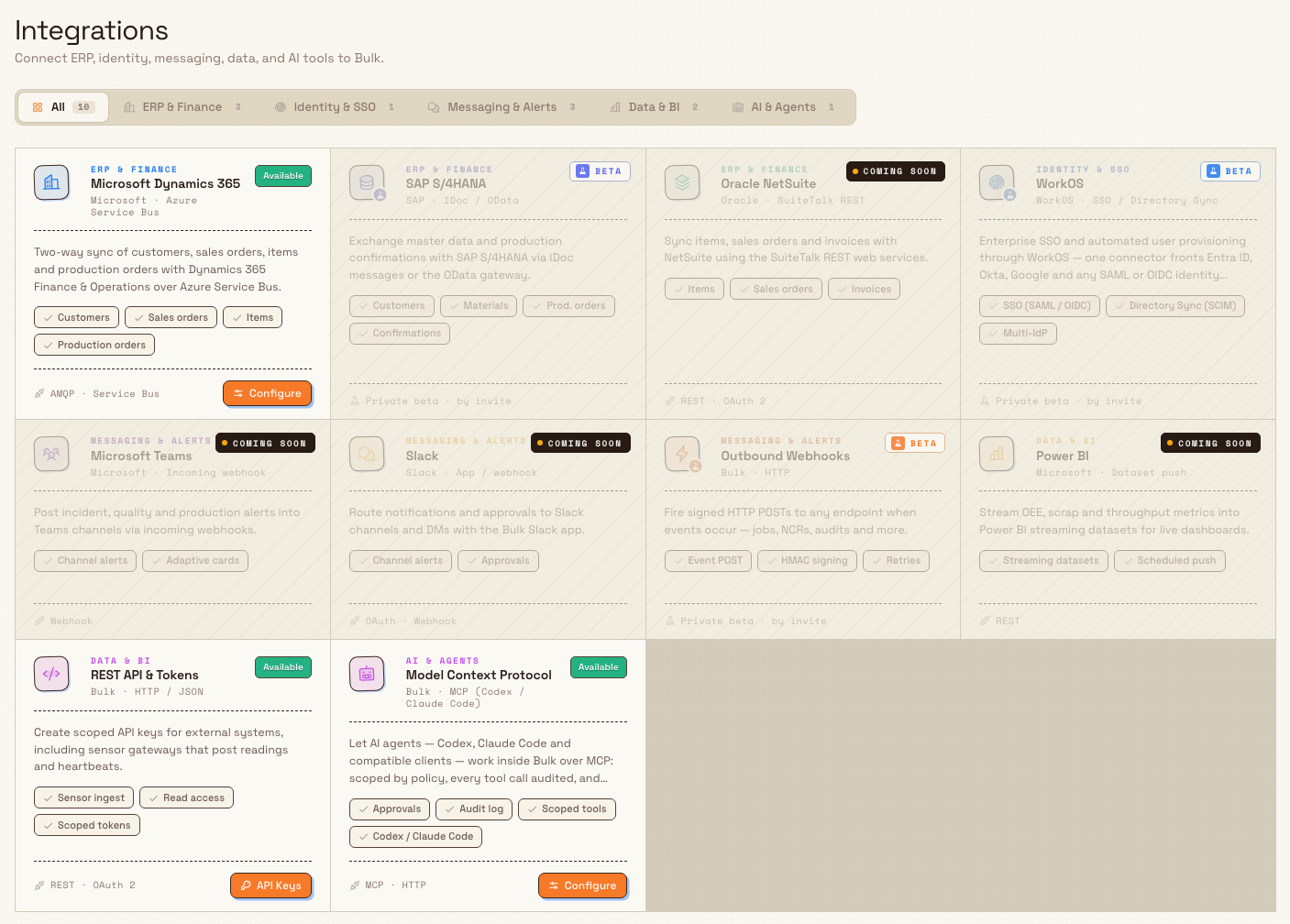
integrations.availability-status-01
What the status labels mean
Every card uses one of three statuses. The badge (or corner pin) always uses these exact labels:
| Status | What it means in the catalog | What you can do |
|---|---|---|
| Available | The connector is wired into Bulk. The card shows a solid green Available badge and a primary action when a destination exists. | Select the action (for example Configure or API Keys) to open that connector's console or settings page. |
| Beta | The connector is marked as private beta. The card shows a Beta pin (flask icon) and replaces the protocol line with Private beta · by invite. | There is no configure action on the card. You cannot open a console from the catalog until Bulk wires that connector and invites your organization. |
| Coming soon | The connector is on the product roadmap. The card shows a Coming soon pin and has no action button. | Browse the description and capability chips for planning only; you cannot configure it from Bulk yet. |
Status describes product availability of the connector in Bulk, not whether your organization has finished connecting an external system. An Available card means Bulk has a place for you to configure that integration; it does not mean the link is already live for your tenant.
Connectors you can open today
These catalog entries are Available and include a primary action that navigates to a real page:
- Microsoft Dynamics 365 (ERP & Finance) — Configure opens
/settings/organization/integrations/d365. Two-way sync of customers, sales orders, items, and production orders with Dynamics 365 Finance & Operations over Azure Service Bus. Capability chips: Customers, Sales orders, Items, Production orders. - REST API & Tokens (Data & BI) — API Keys opens
/settings/organization/integrations/api-keys. Create scoped API keys for external systems, including sensor gateways that post readings and heartbeats. Capability chips: Sensor ingest, Read access, Scoped tokens. - Model Context Protocol (AI & Agents) — Configure opens
/settings/organization/integrations/mcp. Let AI agents such as Codex and Claude Code work inside Bulk over MCP with policy, audit, and approvals. Capability chips: Approvals, Audit log, Scoped tools, Codex / Claude Code.
Step-by-step setup for each of these is covered in the related guides (see Related guidance). Opening Dynamics 365, API keys, or MCP may require the corresponding permissions even though the catalog page itself is listed under Organization for everyone who can reach Settings.
Beta and roadmap connectors
These cards appear so you can see what Bulk is preparing. None of them have a primary action on the catalog card.
Beta (footer reads Private beta · by invite):
- SAP S/4HANA (ERP & Finance) — master data and production confirmations via IDoc or OData.
- WorkOS (Identity & SSO) — enterprise SSO and directory sync (SAML / OIDC / SCIM) through WorkOS.
- Outbound Webhooks (Messaging & Alerts) — signed HTTP POSTs when events occur (jobs, NCRs, audits, and more).
Coming soon:
- Oracle NetSuite (ERP & Finance) — items, sales orders, and invoices via SuiteTalk REST.
- Microsoft Teams (Messaging & Alerts) — channel alerts via incoming webhooks.
- Slack (Messaging & Alerts) — notifications and approvals to Slack.
- Power BI (Data & BI) — OEE, scrap, and throughput into streaming datasets.
If a card you need is Beta or Coming soon, treat it as not ready for production use from this catalog. Contact Bulk support or your account team if your organization has been invited to a private beta; do not expect a Configure button until the status moves to Available.
Browse by category
Above the card grid, a segmented control filters the catalog. Counts next to each label show how many connectors sit in that group:
- All — every connector in the catalog.
- ERP & Finance — Dynamics 365, SAP S/4HANA, Oracle NetSuite.
- Identity & SSO — WorkOS.
- Messaging & Alerts — Microsoft Teams, Slack, Outbound Webhooks.
- Data & BI — Power BI, REST API & Tokens.
- AI & Agents — Model Context Protocol.
Selecting a category only changes which cards are shown; it does not change status labels or unlock a beta connector.
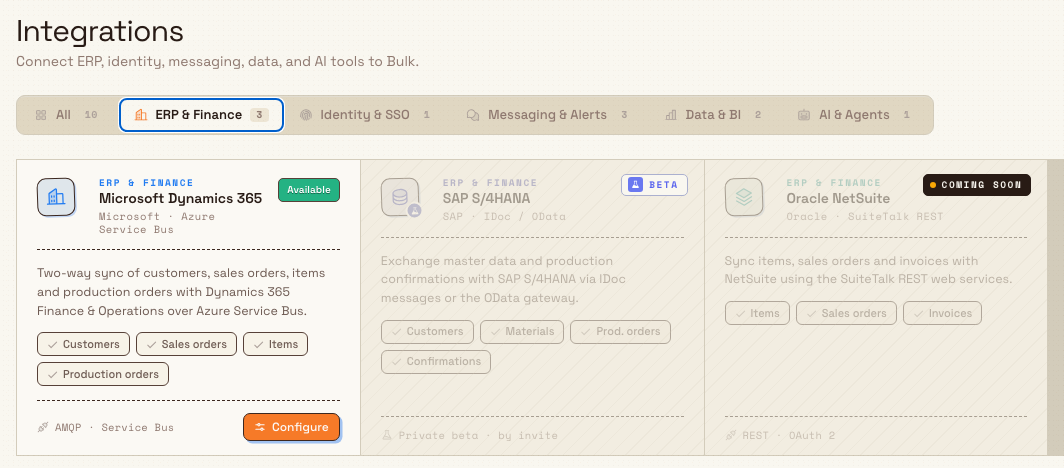
integrations.availability-status-02
Example: checking availability at Granite Peak
Dana Winters is preparing integrations for the Leeds Fabrication Plant at Granite Peak Manufacturing. She opens Settings → Organization → Integrations and leaves the filter on All:
- She confirms REST API & Tokens shows Available and selects API Keys so the sensor gateway project can get a scoped key.
- She confirms Model Context Protocol is Available and notes that her administrators will need View MCP settings (
mcp.view) before they can open Configure. - She sees Microsoft Dynamics 365 as Available for the finance team's ERP work and plans configuration separately.
- She records that SAP S/4HANA and WorkOS are Beta (private beta by invite) and that Teams, Slack, and Power BI are Coming soon, so Leeds will not depend on those cards for go-live.
That scan tells her what she can set up in Bulk today without opening every console first.
Feature state and limitations
The Integrations catalog is generally available. Keep these points in mind:
- Status is catalog metadata, not live connection health. Bulk does not show "connected" versus "disconnected" on these cards. Available means you can open configuration; it does not prove an external system is already linked.
- Beta and Coming soon cards have no action button. Even if related permissions or backend features exist for a planned area, the catalog does not open a console for those entries until they are marked Available with a route.
- Private beta is invite-only. Beta cards display Private beta · by invite. Do not assume every tenant can enable SAP, WorkOS, or Outbound Webhooks from the UI.
- Child configuration guides may still be expanding. Dynamics 365 setup is a deeper surface; treat its detailed behavior as covered in Configure Microsoft Dynamics 365 rather than in this status overview.
- The catalog list is product-defined. Names, groups, status labels, capability chips, and which cards have actions are defined in the product catalog. When Bulk ships a new connector or promotes a beta to available, the card updates here.
Troubleshooting
- You cannot find Integrations. Open Settings, expand Organization, and select Integrations. The path ends in
/settings/organization/integrations. It is not under Entity or Master Data. - A card has no button. Check the status. Beta and Coming soon cards intentionally have no primary action. Only Available cards with a wired destination show Configure, API Keys, or similar.
- You open an Available card and are blocked. The catalog does not gate on connector permissions, but the destination page does. API keys need
api_keys.view(and create/delete to manage keys); MCP needsmcp.viewto open the console (plus manage/use/approve permissions for deeper actions); Dynamics 365 usesd365.view/d365.managefor connector work. Ask an administrator (for example Super user or a role that includes those permissions) to grant access. - You expected a connector that is not listed. The catalog only shows the curated product list. Missing vendors are not configured through this page until Bulk adds a card.
- A beta card looks ready but cannot be configured. Footer text Private beta · by invite means the UI is presentational only. Contact Bulk if your organization was promised early access; the card will gain an action when status becomes Available.
Related guidance
- Integrations — overview of connecting external systems to Bulk.
- REST API access — create and manage scoped API keys.
- Model Context Protocol connections — allow AI clients to work inside Bulk under policy.
- Manage MCP policy and connections — control clients, tools, and approvals.
- Configure Microsoft Dynamics 365 — set up the Dynamics 365 Service Bus connector.
- Manage roles and permissions — grant
api_keys.*,mcp.*, andd365.*as needed.
Integrations
Open the Integrations catalog under Settings to see which ERP, identity, messaging, data, and AI connectors Bulk can use — which are ready to configure, which are beta, and which are coming soon.
REST API access
Use entity-scoped API keys so external systems can securely read Bulk data and post sensor gateway traffic over the client REST API.