Manage MCP policy and connections
Enable MCP for your organization, choose which agent clients and Bulk domains are allowed, require approval for guarded actions, and issue or revoke personal client connections.
Model Context Protocol (MCP) lets AI agents such as Codex, Claude Code, ChatGPT, and other compatible clients work inside Bulk under organization policy. Every tool call runs as the signed-in person (or their personal key), is audited, and can wait for a human when the policy says a change is guarded.
Use this guide when you are turning MCP on for the organization, tightening who may connect and which product areas agents may touch, reviewing pending guarded actions, or creating and revoking personal connection keys. For the catalog entry and a high-level picture of agents in Bulk, start from Model Context Protocol connections.
Before you start
- Open Settings, expand Organization, and select Integrations. The page address ends in
/settings/organization/integrations. - On the Model Context Protocol card (group AI & Agents, status Available), select Configure.
- You land on the MCP console at
/settings/organization/integrations/mcp. A back control labeled Integrations returns you to the catalog.
The console route requires View MCP settings (mcp.view). Beyond that, different tabs need different permissions:
| Permission | Label | What it unlocks |
|---|---|---|
mcp.view | View MCP settings | Open the console; see policy, connections, logs, and approval queues |
mcp.manage | Manage MCP settings | Change policy (enable MCP, clients, domains, approval switches) |
mcp.use | Use MCP clients | Create and revoke your personal MCP connection keys; load setup endpoint |
mcp.approve_actions | Approve MCP actions | Approve or reject guarded action requests |
These permissions are for the organization. Built-in Super user and Entity admin roles include all four. Built-in Manager includes view, use, and approve, but not mcp.manage — Managers can connect and approve actions, yet the policy form stays read-only. If the MCP route is blocked or Save policy is disabled, ask an administrator to adjust your role under Roles and permissions.
Until an administrator saves a policy for the tenant, Bulk treats MCP as disabled, with Codex and Claude Code pre-selected as clients, every product domain allowed in the default draft, and both production and destructive approval switches on.
What the MCP console shows
The header kicker is AI & Agents, the title is Model Context Protocol, and the subtitle reads Connect AI agents — ChatGPT, Codex, Claude Code — to Bulk over MCP.
Five section tabs sit under the header (the active tab is also reflected in the URL as ?tab=):
| Tab | Purpose |
|---|---|
| Overview | Whether MCP is enabled, headline counts (active keys, pending approvals, recent errors, domains), shortcuts into Permissions / Approvals / Connections, and a short recent tool-call feed |
| Approvals | Pending guarded proposals and a History of decisions |
| Logs | Audit trail of MCP tool calls, with filters and a detail drawer |
| Permissions | Organization policy editor and the read-only tool catalog |
| Connections | Hosted endpoint, ChatGPT OAuth server URL, personal key creation, and active connections |
The header menu (More actions) offers Copy hosted endpoint and a jump to Permissions & policy. Tabs stay mounted while you switch sections, so an unsaved policy edit or a just-minted key is not lost when you leave and return within the same session.
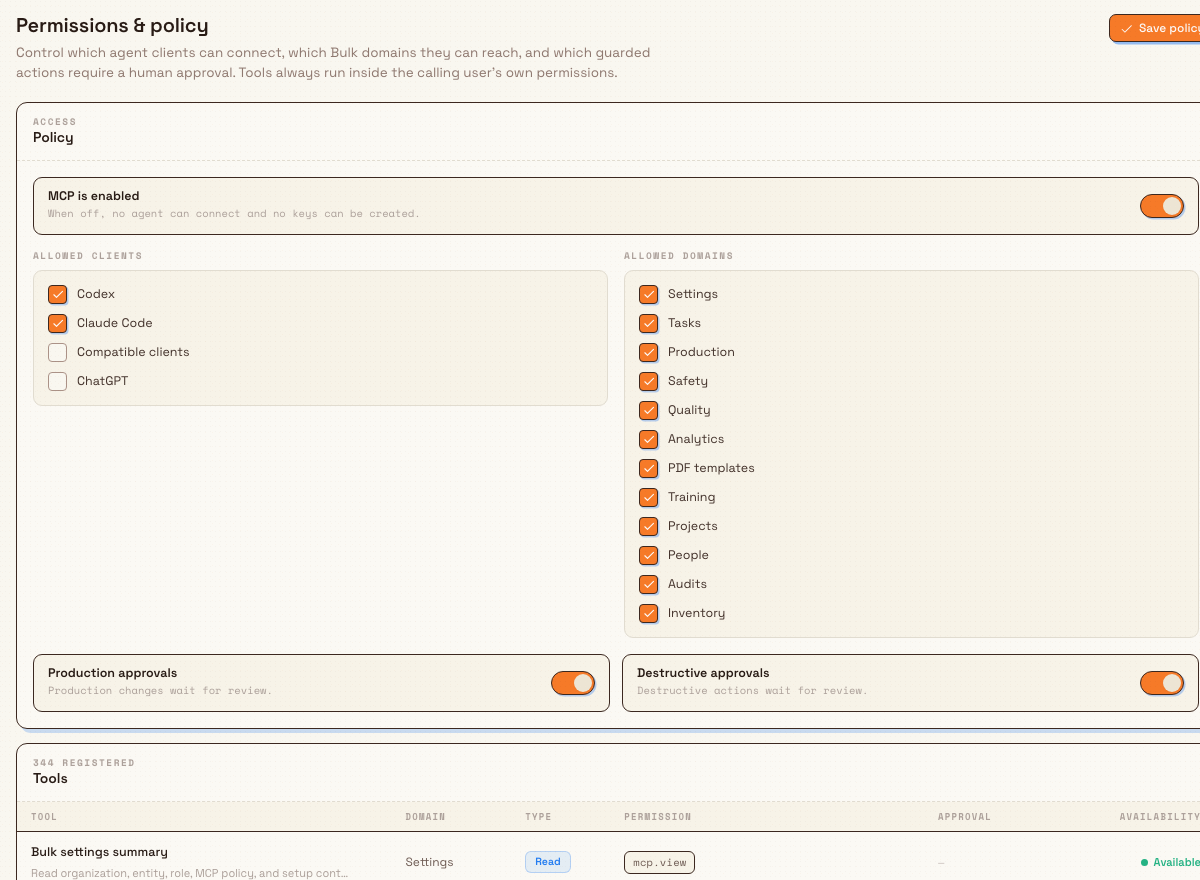
integrations.mcp.manage-connections-01
Set organization policy
Open the Permissions tab. The section title is Permissions & policy, with description: tools always run inside the calling user's own permissions, and you control which clients connect, which Bulk domains they may reach, and which guarded actions need a human.
If you lack mcp.manage, a banner states that you need mcp.manage to change the policy and that the controls below are read-only. The Save policy button stays disabled.
Policy panel
Under Policy (kicker Access):
- Turn Enable MCP on or off. The label reads MCP is enabled or MCP is disabled. When off, the helper text explains that no agent can connect and no keys can be created.
- Under Allowed clients, tick the clients this organization accepts:
- Codex
- Claude Code
- Compatible clients
- ChatGPT
- Under Allowed domains, tick the product areas agents may call tools against: Settings, Tasks, Production, Safety, Quality, Analytics, PDF templates, Training, Projects, People, Audits, and Inventory.
- Set Production approvals — when on, production write changes wait for review.
- Set Destructive approvals — when on, destructive actions wait for review.
Select Save policy. A success toast reads MCP policy saved.
Tool catalog
Below the policy form, the Tools panel lists registered MCP tools (kicker shows how many are registered). Columns:
- Tool — title and description
- Domain — product area
- Type — Read, Write, Proposal, or Approval
- Permission — the Bulk permission the tool needs
- Approval — Required when the tool is approval-gated, otherwise a dash
- Availability — Available for you under current policy and your own permissions, or an unavailable reason such as MCP is disabled, a disabled domain, or a missing permission
The catalog is read-only here. Use it to see which tools agents will actually receive for the current policy and signed-in user.
Agents never outrun the user
MCP keys and OAuth sessions only combine policy-allowed domains with permissions the person already has. Enabling a domain does not grant everyone production or safety rights — the agent still fails tools the user cannot perform in Bulk themselves.
Create and revoke connections
Open the Connections tab. The section explains that you point an agent at this tenant's MCP endpoint, and that each client gets its own bearer key — shown once — scoped to your own permissions.
Hosted endpoint
The Connect a client panel shows Hosted endpoint with a copy control. Production environments return an absolute public MCP URL; development may show a path such as /mcp resolved against the app origin. You can also copy the endpoint from the header More actions menu (Copy hosted endpoint → toast Endpoint copied).
If MCP is still disabled, a warning banner reads: MCP is disabled — enable it under Permissions before creating keys.
ChatGPT (OAuth)
Under ChatGPT OAuth:
- When ChatGPT is allowed in policy, the banner says to use the server URL in ChatGPT; Bulk will open the login screen and connect with OAuth.
- When ChatGPT is not allowed, the banner says to allow ChatGPT under Permissions before creating the connector in ChatGPT.
- The copyable server URL is the hosted endpoint with
?client=chatgptappended. - If a ChatGPT OAuth connection already exists, the UI shows Connected as OAuth and Last used time.
ChatGPT does not use a mintable MCP API key. Selecting a ChatGPT key path surfaces the message that ChatGPT connects with OAuth, not an MCP API key.
Create a personal key (Codex, Claude Code, compatible)
Under Create a key, only clients allowed by the current policy appear as buttons:
- Codex key
- Claude Code key
- Compatible client key
Buttons require mcp.use and an enabled policy. If no clients are allowed, the UI shows No clients are allowed by the current policy.
- Select the client button for the agent you use.
- On success, a toast reads MCP key created, and a success panel shows New … key with the note Store it now — Bulk will not show it again.
- Use Reveal / Hide and Copy key to capture the secret.
- Use the ready-to-paste command block for that client (Codex uses
BULK_MCP_API_KEYandcodex mcp add; Claude Code usesclaude mcp add --transport httpwith a Bearer header; compatible clients show endpoint andAuthorization: Bearerheader lines). Reference command blocks without a live secret use a<paste-key>placeholder.
Connection names are stored as Codex MCP, Claude Code MCP, or Compatible client MCP by default.
Active connections
The Active connections panel (kicker shows the active count) lists:
| Column | Content |
|---|---|
| Name | Connection name |
| Client | Codex, Claude Code, Compatible client, or ChatGPT |
| Auth | Key prefix with an ellipsis, or OAuth for ChatGPT |
| Last used | Last use time, or Never |
| Revoke | Ends that connection |
Empty state: No active connections — create a key and add it to your agent client.
Revoke requires mcp.use. You can always revoke your own connections. Revoking another person's connection also needs mcp.manage; otherwise Bulk returns that you cannot revoke another user's MCP connection. On success, a toast reads Connection revoked. Revoking deactivates the connection and its API key (or ChatGPT OAuth grants when applicable).
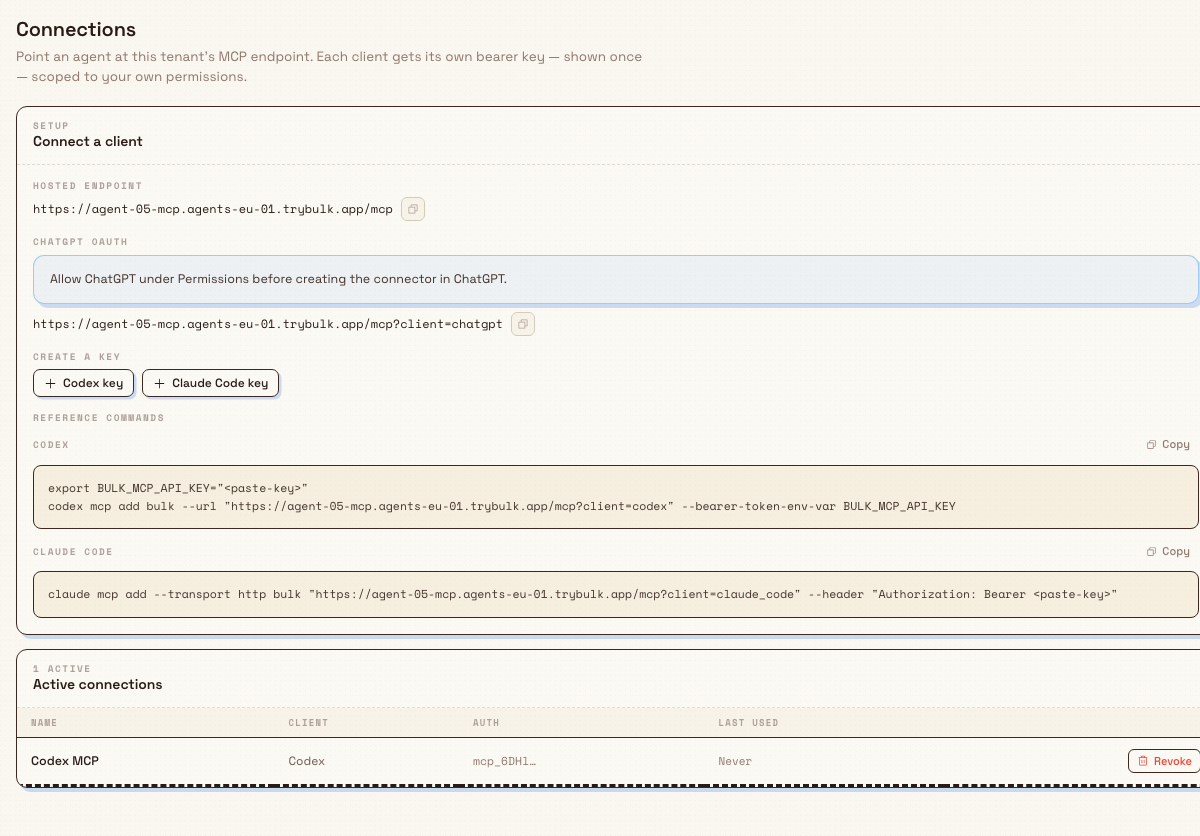
integrations.mcp.manage-connections-02
Review guarded actions
Open the Approvals tab when agents propose production, safety, quality, or other guarded writes. Description: guarded actions wait here until a reviewer approves or rejects them before anything is applied.
- Segment control: Pending (with count when non-zero) and History.
- Without
mcp.approve_actions, you can still read the queue, but a banner explains you need that permission to approve or reject, and the buttons stay disabled. - Empty pending: Nothing awaiting approval.
- Each pending row shows the summary, tool name, action type, domain, optional targets and preview chips, and created time, with Reject and Approve.
- Confirming opens Approve guarded action or Reject guarded action, with an optional Decision note (placeholder Optional note for the audit trail). Some production close requests show an extra warning that approval will complete production steps, jobs, and orders and may queue Dynamics 365 outbound updates.
- Success toasts: Request approved or Request rejected. History records outcome, result summary, errors, and any note.
Policy switches control when writes enter this queue: production-domain writes when Production approvals is on; other destructive or approval-flagged writes when Destructive approvals is on (and certain PDF template tools when either switch is on). Read tools never wait for approval.
Read logs and overview
- Overview is a dashboard: MCP enabled / MCP disabled, stats for active keys and pending approvals, manage cards into the other tabs, and up to six recent tool calls (or No MCP tool calls yet).
- Logs records every tool call with Search tool, target, domain and status filters (Any domain, Any status, Success, Errors). Click a row for the detail drawer. Empty state: No tool calls yet.
Use logs when a key seems to fail, when an agent reports permission errors, or when you need an audit trail of what an agent changed.
Example: Dana prepares agents for Leeds
At Granite Peak Manufacturing, Dana Winters wants floor supervisors to use Claude Code safely against Leeds Fabrication Plant data.
- She opens Settings → Organization → Integrations, selects Configure on Model Context Protocol, and opens Permissions.
- She turns MCP is enabled on, keeps Codex and Claude Code, leaves ChatGPT off for now, and allows Production, Quality, Tasks, and Analytics while clearing domains the agents should not touch.
- She leaves Production approvals and Destructive approvals on, then selects Save policy and sees MCP policy saved.
- On Connections, she copies the hosted endpoint, selects Claude Code key, stores the secret offline, and pastes the provided
claude mcp addcommand into her client. - When an agent later proposes closing a batch of production orders, she opens Approvals, reviews the summary and counts, adds a short decision note, and selects Approve — or Reject if the scope is wrong.
Expected result
After policy is saved with MCP enabled and the right clients and domains:
- Allowed agent clients can authenticate against the hosted endpoint (bearer key or ChatGPT OAuth).
- Tools outside allowed domains, or outside the user's permissions, stay unavailable or fail with a clear domain/permission message.
- Guarded writes appear under Approvals when the corresponding policy switches require review.
- Personal keys appear under Active connections until Revoke deactivates them.
- Tool activity accumulates under Logs and on the Overview recent feed.
Feature state and limits
Managing MCP policy and connections is generally available in the product (featureState: available). Keep these limits in mind:
- Policy and connection lists are organization-scoped, not per site; the agent's effective entity access still follows normal Bulk entity and permission rules for the user behind the key.
- Default (unsaved) policy keeps MCP disabled until someone with
mcp.managesaves an enabled policy. - Connection secrets are shown once at create time; afterward only a key prefix (or OAuth) is visible.
- Creating keys requires both an enabled policy and a client that is allowed; ChatGPT is OAuth-only.
searchandfetchtools can span domains and filter per domain at runtime; most other tools are blocked entirely if their domain is off.- Approval and audit lists on the console load a limited recent page (tens to about a hundred rows), not an infinite archive export from this UI.
Troubleshooting
- Cannot open the MCP console. You need
mcp.view. Ask for View MCP settings, or Super user / Entity admin. - Save policy is disabled / read-only banner. You need
mcp.manage. Managers can view and use MCP but cannot change organization policy. - MCP is disabled — enable it under Permissions before creating keys. Turn MCP on under Permissions and save, then return to Connections.
- "MCP is disabled for this organization" when creating a key. Same root cause: policy
enabledis false. - "This MCP client is not allowed." Tick that client under Allowed clients and save policy.
- "ChatGPT connects with OAuth, not an MCP API key." Use the ChatGPT server URL and OAuth flow; do not expect a mintable key for ChatGPT.
- No clients are allowed by the current policy. No create-key buttons will work until at least one of Codex, Claude Code, or Compatible clients is allowed.
- Cannot revoke another user's MCP connection. Only the connection owner (with
mcp.use) or someone withmcp.managecan revoke others' connections. - Approve / Reject disabled. You need
mcp.approve_actions. - Tool shows Unavailable / Missing … permission. Grant the user the listed Bulk permission, or accept that this agent session cannot call that tool.
- Tool shows a domain is disabled. Re-enable that domain in policy if agents should use it.
- "Only pending requests can be decided" / expired request. Refresh Approvals; decided or expired items cannot be decided again.
Related
- Model Context Protocol connections — overview of MCP in Bulk
- Integrations — catalog of connectors including MCP
- Understand integration availability — how catalog status labels work for each connector
- REST API access — separate client REST API keys (not MCP)
- Roles and permissions — grant
mcp.*permissions
Model Context Protocol connections
Connect AI agents such as ChatGPT, Codex, and Claude Code to Bulk over MCP — scoped by organization policy, audited on every tool call, and gated by approval for guarded production and destructive actions.
Configure Microsoft Dynamics 365
Connect Bulk to Dynamics 365 Finance & Operations over Azure Service Bus: add a namespace connection, bind channels, define payloads and field maps, test delivery, and tune runtime settings.