Verification required
Configure Microsoft Dynamics 365
Connect Bulk to Dynamics 365 Finance & Operations over Azure Service Bus: add a namespace connection, bind channels, define payloads and field maps, test delivery, and tune runtime settings.
Bulk’s Microsoft Dynamics 365 connector exchanges messages with Dynamics 365 Finance & Operations over Azure Service Bus. Bulk does not open a direct OData or UI session to D365. Instead, your Azure namespace carries messages on queues or topics. For inbound traffic, a Receive payload maps exact D365 columns to neutral, typed Workflow fields. The assigned Workflow then decides which standard Bulk Actions to run. D365 configuration itself does not create or update Bulk business records.
Use this guide when an administrator — for example Dana Winters at Granite Peak Manufacturing’s Leeds Fabrication Plant — needs to wire the first Service Bus connection, bind inbound and outbound channels, author field maps, prove connectivity with a probe, or pause processing for maintenance. Open the connector from Settings → Organization → Integrations, then the Dynamics 365 card on the Integrations catalog (filter with the category page tabs if the list is long).
Verification-required
This connector is marked verification-required in the documentation inventory. The console, credentials storage, probes, and message pipelines exist in product code, but you must validate end-to-end behaviour in your Azure namespace and Dynamics 365 landscape before relying on it in production. Prefer a Sandbox connection and controlled test traffic until your maps and channels are proven.
Before you start
Open the connector
- Switch to the site (entity) that should own the connector. Connections, channels, payloads, and logs are entity-scoped (“for the selected site”).
- Go to Settings → Organization → Integrations.
- On the Microsoft Dynamics 365 card (ERP & Finance · Available), select Configure.
The console address ends in /settings/organization/integrations/d365. The header reads Microsoft Dynamics 365, with the kicker ERP & Finance and the subtitle Service Bus connector for message-based integration. Use the Integrations back control to return to the catalog.
Permissions
| Permission | Label | What it unlocks |
|---|---|---|
d365.view | View D365 connector | See connections, channels, payloads, metrics, and logs for the selected site |
d365.manage | Manage D365 connector | Create, edit, and remove connections and channels; create and map payloads; run Service Bus tests; save runtime settings; pause or resume processing |
Built-in Super user (*) and Entity admin include both. Other seeded roles (for example Manager) do not. A view-only user can inspect connector data, open message/error details and payload maps, and copy or download payload JSON. Create, import, edit, remove, enable/disable, mapping saves, runtime changes, and probes require d365.manage; their controls are hidden or disabled where the console provides a view-only state, and the server rejects manage operations without that permission. Without d365.view, the console’s data queries are denied.
The Integrations catalog itself is not gated on d365.*, but working inside the Dynamics 365 console is.
Azure and Dynamics prerequisites
Prepare these outside Bulk before you configure the console:
- An Azure Service Bus namespace (host such as
granite-peak-esb.servicebus.windows.net). - At least one queue or topic + subscription for inbound traffic (D365 → Bulk) and one for outbound (Bulk → D365), named to match your integration contract.
- Authentication either as a SAS shared-access connection string (
Endpoint=sb://…;SharedAccessKeyName=…;SharedAccessKey=…) or Microsoft Entra ID (managed identity, or a service principal with tenant ID, client ID, and client secret). For managed identity, grant the connector’s identity the Azure Service Bus Data Owner role on the namespace (as shown in the Add connection dialog). - Agreement with your Dynamics / ESB team on message type identifiers (Subject / MessageType) so Bulk can route several payloads on one channel.
Console layout
Five section tabs stay mounted for the session:
| Tab | Purpose |
|---|---|
| Overview | Connector health, environment, inbound/outbound/dead-letter/payload stats, and recent messages |
| Payloads | Message types bound to channels; enabled state; field mapping; import/export JSON |
| Event channels | Service Bus connections and nested channels (queues/topics) |
| Logs | Filterable, paged Messages, Errors, and Activity (configuration audit) history |
| Settings | Per-connection runtime tuning, dead-letter handling, pause/resume |
A more-actions menu on the header lists Export configuration and Disconnect connector; those header entries are not wired as full export/disconnect flows. Remove a live connection from Event channels with Remove connection, and pause processing from Settings.
Read connector health
The top of Overview shows a Connector health band before the environment card and traffic totals:
| Status | Meaning and next step |
|---|---|
| Healthy | Active channels have traffic today. The summary includes channel count, today’s message count, and the last message. |
| Partial | Some deliveries failed recently. Select View logs to inspect failures and retries. |
| Error | The connector has an error. When dead-lettered messages exist, the summary shows their count; select View logs. |
| Paused | Connector traffic is paused. Resume it from Settings when maintenance is complete. |
| Disconnected | No active Service Bus connection exists. Select Event channels to configure one. |
| Idle | The connector is connected, but has no messages today. The summary shows channel count and the last message. |
Below the health band, the environment card shows Production or Sandbox, the last-message time, and totals for Inbound today, Outbound today, Dead-letter, and enabled/total Payloads. Recent messages shows up to five entries; select a row to open Logs. If none exist, it shows No messages yet. While the section loads, it shows Loading overview….
Recommended setup order
- Event channels — add a Service Bus connection, then channels under it.
- Test the connection (and each channel) so credentials and entity paths resolve.
- Payloads — create a payload per message type, bind it to a matching-direction channel, open MAP, save the field map, then enable the payload. For inbound traffic, also assign that payload to one published Workflow from Settings → Organization → Workflows.
- Settings — tune prefetch, concurrency, retries, and dead-letter behaviour if defaults are not enough.
- Logs — watch Messages / Errors / Activity while you send controlled test traffic from sandbox.
Add a Service Bus connection
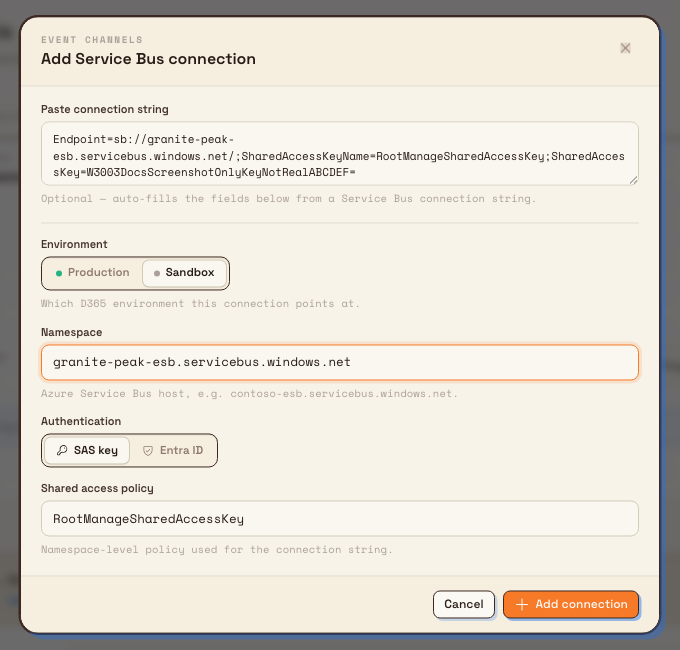
- Open Event channels. While connections load, the page shows Loading connections…. If none exist, it shows No connections yet; users with
d365.managealso see Add connection. - Select Add connection (requires
d365.manage). If none exist, the empty state also offers Add connection. - In Add Service Bus connection:
- Optionally Paste connection string — Bulk can fill namespace and auth hints from a standard Service Bus string.
- Choose Environment: Production or Sandbox.
- Enter Namespace (the Service Bus host, for example
granite-peak-esb.servicebus.windows.net). - Choose Authentication:
- SAS key — paste a full SAS connection string that includes
SharedAccessKey(required on create). Shared access policy is for display/fill; the secret lives only in the encrypted connection string. - Entra ID → Managed identity, or Service principal with Directory (tenant) ID, Client ID, and Client secret.
- SAS key — paste a full SAS connection string that includes
- Select Add connection. Success toast: Connection added.
Credentials are encrypted at rest and never returned to the browser. The card shows a masked connection string only. On edit, leave credential fields blank to keep the stored secret; paste a new string or secret to rotate.
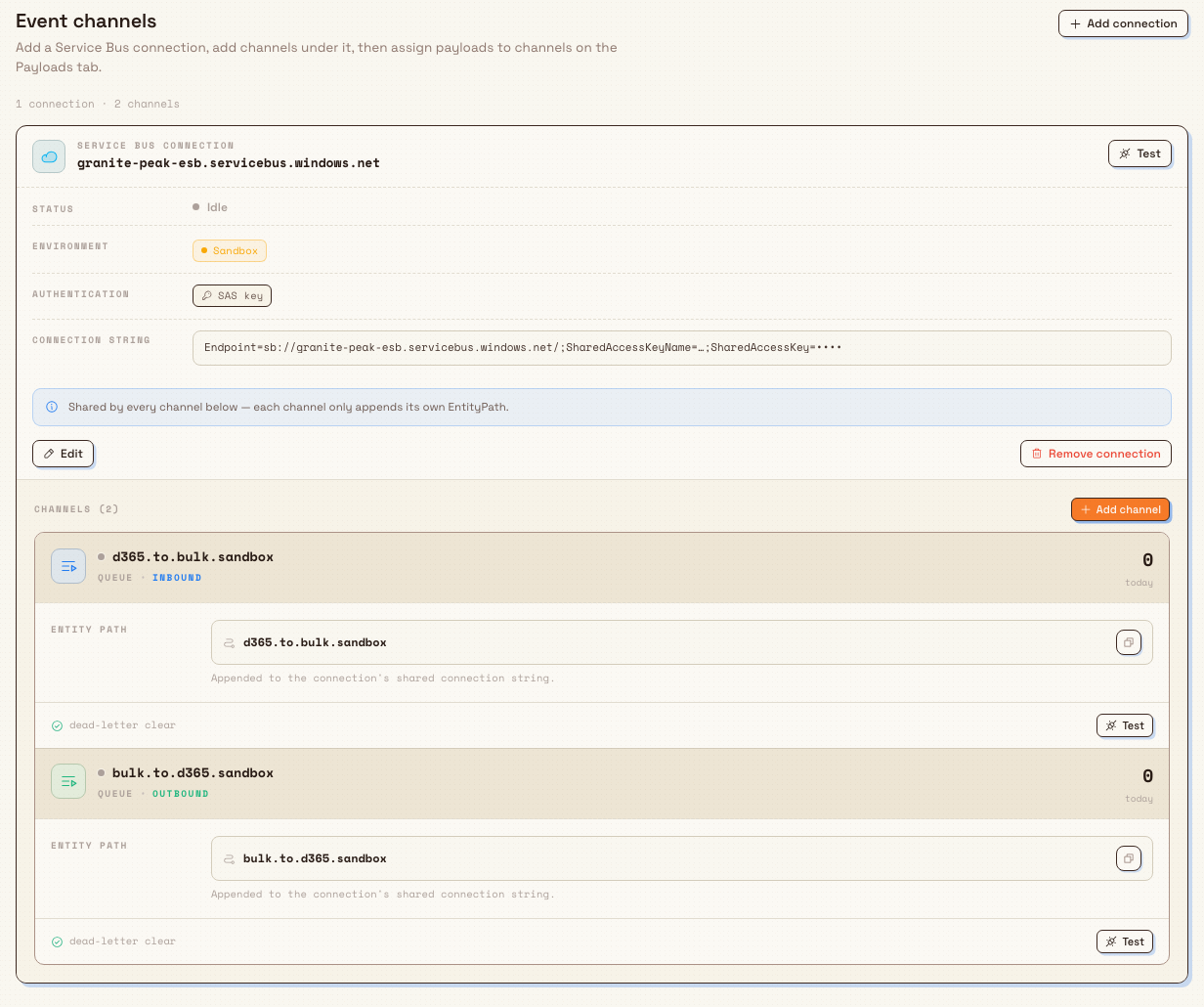
Each connection card shows Status (health), Environment (Sandbox or Production chip), Authentication (SAS key or Entra ID), the masked string, and actions Test, Edit, and Remove connection.
To remove a connection:
- Select Remove connection.
- Review the confirmation. It names the namespace and, when present, the number of channels that will also be removed: Remove namespace and its N channels? This cannot be undone.
- Select Cancel to keep everything, or select Remove connection again to confirm.
Only the confirmation removes the connection and deactivates its channels. The success toast is Connection removed.
Add channels under the connection
- On the connection card, select Add channel.
- In Add channel:
- Channel name — Service Bus queue or topic entity path (placeholders suggest names such as
d365.to.bulk.prod/bulk.to.d365.prod). - Direction — Inbound (Bulk listens) or Outbound (Bulk sends).
- Shape — Queue or Topic. Topics also require Subscription.
- Channel name — Service Bus queue or topic entity path (placeholders suggest names such as
- Select Add channel. Toast: Channel added.
Channels share the parent connection’s credentials and only append their own Entity path. Empty connection body text: No channels on this connection yet.
integrations.dynamics-365.configure-03
Test connectivity
On a connection or channel, select Test (d365.manage required). The Test connection / Test channel dialog runs a live probe against the d365-service and lists steps with success, failed, skipped, or running status, plus a console log and a summary.
- Use Re-run for a non-publishing probe again.
- On outbound targets, Send probe can publish a tagged probe message when test traffic is acceptable (skipped publish is explained in the dialog until you choose Send probe).
- If stored credentials cannot be decrypted, the dialog explains: re-edit the connection, re-save credentials, then test again.
integrations.dynamics-365.configure-02
Define payloads and field maps
Open Payloads. Description: custom message payloads bound to event channels — each carries one direction, Receive or Send. While payloads load, the page shows Loading payloads…. If no payload exists, it shows No payloads yet; users with d365.manage also see New payload and Import payload actions.
Create a payload
- Select New payload (or use the empty-state primary).
- In New payload:
- Message type — identifier the connector reads from each message (Subject / MessageType) so several payloads can share one channel (placeholder example style:
ContosoAeroMatCert). - Display label — friendly name in the list.
- Direction — Receive (D365 → Bulk) or Send (Bulk → D365); fixed at creation.
- Source record type — for Send payloads, choose Production job, Production order, Customer, or Invoice. This setting controls field and record compatibility only; it does not select or look up a record. The Workflow chooses the concrete compatible record when it runs.
- Receive on channel / Send on channel — only active channels of the matching direction appear. If none: No inbound/outbound channels — add one on Event channels.
- Message type — identifier the connector reads from each message (Subject / MessageType) so several payloads can share one channel (placeholder example style:
- Select Create payload. Toast: Payload created. The payload is created unmapped; open mapping before relying on live traffic.
Import payload pastes an exported payload JSON file and creates a payload bound to a compatible local channel (imported payloads start disabled until you review and enable them).
Map fields
The payload table has Payload, Direction, Source record, Channel, Fields, Last, and Today columns. Enabled state is shown inside Payload: a green checked icon labelled Enabled, or an empty circle labelled Disabled. Disabled rows are muted.
Select anywhere on a payload row, or select its coloured mapped/fields cell, to open the field-map drawer. For Receive, paste an example inbound JSON message, then map its exact source columns to neutral Workflow field names and types. For Send, search the selected record type's standard and custom fields and map them to exact D365 columns. Invoice payloads can also use invoice snapshots and line fields. Fixed text, fixed JSON, and transformations remain available. Saving returns Mapping saved.
Right-click a payload row to open its actions. Copy JSON and Download JSON are available to viewers. With d365.manage, the menu also includes Enable or Disable, depending on the current state, and Delete. Enable a payload only after its map is correct. A payload binds to one channel in a single direction.
Use Filter payloads to search message type, display label, channel, or source record type. If payloads exist but none match, the table shows No payloads match.
Inbound processing accepts and deduplicates the Service Bus message, selects exactly one enabled Receive payload and exactly one active Workflow assigned to it, validates the mapped fields, and starts a logged Workflow run. Zero or multiple payloads or Workflows are recorded as routing failures. Any business update must be an explicit Workflow Action and uses the same operation, validation, and permissions as the normal Bulk process. Outbound delivery starts only from an explicit d365.enqueue_outbound Action. That Action selects a compatible Bulk record, applies the pinned Send payload mapping, and queues one message. Preview uses the same record and mapping to show the exact JSON without queueing it.
Runtime settings
Open Settings. If no connection exists: Add a connection on the Event channels tab to configure runtime settings. When several exist, pick one in Connection to configure.
Panels:
- Runtime behaviour — Prefetch count, Max concurrent handlers, Retry policy (Exponential back-off, Fixed, 60s × 5, No retry). Save → Runtime settings saved. (Max batch size is shown with a Service Bus size hint; it is not persisted on the connection record today.)
- Dead-letter handling — Max delivery count, On processing failure (Abandon & retry to max count or Dead-letter immediately), plus a Dead-letter sub-queue summary with View into Logs.
- Connector state — Pause / Resume processing on all channels of this connection without unbinding them; Disconnect on this panel is disabled and points you to Remove connection on Event channels.
Logs
Logs has three sub-tabs. Each feed loads 25 rows at a time and is sorted newest first:
- Messages — inbound and outbound history with Time, Dir, Channel, Transport, Assignment, Workflow, Deliveries, and Size. Select a row to open its detail.
- Errors — failed or dead-lettered inbound messages with Time, Code, Entity, Message, and State. Select a row to open its detail.
- Activity — configuration audit with Time, Change, and By. Activity rows do not open a detail drawer.
Filter log feeds
The search field, labelled Search id, entity, channel, works on Messages, Errors, and Activity. On Messages, you can also:
- Select a status: All, Accepted, Delivered, Retried, Dead-letter, or Pending. All shows the unfiltered count for the current search and channel.
- Open Filters and choose a channel. If two connections use the same channel name, the choice also includes the connection name.
- Review active Search, Status, and Channel chips, remove them individually, or select Clear all.
Errors and Activity use search only. Changing the sub-tab, search, status, or channel returns the feed to page 1.
Move through pages and states
The pagination footer shows the visible range and filtered total, for example 1–25 of 128, plus the current page such as 1 / 6 and previous/next controls. The range becomes 0 of 0 when a framed Messages or Errors feed is empty.
While a feed loads, it shows Loading…. Empty, unfiltered feeds show No messages yet, No errors logged, or No activity yet. If filters return no rows, the result is No rows match the filter.
Overview Recent messages and dead-letter links open Logs. A message link from a Workflow run opens that exact message even when it is not on the current page.
Example: Leeds Fabrication Plant sandbox
Granite Peak Manufacturing already runs Dynamics 365 Finance & Operations for sales orders. Dana Winters prepares a Sandbox path before production.
- She switches to Leeds Fabrication Plant, opens Integrations, and selects Configure on Microsoft Dynamics 365.
- On Event channels, she adds a connection for
granite-peak-esb.servicebus.windows.netwith a SAS connection string from Azure, environment Sandbox. - She adds inbound queue
d365.to.bulk.sandboxand outbound queuebulk.to.d365.sandbox, then runs Test on the connection until the probe summary is healthy. - On Payloads, she creates message type
CustCustomerV3/ labelcustomers, direction Receive, on the inbound queue. She opens MAP, maps the exact D365 customer columns to neutral typed fields such ascustomer.codeandcustomer.name, saves, and enables the payload. - In Workflows, she creates one D365 inbound Workflow for that payload and adds the standard Bulk Actions that should use those fields. She previews and publishes it. The payload does not update customers by itself.
- She creates a Jobs Send payload on the outbound queue for production status updates, maps
job_numberandstatus, saves, and enables it. - After sandbox traffic looks clean in both D365 Logs and Workflow Runs, she repeats with a Production connection and production queue names, keeping sandbox maps as the proven template (export/copy JSON helps transfer maps carefully).
Expected result
- The site has at least one Service Bus connection with health visible on Event channels and Overview.
- Matching inbound and outbound channels exist for the queues/topics your ESB team provisioned.
- Payloads for each message type are mapped, enabled, and bound to the correct channel direction.
- Each inbound Receive payload has exactly one active, published Workflow assignment.
- Test probes succeed without decrypt or auth errors.
- Controlled messages appear under Logs → Messages, with the linked Workflow run and its step results available for success, failure, and retry.
- You can Pause processing for maintenance without deleting configuration.
Feature state and limits
Preserve this inventory state: verification-required. In practice:
- Validate every map and channel in Sandbox before Production.
- Config is per site (entity); switch site before configuring another plant.
- Secrets never leave the server in clear text after save; re-paste to rotate.
- Header Export configuration / Disconnect connector and Settings Disconnect are not full disconnect/export workflows — use Event channels Remove connection and Settings Pause.
- Max batch size on Settings is display/edit chrome that is not stored on the connection today.
- Logs search and pagination depend on the connector log search service. If a feed does not refresh, retry after that service is healthy.
- Payloads have no business-table driver and cannot directly update Bulk data. Send values are supplied explicitly by a Workflow.
- End-to-end Dynamics 365 Finance & Operations side configuration (business events, dual-write, ESB transforms) is outside Bulk’s UI and must be coordinated with your Microsoft stack.
Troubleshooting
- Add connection / Add channel / New payload missing or disabled — you lack
d365.manage. Ask for Super user or Entity admin (or a custom role with manage). - Lists empty or console cannot load data — confirm
d365.viewand that you are on the correct site. - "A full Service Bus SAS connection string is required" — SAS create/update needs a full string with Endpoint, SharedAccessKeyName, and SharedAccessKey.
- "Service Bus namespace is required" / "Unsupported D365 authentication method" — fix namespace or auth method before save.
- Entra tenant/client/secret required — service principal mode needs all three on create (or a stored secret on update).
- Probe could not run / credentials could not be decrypted — edit the connection, re-enter the connection string or client secret, save, test again.
- No inbound/outbound channels when creating a payload — add a channel of that direction on Event channels first.
- Message needs a payload or reports multiple payloads — enable exactly one matching Receive payload for the channel and message type.
- Message needs a Workflow, reports multiple Workflows, or the route is disabled — assign exactly one active, published Workflow to that payload.
- Mapped input is invalid — open MAP, correct the exact source column, target field type, or required value, then reprocess the message with the current payload and Workflow versions.
- A Workflow Action failed — fix the recorded permission or business-rule error, then retry from the Workflow incident. Retry starts a new run with the same pinned evidence.
- Dead-letter count rising — open Logs, inspect errors, adjust Max delivery count / On processing failure, and clear issues in the Azure dead-letter sub-queue with your ops process.
- Processing paused — on Settings, select Resume for that connection.
- No log rows match — remove the Search, Status, or Channel chips, or select Clear all. Filters and tab changes return you to page 1.
Date and time mappings
Map calendar-only business fields such as received_date, required_date, delivered_date, and invoiced_date as literal YYYY-MM-DD values so the date stays on the selected day in the owning plant. Map event date-and-time fields as exact instants. Weekly payload logic follows the organization's shared week-start rule.
Related
- Integrations — organization catalog of connectors.
- Integration availability status — which catalog connectors are Available, Beta, or not yet released.
- REST API access — separate API-key integrations path.
- Model Context Protocol connections — AI agent connector (not Service Bus).
- Manage roles and permissions — grant
d365.viewandd365.manage.
Manage MCP policy and connections
Enable MCP for your organization, choose which agent clients and Bulk domains are allowed, require approval for guarded actions, and issue or revoke personal client connections.
What's new
Browse published Bulk app releases and their user-facing notes — the same changelog the app shows after an update — and open any version for the full note list.