REST API access
Use entity-scoped API keys so external systems can securely read Bulk data and post sensor gateway traffic over the client REST API.
The Bulk client REST API lets approved external systems call your deployment over HTTP with a long-lived API key. You create those keys in Settings, scope each key to one site (entity), and choose which resources the key may access. Most of the API is read-only — list and fetch production, quality, inventory, and master-data records for that site. The main write surface is sensor gateway ingest: readings and heartbeats for Asset Sensors, when the key holds that permission.
Use this area when you connect a reporting tool, ERP bridge, custom middleware, or a shop-floor sensor gateway to Bulk. Day-to-day operators do not need API keys; an administrator issues a key for a named integration, stores the secret outside Bulk, and hands the key only to systems that should call the API.
Find REST API and API keys
- Open Settings from the left-hand navigation.
- Expand the Organization group and select Integrations (
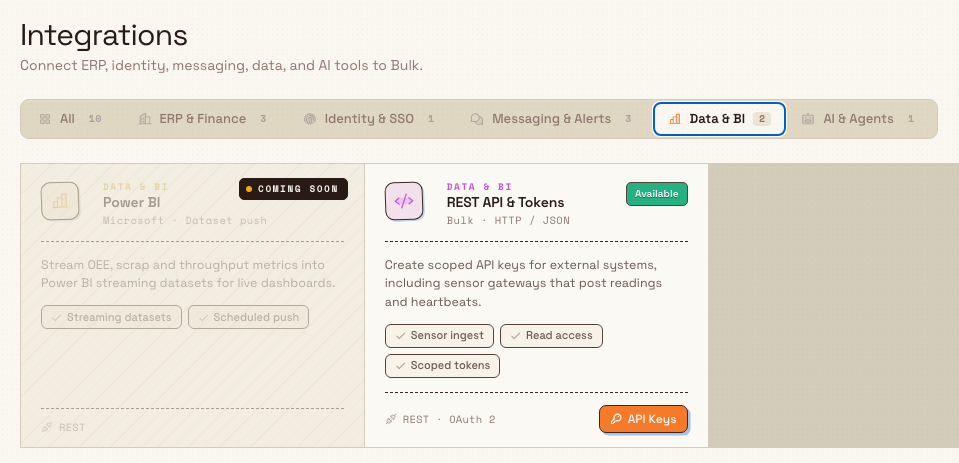
/settings/organization/integrations). - On the Integrations catalog, use the underline category page tabs (or leave All selected) and find the REST API & Tokens card under the Data & BI group. The card status is Available, with capability chips such as Sensor ingest, Read access, and Scoped tokens.
- Select API Keys on that card to open the API keys page (
/settings/organization/integrations/api-keys).
The Integrations page is a catalog of connectors (ERP, identity, messaging, data, AI). Category page tabs filter the catalog without leaving the page. Only wired cards open a destination; REST API & Tokens is one of them. The back control on the API keys page returns you to Integrations.
integrations.rest-api.overview-01
What the API keys page shows
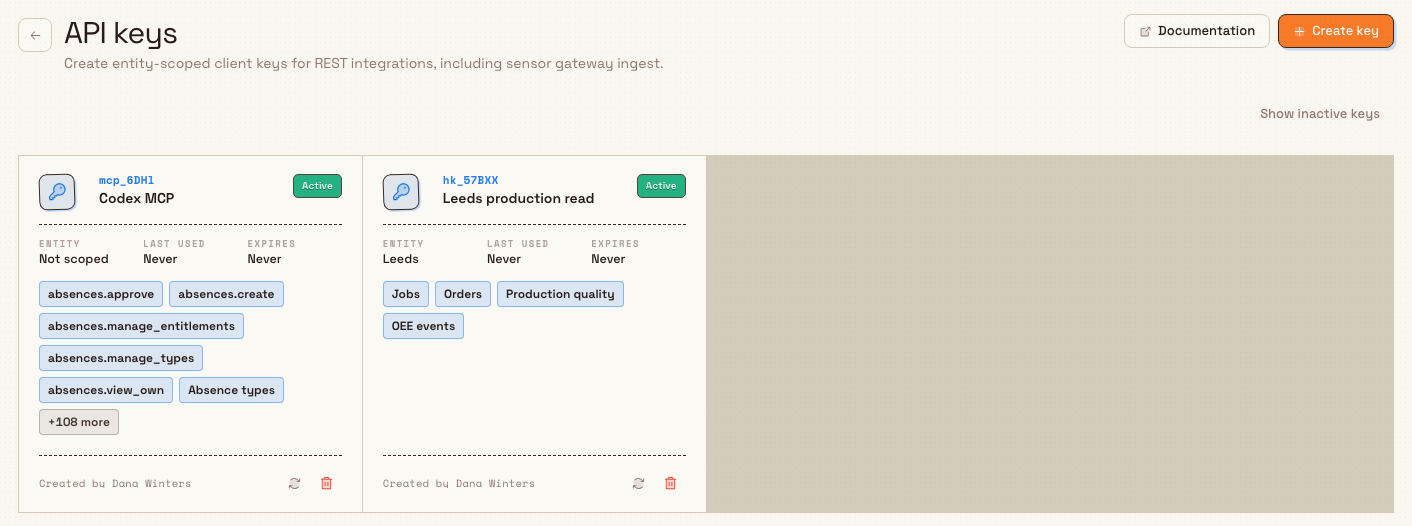
The API keys page is titled API keys, with the description Create entity-scoped client keys for REST integrations, including sensor gateway ingest.
When you hold the right permissions, the header offers:
- Documentation — opens the interactive client API docs for this deployment (
/api/v1/docson the HTTP actions site). - Create key — opens the create dialog (requires create permission).
Each key appears as a tile with:
- The short key prefix (for identification — the full secret is never listed again)
- The key name
- A status badge: Active, Expired, or Revoked
- Entity scope, Last used, and Expires (or Never)
- Permission chips for the resources the key may use
- Created by and actions to Rotate or Revoke (when allowed and the key is still active)
Use Show inactive keys / Hide inactive keys to include revoked or otherwise inactive keys. If only inactive keys exist, the empty state offers Show inactive keys or Create key.
integrations.rest-api.overview-02
How clients authenticate
Keys are generated with an hk_ prefix. Callers must send the full secret only in an HTTP header:
Authorization: Bearer hk_…Never put API keys in query parameters or request bodies. After create or rotate, Bulk shows the full secret once in an onboarding panel with quick-start curl examples for GET /api/v1/me (tenant, entity, and allowed resources) and GET /api/v1/resources (list of resources that key can read). Copy the secret into your secrets manager before you dismiss the panel — Bulk cannot show it again.
Public (unauthenticated) documentation endpoints on the same site host include:
GET /api/v1andGET /api/v1/docs— interactive API documentationGET /api/v1/openapi.json— OpenAPI specification
Authenticated client routes live under /api/v1/… on the deployment’s HTTP actions base URL (the same host used for Documentation). Typical authenticated entry points:
| Path | Purpose |
|---|---|
GET /api/v1/me | Confirm the key, tenant, entity, and allowed permissions |
GET /api/v1/resources | List resource paths this key can call |
GET /api/v1/jobs, /orders, and other resource paths | Read data the key’s permissions allow |
POST /api/v1/sensors/readings and …/heartbeats | Sensor gateway ingest (requires Sensor gateway ingest) |
Part records from GET /api/v1/parts expose the stored part number as
part_number, alongside fields such as id, name, and is_active. Use
part_number when matching the response to part numbers shown in Bulk.
Detailed order and inbound-document responses describe each service with a row_id, such as SVC-01. Treat that value as the identity of the service row inside its parent order or document. A registry service code may be reused by several rows, so integrations must not assume the code alone identifies one priced service or one set of assignments. Check /api/v1/openapi.json for the exact response schema available on your deployed version.
Process payloads no longer expose a process-to-routing link — assign routing on inbound or job resources instead. Process reads reflect catalogue membership, revision lineage, and availability (separate from approval).
A key without an entity scope cannot call the API successfully — authentication requires a valid entity-scoped key. The create dialog always asks you to pick an Entity.
Permissions on a key (what the key may do)
When you create a key, you assign client API permissions — a catalog separate from the user role permissions that control who may open the Settings page. Presets on the create dialog:
- Sensor gateway —
asset_sensors.ingest(post readings and heartbeats) - Operational core — every listed client permission
- Production only — production jobs, orders, production quality, and OEE events
- Default selection when you open the dialog — Jobs and Orders view
Other groups cover inbound and inventory, quality and safety, projects and settings (including parts, assets, routings), people and training, and sensor lookup. Grant only what the integration needs.
Step-by-step create, rotate, and revoke flows:
Who can manage API keys
Managing keys is organization-level and controlled by three user permissions:
| Permission label | Key | What it allows |
|---|---|---|
| View API keys | api_keys.view | Open the API keys list (secrets are never re-shown) |
| Create API keys | api_keys.create | Create keys; also required (with delete) to rotate |
| Delete API keys | api_keys.delete | Revoke keys; also required (with create) to rotate |
Without view permission, the page shows You don’t have permission to view API keys. Create key is hidden without create permission; rotate and revoke controls are disabled without the matching rights. Rotation needs both create and delete.
Built-in roles that include these permissions:
- Super user — full access (
*) - Entity admin — includes
api_keys.view,api_keys.create, andapi_keys.delete
Other default roles (Manager, Operator, Master data, and similar) do not include API key management in the seeded catalog. An administrator assigns roles under Manage roles and permissions.
Example: Leeds production read access at Granite Peak
Granite Peak Manufacturing wants a nightly warehouse report from the Leeds Fabrication Plant without giving the reporting service a full user login. Dana Winters (Owner/admin with API key permissions) does the following:
- Opens Settings → Organization → Integrations and selects API Keys on REST API & Tokens.
- Creates a key named Leeds production read, scopes it to Leeds Fabrication Plant, keeps the Production only preset (or Jobs and Orders), and leaves expiry unset or sets a planned review date.
- Copies the one-time secret into the plant’s secrets manager and stores the key prefix on the integration runbook so support can match logs to the tile.
- Verifies with the provided curl against
/api/v1/me, then points the reporting job at the OpenAPI docs for the exact job and order paths.
If a laptop that once held the secret is retired, she rotates the key so the old secret dies immediately and a new secret is issued with the same name, entity, and permissions. If the integration is decommissioned, she revokes the key so access stops without creating a replacement.
Feature state and limitations
REST API access and API key management are generally available. Keep these points in mind:
- Mostly read access. Client resource endpoints are GET-based. The intentional write path for keys is sensor gateway ingest (
asset_sensors.ingest). Do not expect general create/update of jobs, orders, or master data through this API. - Workflow execution is not a general REST write API. Bulk's internal Workflow service runs only published, version-pinned workflows and certified Actions. An external integration can supply a configured inbound message or call a certified connector, but that does not turn the client REST API into a general business-data write surface.
- Secrets are shown once. After create or rotate, dismiss only after you have copied the secret. The list always shows only the key prefix.
- Entity scope is required for use. Keys must be scoped to an active entity; unscoped keys fail authentication.
- Rate limits apply. Failed key checks and heavy request volume can return
429with a “try again later” style message. Sensor ingest uses a separate high-volume limit path. - Owner must stay active. Authentication fails if the user profile that created the key is inactive.
- Not OAuth login for end users. Client calls use API keys in a Bearer header. The Integrations card may show protocol meta such as “REST · OAuth 2” as catalog copy; day-to-day client API access for these keys is Bearer API key auth as documented above.
- Related connectors. MCP and Dynamics 365 are separate Integrations cards with their own consoles; they are not managed on the API keys page.
Troubleshooting
- You see “You don’t have permission to view API keys.” Your role lacks
api_keys.view. Ask an administrator for Super user, Entity admin, or a custom role that grants API key permissions. - Create key is missing. You need
api_keys.create. View-only access can list keys but cannot create them. - Rotate is disabled or fails. Rotation requires both
api_keys.createandapi_keys.delete, and the key must still be active. - Revoke is disabled. You need
api_keys.delete, and the key must be active (already revoked keys cannot be revoked again). - Calls return 401 Unauthorized. Check the
Authorization: Bearer hk_…header, that the key was not revoked or expired, and that you copied the full secret (not only the prefix). - Calls return 403 with entity scope errors. The key may lack a valid entity, the entity may be inactive, or a required client permission is missing on the key.
- Calls return 429. You hit a rate limit on key verification or client API requests. Wait and retry; reduce request frequency or split workloads across intentional integration design (not by sharing one secret widely).
- Documentation button is missing. The app could not resolve the HTTP site base URL for this environment. Use your deployment’s HTTP actions host and open
/api/v1/docsdirectly, or fix the site URL configuration with your platform admin.
Date and time fields
Calendar-only API fields, including received_date, required_date, delivered_date, and invoiced_date, use literal YYYY-MM-DD strings and must not be converted to a midnight timestamp. They belong to the record's plant timezone and stay on the same day. Fields that represent an event with a time keep their exact instant; weekly ranges use the organization's shared week-start rule.
Related guidance
- Create and scope an API key — name, entity, permissions, expiry, and one-time secret.
- Rotate an API key — replace a compromised or aged secret without redesigning permissions.
- Revoke an API key — immediately stop access for a decommissioned integration.
- Integrations — catalog of connectors including REST API, MCP, and Dynamics 365.
- Understand integration availability — Available, Beta, and Coming soon statuses on connector cards.
- Manage roles and permissions — grant
api_keys.*to the right administrators. - Model Context Protocol connections — AI agent access (separate from REST API keys).
Understand integration availability
Read the Available, Beta, and roadmap status labels on the Integrations catalog so you know which connectors you can open today and which are still planned.
Create and scope an API key
Create an entity-scoped REST API key, choose the permissions your integration needs, and copy the secret once before storing it securely.