Beta
Create an NCR
Raise a non-conformance report for defective material or product using the three-step Create NCR wizard, capturing the source, affected jobs, a proposed disposition, corrective actions, and sign-off.
A non-conformance report (NCR) is the formal record you raise when a material, part, or finished product does not meet its specification and needs a documented decision about what to do with it. Creating an NCR in Bulk starts a controlled record: it gives the problem a unique number, captures what went wrong, links the production work that produced it, and routes it toward a disposition decision. Raise an NCR when a defect is significant enough to need traceable review and sign-off, rather than an informal fix on the shop floor.
This guide covers the full-page New Non-Conformance Report (NCR) wizard, the main way to open an NCR by hand.
NCRs are a beta feature
The NCRs area is marked Beta in the navigation. You can use it for real records today, but the workflow is still being extended. Read the feature state and limitations below before you rely on it as your system of record.
Permission required
You need the Create NCRs permission (quality_ncrs.create) to submit the wizard. The built-in Quality, Entity admin, and Super user roles include it. The default Operator and Manager roles do not, so if creating an NCR fails, ask an administrator to grant a role that includes this permission.
Before you begin
- Confirm your role includes the create permission described above.
- Know the production context, if any: the job number or numbers that produced the affected material, and the part involved. Linking is optional but recommended for traceability.
- Decide who should sign off. The wizard requires a final approver and a signature before you can submit.
Open the NCR wizard
Open Quality in the main navigation, then select NCRs to reach the Non-Conformance Reports list. Select the New NCR button in the header to open the guided wizard at the /quality/ncrs/new route.
The wizard is titled New Non-Conformance Report (NCR) and walks you through three steps shown in the indicator across the top: Initial Details, Disposition, and Final Approval. A live preview of the record you are building appears on the right on wide screens. You can move Back and forward between steps; the Next button stays disabled until the current step's required fields are complete.
quality.create-ncr-01
Step 1 — Initial Details
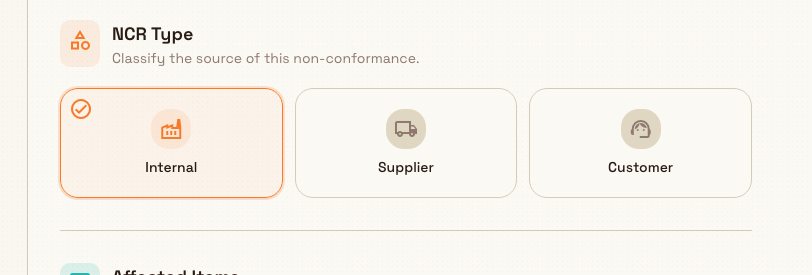
Under NCR Type, classify where the non-conformance came from. Internal is selected by default; change it if the source differs:
- Internal — a production issue or defect found in-house.
- Supplier — an incoming material or part defect.
- Customer — a return or complaint from a customer.
Under Affected Items, use the job selection table to search for and attach the production jobs affected by the non-conformance. You can select more than one job, but they must share the same part. Selecting a job also links its part to the NCR.
Under Identification, fill in:
- NCR Title (required) — a brief summary of the issue.
- Observation (required) — a detailed description of the non-conformance, up to 1000 characters, with a live character counter.
The Next: Disposition button becomes active once you have entered an NCR Title and an Observation.
Step 2 — Disposition
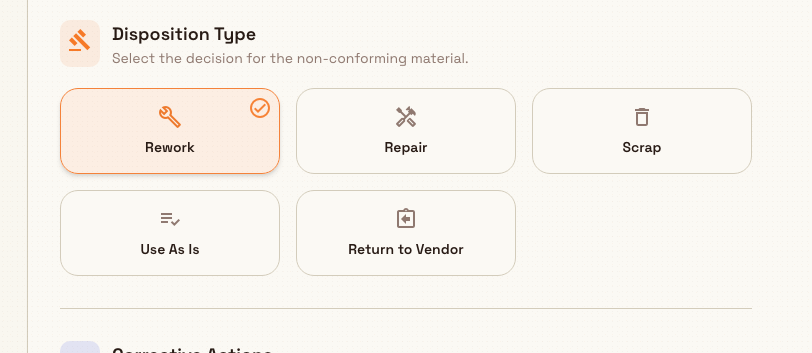
Under Disposition Type, choose the proposed decision for the non-conforming material. Five options are available: Rework, Repair, Scrap, Use As Is, and Return to Vendor. This is a proposal recorded during creation; the binding disposition is decided later during Material Review Board (MRB) review, an internal review that formally decides what happens to non-conforming stock.
Under Corrective Actions, optionally add action items that address the non-conformance. Each action has a description, an assigned owner, and a target date, and you can reorder or remove them. Every corrective action you add becomes an assigned task so the work is tracked.
Selecting a disposition type activates the Next: Final Approval button. Corrective actions are optional.
quality.create-ncr-02
Step 3 — Final Approval
Under Evidence & Documentation, upload quality photos, certificates, or lab reports. You can attach up to 10 files, each up to 10 MB.
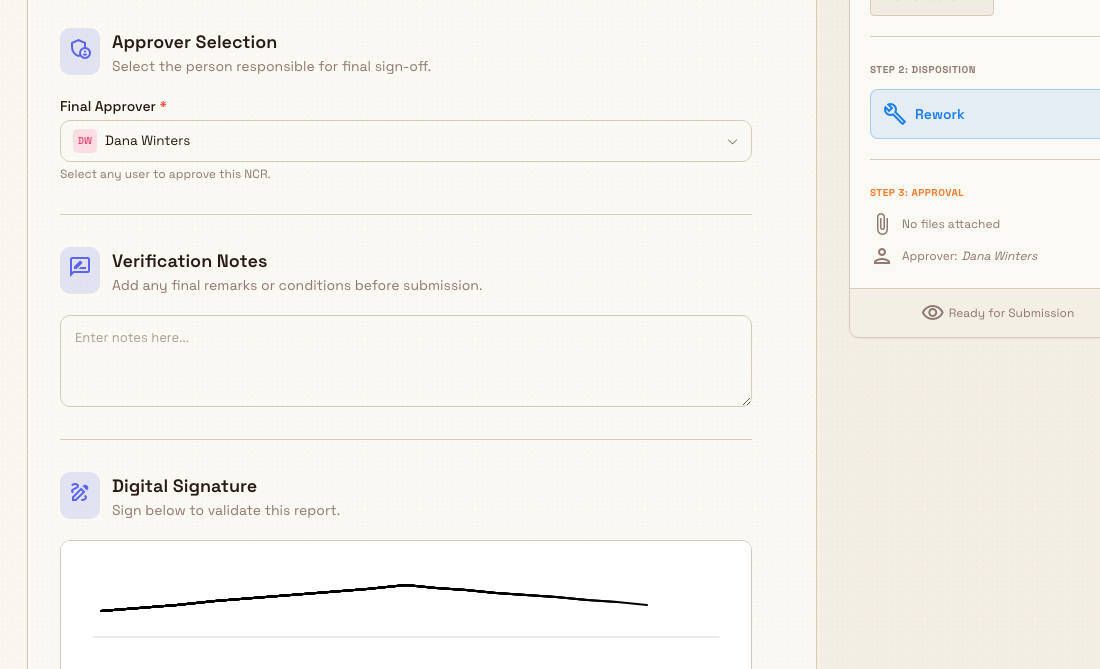
Under Approver Selection, choose the Final Approver (required) using the searchable selector. Any user can be selected to approve the NCR.
Under Verification Notes, add any final remarks or conditions before submission. This field is optional.
Under Digital Signature, sign in the signature area to validate the report. A signature is required to submit.
Review the live preview, then select Complete & Submit NCR. The button shows Creating... while the record is saved. If you decide not to continue, Cancel prompts a Discard changes? confirmation when you have unsaved edits; choose Continue Editing to keep your work.
quality.create-ncr-03
What happens after you submit
When you submit, Bulk:
- Generates a unique NCR number in the form
NCR-YYYY-NNNN(for example,NCR-2026-0007), numbered per calendar year for your plant. - Creates the record with a status of Draft.
- Creates a task for each corrective action you added, assigned to its owner.
- Shows a confirmation message such as "NCR NCR-2026-0007 created" and opens the new NCR's detail page.
From Draft, an NCR moves through its lifecycle: Draft, then Pending review, then Pending MRB, then Dispositioned, then Closed. Submitting for review, scheduling the MRB, and recording the formal disposition are the next stages. See Review and disposition an NCR.
Granite Peak Manufacturing example
At the Leeds Fabrication Plant, an in-process inspection of job JOB-4821 finds that a batch of laser-cut mounting brackets has hole positions outside the drawing tolerance. Because the batch needs a documented decision before it moves on, a quality engineer opens Quality, selects NCRs, then New NCR, and works through the wizard:
- Step 1 — keeps the type as Internal, links job JOB-4821 under Affected Items, titles the report "Hole positions out of tolerance on L-90 brackets", and describes the measured deviation in the Observation.
- Step 2 — selects Rework as the proposed disposition and adds a corrective action, "Re-drill affected brackets to drawing spec", assigned to the fabrication supervisor with a target date.
- Step 3 — uploads a photo of the measurement, selects the quality manager as Final Approver, adds a short verification note, signs, and selects Complete & Submit NCR.
Bulk creates NCR-2026-0007 in Draft status, opens its detail page, and creates the re-drill task for the supervisor. The quality manager now has a traceable, numbered record ready to route into review and MRB.
Feature state and limitations
NCRs are a beta capability, marked Beta in the navigation. This is not a generally available feature; it works for real records, but expect the creation flow to keep changing. The following are all confirmed against the current build:
Sign-off inputs are not yet saved on the record
In the current beta, the evidence files, verification notes, and digital signature you add on the final step are collected for sign-off but are not yet stored on the saved NCR record. Keep your own copy of any critical evidence and signatures until this is extended.
- The proposed disposition is not the final one. The disposition you pick in step 2 is captured as a proposal during creation. The binding disposition is recorded later during MRB review, not at creation.
- The wizard captures a core set of fields. Some fields that exist in the NCR data model — for example the exact affected quantity, batch, lot, or serial numbers, and cost at risk — are not editable in the creation wizard yet. New NCRs are created with an affected quantity of one until this is expanded.
- The live preview needs a wide screen. The preview sidebar is shown on large screens; on narrow or mobile widths it is hidden, and you work through the steps without it.
Troubleshooting
- Creating the NCR fails or is blocked. Your role is missing the
quality_ncrs.createpermission. Ask an administrator to assign the Quality, Entity admin, or Super user role. - The Next button stays disabled. On step 1, make sure both the NCR Title and the Observation are filled in. On step 2, make sure a Disposition Type is selected.
- The Complete & Submit NCR button stays disabled. On step 3, make sure you have chosen a Final Approver and drawn a Digital Signature; both are required to submit.
Related guidance
Review and close a quality issue
Review and close one quality issue from its detail page, or disposition and close a matching group from the Issues list.
Review and disposition an NCR
Review a submitted nonconformance report, approve it for the Material Review Board, record the MRB disposition decision, and close the NCR.