Beta
Review and disposition an NCR
Review a submitted nonconformance report, approve it for the Material Review Board, record the MRB disposition decision, and close the NCR.
A nonconformance report (NCR) is a formal record of material, in-process work, finished goods, or a process that does not meet its specification. Creating the NCR captures the problem; reviewing and dispositioning it is how you decide what happens to the affected material and bring the record to a controlled close.
This guide covers everything after an NCR has been submitted for review: checking a submitted NCR, approving it for the Material Review Board (MRB), recording the MRB's disposition decision, and closing the NCR. Use it when you are the quality reviewer or a member of the MRB responsible for deciding whether nonconforming product is used, reworked, repaired, scrapped, returned, or downgraded.
To create an NCR and submit it into this workflow, see Create an NCR.
Where to find it
NCRs live in the Quality module under NCRs (Quality > NCRs). The feature carries a Beta badge in the navigation.
Before you start
You need the following to review and disposition an NCR:
- The NCRs feature, part of the Quality module. It is currently in beta (see Feature state and limitations).
- The right permissions. Two separate permissions gate the two halves of this workflow:
- Review NCRs (
quality_ncrs.review) — lets you submit a draft for review and approve an NCR for MRB. - MRB decisions (NCRs) (
quality_ncrs.mrb) — lets you record the disposition and close the NCR. - View NCRs (
quality_ncrs.view) is required just to open an NCR. - The built-in Quality and Entity admin roles include all of these. If an action does not appear for you, your role is likely missing the matching permission.
- Review NCRs (
- An NCR that has been submitted. The review actions only appear once the NCR has moved out of the Draft stage.
How the NCR workflow moves
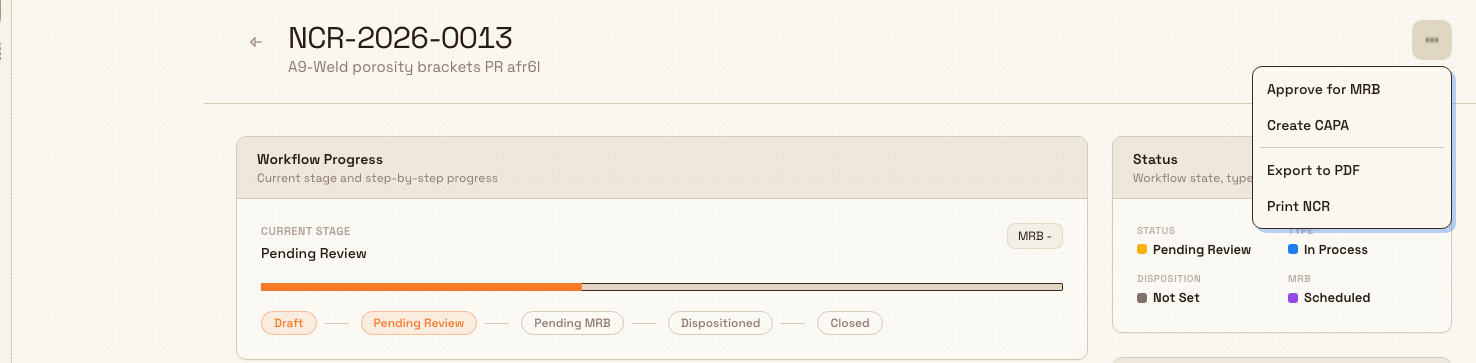
Every NCR moves forward through five stages, shown in the Workflow Progress card at the top of the detail page. Each stage is advanced by one action, and each action requires the NCR to be in the exact preceding stage:
| Stage | Advanced by | Permission needed |
|---|---|---|
| Draft | Submit for Review | Review NCRs |
| Pending Review | Approve for MRB | Review NCRs |
| Pending MRB | Record Disposition | MRB decisions (NCRs) |
| Dispositioned | Close NCR | MRB decisions (NCRs) |
| Closed | — (final) | — |
The flow only moves forward. There is no built-in step to send an NCR back to an earlier stage or to reopen a closed NCR in the current build.
Find an NCR that needs your attention
- Open Quality > NCRs from the navigation.
- Use the Status filter to narrow the list to the stage you work at — for example Pending Review (awaiting a reviewer) or Pending MRB (awaiting an MRB decision). You can also filter by Type (Material, In Process, Finished Goods, Process) and by Disposition.
- Open the NCR. Click a row to open its detail page, or use the row's action menu to run a workflow action (Submit for Review, Approve for MRB, Record Disposition, Close NCR) without leaving the list.
The detail page organizes the record into tabs — Overview, Investigation, Actions, Attachments, and Activity — with a Status card, Cost Impact card, and Audit Trail card in the sidebar. The workflow actions themselves live in the actions menu (the three-dot button) in the page header.
quality.disposition-ncr-01
Review the NCR and approve it for MRB
When an NCR is at Pending Review, a reviewer confirms the report is complete and sound, then hands it to the Material Review Board.
- On a Pending Review NCR, read the Overview tab (details, affected items, production context, linked records) and the Investigation tab to confirm the problem and its scope are well described.
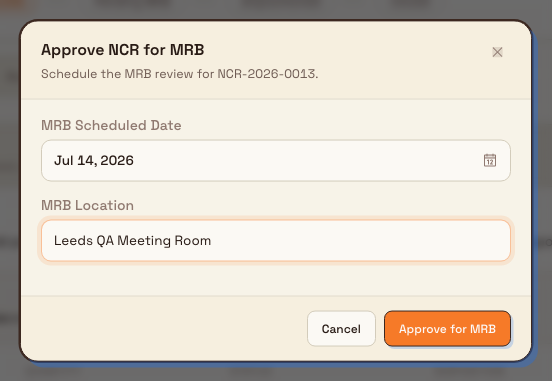
- Open the actions menu and choose Approve for MRB. The Approve NCR for MRB dialog opens.
- Set the MRB details:
- MRB Scheduled Date — the date the Material Review Board will meet to decide the disposition.
- MRB Location — where the review will be held.
- Both fields are optional; you can approve for MRB and fill these in as they are confirmed.
- Click Approve for MRB. The NCR moves to Pending MRB, and the scheduled date appears on the Workflow Progress card and the MRB Information card (on the Investigation tab). A confirmation toast reads "NCR approved for MRB".
The Material Review Board is the cross-functional group that decides what happens to nonconforming product. Moving an NCR to Pending MRB signals that the review is complete and a disposition decision is due.
quality.disposition-ncr-02
Record the MRB disposition
When the Material Review Board has decided, record the outcome on the NCR. This is available at the Pending MRB stage and requires the MRB decisions (NCRs) permission.
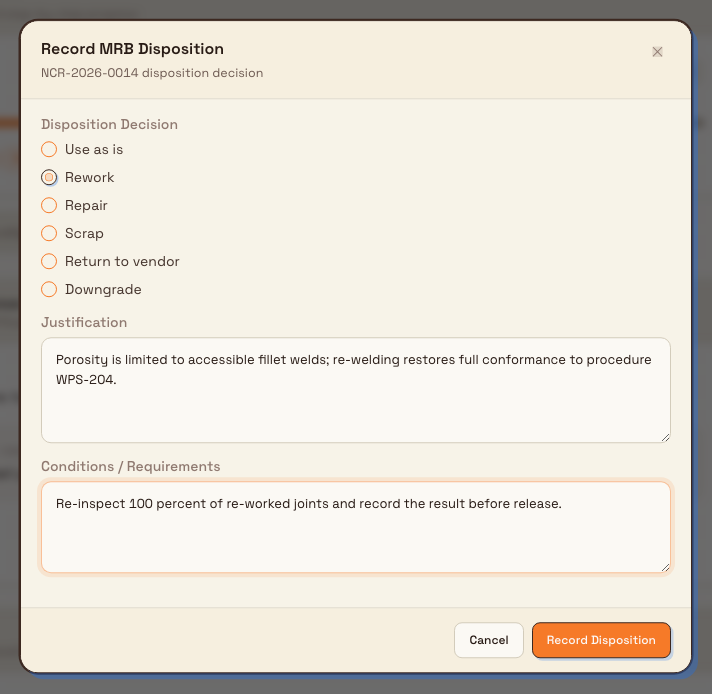
- On a Pending MRB NCR, open the actions menu and choose Record Disposition. The Record MRB Disposition dialog opens.
- Choose the Disposition Decision. One of six standard MRB outcomes:
- Use as is — accept the nonconforming material without change.
- Rework — return the material to full conformance through additional or repeated work.
- Repair — restore the material to an acceptable, usable condition that may not fully meet the original specification.
- Scrap — discard the material; it cannot be used.
- Return to vendor — send the material back to the supplier.
- Downgrade — accept the material for a lower-grade or alternative use.
- Enter a Justification. This field is required — the board's reasoning is recorded with the decision.
- Optionally add Conditions / Requirements — any conditions attached to the decision, such as re-inspection or additional sign-off before release.
- Click Record Disposition. The NCR moves to Dispositioned, the decision is stamped with your name and the current date and time, and a toast reads "Disposition recorded".
Once recorded, the disposition is captured on the Disposition card (on the Actions tab) and summarized on the sidebar Status card. The decision is final for that NCR in the current build — it cannot be re-recorded from the Dispositioned stage.
quality.disposition-ncr-03
Close the NCR
After the disposition is carried out and verified, close the NCR to complete the record. This is available at the Dispositioned stage and requires the MRB decisions (NCRs) permission.
- On a Dispositioned NCR, open the actions menu and choose Close NCR.
- The NCR moves to Closed, a toast reads "NCR closed", and you are returned to the NCRs list.
Closing is final
The current build has no action to reopen a closed NCR. Only close an NCR once the disposition has been carried out and any conditions are satisfied. A closed NCR is also written to the compliance audit trail.
Granite Peak Manufacturing example
At Granite Peak Manufacturing's Leeds Fabrication Plant, a final-inspection check finds weld porosity above the acceptance limit on a run of 48 mounting brackets. An operator raises the issue, an NCR is created (NCR-2026-0087, type In Process), and the author submits it for review.
- Review. A quality engineer opens NCR-2026-0087, now at Pending Review. The description and affected quantity look complete, so they choose Approve for MRB, set the MRB Scheduled Date to the following Tuesday, and set the MRB Location to "Leeds QA Meeting Room". The NCR moves to Pending MRB.
- Disposition. The Material Review Board meets and agrees the porosity is confined to accessible fillet welds that can be re-welded. The MRB owner opens Record Disposition, selects Rework, and enters a Justification: "Porosity is limited to accessible fillet welds; re-welding restores full conformance to procedure WPS-204." Under Conditions / Requirements they add: "Re-inspect 100 percent of re-worked joints and record the result before release." The NCR moves to Dispositioned.
- Close. Once the rework is done and the joints re-inspected, the MRB owner chooses Close NCR. The record moves to Closed and the disposition decision, justification, conditions, and approver are preserved on the record.
What gets recorded
Reviewing and dispositioning an NCR builds an auditable history:
- The Disposition card shows the decision as a badge, the date it was approved, the justification, and any conditions.
- The sidebar Status card reflects the current Status, Type, Disposition, and MRB state.
- The Workflow Progress card shows the current stage, the scheduled MRB date, and the disposition once set.
- The Activity tab and the sidebar Audit Trail card record each status change; closing an NCR is written to the compliance audit trail.
Feature state and limitations
NCRs are a beta feature. The core review-to-close workflow described here is functional, but some details are not yet exposed in the current build:
- The Approve NCR for MRB dialog captures only the MRB Scheduled Date and MRB Location. There is no field in this dialog to assign MRB members, so the MRB Information card shows "No MRB members assigned" unless members are set another way.
- The Record MRB Disposition dialog does not capture individual MRB member signatures, so the Disposition card's signatures count stays at zero.
- The actions menu also lists Export to PDF and Print NCR. These are placeholders in the current build and do not yet produce output.
- There is no built-in reject or reopen action. The workflow only advances forward, and a closed NCR stays closed.
Because this is a beta capability, confirm the exact behavior in your own environment before relying on it for a formal quality process.
Troubleshooting
- The workflow action I need is not in the menu. Each action only appears at the matching stage: Submit for Review at Draft, Approve for MRB at Pending Review, Record Disposition at Pending MRB, and Close NCR at Dispositioned. If the NCR is at the right stage but the action is still missing, your role is likely missing the Review NCRs or MRB decisions (NCRs) permission.
- "Justification is required." The disposition decision cannot be saved without a justification. Enter the board's reasoning in the Justification field before choosing Record Disposition.
- I approved for MRB but no MRB members are listed. Assigning members is not part of the Approve NCR for MRB dialog in the current build. Record the attendees in the justification or conditions text, or in the NCR's activity, until member assignment is available.
Related guidance
- Create an NCR — how an NCR is raised and submitted into this workflow.
- Create and manage a CAPA — open a corrective and preventive action from an NCR when a root-cause fix is needed. Create CAPA is available from the NCR actions menu.
- Put work on quality hold — quarantine affected material while an NCR is reviewed and dispositioned.
- Link quality and production records — connect an NCR to the jobs and orders it affects.
- Quality overview — the full set of quality capabilities.
Create an NCR
Raise a non-conformance report for defective material or product using the three-step Create NCR wizard, capturing the source, affected jobs, a proposed disposition, corrective actions, and sign-off.
Create and manage a CAPA
Open a Corrective and Preventive Action in Bulk, work it through investigation, action planning, and effectiveness verification, then close it.