Beta
Create and manage a CAPA
Open a Corrective and Preventive Action in Bulk, work it through investigation, action planning, and effectiveness verification, then close it.
A CAPA (Corrective and Preventive Action) is a structured quality record for eliminating the root cause of a problem and stopping it from happening again. A corrective action fixes a problem that has already occurred; a preventive action removes the cause of a problem that could occur. In Bulk you open a CAPA, plan and assign the work needed to resolve it, track that work to completion, and verify that the fix was effective before you close the record.
Use a CAPA when a quality problem is significant or recurring enough to need a managed investigation and a documented outcome, for example a defect that keeps coming back, an audit finding, or a customer complaint. For a one-off defect you would usually raise a quality issue or a nonconformance report (NCR) instead, and escalate to a CAPA only if the problem warrants deeper analysis.
Beta feature
CAPAs are a beta feature. In the left navigation, Quality > CAPAs carries a Beta badge. The core workflow described here — create, progress through stages, record effectiveness, and close — is available now, but some supporting areas are still being built. See Limitations and beta scope before you rely on it for a regulated process.
Before you begin
CAPAs live inside the Quality module. Open them from the left navigation under Quality > CAPAs, or go directly to the CAPA list. The list is titled Corrective & Preventive Actions.
You need the right permissions, which come with your role:
- View CAPAs requires the
quality_capas.viewpermission. - Create a CAPA requires
quality_capas.create. - Progress a CAPA — change its status, add or manage action items, record effectiveness, and link related records — requires
quality_capas.manage. - Close a CAPA requires
quality_capas.close.
The built-in Quality and Entity admin roles carry all four permissions, and a Super user has full access. If the CAPA actions described below are missing for you, ask an administrator to check your role.
Each CAPA belongs to one plant (called an entity in Bulk) and is numbered automatically in the form CAPA-YYYY-NNNN, for example CAPA-2026-0042.
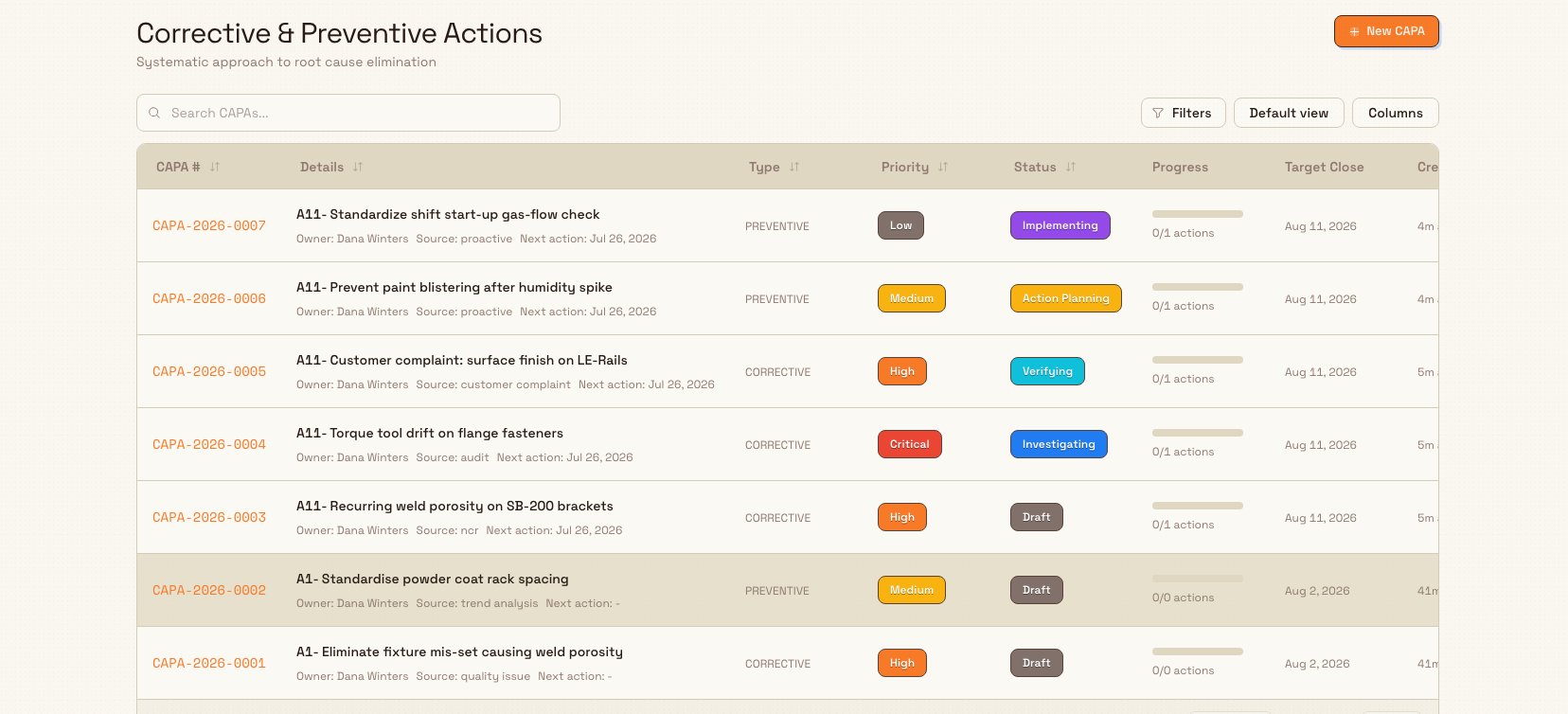
quality.manage-capa-01
Create a CAPA
From the Corrective & Preventive Actions list, select New CAPA. This opens the New Corrective and Preventive Action (CAPA) page, a three-step wizard. A live preview of the record builds on the right as you fill in each step. The step indicator at the top shows the three stages: Investigation, Action Plan, and Effectiveness Review.
Step 1: Investigation
Under Source Selection, choose where this CAPA came from:
- NCR/Quality Issue — escalated from a nonconformance report or a quality issue.
- Audit Finding — raised from an internal or external audit.
- Customer Complaint — driven by customer feedback.
- Continuous Improvement — a proactive improvement rather than a response to a failure.
If you choose NCR/Quality Issue, an Investigation Details section appears with an Associated Quality Record field. Search by NCR or issue number to link the originating record so the CAPA and its source stay connected.
Under Problem Statement, enter a concise Title and the Analysis Findings — the details of what is going wrong and what your analysis has surfaced so far. Both fields are required before you can continue.
Select Next Step.
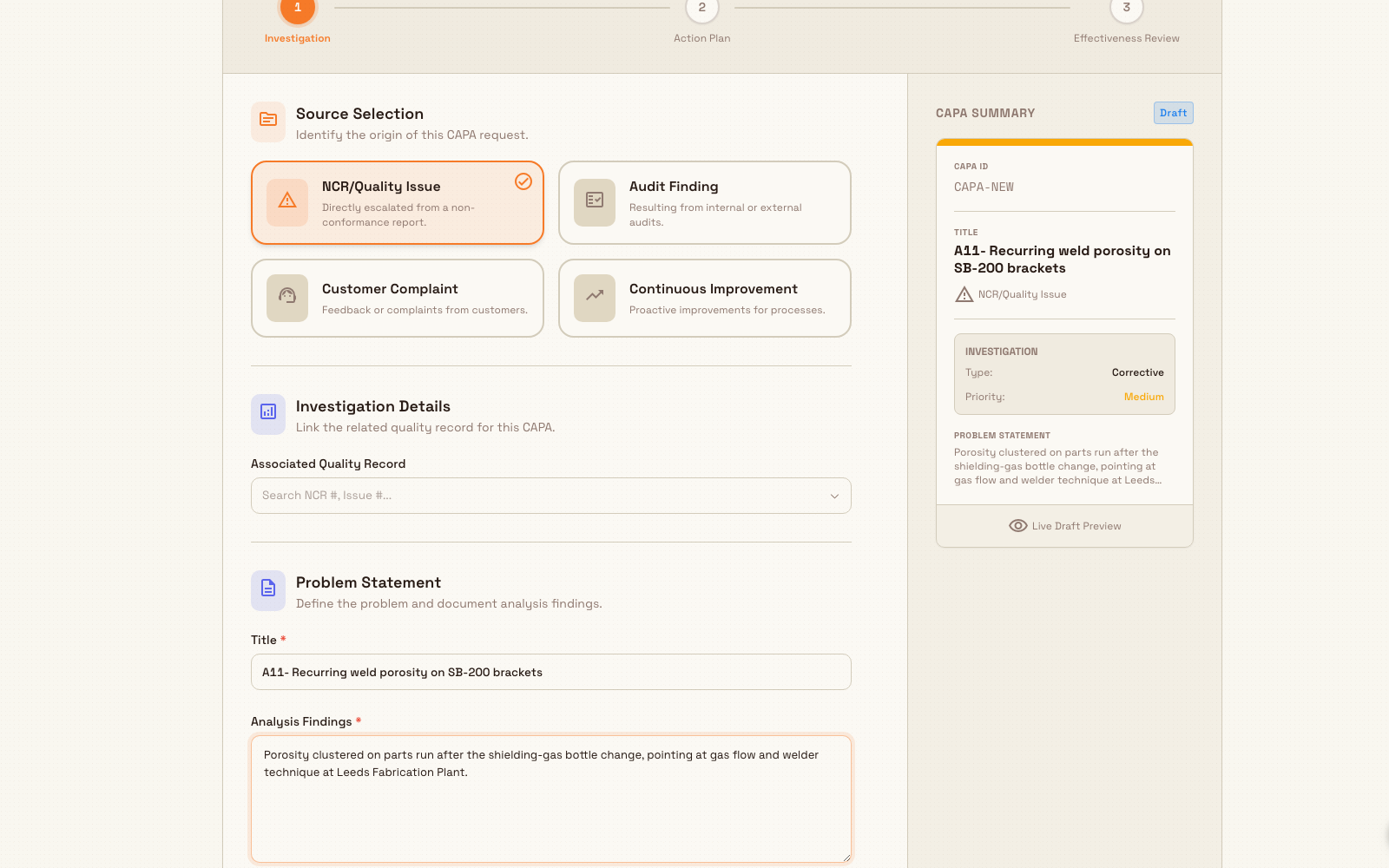
quality.manage-capa-02
Step 2: Action Plan
Under Action Strategy, pick the primary approach — Corrective Action (fix the existing problem) or Preventive Action (stop a potential problem occurring) — and set a Priority Level of Critical, High, Medium, or Low.
Under Tasks & Assignments, select Add Task to add each piece of work. For every task, give an Action Description, an Action Type (Immediate, Corrective, or Preventive), an Assigned Owner, and a Due Date, then select Add Action. Each task you add becomes a tracked action item on the CAPA. You need at least one task to continue. You can edit or remove a task before you submit.
Under Ownership, choose a CAPA Owner — the person responsible for completing the CAPA. You can also name an optional Executive Sponsor for management oversight. Use Resource Allocation to note any tools, budget, or people the plan needs. A CAPA Owner is required.
Select Next Step.
Step 3: Effectiveness Review
Effectiveness review is how you confirm the fix actually worked, not just that the tasks were done.
Under Review Criteria, choose a Verification Method — Audit, Test/Validation, or Observation — and describe the Expected Outcome, the measurable result that shows the root cause is gone.
Under Review Schedule, set the Target Close Date (the date by which all actions and verification should be complete) and optionally an Assigned Reviewer to carry out the check. A verification method and a target close date are required.
When the plan is complete, select Complete & Submit CAPA. Bulk creates the record, gives it its CAPA-YYYY-NNNN number, and opens its detail page. The new CAPA starts in the Draft stage.
Example: a recurring weld defect at Leeds Fabrication Plant
Over three weeks, the Leeds Fabrication Plant rejects several SB-200 structural brackets for weld porosity, logging each on its own NCR. Because the defect keeps recurring, a quality engineer decides it needs a managed investigation and opens a CAPA.
In Step 1 they choose the NCR/Quality Issue source, link the most recent record (NCR-2026-0042) in Associated Quality Record, title the CAPA "Recurring weld porosity on SB-200 brackets", and record their Analysis Findings: porosity clustered on parts run after the shielding-gas bottle change, pointing at gas flow and welder technique.
In Step 2 they set the strategy to Corrective Action with High priority and add two tasks — "Re-train line welders on the updated welding procedure" (Corrective, assigned to the shift lead) and "Add a shielding-gas flow check to shift start-up" (Preventive, assigned to a process engineer). They name themselves as CAPA Owner and the plant quality manager as Executive Sponsor.
In Step 3 they choose Audit as the verification method, set the Expected Outcome to "zero porosity rejections on SB-200 over 30 days", pick a Target Close Date four weeks out, and assign the quality manager as reviewer. They select Complete & Submit CAPA, and CAPA-2026-0043 opens in Draft.
Work the CAPA through its stages
Open a CAPA from the list to reach its detail page. The header shows the CAPA number and title; a three-dots menu on the right holds the stage actions. The page is organized into tabs — Overview, Investigation, Actions, Verification, Attachments, and Activity — with a sidebar summarizing status, source, verification, and the audit trail. An Action Progress card shows how many action items are complete, in progress, and overdue.
A CAPA moves through six stages in order: Draft, Investigating, Action Planning, Implementing, Verifying, and Closed.
Screenshot placeholder
No asset at /docs/en/quality.manage-capa/quality.manage-capa-03.png yet
- Caption
- The CAPA detail page, where you move the record through its stages and record effectiveness.
- Framing
- The detail header with the CAPA number and title, the opened three-dots menu (Change Status, Record Verification, Close CAPA), the Action Progress card, and the left sidebar status card.
- Product state
- A CAPA detail page at /quality/capas/:id in the Verifying stage, with the tab bar (Overview, Investigation, Actions, Verification, Attachments, Activity), the Action Progress card, and the status and source sidebar. The three-dots actions menu is open, showing Change Status, Record Verification, and Close CAPA.
- Setup
- Open a seeded CAPA that has a few action items and is in the Verifying stage so Close CAPA is available. Sign in as a user with the Quality or Entity admin role. Open the three-dots menu in the detail header.
quality.manage-capa-03
Change the stage
Open the three-dots menu and select Change Status to open the Change CAPA Status dialog. Pick the new stage — Draft, Investigating, Action Planning, Implementing, Verifying, or Closed — and select Update Status. Bulk records the change on the CAPA's activity trail. In the example, once the welders are re-trained and the gas-flow check is live, the owner advances CAPA-2026-0043 from Draft through Investigating and Action Planning to Implementing.
Manage action items
Open the Actions tab to see every action item and its status. Add further tasks here as the investigation develops, mark them complete as the work is done, and watch the Action Progress card update. Completing the action items is what readies a CAPA for its effectiveness check.
Link related records
On the Overview tab, the linked-records card lets you connect this CAPA to other quality records — an NCR, a quality issue, another CAPA, or a hold — and unlink them again. Linking keeps a corrective action tied to the nonconformances and holds it addresses. An NCR or issue can be attached to only one CAPA at a time.
Record effectiveness
When the actions are done and the CAPA is at Verifying, open the three-dots menu and select Record Verification to open the Record Effectiveness dialog. Capture the Criteria, Method, and Verification Due Date, then set the Result — Effective, Partially effective, or Not effective — and add Notes. Select Record Verification to save. Bulk stamps who recorded the result and when. In the example, after 30 days with no porosity rejections the reviewer records the result as Effective.
Close the CAPA
Closing is the final step, and Bulk guards it: the Close CAPA action appears only when the CAPA is in the Verifying stage and you hold the close permission. From a CAPA in Verifying, open the three-dots menu and select Close CAPA. The stage changes to Closed and the close date is recorded. If Close CAPA is greyed out or missing, the CAPA is not yet at Verifying, or your role does not include the close permission.
What to expect
- A new CAPA is numbered
CAPA-YYYY-NNNNand starts in Draft. - Every task you add in the wizard, and every task you add later, appears as an action item on the Actions tab and feeds the Action Progress totals.
- Stage changes, effectiveness results, links, and comments are recorded on the CAPA's Activity trail.
- A CAPA can only be closed from Verifying, so the effectiveness result is captured before the record is finalized.
Limitations and beta scope
CAPAs are in beta. These behaviors are current and intentional today:
- Core details are set when you create the CAPA. The title, problem statement, type, priority, owner, sponsor, source, and target close date are captured in the wizard. After creation you continue to update the CAPA through its stage, action items, effectiveness result, linked records, and comments — there is not yet a separate form for editing those core details.
- Attachments are not yet available. The Attachments tab shows "No attachments recorded" and does not yet accept uploads. In the wizard, the Verification Evidence area is labelled a future step. Keep supporting evidence in your existing document store for now.
- The Investigation tab is display-only. The Investigation Team, Why Analysis (5 Whys), and Root Cause sections show what a CAPA can hold but are not populated by the current create wizard, so they appear empty. Record your analysis in the Analysis Findings field during creation.
- Export PDF and Clone CAPA are not wired up. These entries appear in the three-dots menu but do not perform an action yet.
Because this is beta, confirm the workflow meets your own quality-management requirements before you depend on it for audited or regulated processes.
Troubleshooting
- Close CAPA is missing or disabled. The Close CAPA action only shows when the CAPA is in the Verifying stage and you have the close permission. Move the CAPA to Verifying with Change Status first, and check your role if the action still does not appear.
- You cannot link an NCR or issue. An NCR or quality issue can be attached to only one CAPA at a time. If linking is rejected, the record is already assigned to another CAPA — unlink it there first, or link a different record.
- The New CAPA button or the CAPAs entry is missing. Viewing and creating CAPAs depend on the
quality_capas.viewandquality_capas.createpermissions. Ask an administrator to confirm your role includes them.
Related guidance
- Quality overview — how the Quality module fits together.
- Create an NCR — raise a nonconformance report, a common source for a CAPA.
- Create a quality issue — log a quality issue that can escalate to a CAPA.
- Create and manage an 8D report — a more structured problem-solving format for complex issues.
- Put work on quality hold — quarantine affected work while a CAPA is investigated.
Review and disposition an NCR
Review a submitted nonconformance report, approve it for the Material Review Board, record the MRB disposition decision, and close the NCR.
Put work on quality hold
Place a quality hold with the three-step New Quality Hold wizard to stop suspect material moving, record how it is contained, and set what should happen to it next.