Create a risk assessment
Start a new draft risk assessment in Bulk to document a task, its hazards, and the control measures that keep people safe.
Last updated
A risk assessment is a safety record that describes a task, the hazards it exposes people to (anything that could cause harm, such as a moving blade or a heavy load), and the control measures you put in place to reduce that harm. Creating one in Bulk starts a new draft that you then build up — scoring the risk and adding control measures — before submitting it for approval.
Create a risk assessment whenever you introduce a new task, change how an existing task is done, buy new equipment, or when a periodic review shows an existing assessment is out of date. This article covers the create step: naming the task, giving it a reference code, and capturing the first list of hazards. Scoring the risk, adding control measures, and getting the assessment approved are separate steps, linked at the end.
Before you begin
You reach risk assessments from the Safety area, so your plant must have the Safety module enabled.
You need two permissions:
safety.viewto open the Risk Assessments page and see existing assessments.safety.create_assessmentto create a new one and to save its draft.
Both permissions are granted by default to the Super user, Entity admin, Manager, and Safety roles. If you can open the page but the assessment fails to save, your role is missing safety.create_assessment — ask an administrator to grant it. Risk assessments belong to the plant (entity) you are working in, so create the assessment while you have the correct plant selected.
Open the Risk Assessments page
In the left navigation, open Safety and choose Risk Assessments. The page lives at /safety/risk-assessments. It lists the assessments for the current plant, with a search box, status filters (Draft, Pending Approval, Active, Archived, Refused), and a table of documents.
Select New Assessment in the top right of the page to open the create dialog.
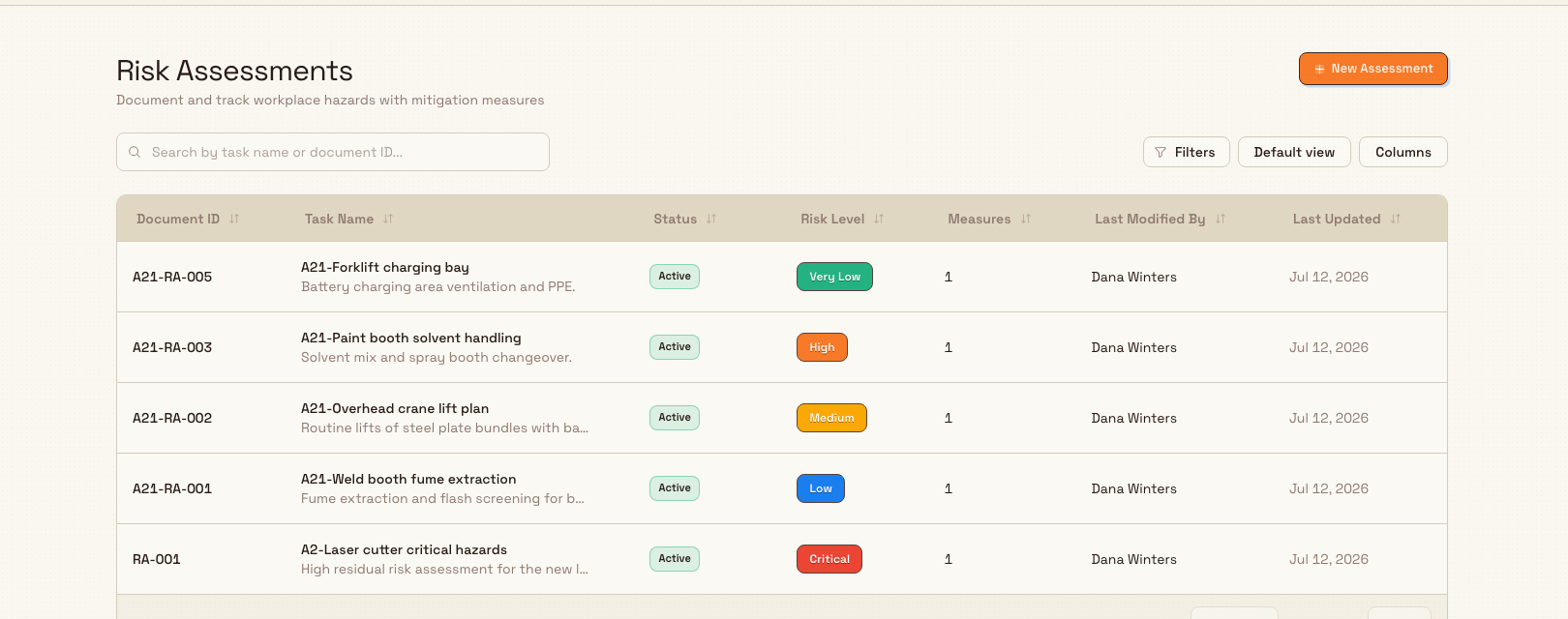
If your plant has no assessments yet, the page shows an empty state titled No risk assessments yet with a prompt to create your first one; the New Assessment button is still available.
Fill in the assessment details
Selecting New Assessment opens the Create Risk Assessment dialog. It has four fields:
- RA Code — the reference code for the assessment, such as
RA-014. Bulk pre-fills this with the next code in sequence for the plant (the pattern isRA-followed by a zero-padded number, counting up from the highest code already used). You can accept it or type your own code, including a custom format likeRA-DL-033. The code must be unique within the plant. - Task Name — a short name for the task being assessed, for example
Manual handling of steel sheet. This is the only required field. - Description (Optional) — free text for extra context about the task, such as where it happens or which team performs it.
- Identified Hazards (Optional) — type a hazard and press Enter to add it as a tag. Repeat to list several. Each tag has a small remove control if you add one by mistake. You can leave this empty now and add hazards later while building the assessment.
Select Create Assessment to save. The button shows Saving... briefly, then Bulk confirms with a Risk assessment created message and opens the new assessment so you can continue.
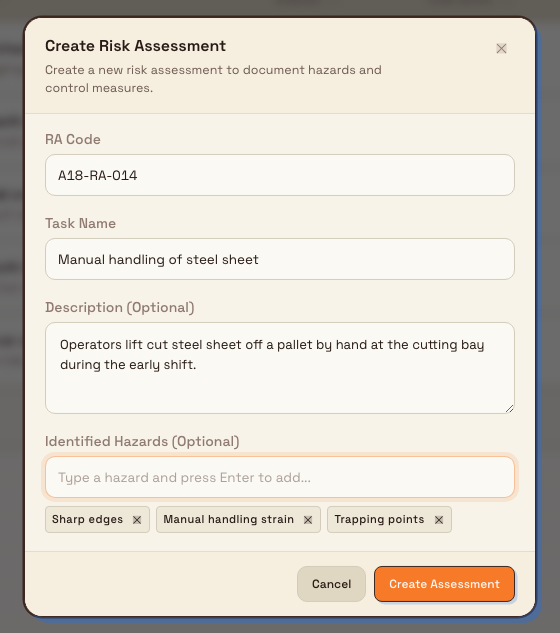
Example: a new assessment at Gotham Applied Sciences
Bruce is documenting manual transfer of cut steel sheets from the unloading pallet to the press brake in Bay 3. He opens Safety > Risk Assessments and selects New Assessment.
He enters the custom RA Code RA-GTH-005, the Task Name Steel Sheet Handling, and a short description of the transfer route and agreed lift limit. In Identified Hazards, he adds Sharp edges, Manual handling strain and Trapping points.
Create Assessment saves the record as Draft, revision 0, with no measures yet. Bruce can now add controls and score the hazards before submitting the assessment for approval.
What happens after you create it
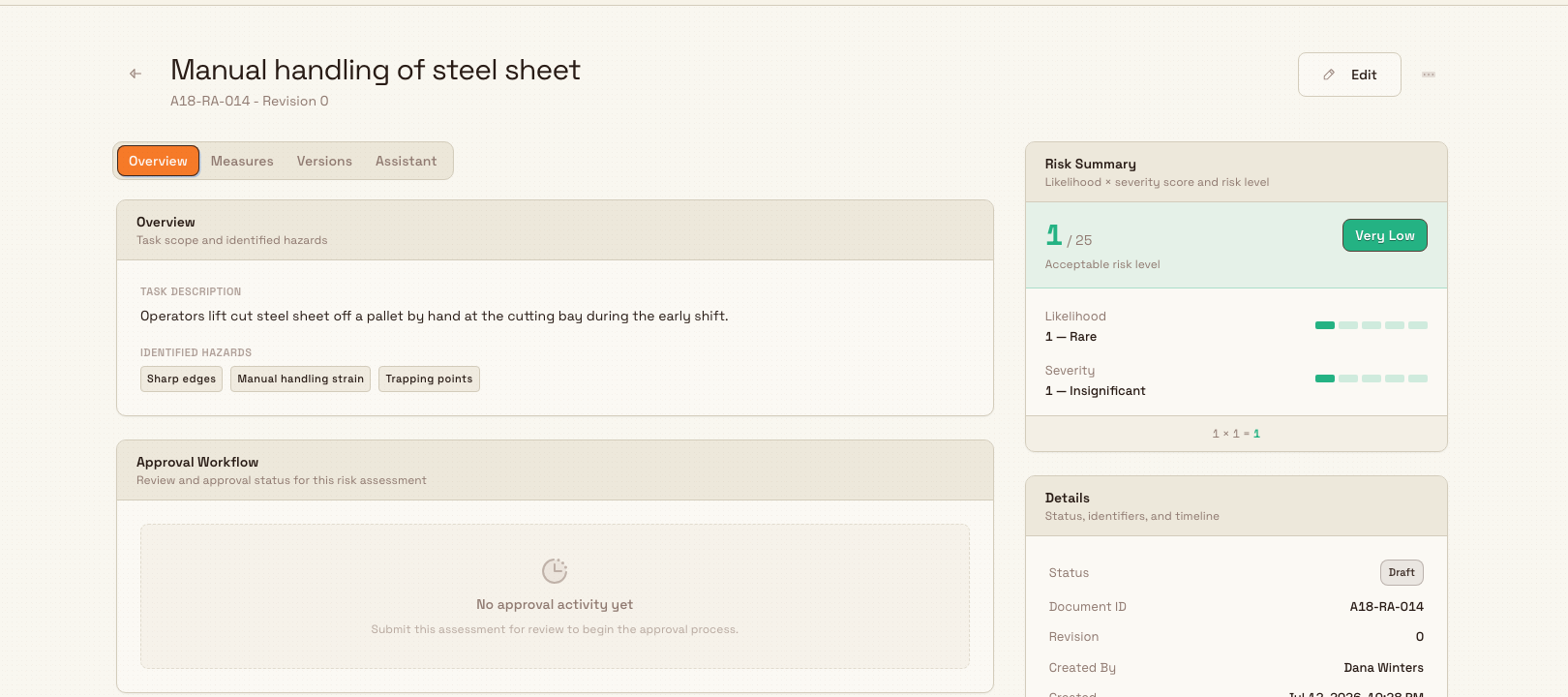
The new assessment is saved as a Draft at revision 0 and opens on its detail page. A draft starts at the lowest risk rating until you score it, and it is not yet a live control — only an approved assessment counts as active. On the detail page you can:
- Edit the details you just entered (task name, description, hazards, and — while it is the only revision — the RA code) using the Edit action.
- Add and manage control measures on the Measures tab.
- Use the Assistant tab for AI help drafting the assessment, when it is available for the draft.
- Score the risk and, when the assessment is ready, submit it for approval.
A brand-new draft does not appear under the page's default Active filter. To find drafts again later, open Safety > Risk Assessments and switch the status filter to Draft.
Feature state
Creating a risk assessment is generally available. The Assistant tab that offers AI help while building a draft is a separate capability with its own guidance; see the related links below.
Troubleshooting
- "RA code is already in use by another assessment." The custom code you typed matches an existing assessment in this plant. Enter a different, unique code, or clear the field and use the code Bulk suggests.
- The save fails with a permission error. Your role can view assessments but cannot create them. Ask an administrator to grant
safety.create_assessmentto your role. - You do not see the Risk Assessments page. Confirm the Safety module is enabled for your plant and that your role includes
safety.view.
Custom codes versus the suggested code
If you leave the suggested RA- code and someone else creates an assessment before you save, Bulk automatically issues you a fresh code so two drafts never share one. A fully custom code (for example RA-DL-033) is not regenerated — if it collides, Bulk asks you to choose another.
Related guidance
- Score risk with the risk matrix — set the severity and likelihood that give the assessment its risk level.
- Use AI assistance in a risk assessment — how the Assistant helps you draft hazards and control measures.
- Submit and approve a risk assessment — move a finished draft through approval so it becomes active.
- Review a risk assessment — keep an active assessment current with periodic reviews.
- Safety overview — the rest of the safety area.
Review the safety overview
See plant safety at a glance: active risk assessments, pending approvals, open incidents, high-risk items, the risk matrix, and overdue pre-use checks.
Score risk with the risk matrix
Understand Bulk's 5x5 likelihood-by-severity risk matrix, score a hazard's initial and residual risk in a control measure, and read the Risk Matrix.