Report a safety incident
Capture a workplace safety incident on one report page that saves as you type, share the draft live with your team, and submit it for approval.
Last updated
A safety incident is any unplanned event on your shop floor that harmed someone, could have harmed someone (a near miss), or damaged equipment. Reporting an incident in Bulk creates a permanent, numbered record of what happened, gathers evidence and witnesses, and sends the record for review so nothing is lost or forgotten.
You report an incident on a single scrolling page. You can capture just the basic facts in a minute, or take your time to add photos, name witnesses, work through the root cause, and list corrective actions. When you submit, Bulk assigns the incident a number, marks it Awaiting Approval, and turns any actions you listed into tasks for your team to follow up.
Use this whenever something goes wrong that affects safety, such as an injury, a near miss, a spill, or damage to a machine, so there is a formal record a supervisor can review and act on.
Before you start
You need the Create incidents permission (safety.create_incident) to start and submit an incident report. By default this permission is granted to the Super user, Entity admin, Manager, and Safety roles, so supervisors and safety-focused staff can report incidents. If you open the Safety area but cannot start a report, ask an administrator to confirm your role includes it.
Reporting works against the site you are currently signed in to. In Bulk a site (also called an entity) is one physical location, such as a single plant. The incident, its draft, and its number all belong to that site.
Where to find it
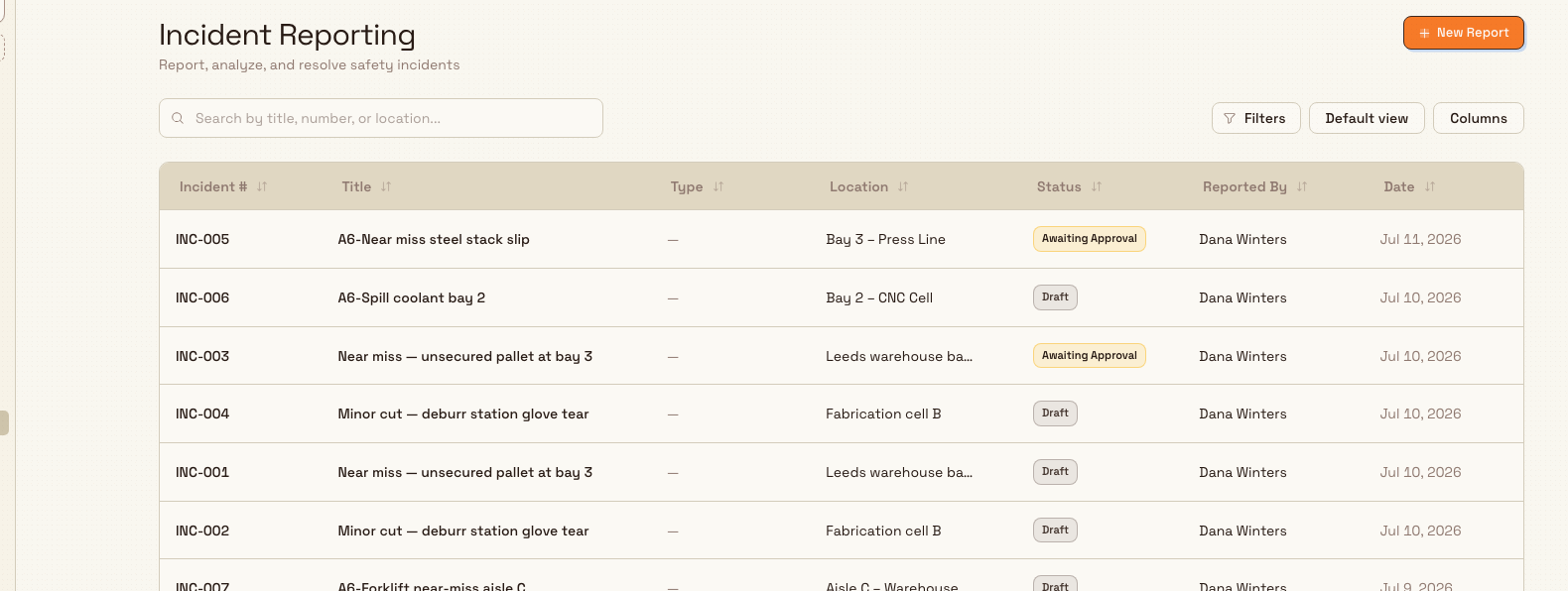
Open the Safety area in the left navigation and choose Incidents. This opens the Incident Reporting page, which lists every incident already recorded for the current site.
Select New Report in the top right to begin. Bulk takes you to the Safety Incident Drafts page, where you can continue an in-progress draft or select Start New Draft to open a fresh report. You can also start from Safety Home: select New, then New Incident.
Fill in the report
Start New Draft opens the Safety Incident Report page. Bulk creates the draft as soon as the page opens, so it is listed on the drafts page straight away, as Untitled draft until it has a title. From then on the report saves as you type.
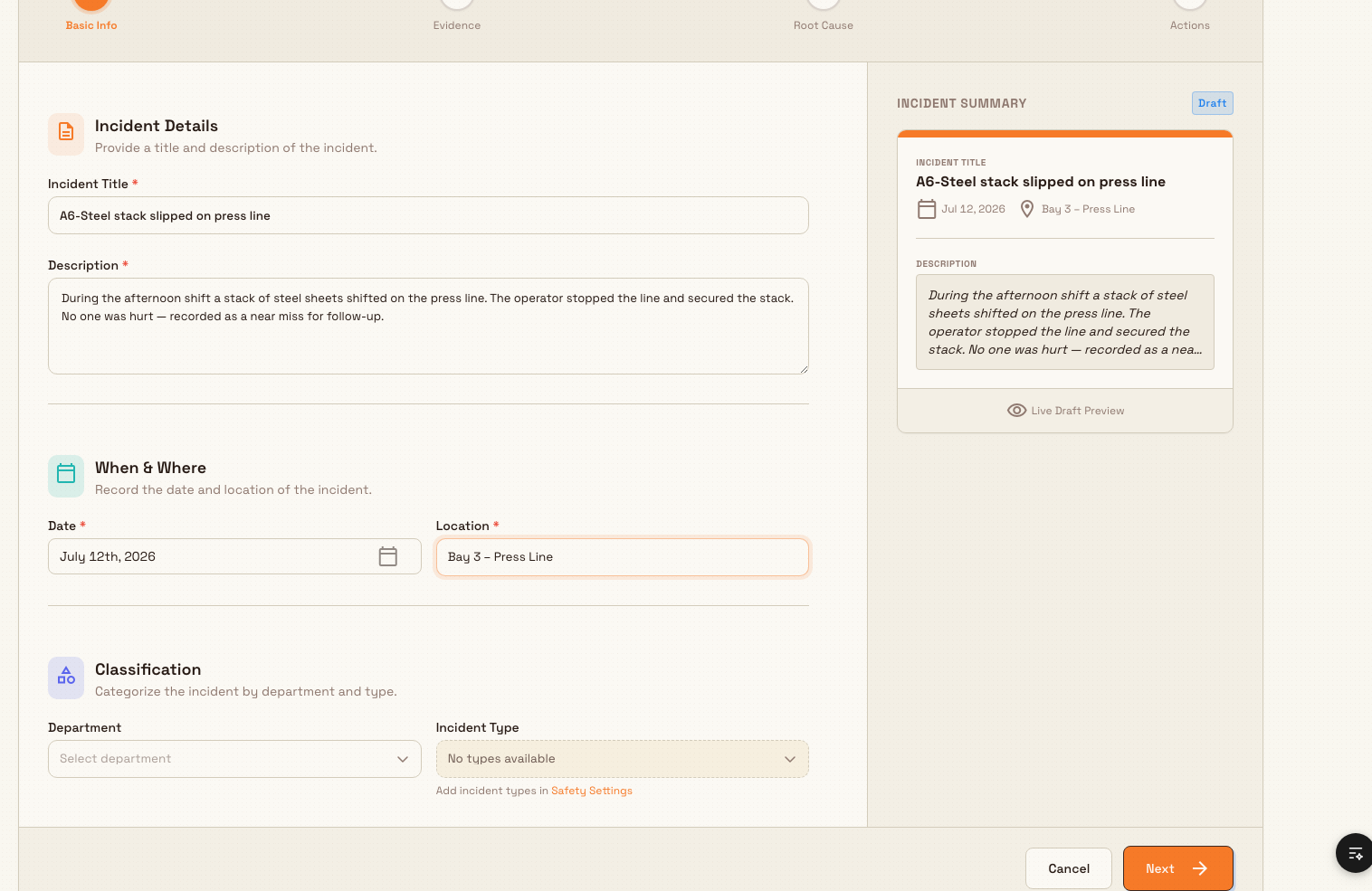
Every part of the report is on the same page, and you scroll down through it. Only four fields are required before you can submit: Incident Title, Description, Date, and Location. Everything else is optional, so you can leave any section blank.
What happened
The first three sections capture the facts:
- Incident Details: enter an Incident Title (a short summary) and a Description (what happened, in detail). Both are required.
- When & Where: until someone picks a date, the draft is dated the day it was started, so a new draft shows today; change it if the incident happened earlier. The date picker does not let you choose a day in the future. Enter a Location. Both are required.
- Classification: optionally choose a Department and an Incident Type (for example a near miss, an injury, or equipment damage). If no types are listed yet, an administrator can add them in Safety settings; departments come from the People area.
Evidence and witnesses
Under Evidence & Attachments, select Select Files (or Add Files once some are listed) to upload photos, videos, or documents related to the incident. Each file uploads and is saved to the draft as soon as you choose it, and removing a file takes effect straight away. Under Witnesses, use the Witness List to select any users who saw the incident or can give a statement.
Root cause
Work through why the incident happened:
- Problem Statement: describe the problem the incident revealed.
- Fishbone Analysis: select Create Fishbone Analysis to build a diagram that sorts possible causes into categories such as people, equipment, and environment. Use the target button on a cause to mark it as the root cause.
- Five Why Analysis: select Create Five-Why Analysis to ask "why" repeatedly until you reach the underlying cause.
- Root Cause Summary: summarise the root cause in your own words.
The fishbone and five-why analyses save as you work on them, separately from the rest of the report. For more on building them, see Investigate a safety incident.
Actions
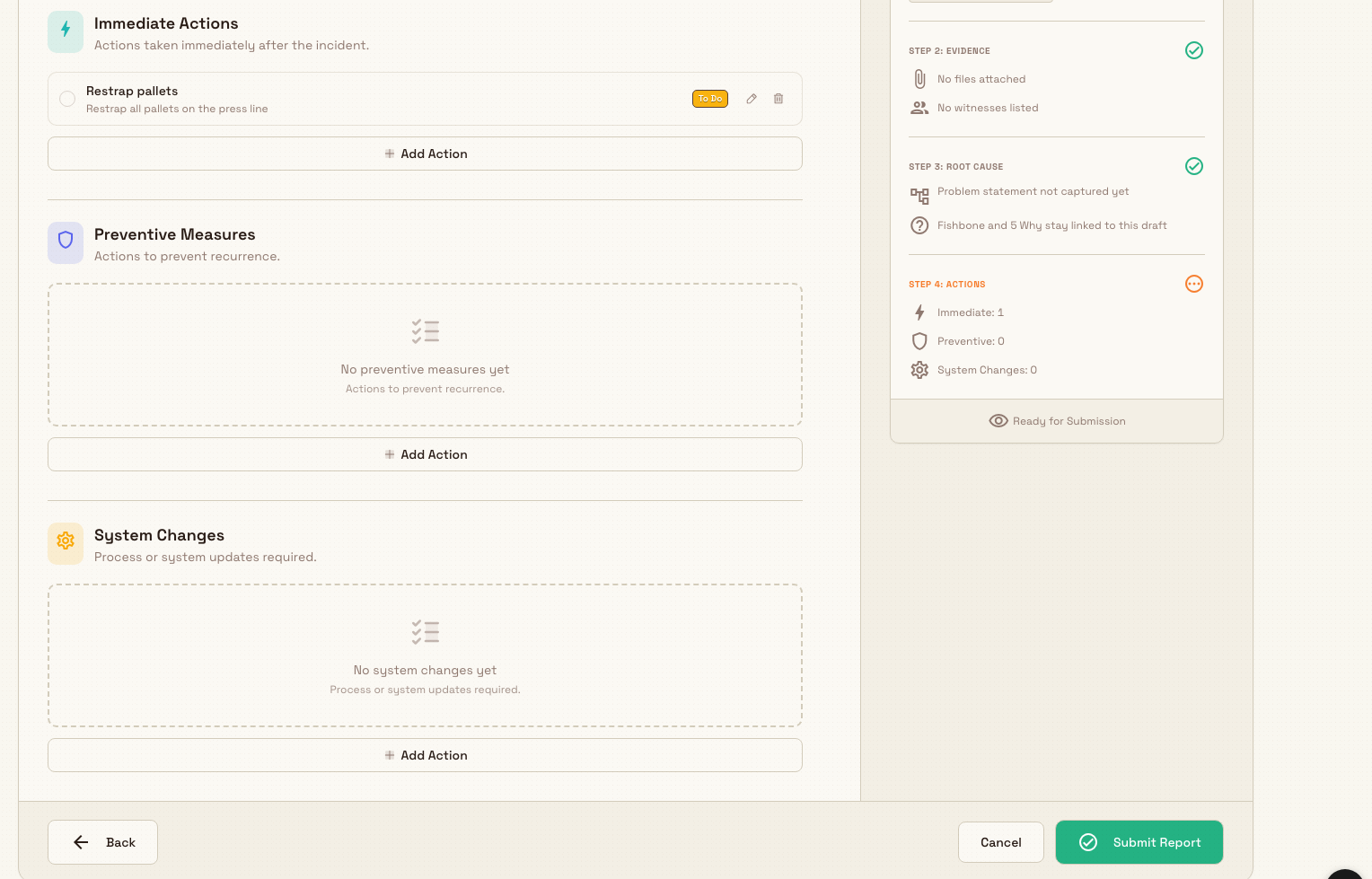
Record Lessons Learned, then add follow-up work under Immediate Actions, Preventive Measures, and System Changes. Select Add Action in a section to open a small form with a Title, a Description (required), Assigned To, and a Due Date, which can be today or later. Select Add Action again to add it to the list. Each action item becomes a task for your team when you submit.
Save your progress
The report saves as you type. A moment after you stop typing, Bulk saves the fields you changed, so there is no save button to remember. Uploading or removing a file saves straight away, and the fishbone and five-why analyses save on their own as you work on them.
The draft is also shared live. Anyone who opens the same draft, in another browser or on another device, sees the same report, and changes saved in one place appear in the others within moments. Each browser sends only the fields it changed, so two people editing different fields do not overwrite each other. If two people change the same field at the same moment, the change saved last is kept.
The footer tells you where you stand:
- Saving... A change is waiting to save or is being saved.
- Draft saved. Complete the required fields to submit. Everything is saved, but one of the four required fields is still empty.
- Draft saved. Ready to submit. Everything is saved and the required fields are filled in.
- Couldn't save your latest changes. Trying again... A save failed. Your changes stay on the page, and Bulk tries again every few seconds.
To leave, select Back to Drafts in the footer or the back arrow in the header. Both return you to the Safety Incident Drafts page, and anything still waiting to save is saved as you leave. If you close the browser tab while a change is still saving, your browser asks you to confirm that you want to leave.
Submit the report
Submit Report is always in the page footer. Until the four required fields are filled in it looks muted, and selecting it moves your cursor to the first empty required field instead of submitting.
Submit Report first saves anything still waiting to save, then submits, and the footer reads Submitting the report... while it works. Bulk removes extra spaces from the start and end of the text you entered, so a field that holds only spaces counts as empty. Bulk also checks the title, description, and location again as it submits, and does not submit the report if any of them is empty. When the report is submitted, Bulk:
- Creates an incident with its own number in the form
INC-001, counting up per site. - Sets the incident status to Awaiting Approval and opens a pending approval for a reviewer.
- Attaches your uploaded evidence and adds the witnesses you named.
- Turns every action item into a task in your site's Safety project, so the work is tracked to completion. Immediate actions become high-priority tasks, and preventive measures and system changes become medium-priority tasks.
Bulk confirms with a Report submitted message and opens the new incident's detail page, where you can see its number, status, and everything you recorded.
You can report first and add detail before you submit
Because only the title, description, date, and location are required, you can log an incident the moment it happens and submit it straight away. If you want to add evidence, root cause analysis, or actions, add them while the report is still a draft: once you submit, the report can no longer be changed from the report page.
Save and resume a draft
You do not have to finish in one sitting. The draft is already saved, so you can simply leave. Open Safety > Incidents > New Report again to return to the Safety Incident Drafts page:
- My Drafts lists the drafts you started. Select Resume Draft to continue one.
- Team Drafts lists in-progress drafts that teammates started at the same site. Select Open Draft to view one; you can also continue and submit it. If a teammate has the same draft open, they see your changes live and you see theirs.
Each draft card shows its title, when it was last updated and by whom, and its location if one is set.
Deleting a draft is permanent
Selecting Delete Draft removes that draft and any files uploaded to it. Bulk asks you to confirm, and this cannot be undone. You can only delete drafts you started. A submitted incident is no longer a draft and is managed from its detail page.
Example: a near miss at Gotham Applied Sciences
A steel blank shifts during a pallet transfer after a part pick. The operator stops the trolley and isolates goods-in bay 2 before the load moves further. No one is injured.
Bruce opens Safety > Incidents > New Report > Start New Draft. He enters Loose pallet band at goods-in, describes the stopped transfer, keeps today's date and enters Gotham goods-in, bay 2. He chooses Production and Near miss under Classification.
He records the cause analysis and lessons learned, then adds three actions: Secure pallet bands, Brief goods-in team and Update pallet handover checklist. Each has a clear description, an owner and a due date.
Once the footer reads Draft saved. Ready to submit., Bruce selects Submit Report. Bulk opens INC-005, marked Awaiting Approval, with the report and its follow-up work ready for review.
What to expect after submitting
- The incident is Awaiting Approval until a reviewer with approval rights approves or refuses it.
- Its number, such as INC-005, is fixed and unique within the site.
- Action items appear as tasks so follow-up is tracked, not just recorded.
- The finished report is no longer editable as a draft; from then on the incident is managed from its detail page.
This capability is generally available; no part of incident reporting is in preview.
Troubleshooting
- Submit Report looks muted and moves you back up the page. One of the four required fields is empty. The footer reads Draft saved. Complete the required fields to submit.; confirm the Incident Title, Description, Date, and Location are all filled in.
- The date you need is greyed out. The date picker blocks future dates. An incident can only be dated today or earlier.
- The Incident Type or Department list is empty. No types or departments exist for the site yet. An administrator can add incident types in Safety settings, and departments are managed in the People area; both are optional, so you can still submit without them.
- The footer says it couldn't save your latest changes. Bulk lost contact while saving, for example because your connection dropped. Keep the page open: your changes stay on the page, and Bulk keeps trying every few seconds and saves them when the connection returns. When the footer reads Draft saved. again, it is safe to leave.
- A field changed while you were looking at it. Someone else has the same draft open, and their saved changes appear on your page within moments. If you both change the same field at the same moment, the change saved last is kept, so agree who fills in which part.
- You cannot find your unfinished report. Reopen Safety > Incidents > New Report and look under My Drafts. A draft without a title is listed as Untitled draft. Drafts that a teammate started are under Team Drafts.
Related guidance
- Investigate a safety incident: work through the root cause and corrective actions for an incident.
- Approve a safety incident: how a reviewer approves or refuses an incident that is Awaiting Approval, and closes it once its follow-up work is done.
- Review the safety overview: the wider view of safety activity across your site.
- Safety: the rest of the Safety area.
Review a risk assessment
Schedule, complete, and cancel periodic reviews of an active risk assessment, recording whether it is still up to date or needs a new revision.
Investigate a safety incident
Find why a safety incident happened with fishbone and five-why analysis, then track its corrective actions on the Actions tab.