Investigate a safety incident
Find why a safety incident happened with fishbone and five-why analysis, then track its corrective actions on the Actions tab.
Last updated
Investigating a safety incident is the work of establishing why it happened and deciding what to change so it does not happen again. In Bulk you do this with two structured root-cause methods — a fishbone analysis and a five-why analysis — and by turning your conclusions into corrective actions that become tracked tasks for your team.
A safety incident is a recorded event on your plant floor, such as an injury, a near miss, a spill, or equipment damage. Reporting the incident captures what happened; investigating it explains why, and drives the follow-up that closes the loop. Use investigation whenever an incident needs more than a note — when you need to find the underlying cause, capture lessons, and assign concrete corrective work.
Where investigation sits in the incident lifecycle
Build the analysis and define corrective actions while you report the incident. After submitting, review the saved findings and track the linked tasks. A reviewer then approves the incident and closes it once the corrective work is finished.
Before you start
To open an incident and read its investigation you need the View safety permission (safety.view). To build or change the analysis and the corrective actions you need the Create incidents permission (safety.create_incident), because the analysis is authored as part of the incident report. In the default role set both permissions are held by the Super user, Entity admin, Manager, and Safety roles, so supervisors and safety-focused staff can investigate.
Start an incident report to build the analysis. Submit it to review the saved investigation on the incident detail page. Everything you investigate belongs to the plant (also called an entity) you are signed in to — the incident, its analysis, and the tasks it generates all stay with that plant.
Build the analysis while you report
You author the root-cause analysis on the incident report page, in its root cause and actions sections. The full walkthrough lives in Report a safety incident; this section explains the analytical content those sections capture.
In the root cause sections you work through four parts:
- Problem Statement — a plain description of the problem the incident revealed. This is the effect you are trying to explain.
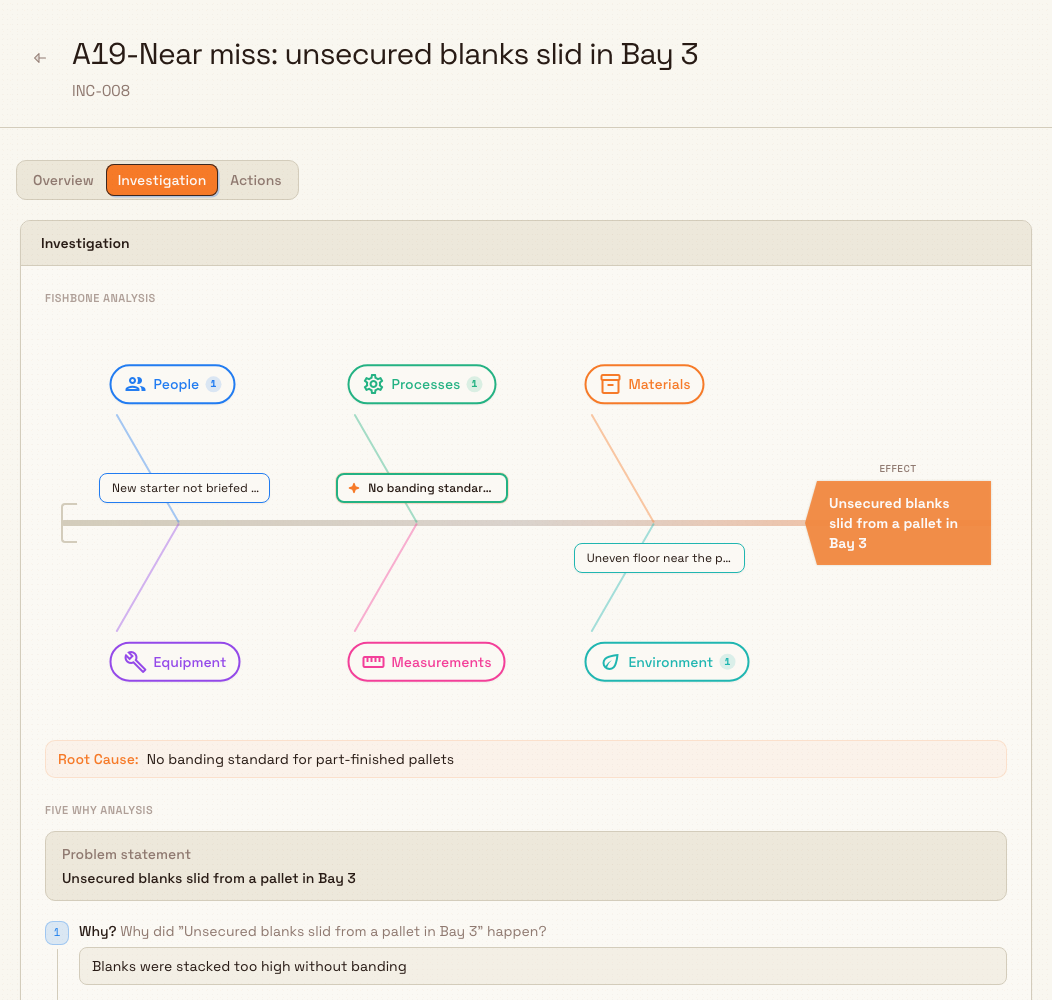
- Fishbone Analysis — a cause-and-effect diagram that sorts possible causes into six categories: People, Processes, Materials, Equipment, Measurements, and Environment. You add candidate causes under each category, click a cause to edit it, and mark the true underlying cause with the target button beside it. You can keep up to five separate fishbone diagrams against one incident when a single event has more than one angle to explore.
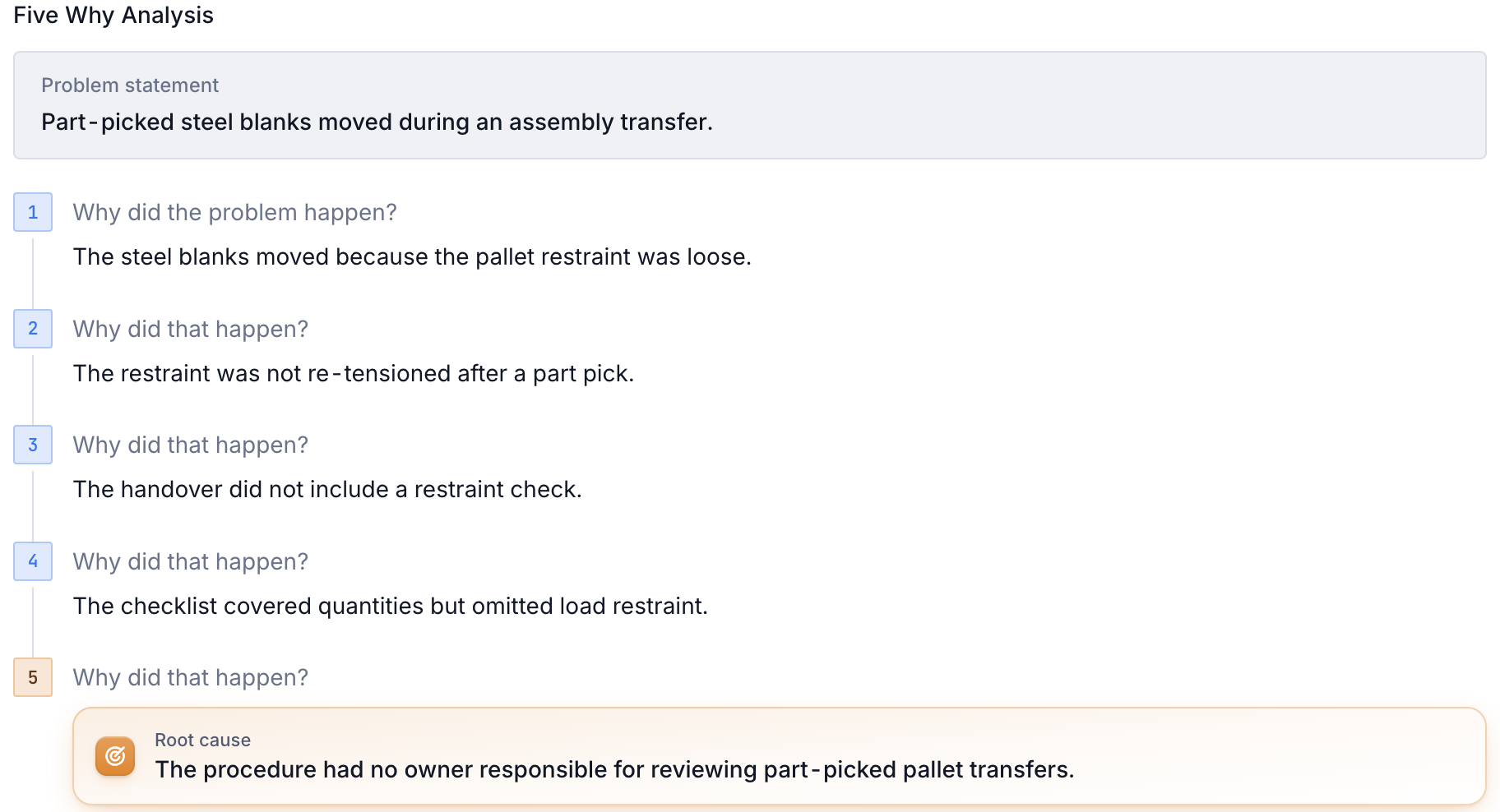
- Five Why Analysis — a chain of "why" questions where each answer becomes the next question, drilling from the surface symptom down to the underlying cause.
- Root Cause — a short written summary of the cause your analysis identified.
In the actions sections you record what you will do about it:
- Lessons Learned — the key takeaways from the incident.
- Immediate Actions — actions taken right after the incident.
- Preventive Measures — actions to stop it happening again.
- System Changes — process or system updates the incident calls for.
When you submit the report, Bulk copies this analysis onto the new incident, moves the fishbone and five-why diagrams so they belong to the incident, and turns every corrective action into a task in your plant's Safety project. From that point on you review and track the investigation on the incident itself.
Review the investigation on the incident
Open the Safety area in the left navigation and choose Incidents to reach the Incident Reporting list. Select an incident's row to open its detail page. The header shows the incident title, number (such as INC-006) and type. The body has three tabs: Overview, Investigation, and Actions. The status appears in Details on the Overview tab.
The Overview tab shows the Description and the Initial Problem Statement, the evidence attached to the incident, and the Approval Workflow card. The two tabs that matter for investigation are Investigation and Actions.
The Investigation tab
Select Investigation to see Findings first, with the written Root Cause and Lessons Learned. Below it, Root Cause Analysis contains the Fishbone Analysis diagram and the complete Five Why Analysis. If a section was left blank when the incident was reported, it says so plainly — for example "No root cause has been recorded." — so you can tell at a glance whether the analysis is complete.
The Actions tab
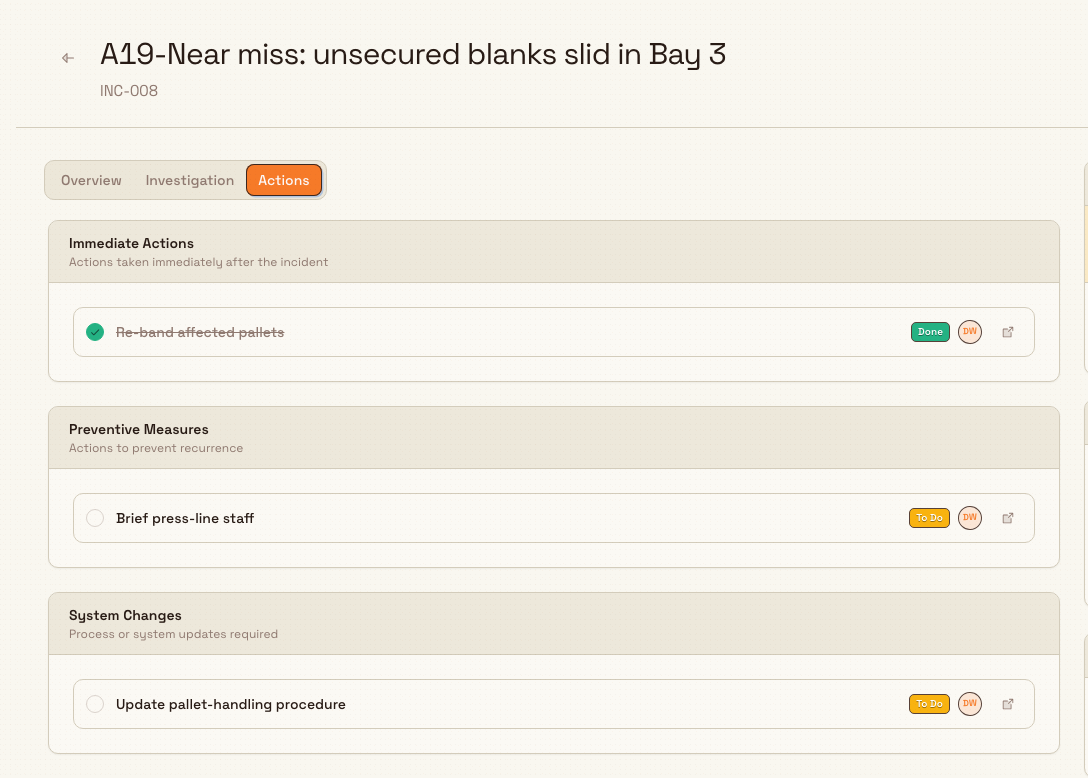
Select Actions to see the corrective work, split into the same three groups you defined when reporting: Immediate Actions ("Actions taken immediately after the incident"), Preventive Measures ("Actions to prevent recurrence"), and System Changes ("Process or system updates required"). Each group lists the tasks Bulk created from your action items, and each task shows its name, its status, and who it is assigned to. A group with nothing in it reads "No actions recorded".
Drive the corrective actions to completion
The tasks on the Actions tab are the real output of the investigation: they turn your conclusions into tracked work. Each one is created in your plant's Safety project and starts with a To Do status. Your team works these tasks like any other — assigning an owner, setting a due date, and moving them to Done — by selecting Open task beside the linked action, or from the Tasks area of Bulk.
Completing this work is also the gate to finishing the incident. Bulk lets a reviewer close an incident only after it has been Approved and every linked corrective task has reached a finished state (Done or Cancelled), with no action item left without a task. Until then, the Close Incident dialog lists the open and missing tasks that are blocking closure. The mechanics of approving and closing are covered in Approve a safety incident.
A thorough investigation makes closing straightforward
Because closing checks that every corrective task is finished, the quality of your action items directly shapes how the incident ends. Action items with clear descriptions become clear tasks; each one you complete moves the incident closer to being closable.
Example: a near miss at Gotham assembly
Bruce reports Load shifted at assembly transfer after part-picked steel blanks move while crossing a floor joint in Gotham assembly, bay 3. No one is injured and the load is secured before work resumes.
His fishbone has a short cause in each of the six categories. He marks Restraint check omitted under Processes as the root cause. The five-why chain follows the loose restraint back to a checklist that omitted the check and a procedure with no review owner.
On INC-006, the Investigation tab shows those findings, the six causes and all five answers. The Actions tab shows Secure assembly pallet as Done, while Brief assembly team and Revise transfer checklist remain To Do, assigned to Bruce with due dates. The team can open each linked task and finish the remaining work before closing the incident.
Expected result
After investigating, the incident carries a documented reason it happened — a fishbone diagram with a marked root cause, a five-why chain, a written root-cause summary, and captured lessons learned — and a set of corrective actions that exist as tracked Safety tasks. When every one of those tasks is finished, the incident can be approved and closed with a complete record of what was found and what was done.
Availability and limitations
This feature is generally available.
- The analysis is authored during reporting. The problem statement, fishbone diagram, five-why chain, root cause, lessons learned, and corrective actions are entered in the report's root cause and actions sections before you submit. On the incident's detail page the Investigation tab presents that analysis for review rather than for editing, and the Actions tab lists the tasks it generated.
- Fishbone diagrams are limited per incident. You can keep up to five fishbone analyses against a single incident. Use additional diagrams only when one event genuinely has separate causal threads.
- Corrective actions live as tasks. Each action item becomes a task in your plant's Safety project. Select Open task beside an action, or use the Tasks area, to work on it. The incident reflects the linked task's current status.
- Investigation is scoped to one plant. An incident and its analysis belong to the entity you are signed in to. If you cannot find an incident, confirm you are working in the plant that owns it.
Troubleshooting
- The Investigation tab looks empty. The root cause sections were left blank when the incident was reported, so no analysis was captured. Sections that were left blank show messages such as "No root cause has been recorded." or "No lessons learned have been captured yet."
- The Actions tab shows "No actions recorded". No corrective action items were added in that group's section of the report, so no tasks were generated. Action items are added while reporting; see Report a safety incident.
- An incident will not close. Closing is blocked while any linked corrective task is still open, or while an action item has no task. Open the Actions tab, finish or cancel the outstanding tasks, then try to close again. See Approve a safety incident.
Related guidance
- Report a safety incident — capture the incident and author its root-cause analysis and corrective actions on the report page.
- Approve a safety incident — review, approve or return, and close an incident once its corrective tasks are finished.
- Safety overview — the rest of the Safety area and how incidents fit alongside risk assessments and pre-use checks.
Report a safety incident
Capture a workplace safety incident on one report page that saves as you type, share the draft live with your team, and submit it for approval.
Approve a safety incident
Review a submitted safety incident, approve it or return it for changes, and close it once every linked corrective task is finished.