Beta
Navigate the 3D factory floor
Open the Digital Twin, switch between Live, Bird, and Edit views, move the camera, and read live machine status, OEE, and 5S zone scores on an interactive 3D map of your factory floor.
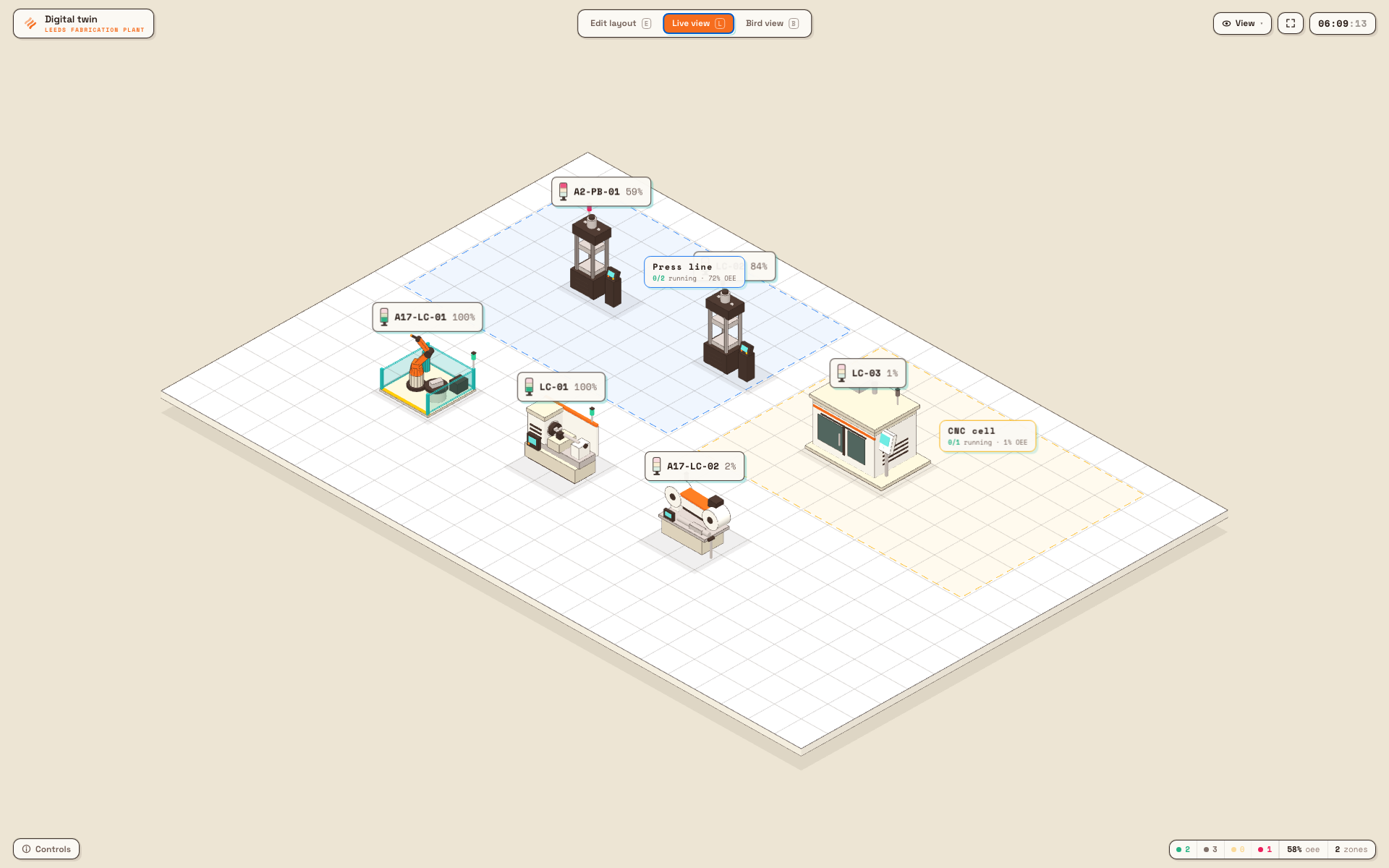
The Digital Twin is an interactive 3D map of your factory floor. Each machine on the map can be linked to one of your real assets (a work center such as a press, printer, or CNC), so the map shows live status, OEE, the current job, the operator on station, and any open downtime — all in one view. Floor zones can be linked to audit areas to show a live 5S score for each part of the plant.
Use the Digital Twin when you want a single, glanceable picture of what the whole floor is doing right now: as a shift-handover briefing, as a wall-mounted andon board in fullscreen, or as a fast way to jump from "something looks wrong over there" to the exact machine, job, and downtime reason behind it.
This guide covers navigating and reading the floor — opening the twin, moving the camera, switching view modes, and inspecting a machine. Building or rearranging the layout is a separate, permission-gated task; see the Digital Twin overview for where layout editing fits.
digital-twin.navigate-factory-01
Before you start
You need permission to open the Digital Twin, and machines need to be linked to assets before any live data appears.
- Permission to view. Opening the floor requires the
digital_twin.viewpermission. By default the Super user, Entity admin, Manager, and Dashboards roles have it. If you cannot see the Digital Twin entry in the sidebar, ask an administrator to grant a role that includes it. - Permission to edit the layout (optional). Rearranging machines, drawing zones, and linking assets requires the separate
digital_twin.managepermission (default: Super user, Entity admin, Manager). Viewers without it see the floor in Live and Bird views only; the Edit layout control is hidden for them. - Linked machines for live data. A machine on the map only shows live status, OEE, job, operator, and downtime once it is linked to an active asset. Machines that are not linked appear on the map but read as "Not linked" with no telemetry.
- A layout for your plant. The Digital Twin is scoped to the entity (plant) you are working in. The first time anyone opens it for a plant that has no layout yet, Bulk creates a default floor automatically, so you always land on a usable map.
OEE and 5S, briefly
OEE (Overall Equipment Effectiveness) is a single percentage that combines how much of the available time a machine was productively running. 5S is a workplace-organization method scored by audits. The Digital Twin surfaces both live: a machine's OEE for today, and a zone's recent 5S score.
Open the Digital Twin
- In the left sidebar, open Digital Twin (under the Production area; it carries a Beta badge). You can also reach it from the Digital Twin tile on your home board, which links straight to the 3D floor.
- The floor opens as a full-canvas view without the usual sidebar, so the map fills the screen. If the plant has no layout yet, wait a moment while Bulk prepares a default floor.
- Confirm the plant name shown under the Digital twin label in the top-left is the one you expect. The map always reflects the entity you are currently working in.
Choose a view mode
The mode segment in the top bar switches how you look at the floor. Each mode has a single-key shortcut shown on its button.
- Live view (
L) — an angled 3D perspective of the floor. This is the everyday monitoring view: you can orbit, tilt, pan, and zoom to look around the plant. Machine colors and the inspector show live data. - Bird view (
B) — a locked top-down overhead map, like a floor plan. Orbit and tilt are disabled here, so the view stays flat and stable; you can still pan and zoom. Bird view is ideal for a clean andon wallboard. - Edit layout (
E) — only visible if you have the manage permission. It switches to a near top-down working view for placing and arranging machines, drawing zones and walls, and linking assets. If you do not have the manage permission, this control is not shown and the shortcut does nothing.
Move the camera
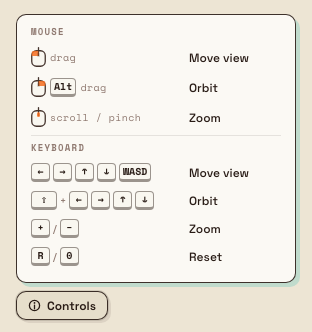
The Digital Twin uses a map-and-CAD style control model that works with both mouse and keyboard. A Controls reference card sits at the bottom-left of the screen — hover it to see every gesture at a glance.
Mouse and trackpad
- Drag with the left button to move the view (pan) across the floor.
- Right-drag, or hold
Altand drag, to orbit the camera around the floor. Orbit is available in Live view and Edit layout; it is disabled in Bird view. - Scroll the wheel, or pinch on a trackpad, to zoom in and out.
Keyboard
- Arrow keys or
WASDmove the view. - Hold
Shifttogether with the arrow keys to orbit (in the modes that allow it). +and-zoom in and out.Ror0resets the camera to its default framing of the whole floor.
Whenever you have moved the camera away from its default framing, a Reset view button appears at the top-right. Click it (or press R) to snap back to the full-floor overview.
digital-twin.navigate-factory-02
Read the live floor
Once machines are linked to assets, the map becomes a live status board.
Machine status colors. Each linked machine is colored by its current status:
- Running — green.
- Paused — amber.
- Down — red.
- Idle — grey (linked, but not currently running, paused, or down).
The stats pill. At the bottom of the screen, a summary pill counts linked machines by status, shows the average OEE across the floor for today, and shows how many zones the layout has. Hover it for a breakdown: a stacked bar of running/idle/paused/down work centers, a per-status list, the average OEE bar, and the active zones.
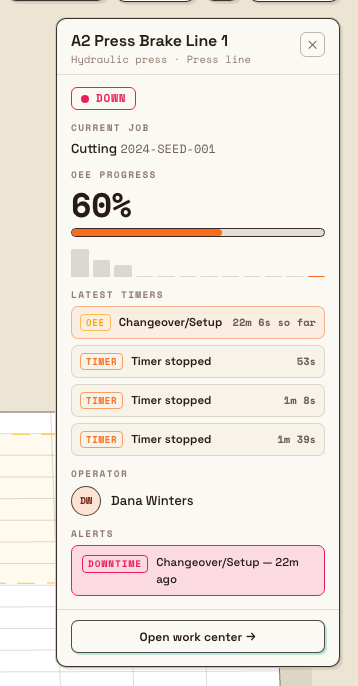
Inspect one machine. Click any machine to open its inspector panel. In Live or Bird view the panel shows, for the linked asset:
- A status pill (Running, Paused, Down, Idle, or "Not linked").
- Current job — the loaded step and job number, or "No job loaded."
- OEE progress — today's OEE percentage, a progress bar, and a small sparkline of the day so far.
- Latest timers — recent timer and OEE activity for the machine.
- Operator — who is on station, or "Unassigned."
- Alerts — any open downtime, with the reason and how long it has been down.
The Open work center button at the bottom of the inspector jumps to the underlying asset in your master data. Storage and set-dressing items (racks, pallets, and similar) are marked "Passive" and carry no telemetry.
Zones and 5S. If the layout has zones linked to audit areas, each zone shows a live 5S score averaged over recent completed 5S audits, so you can see which parts of the plant are staying organized.
digital-twin.navigate-factory-03
Show or hide detail
The View menu in the top bar controls how much the map shows, so you can tune it for close inspection or for a clean wallboard:
- Machine labels — choose full, compact, or off.
- Zone labels — show or hide zone name tags.
- Floor grid — show or hide the floor grid.
- Legend & counters — show or hide the Controls card and the stats pill.
The fullscreen button (top-right) expands the floor to fill the display — labeled Fullscreen (TV mode) — which is the setup for a wall-mounted andon board. A live clock sits at the far right of the top bar.
Example: shift handover at Leeds Fabrication Plant
Priya, a shift lead at Granite Peak Manufacturing's Leeds Fabrication Plant, starts each afternoon shift at the wall-mounted display by the production office. The Digital Twin is already open in Bird view and fullscreen, showing the whole plant top-down as an andon board.
At handover she notices one machine has turned red. She clicks it: the inspector shows the work center is Down, the alert reads a "Tooling change" downtime that has been open for 22 minutes, the operator on station is named, and the current job is a bracket run. She switches to Live view (L) and orbits around that corner of the floor to see the neighboring stations, confirms the two presses beside it are still Running green, and reads the floor's average OEE from the stats pill. Within a minute she has briefed the incoming shift on exactly where to focus — no spreadsheet, no walking the floor.
What to expect
- The map reflects live data. Machine colors, the stats pill, and the inspector update as timers start and stop, jobs load, operators sign on, and downtime opens or closes — you do not need to refresh.
- Your view mode, camera position, and View-menu choices are local to your session. Changing them does not affect other people looking at the same floor.
- Reset view (
Ror0) always returns you to a framing of the whole floor.
Limitations and beta state
The Digital Twin is a beta feature. It is functional and safe to use for monitoring, but expect its appearance and controls to keep changing, and verify anything you rely on against the live machine data it links to.
- Live data depends on linked assets. A machine shows telemetry only when it is linked to an active asset. Unlinked machines, and passive storage items, show no live status.
- OEE is "today so far." The OEE figures and sparkline cover the current plant day, computed from recorded timer and OEE activity; they are not a historical report. For history and trends, use the analytics screens.
- 5S scores are a recent average. A zone's 5S score reflects recently completed 5S audits for its linked audit area, averaged over a trailing window — not a single latest audit.
- Editing needs the manage permission. Viewers can navigate and inspect but cannot change the layout; the Edit layout control is hidden without
digital_twin.manage. - 3D rendering. The floor is rendered in 3D in the browser and is best used on a reasonably capable display; a wall-mounted screen or desktop works better than a small phone for the fullscreen andon use.
Troubleshooting
- The Digital Twin is not in my sidebar. Your role does not include
digital_twin.view. Ask an administrator to grant a role that has it (for example Manager or Dashboards). - Machines show no status or "Not linked." Those machines are not linked to assets. Linking is done in Edit layout by someone with the manage permission; until then, no live data appears for them.
- The floor says "No floor yet" or looks empty. No layout has been built for this plant. Bulk creates a default floor automatically on first open; a fuller floor is created by someone with the manage permission arranging machines and zones.
- I cannot orbit the camera. You are in Bird view, which is deliberately locked to top-down. Switch to Live view (
L) to orbit and tilt. - The camera drifted and I am lost. Press
Ror0, or click Reset view, to return to the full-floor overview.
Related guides
- Digital Twin overview — what the module is and how layout editing fits in.
- Asset Board — the same live machine status and OEE in a table.
- OEE timeline — historical OEE and downtime for a machine.
- 5S analytics — the 5S scores behind zone colors.
- Assets and layouts — the assets that machines link to.
Digital Twin
A live 3D model of your plant floor that shows each machine's status, OEE, and current job in real time, scores zones by 5S, and lets you build the layout and show it on a wall display.
Whiteboard
Create, share, and co-edit real-time visual canvases in Bulk — freeform whiteboards for sketches, diagrams, and photos, shared across your whole workspace.